
Data Access Right
AlignBooks makes it easy to manage who can access different types of data within your system. With this feature, you can decide and assign specific permissions to each user, ensuring they only see and work with the data they need for their role.
If your business has multiple team members managing data, you can customize access for each person individually. For example, one user might only handle sales records, while another might work with financial reports. This way, you maintain better control over sensitive information, prevent unauthorized access, and keep your data organized and secure.
By setting up clear data access rights, AlignBooks helps streamline your workflow and ensures that every team member has access to the right tools and information to do their job efficiently.
-
Click on 'Configuration' icon and select 'Data Access Right' option.

-
A 'Data Access Right' window will appear.
-
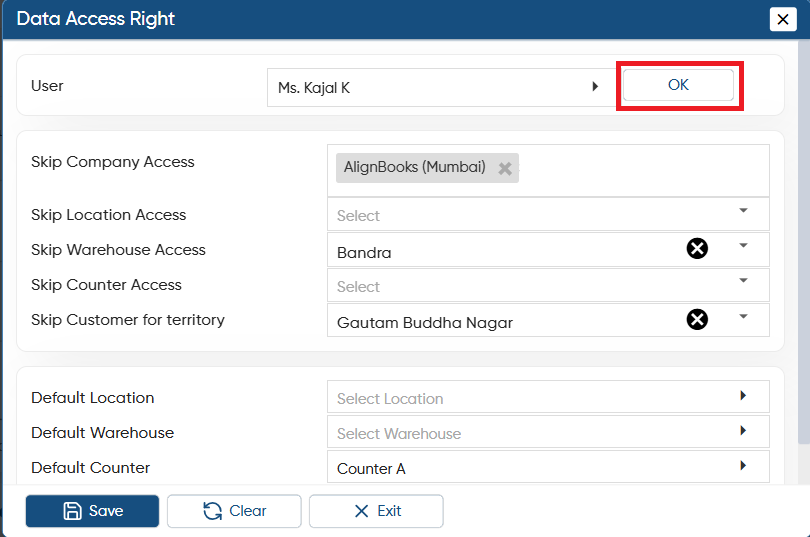
In 'User' option, click on the dropdown to select the user for which you want to set the data access rights.
-
Click on 'OK' button.
-
Skip Company Access: Select the company you want to block or prevent the user from accessing. This means the selected company will not be available for the user to view or interact with.
-
Skip Location Access: Select the location you want to block or restrict the user from accessing. Once blocked, the user will not be able to see any data related to that location. Additionally, the selected location will no longer appear in the Transactions and Reports sections for the user.
-
Skip Warehouse Access: In the same way, you can block a specific warehouse for the user. The selected warehouse will not be visible to the user, and they won’t be able to access its data.
-
Skip Counter Access: If you want to restrict your user for any specific counter then you can select the counter here, and your user will not be able to access the data for that counter.
-
Skip Customer for territory: To restrict a user from accessing specific customer territories, select the territories you wish to ban here.
-
Default Location: Here, you can select any location to set as the default for the selected user. This default location will automatically be selected whenever the user creates an entry or views a report.
-
Default Warehouse: You can also select any Warehouse to set as the default for the selected user. This default Warehouse will automatically be selected whenever the user creates an entry or views a report.
-
Data Availability: Here, you can select how you want display the data for the user.
-
Default: Through this option the user can view the all data of the company.
-
Self: Select this option if you want your user to only view the data they have created or entered.
-
Hierarchy: In AlignBooks, you can configure user reporting. This option allows users to view only the data they or their subordinates have created or entered, excluding data from the person or manager they report to.
-
Skip Production Cost Visibility: To restrict the user from viewing Production Cost Visibility, select the checkbox.
Click on 'Save' button to save the changes.
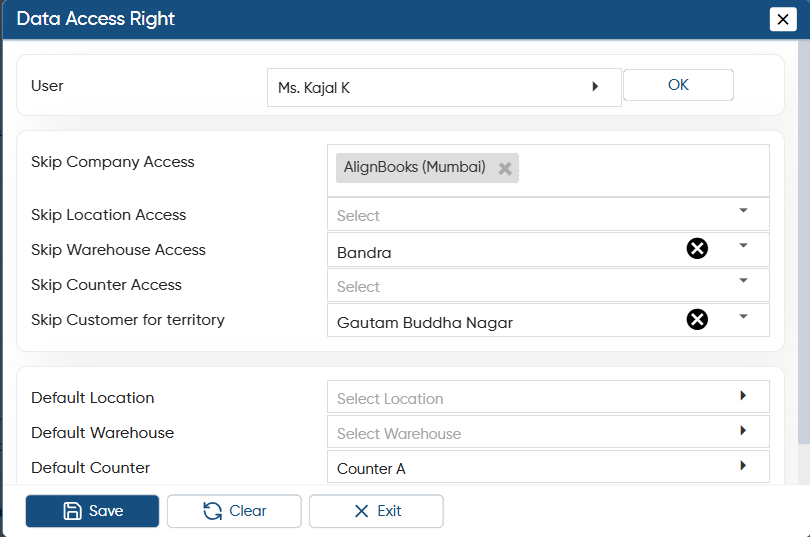
In this way, you can manage the Data Access Rights for the user in AlignBooks.