
Force Close Pending Document
AlignBooks provides a convenient feature that allows you to easily transfer details from an Estimate, Order, or Dispatch directly into an Invoice. This means you don’t have to manually enter the items again. With the "Pull" option, all the necessary information automatically appears in the Invoice.
However, if there’s ever a situation where you don’t want certain Estimates, Orders, or Dispatches to be pulled in an Invoice, AlignBooks gives you the ability to 'close' those documents. This feature ensures that they cannot be pulled into the Invoice later. You can use the 'Force Close Pending Document' option to mark these documents as closed, preventing them from being included in any future transactions.
-
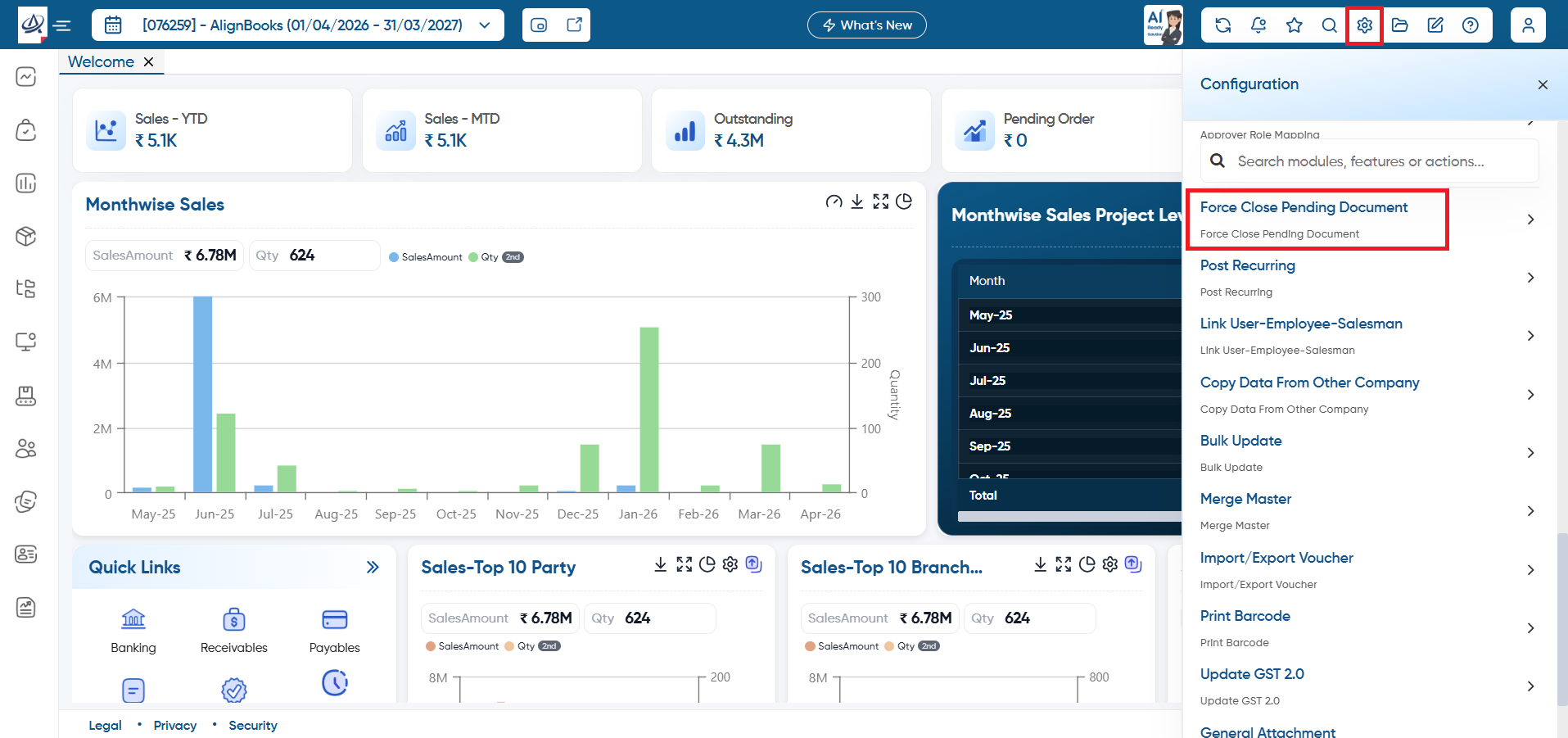
Click on 'Configuration' icon and select 'Force Close Pending Document' option.
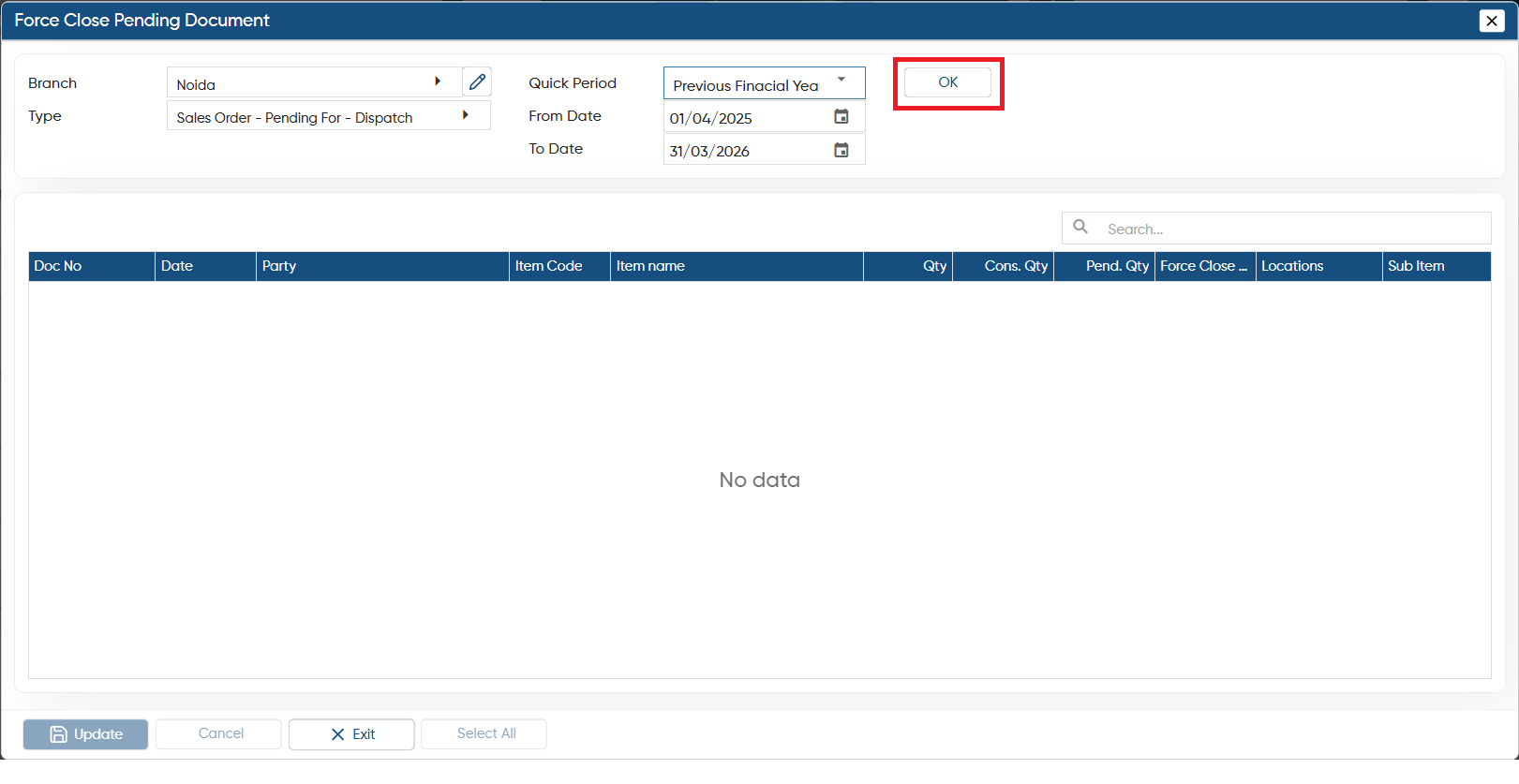
Here, you need to select the Branch, type, Date of the document that you need to close.
-
Branch: Select the branch whose document you need to close forcefully.
-
Type: In 'Type' option select the type of the document such as Dispatch/ Estimate/ Order etc.
-
From Date - To Date: Mention or select the date range for which document you need to close.
Click on 'OK' button.
-
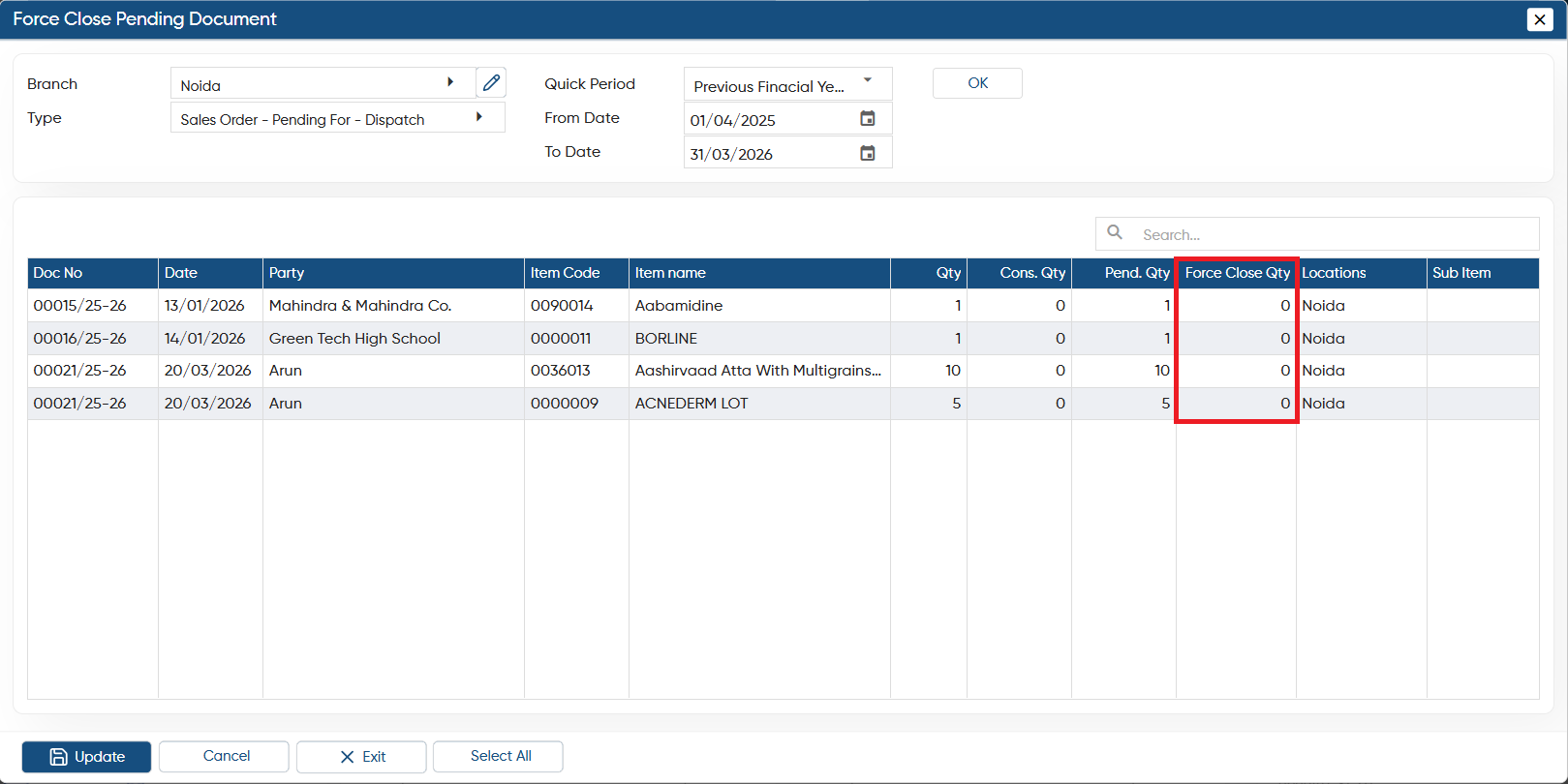
In the 'Force Close Qty' column, you can specify the quantity of an item if you only want to close a selected quantity within the document. Alternatively, you can click the 'Select All' button (shown as the left bottom of the screen) to close all quantities of all items in the document.
-
Thereafter, click on 'Update' button to force close.
-
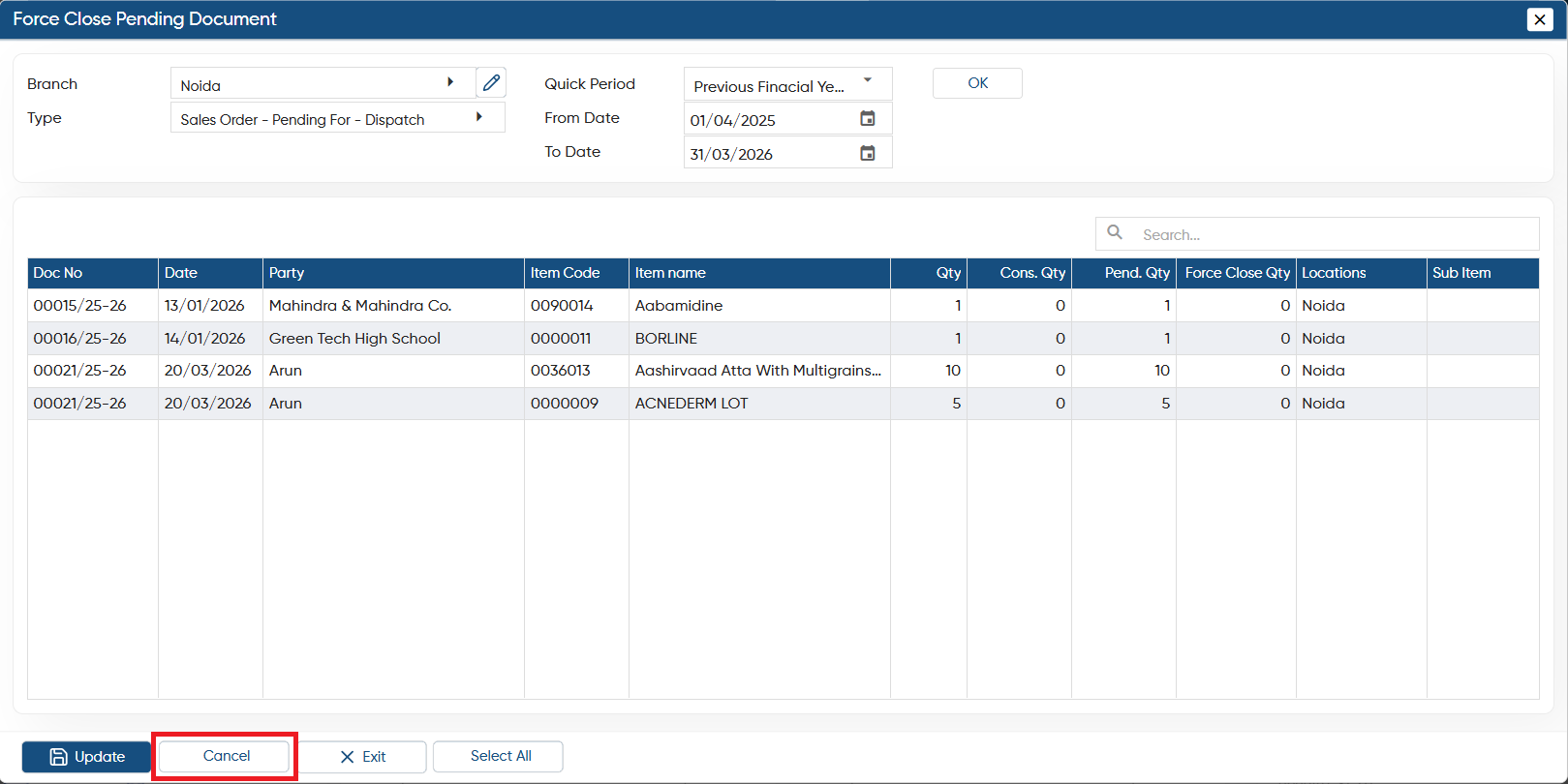
If you need to reapply the filters or undo any changes you've made, simply click the 'Cancel' button. This will reset all filters, allowing you to select the branch, type, and date again.
In this way you can Force Close Pending Documents in AlignBooks.