
Inventory Setup
In Inventory Setup, the user can set preferences and requirement related to the Item/Product and documents. The Inventory Setup is divided in 9 Parts:
-
Basic
-
Inventory Document Custom Fields
-
Item Master Custom Fields
-
Item Extended Properties
-
Item Document Attribute
-
Fixed Asset HandsIn Attribute
-
Item Master Attribute
-
Sub Item Master Attribute
-
Service
To Update all these details, follow the below mentioned procedure:
-
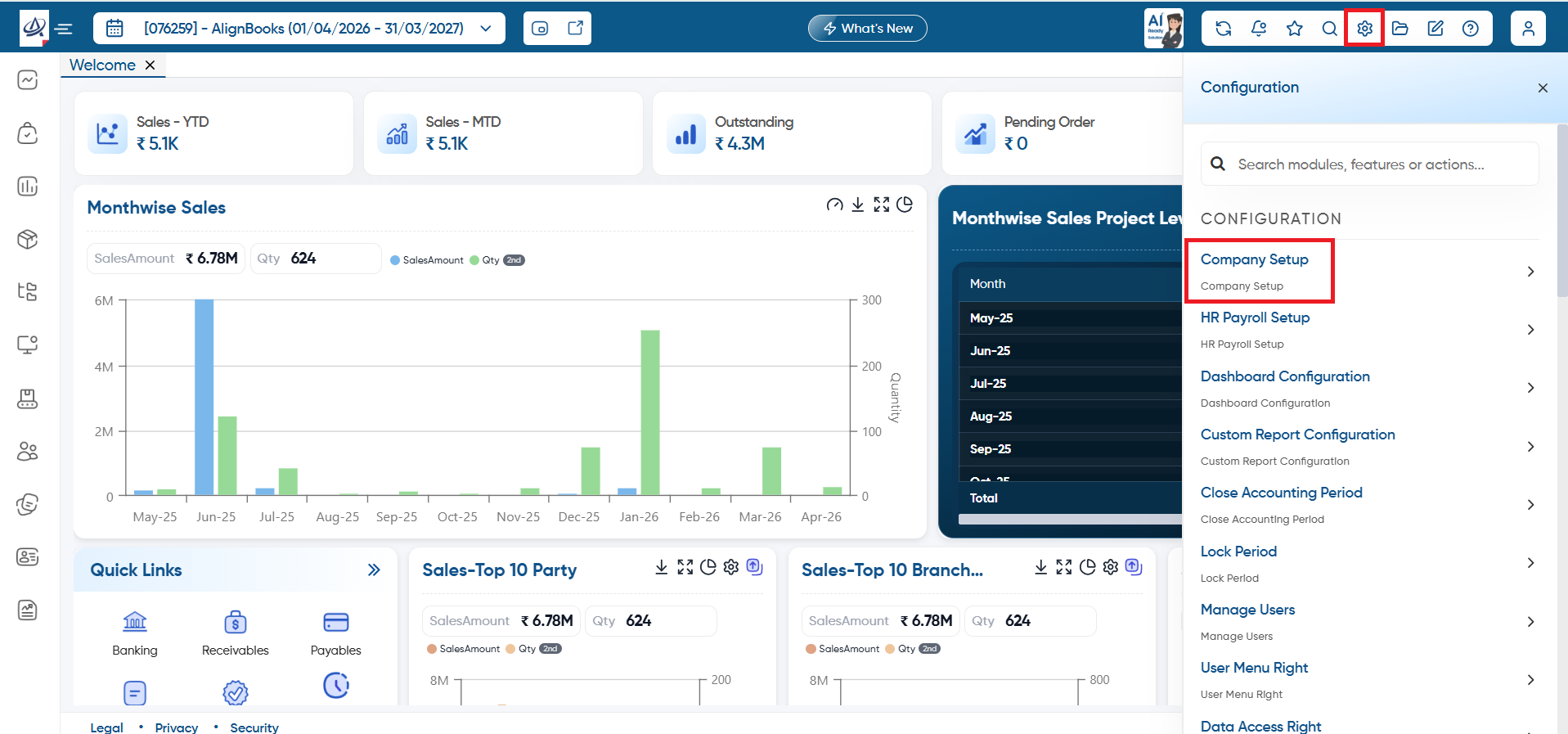
Click on 'Configuration' Icon and select 'Company Setup' option.
-
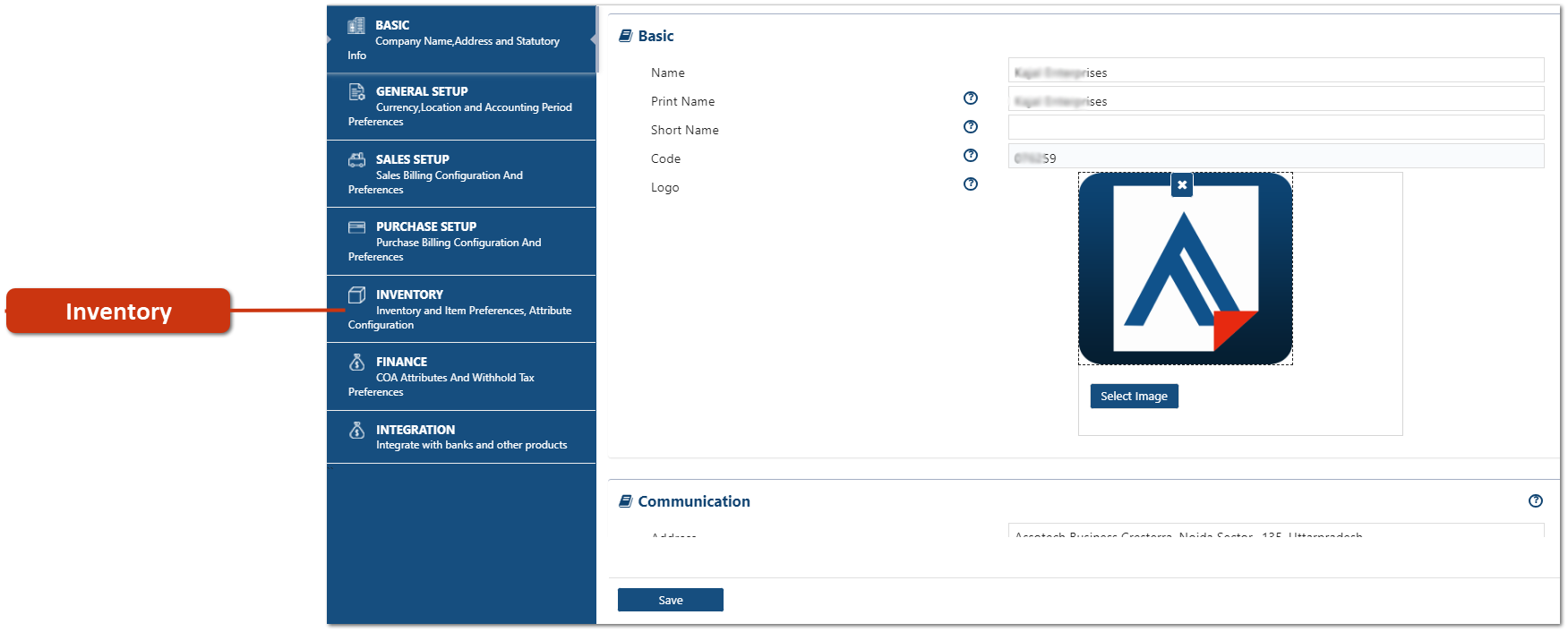
Click on 'Inventory'.
Basic
-
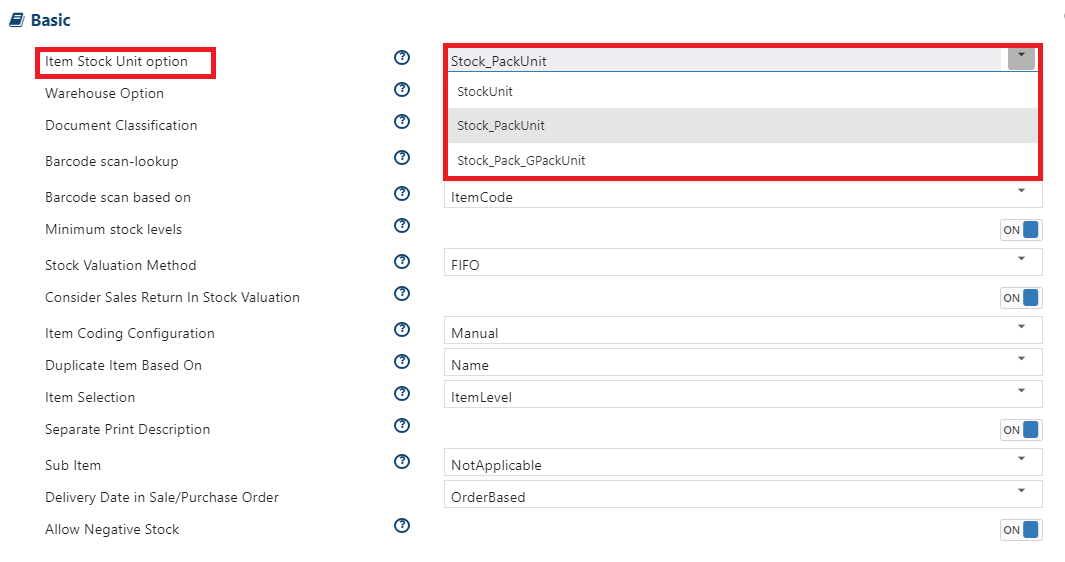
Item Stock Unit option: Select the option, to maintain the stock in One/Two/Three Unit as per the requirement.
StockUnit: Choose this option to manage stock in a single unit, like pieces (PCS). It helps you accurately track items counted individually.
Stock_PackUnit: Choose this option to maintain a stock level of 2 units. (For example, if a single item box contains 5 PCS, the stock will be managed accordingly.)
Stock_Pack_GPackUnit: Similarly, through this option you can manage the stock in 3 Unit also.
-
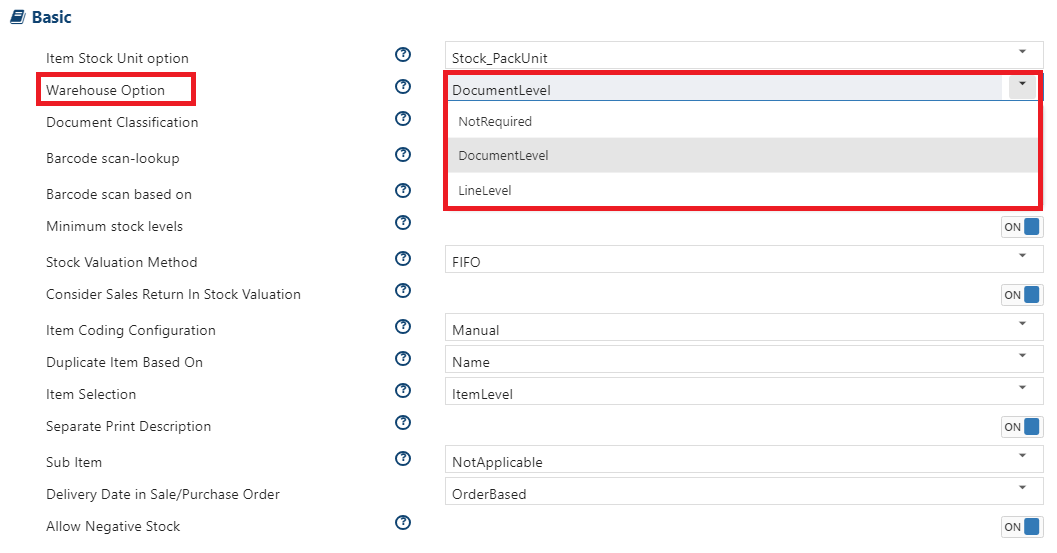
Warehouse Option: The concept of multiple warehouses in an inventory or storage system involves maintaining and managing distinct locations for storing goods. For example, a company might have warehouses in different parts of Noida, such as one in Sector 60 and another in Sector 10, and so on.
-
You can manage Warehouse by 2 ways in AlignBooks.
DocumentLevel: Select this option to manage warehouses based on invoices. This means that when generating an invoice, the software will prompt you to select a warehouse once for the entire invoice. All items included in that invoice will then be associated with the chosen warehouse.
LineLevel: Select this option to manage warehoused based on Item. This means that when you will generate an invoice, the software will ask you to select warehouse on each item selection for a single invoice.
-
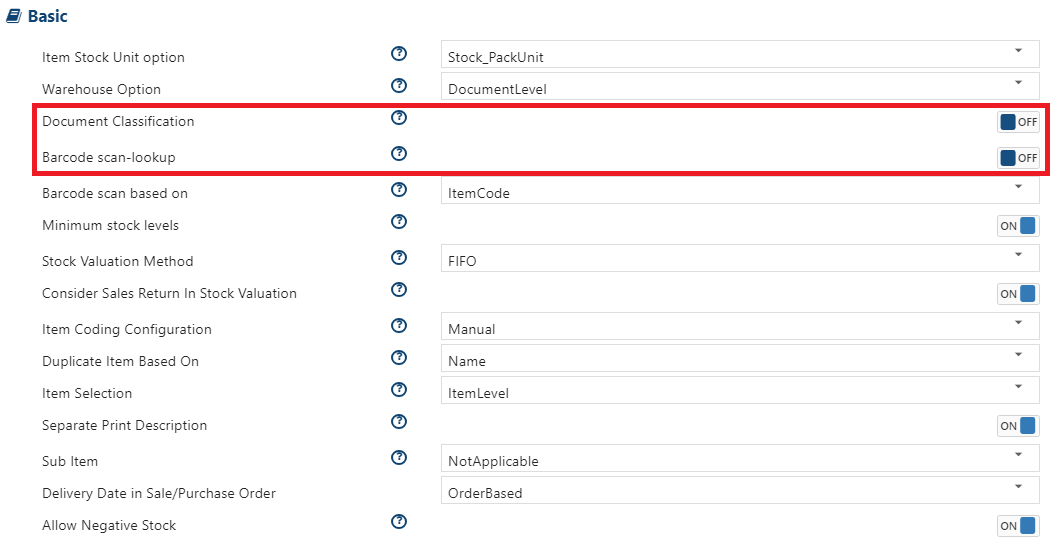
Document Classification: Turn 'ON' this option, to classify the Inventory documents in several different criteria like based on which reports can also be filtered.
-
Barcode scan-lookup: Turn 'ON' this option, if you want software to scan the barcode at the time of movements of Items.
-
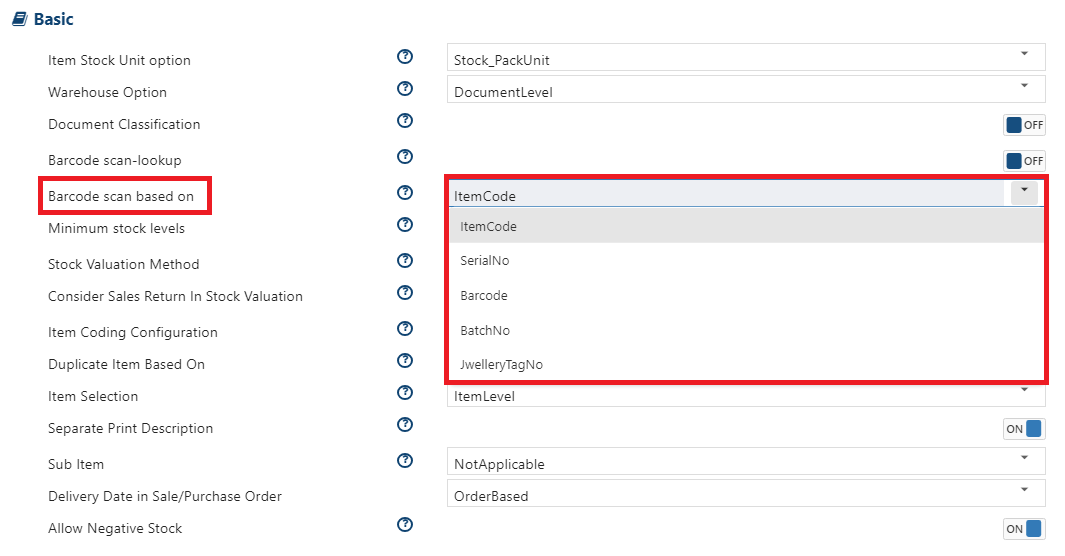
Barcode scan based on: Here, you need to select the option based on which the item's barcode needs to be scanned.
-
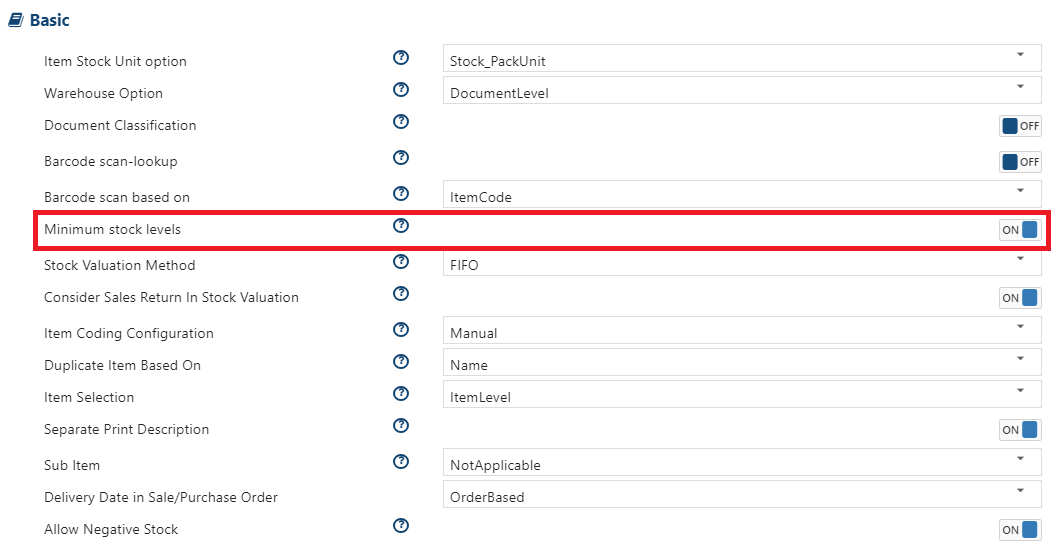
Minimum Stock Levels: Turn 'ON' this option, to maintain minimum level stock. If stock level goes below the mentioned level then software will give you an alert.
-
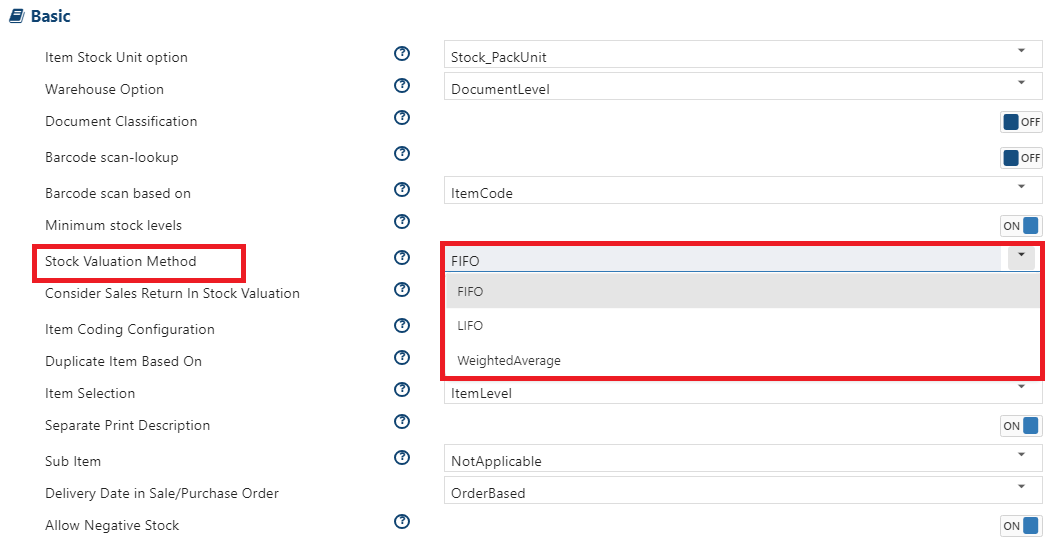
Stock Valuation Method: Choose the appropriate valuation criteria from the dropdown to determine how you want to calculate your stock value.
FIFO: This method assumes that the oldest inventory items (first-in) are sold first (first-out), leaving the most recently purchased items as unsold.
LIFO: This method assumes that the most recently purchased inventory items (last-in) are sold first (first-out), leaving the older inventory items as unsold.
WeightedAverage: This method calculates the average cost of all inventory items and assigns this average cost to both the COGS and the ending inventory.
-
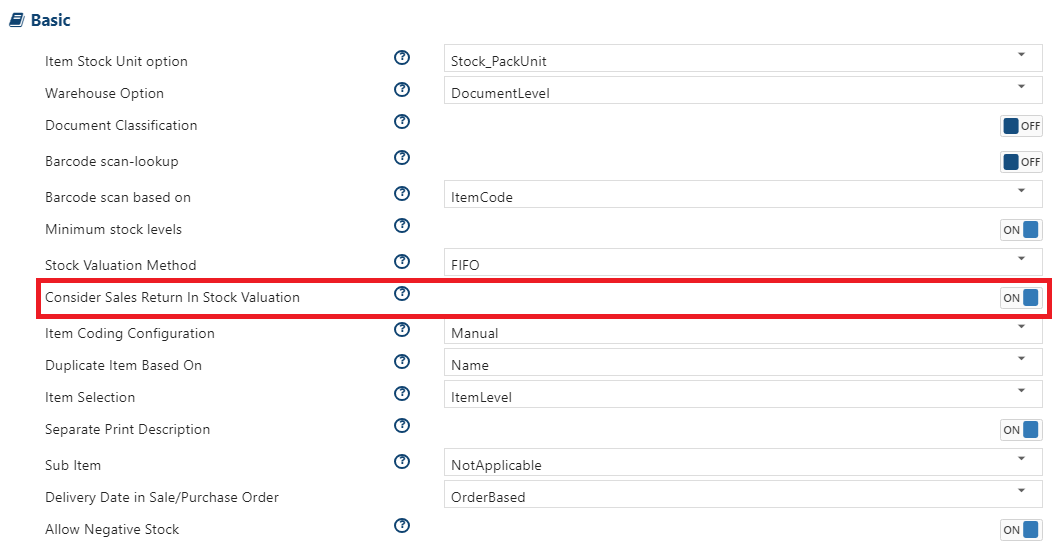
Consider Sales Return In Stock Valuation: The stock valuation is based on the items currently available. If you'd like the stock that has been returned to be deduct from the stock value then turn this option 'ON'.
-
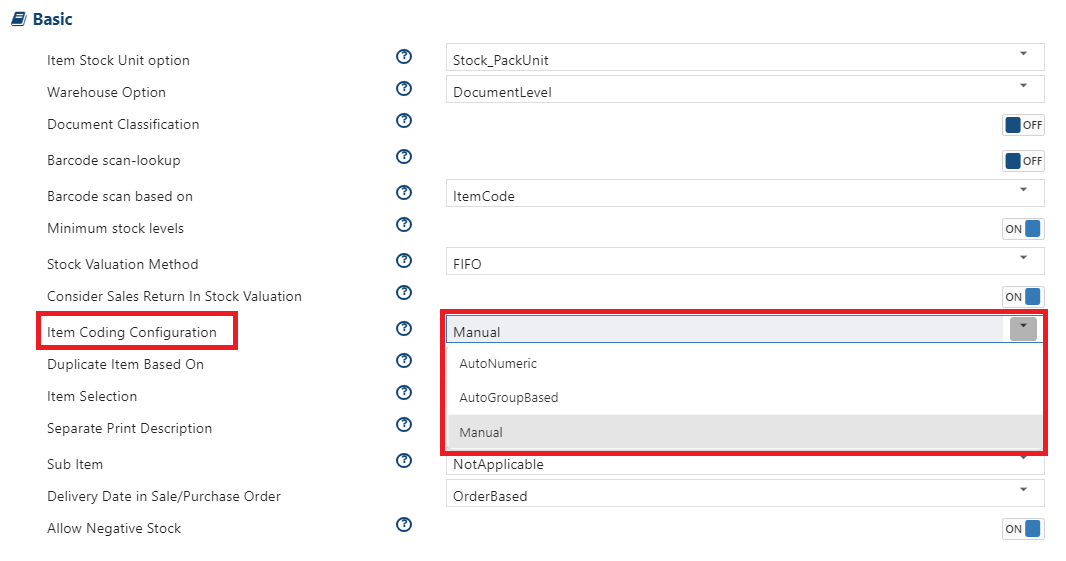
Item Coding Configuration: Select the option to generate the item code based on different patterns. AlignBooks provided you the 3 ways to generate the Item Code as per your need.
Manual: Select this option, to mention item code manually. Through this option you can manually mention the item code for each item as per the requirement.
AutoNumeric: Select this option, if you want the software to generate the item code Numerically.
AutoGroupBased: Select this option, if you want the software to generate the item code based on the Item's group name.
-
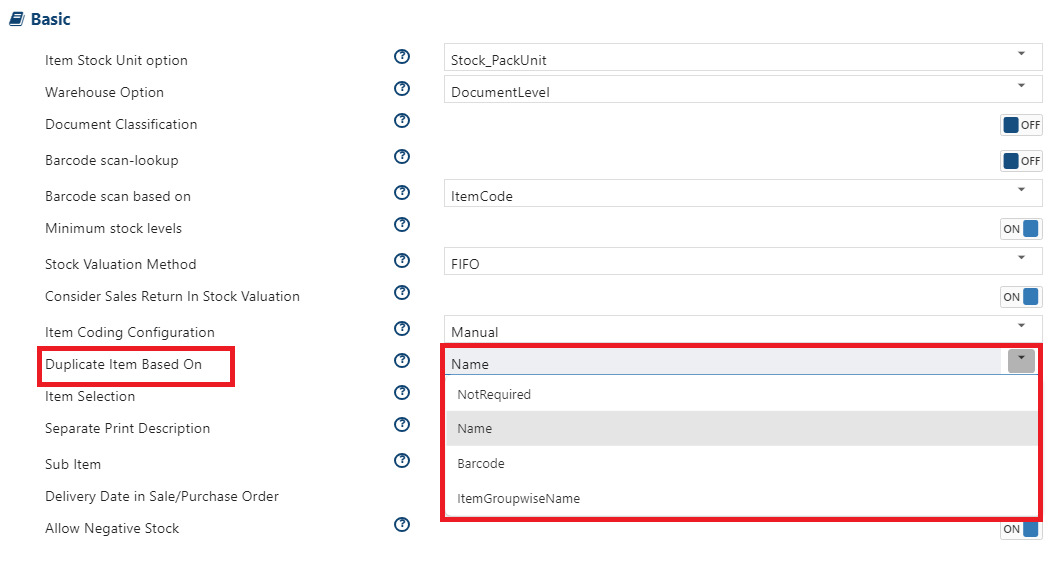
Duplicate Item Based On: This option will helps you identify duplicate items based on Item Name, Barcode, or Item Group Name. You can configure the software to alert you whenever a duplicate item is created.
-
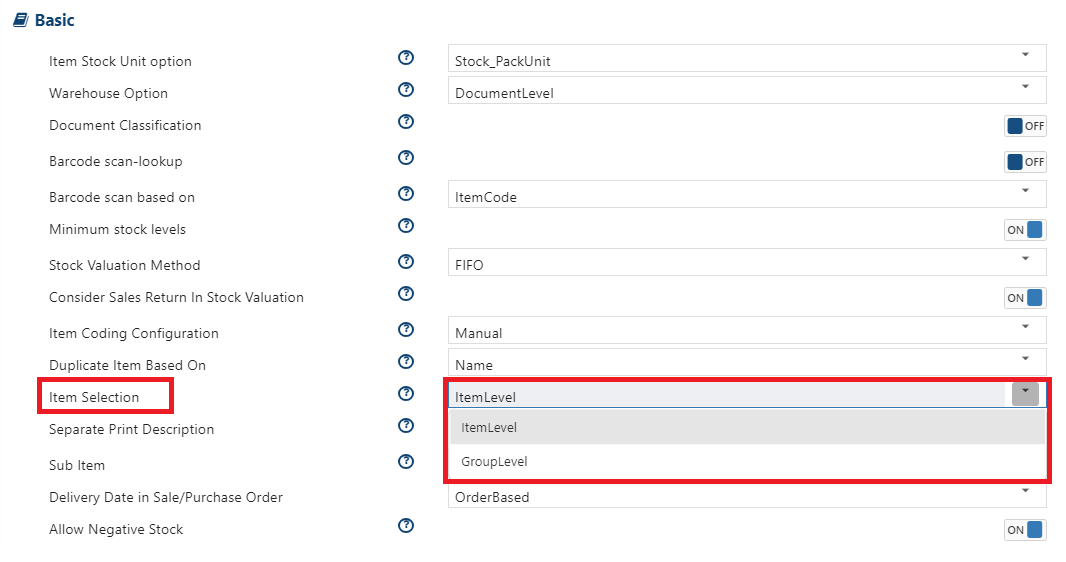
Item Selection: Choose the option for how you want to maintain the item selection at the time of making entries in voucher. Alignbooks gives the flexibility to maintain selection in two ways.
ItemLevel: If you want to directly select the item from the list while generating document then select this option.
GroupLevel: Through this option, first software will ask to select the Item's group and the based on selected group item list will appear. Thereafter, you will be able to select the Item.
-
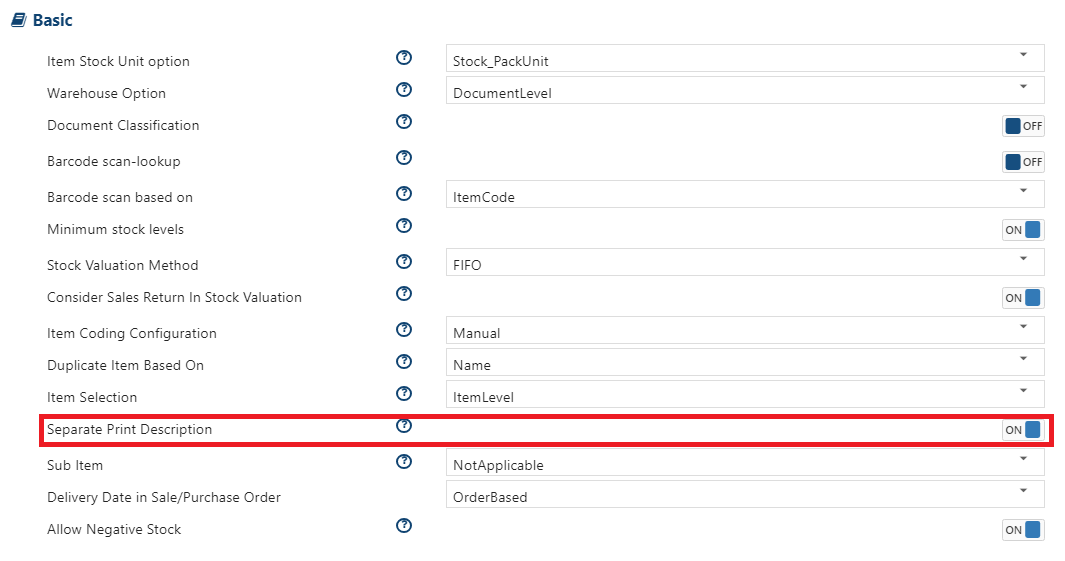
Separate Print Description: Turn 'ON' this option, if need a separate description field for print (Field will display after loading Item in Invoice). In AlignBooks, you can mention the item description in Item Master, but if you required a separate description for Print then enable this option.
-
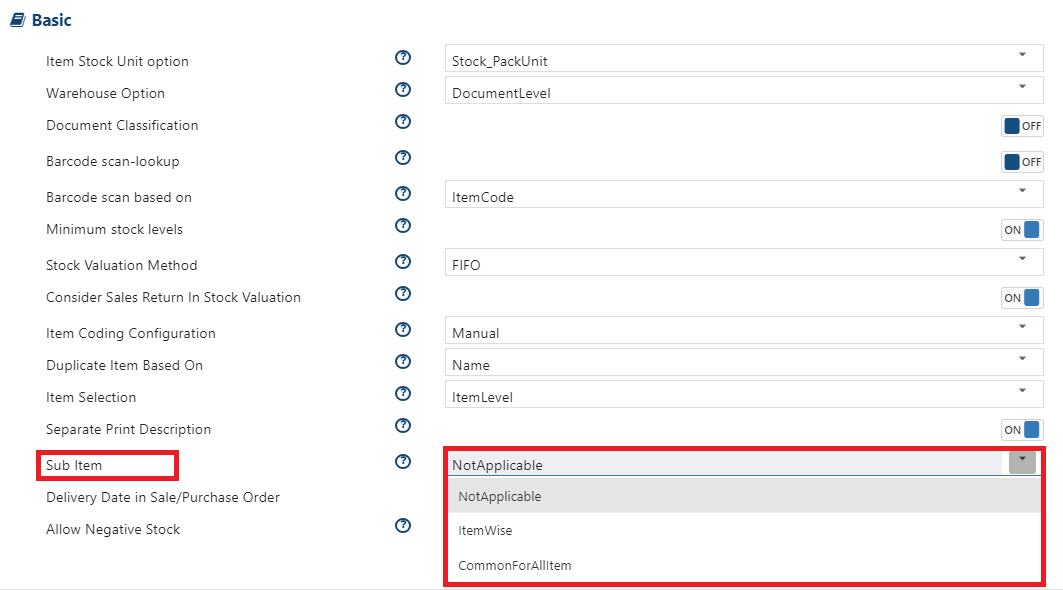
Sub Item: If you want to maintain the additional classification for items then you can do so. This option will give you the flexibility to make entries without making different item of same nature. You can create Sub-Item in 2 ways.
-
ItemWise: Select this option, if you want to create a Sub-Item for each item separately.
-
CommonforAllItem: Select this option, if you want a common Sub-Item for all Items.
-
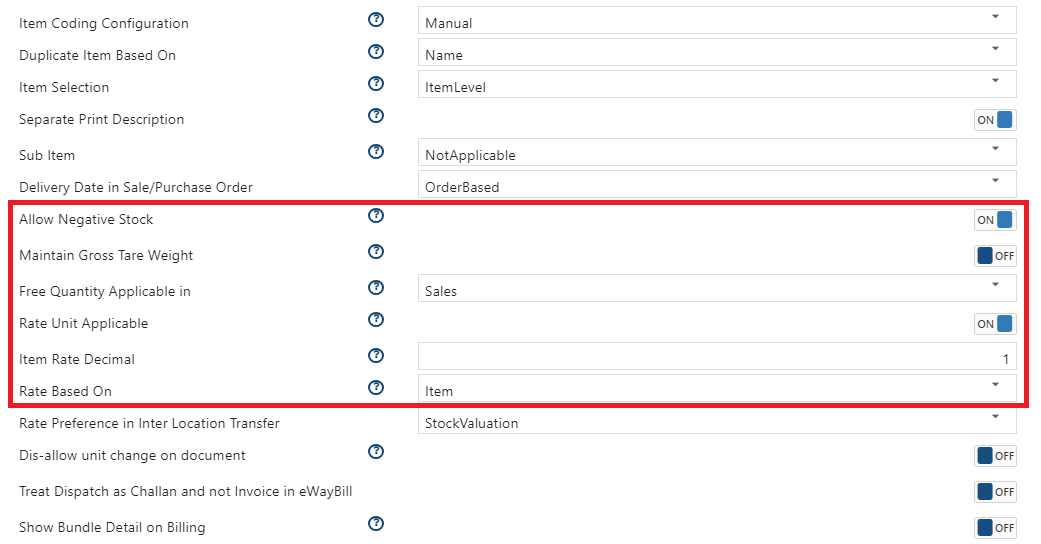
Allow Negative Stock: Turn 'ON' this option, to allow negative stock. Through this option, even if the stock is not available in the Item, you can generate an invoice for the item.
-
Maintain Gross Tare Weight: In some industries you may need to track either the Gross Weight or the Tare Weight. Tare weight is the weight of the packaging or container that holds the product. For example, if the product is in a box, the tare weight refers to the weight of the box, not the product itself. Therefore, turn 'ON' this option to maintain Tare weight.
-
Free Quantity Applicable in: Select the option, in which you want to give the Free Qty as well with the sold items either in Sale or Purchase or in Both.
-
Rate Unit Applicable: Turn 'ON' this option to enable unit-based rates. If you're using Multi Unit Setup and want to set the rate based on the unit, activate this option. The software will ask you to select the unit while generating the invoice, allowing you to specify the rate as per the selected unit.
-
Item Rate Decimal: Mention the decimal places that you required for the Item Rate. For instance, you want to mention item Rate in 3 decimal places like, Rs. 45.897 therefore mention the decimal place as per the requirement.
-
Rate Based On: Select whether the rate should be Item wise or Sub Item wise as per the requirement.
-
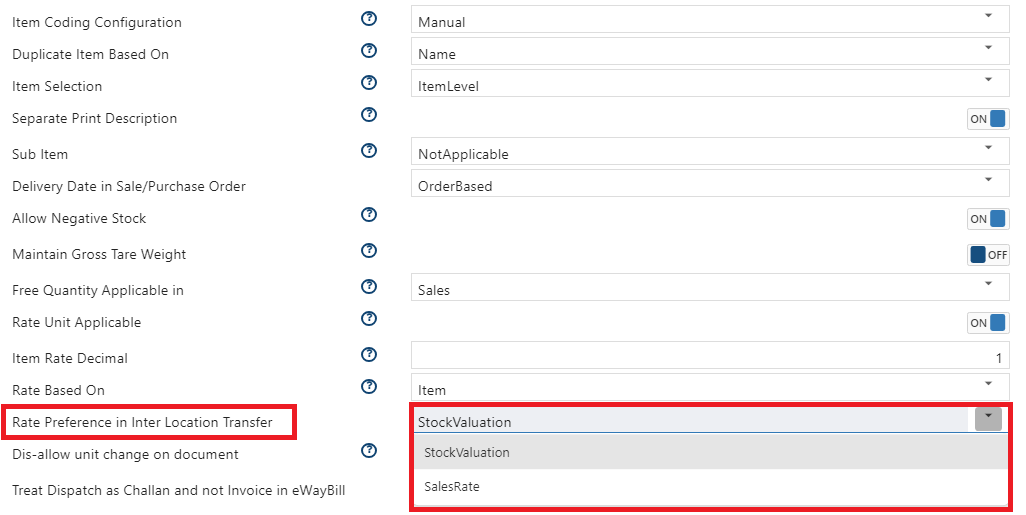
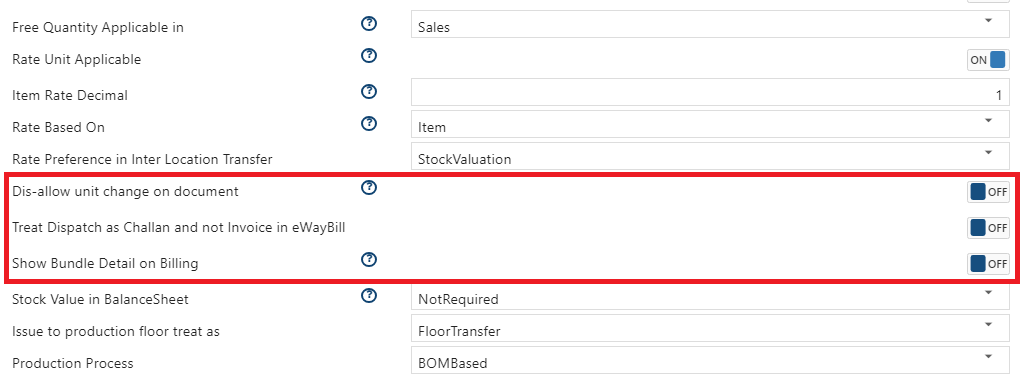
Rate Preference in Inter Location Transfer: Select the option, on which basis you want to pick Rate of the Item while Inter Location transfer of items. You can select whether you want the stock valuation Rate or Sale Rate.
-
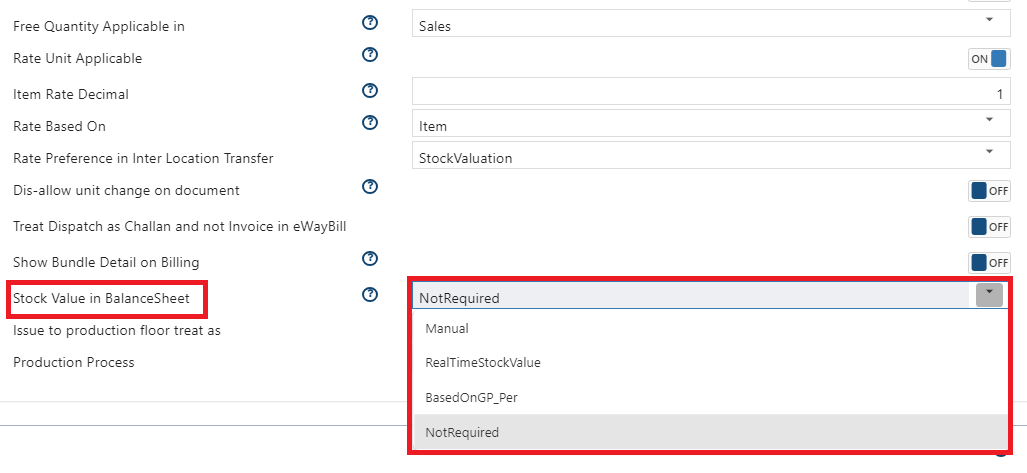
Stock Value in Balance Sheet: Select the option, based on which stock value needs to be display in Balance Sheet.
Manual: If you want to manually enter the stock valuation amount, select this option. This will allow you to directly enter the stock value when viewing the balance sheet.
RealTimeStockValue: If you want the software to calculate the stock values based on your accounting records, select this option. The software will automatically calculate the stock value.
BasedOnGP_Per: With this option, you can specify the percentage you want to apply to the stock value.
-
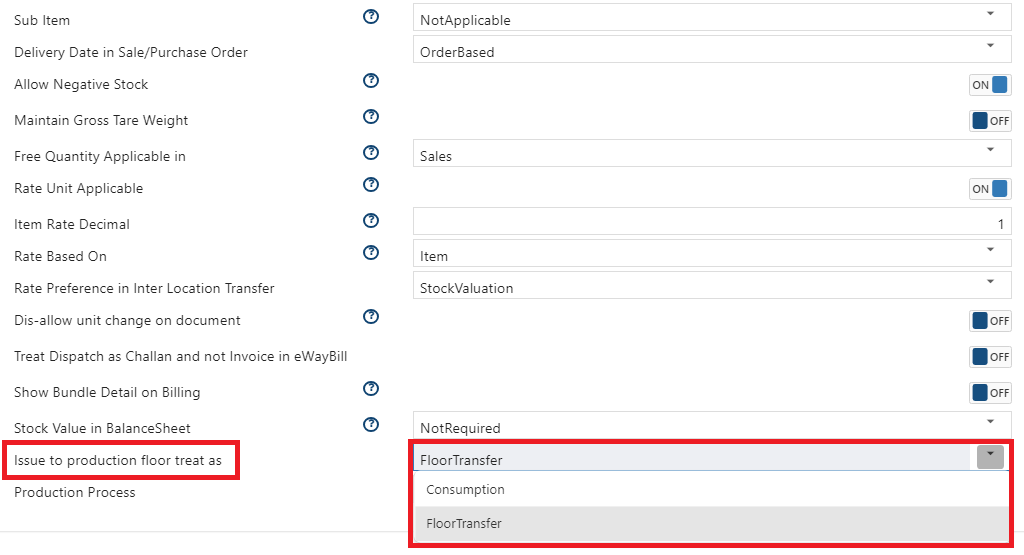
Issue to production floor treat as: Select the option whether the Issue to Production consider as consumption or FloorTransfer.
Consumption: Select this option if the transferred stock is fully finished after using it when issued to the production floor.
Floor Transfer: Select this option if the transferred stock is used by the production floor but not gets finished.
-
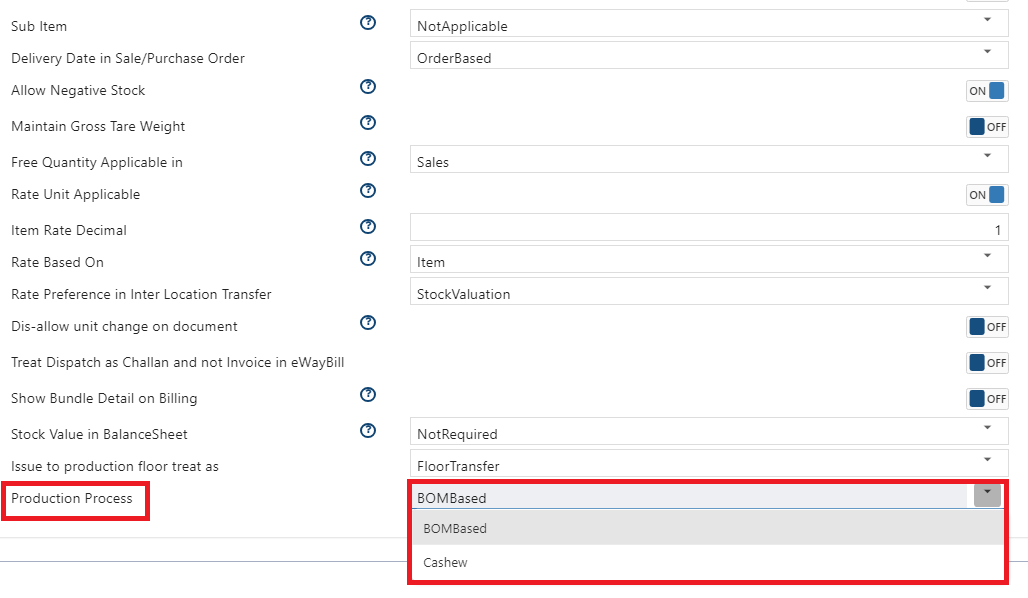
Production Process: Select the production process as per the business requirements.
BOM: If the production of your industry required a formula or some sets of items to produce a finished product then select this option.
Cashew: If your industry is in the Cashew production, then select this option. AlignBooks has provided a separate production base for Cashew industries.
Inventory Document Custom Fields:
-
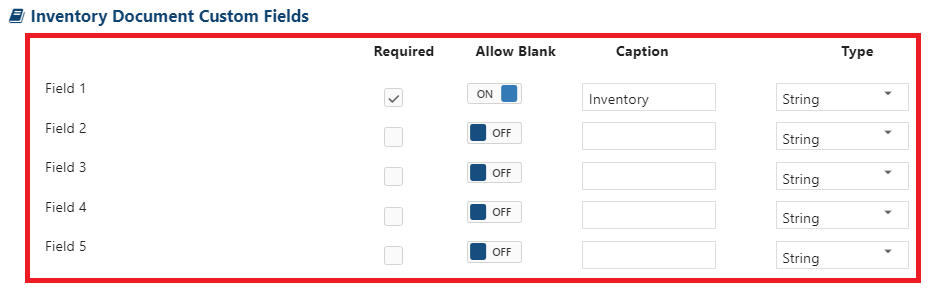
Inventory Document Custom Fields: AlignBooks offers structured inventory documents (such as goods received or issued from production, jobbers, branches, etc.) tailored to the needs of different industries. Additionally, you can define up to five extra fields based on your specific requirements to address your unique priorities.
Require: To enable the field tick the checkbox.
Allow Blank: Set this option to 'OFF' if you want the additional field to be mandatory for documents and prevent it from being left blank. The software will not allow you to save the document unless the field is selected. Set this option to 'ON' if you want to allow the field to be left blank.
Caption: Specify the field that you want to display in the document as per the requirement.
Type: Select the type of field whether it's required as String/ Numeric/ Currency/ Date. If you want the extra field to be Alpha numeric then select 'String'. To mention only numbers in the extra field select 'Numeric'. Similarly if you are enabling the field for currency, then select 'Currency', or for Date format, select 'Date'. You can enable Maximum of 5 Fields.
Item Master Custom Fields:
-
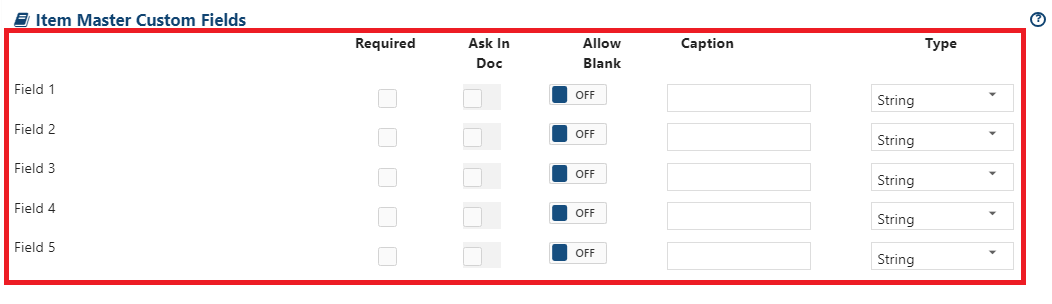
If you want to Add extra fields for Item Master then enable the fields as per the requirement. These fields will display while creating an Item. You can enable upto 5 Fields.
Item Extended Properties:
-
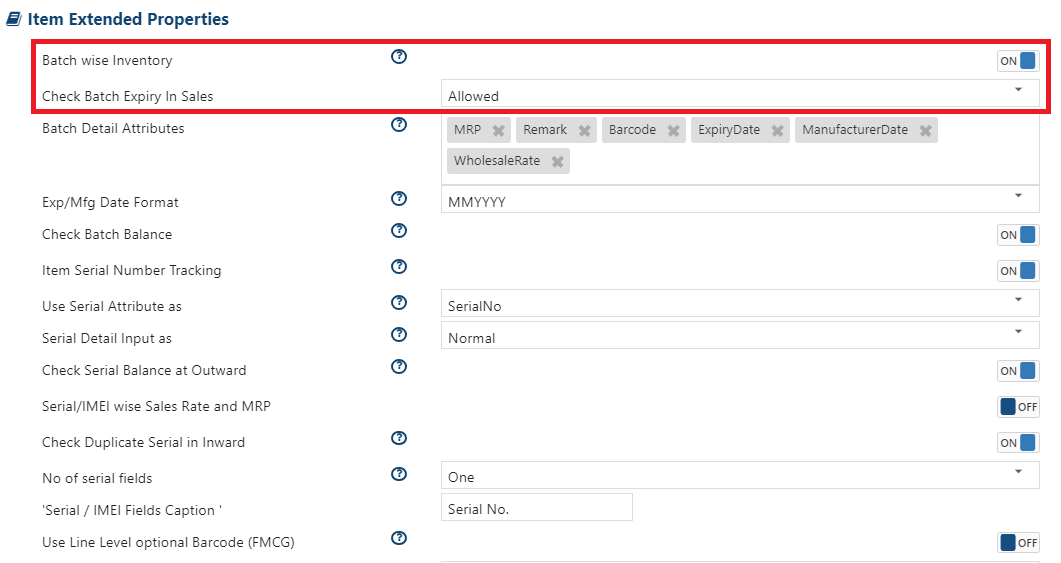
Batch wise Inventory: Turn 'ON' this option, to enable batch wise inventory. In many industries items are required to maintain batch wise like Pharmaceuticals & Drug Industry. Through this option you can maintain multiple batches of single item as needed.
-
Check Batch Expiry Sales: In batch wise industries, like Pharmaceuticals & Drug Industry, items have Manufacture or Expiry Date. If you want software to alert you for selling out the expiry stock while generating invoice then turn 'ON' this option.
-
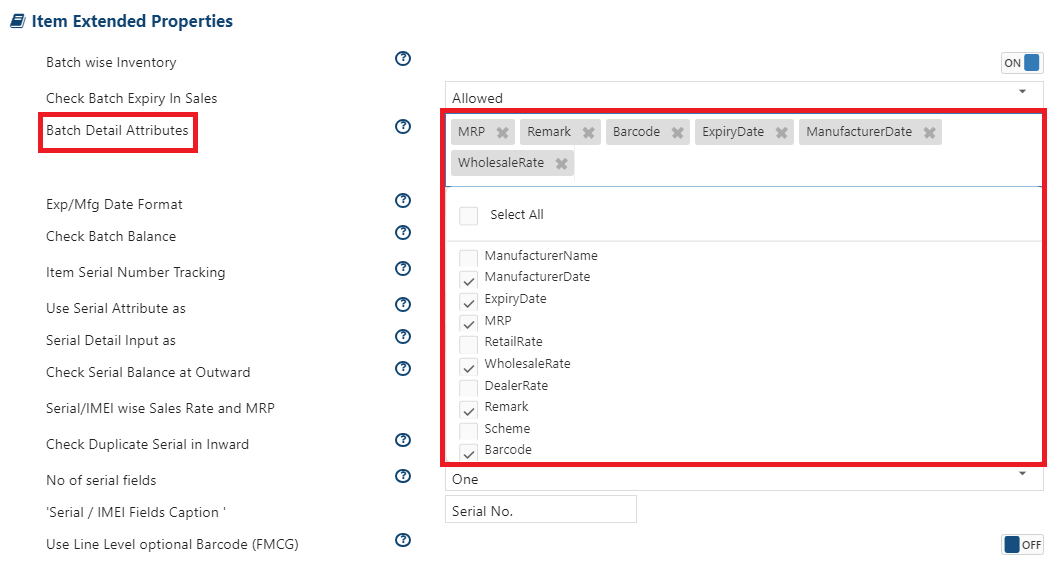
Batch Detail Attributes: Select the options that you want to maintain for your item's batch. For instance you want to maintain Batch Expiry Date, Manufacture Date, MRP, etc, so select the option as per the requirement.
-
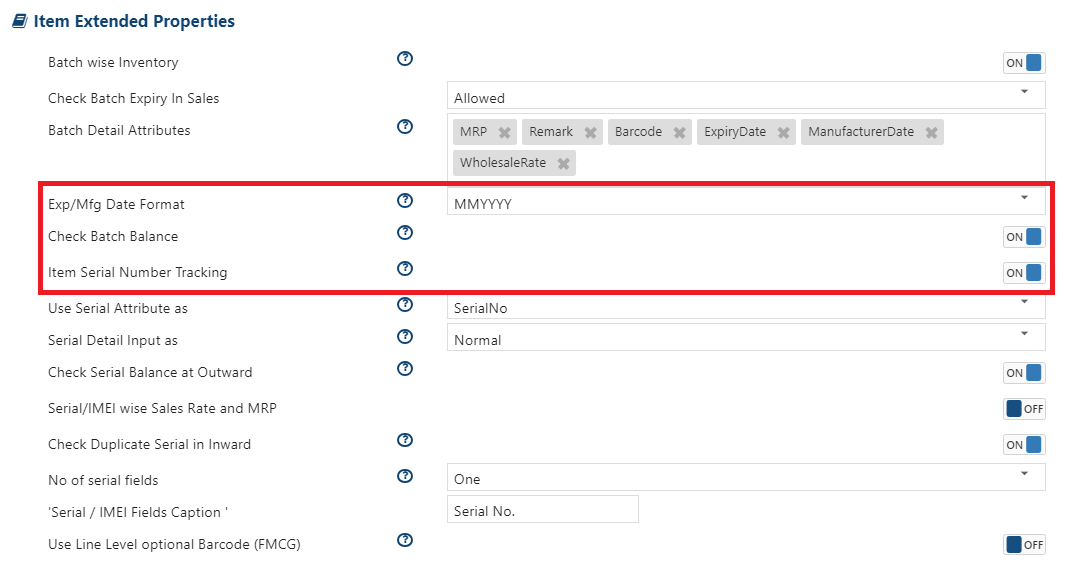
Exp/ Mfg Date Format: Select the format that you need for the batch's Expiry or Manufacturing Date.
-
Check Batch Balance: Turn 'ON' this option if you want the software to check the batch balance. This means that when you generate an invoice and sell from a batch, the software will automatically verify if there is available stock in the selected batch.
-
Item Serial Number Tracking: In certain industries, products must be tracked by their serial numbers, as manufacturers identify them using these numbers. For example, electronic items like computers, printers, and mobile phones. To track serial numbers, turn 'ON' this option.
-
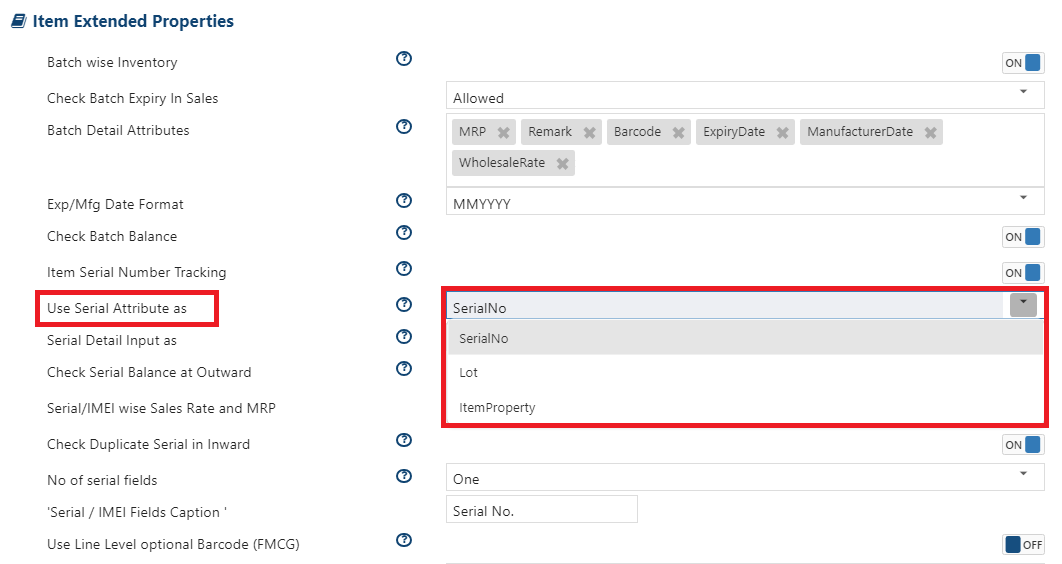
Use Serial Attributes as: Through this option you can fix the attributes of serial as per your industry requirement. For instance an electronic item such as Mobile Phones have different serial Number, so here you will select serial Number. In many industry 'Lot' is maintained for the items. Therefore select the option as needed.
-
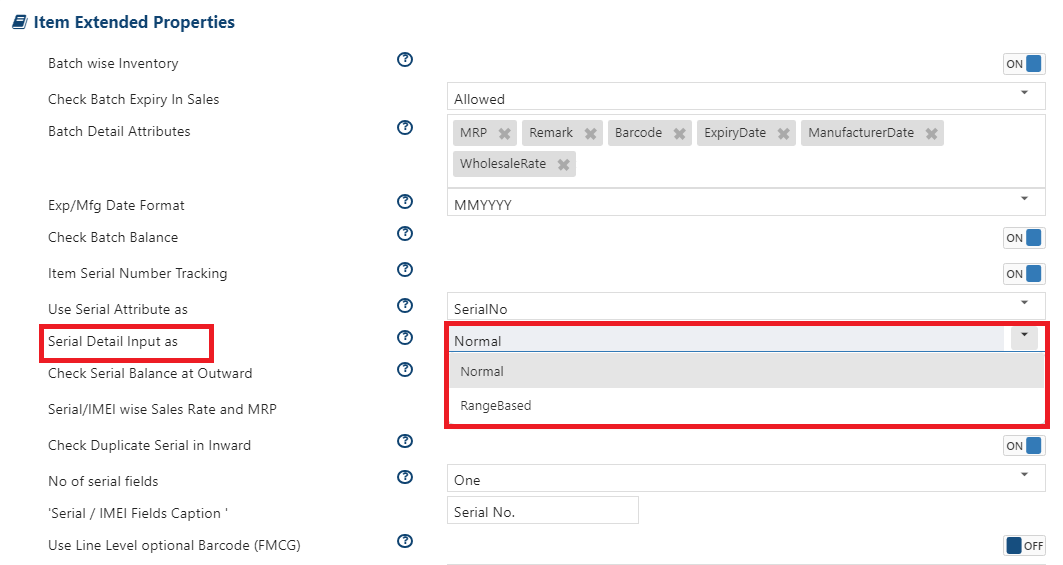
Serial Detail Input as: Select the format for the serial number you require.
Normal: Through this option, you can mention the serial number Numerically.
RangeBased: Select this option, if need to mention the serial number of the item range wise, like 1-10, 11-20, and so on.
-
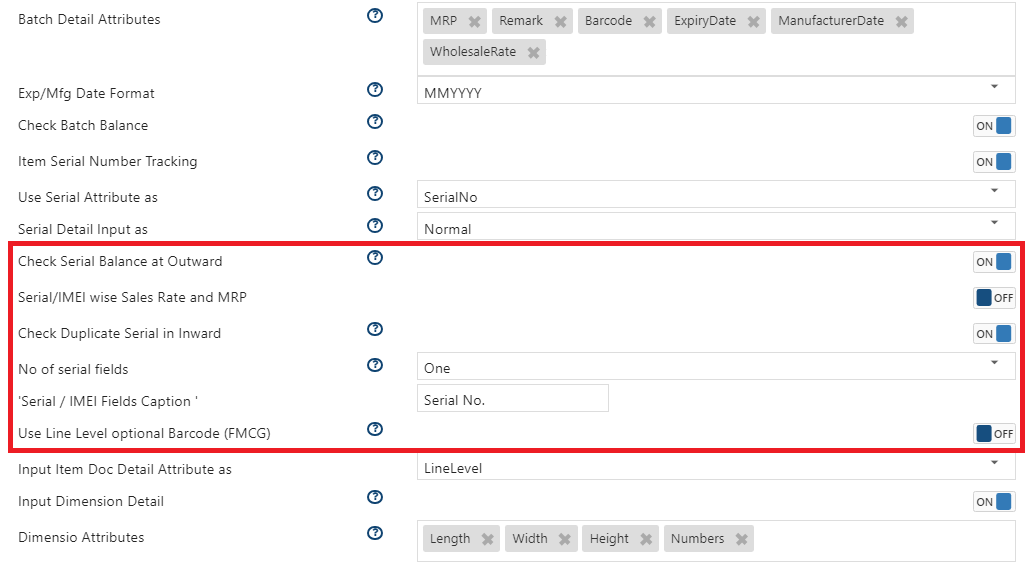
Check Serial Balance at Outward: Tun 'ON' this option, to check serial Number/IMEI Number while Outward Movement of the stock. When you will generate an invoice for sale or Issue software auto verifies the serial balance if it's available.
-
Serial/IMEI wise sales Rate and MRP: Turn 'ON' this option if you want to set the item's sale rate and MRP based on the serial number or IMEI. This allows you to specify different sale rates or MRP for each serial number or IMEI if the item has multiple such identifiers.
-
Check Duplicate Serial in Inward: Turn 'ON' this option to check for duplicate Serial/IMEI numbers during the inward movement of items. This means that when you create a purchase or receive entry, the software will verify the serial numbers to prevent duplication.
-
No of serial fields: Select the number of fields required for tracking the Serial Number.
-
Serial/IMEI fields Caption: Specify the field name that you want to display for the Serial/IMEI Number as per the requirement.
-
Use Line Level optional Barcode (FMCG): Suppose if you are in FMCG industry and you single item have multiple MRP's then with the help of this option you can generate separate Barcode for each MRP of the item.
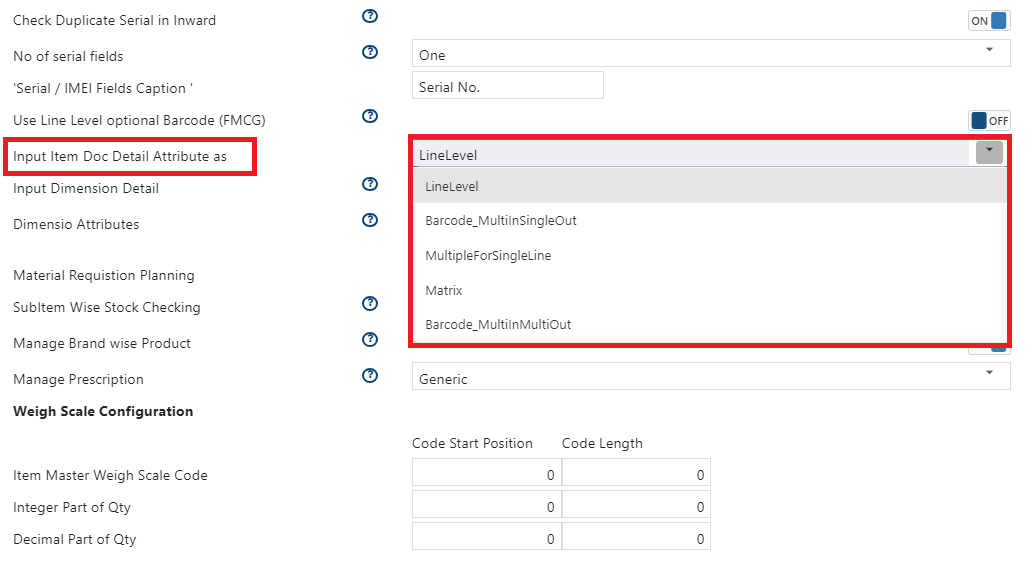
Input Item Doc Detail Attribute as: If you have enabled the Attributes (custom field to manage item details) for the item then you can select the option how you want to display the Item attributes details window while billing.
-
Line Level: Through this option you can mention the item attributes details item wise.
-
Barcode Multi In Single Out: This option allows you to mention the item attribute details while purchasing items. A window for attributes will appear where you can enter all the details. However, at the time of creating a sales invoice, you need to scan the barcode.
-
Multiple For Single Line: With the help of this option, an attribute window will appear in both sales and purchase invoices, where you can manually enter the details.
-
Matrix: This option will work with two attributes. For example, if you are in the footwear industry, you will only be able to manage any of the 2 details such as Shoe Size or Colour.
-
Barcode Multi In Multi Out: This option is similar to 'Barcode Multi In Single Out'; the only difference is that here, item details can be captured either through barcode scanning or by entering them manually.
-
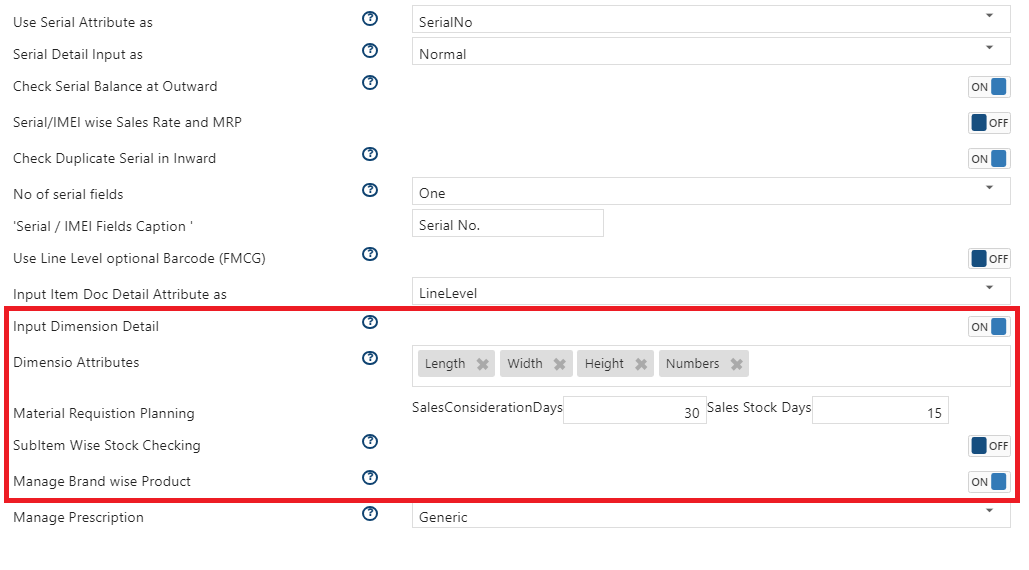
Input Dimension Detail: Turn 'ON' this option, if needs field to mention dimension detail of the items.
-
Dimension Attributes: Select the field required for Dimension (Length/Width/Height etc).
-
Material Requisition Planning: Mention the parameters to maintain your inventory records with minimum stock level and they have to plan the Material requirement accordingly.
-
SubItem Wise Stock Checking: Turn 'ON' this option to display the balance of Sub Item while making entry.
-
Manage Brand wise Product: Turn 'ON' this option to manage Brand of the Items
-
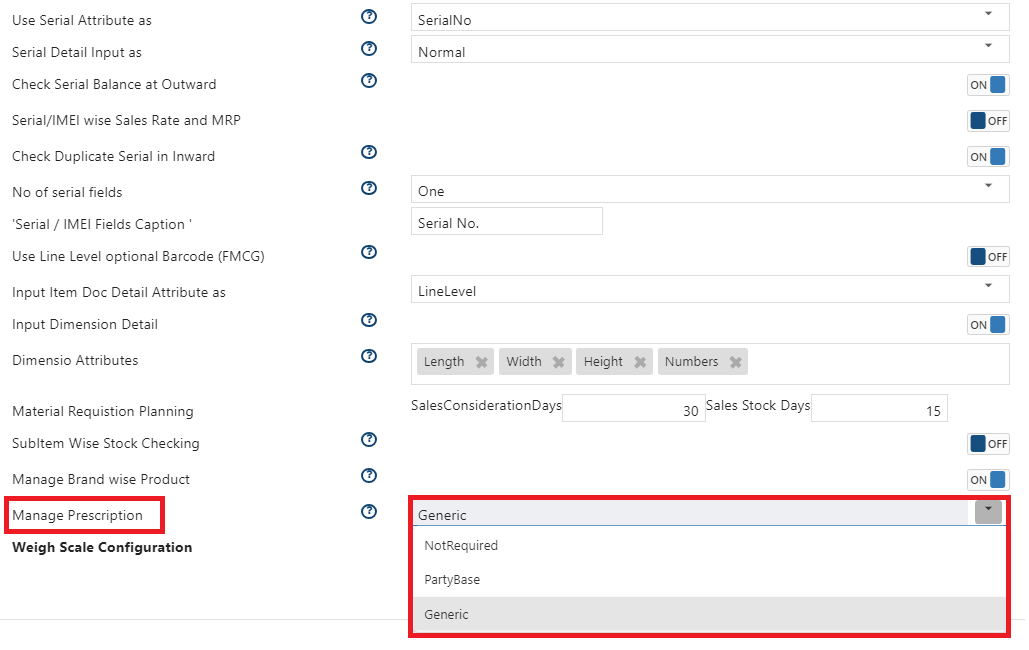
Manage Prescription: Select the option how you want to manage the prescriptions.
PartyBase: Select this option, if you want to manage the prescription based on the party.
Generic: Select this option, if you want to manage the prescription based on generic drugs.
Item Document Attribute:
-
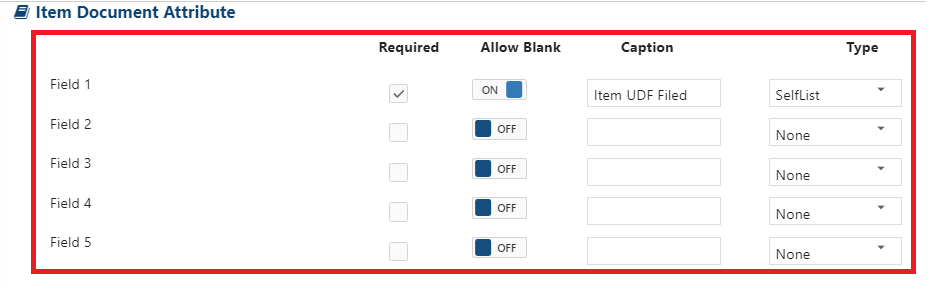
If you want to Add extra fields for Item Document then enable the fields as per the requirement. These fields will display when you selects the item while generating a document. You can enable upto 5 Fields.
Attributes: Attributes are different from Fields, as in Attributes you have to create the required details and select as needed.
|
Fixed Asset HandsIn Attribute:
-
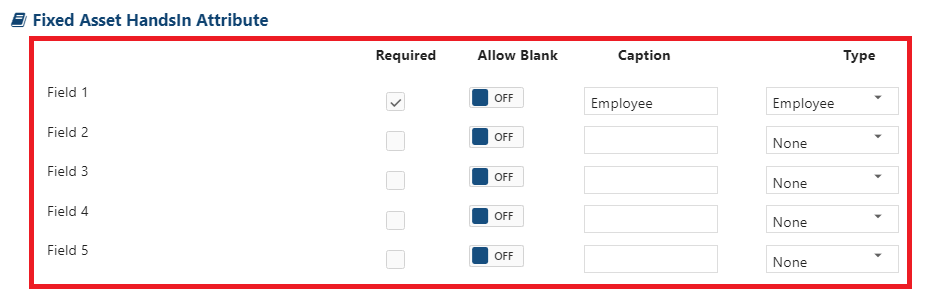
If you want to Add extra fields for Fixed Asset then enable the fields as per the requirement. These fields will display in Assets management for Hands in Position. You can enable upto 5 Fields.
Item Master Attribute:
-
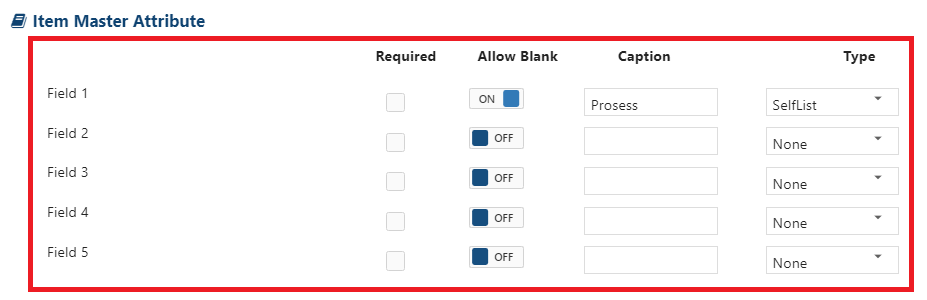
If you want to Add extra fields for Item Master then enable the fields as per the requirement. These fields will display when you creates an Item. You can enable upto 5 Fields.
Sub Item Master Attribute:
-
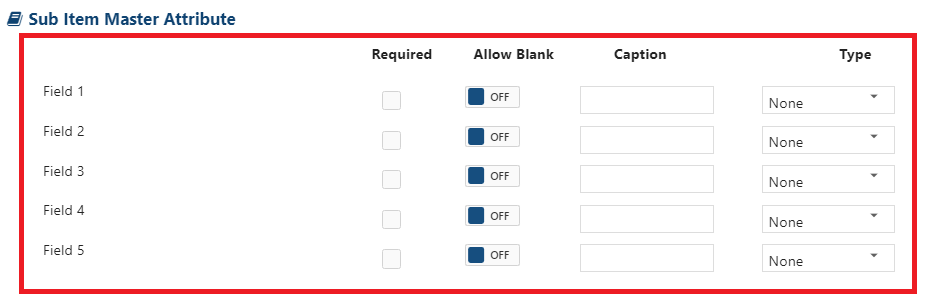
If you want to Add extra fields for Sub-Item Master then enable the fields as per the requirement. These fields will display when you creates a Sub Item. You can enable upto 5 Fields.
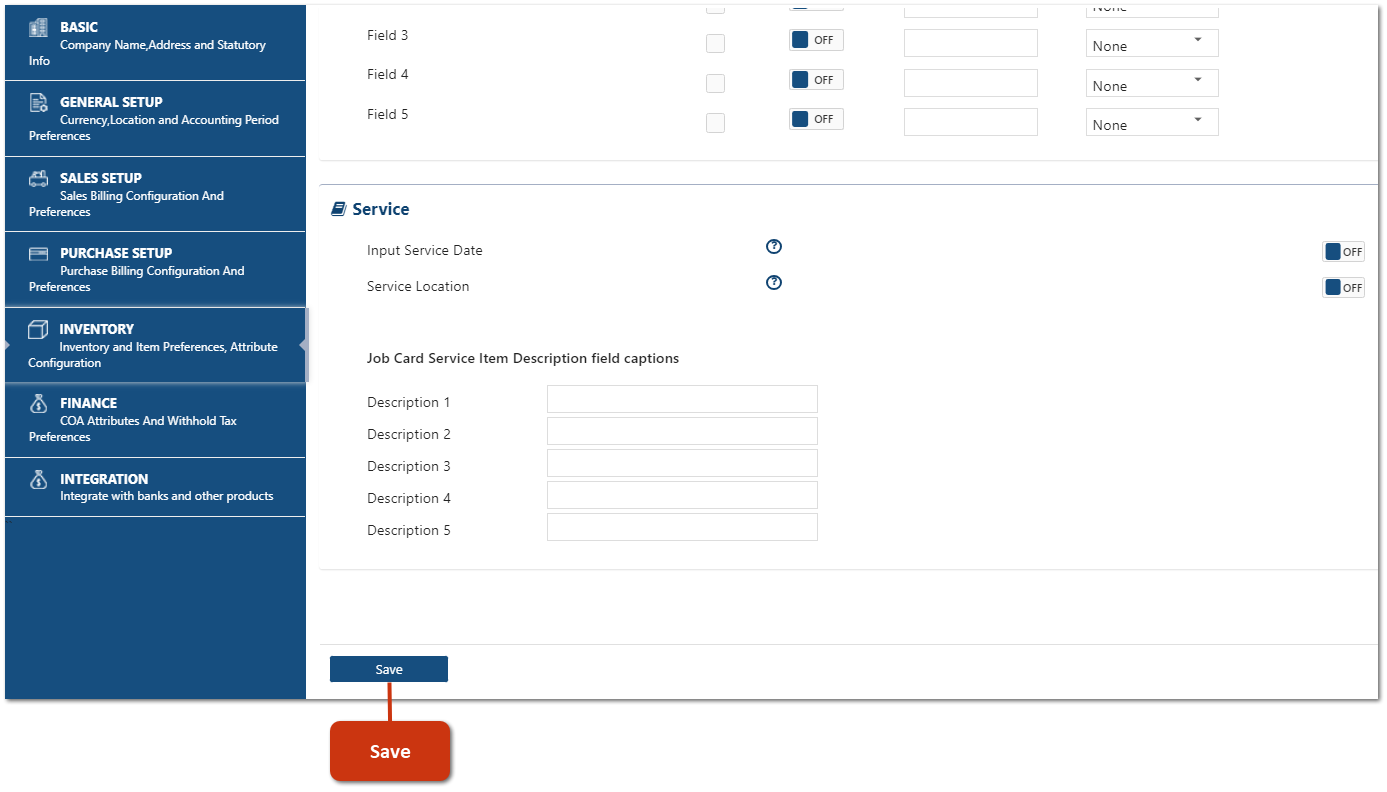
Service:
-
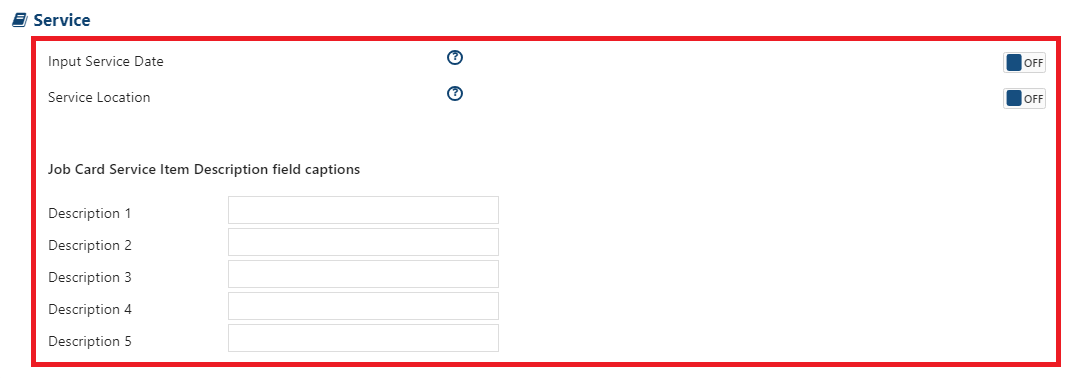
Input Service Date: Turn 'ON' this option, if needs to maintain service Date. Service Date is required in a Job Card entries.
-
Service Location: Turn 'ON' this option, if needs to maintain service Location. Through this option when you are creating a Job Card entry, you can maintain the service location as well.
Also you can mention the description for Job Card Items fields.
-
Click on 'Save' button.
This process complete the Inventory Setup of the Company in the AlignBooks.