
Purchase Setup
In Purchase Setup, you can define the details and set preferences related to the purchase documents and reports. The Purchase-Setup is divided in 5 parts:
-
Basic
-
Purchase Custom Fields
-
Vendor Custom Fields
-
Billing Setup - Item Level
-
Billing Setup - Document Level
-
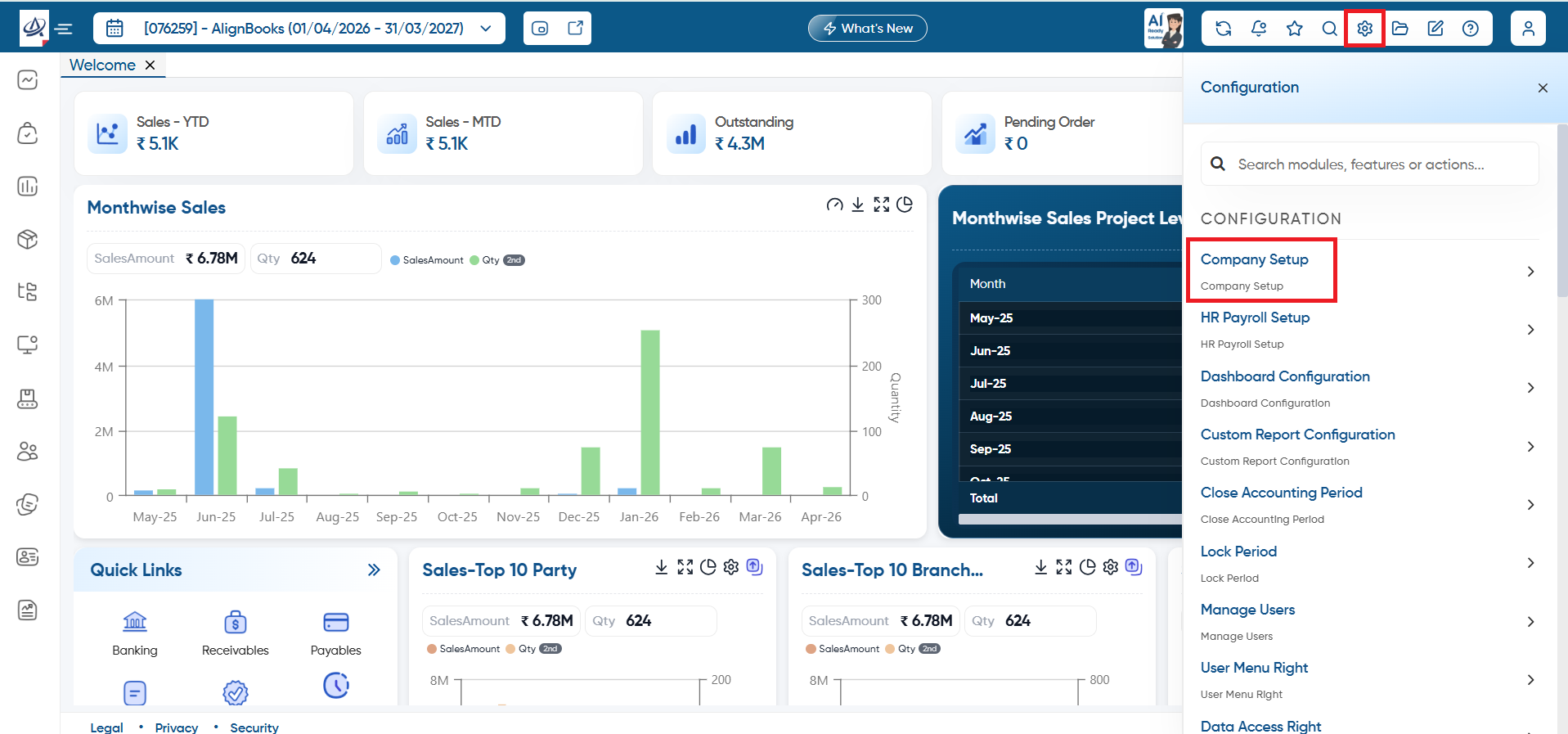
To mention all these details, click on 'Configuration' Icon and select 'Company Setup' option.
-
Click on 'Purchase Setup'.

Basic:
-
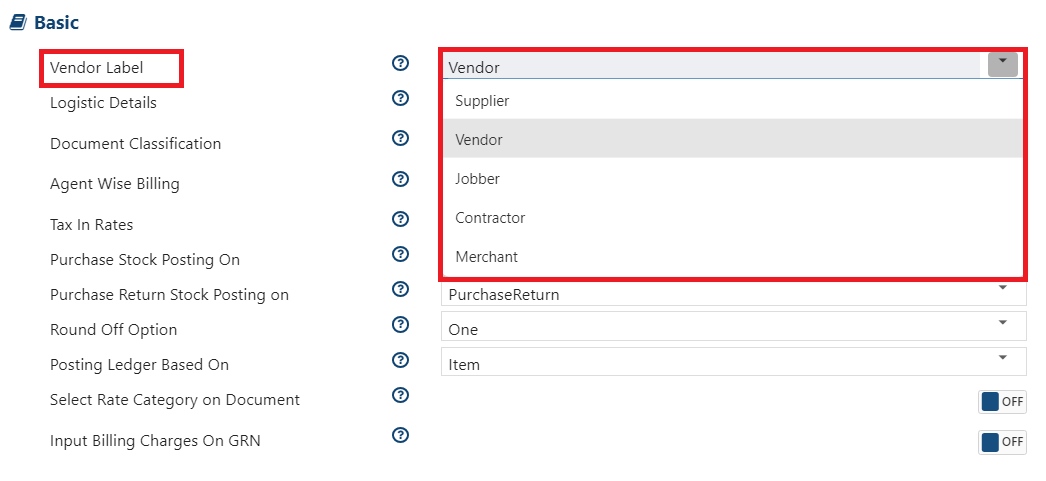
Vendor Label: Select the label, how you would like to address your Vendor as per your industry. Selected label will display in the modules, documents, reports related to the Purchase.
-
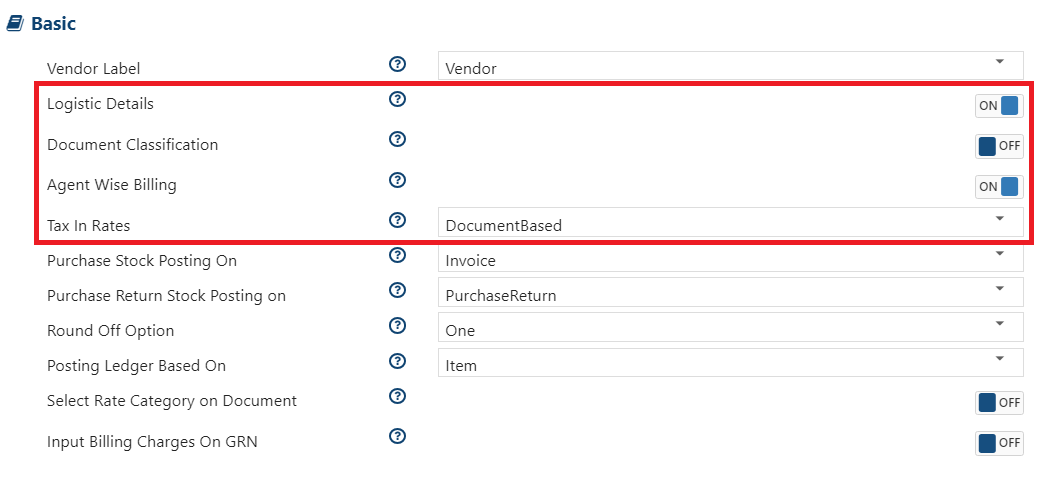
Logistic Details: Turn 'ON' this option, if you need to add delivery/Shipping details while generating Purchase Documents.
-
Document Classification: Turn 'ON' this option, to classify the Purchase documents in several different criteria like Area, Product etc, based on which reports can also be filtered.
-
Agent Wise Billing: Turn 'ON' this option for agent wise Billing. This option will allow you to track the purchase of each agent and support the appraisal process.
-
Tax In Rates: In some industries, prices may include taxes, while in others, taxes are added separately. Even within the same industry, this can vary from customer to customer or document to document.
If your business uses a consistent pricing method, you can choose either 'Inclusive' (taxes included) or 'Exclusive' (taxes added separately).
If pricing varies based on the situation, select 'Document Based', and the system will ask you in each sale document.
-
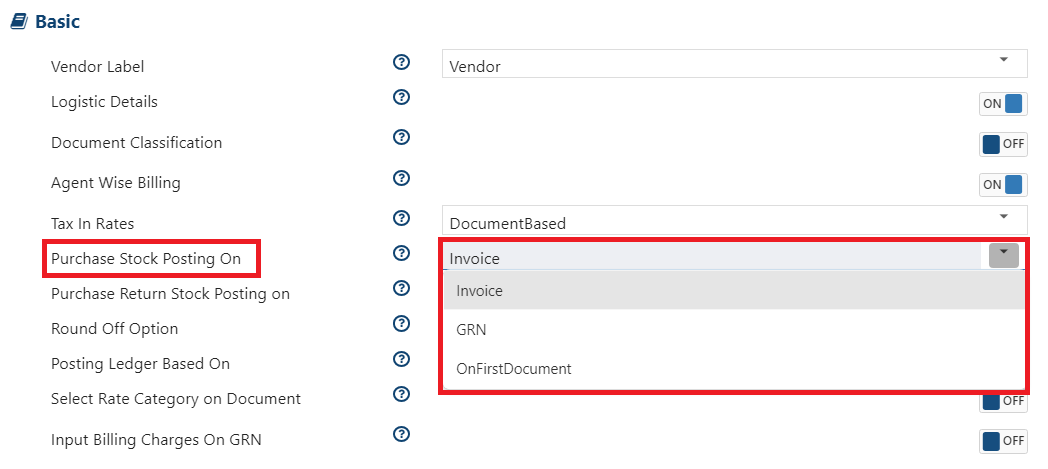
Purchase Stock Posting On: Choose the level at which the stock of an item should be updated - Invoice, GRN (Goods Received Note), or OnFirstDocument.
-
For example, you can decide whether the stock should be adjusted during invoice generation, while Receiving Goods or On First Document.
On First Document: Signifies the document created first whether it's an Invoice or GRN.
|
-
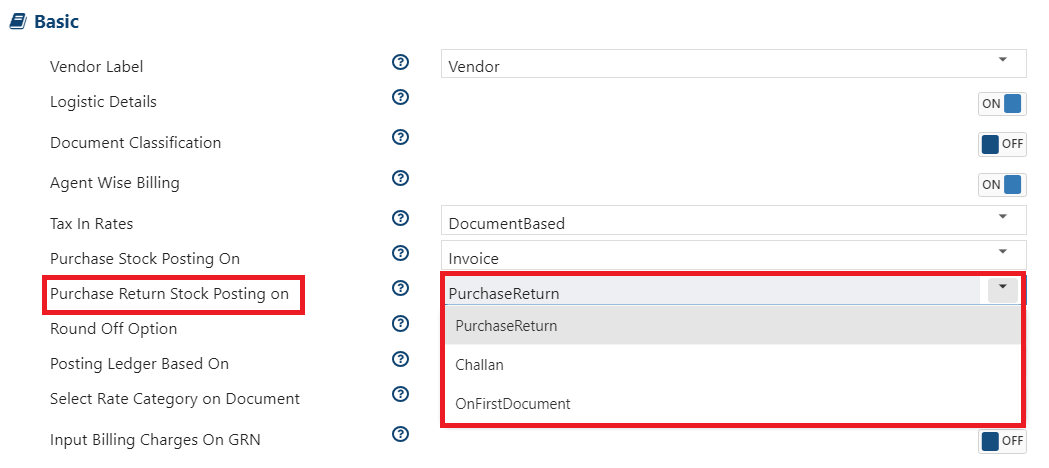
Purchase Return Stock Posting On: Select the option, on which level stock release through Purchase Return should be effect either on Purchase Return/Challan/OnFirst Document.
-
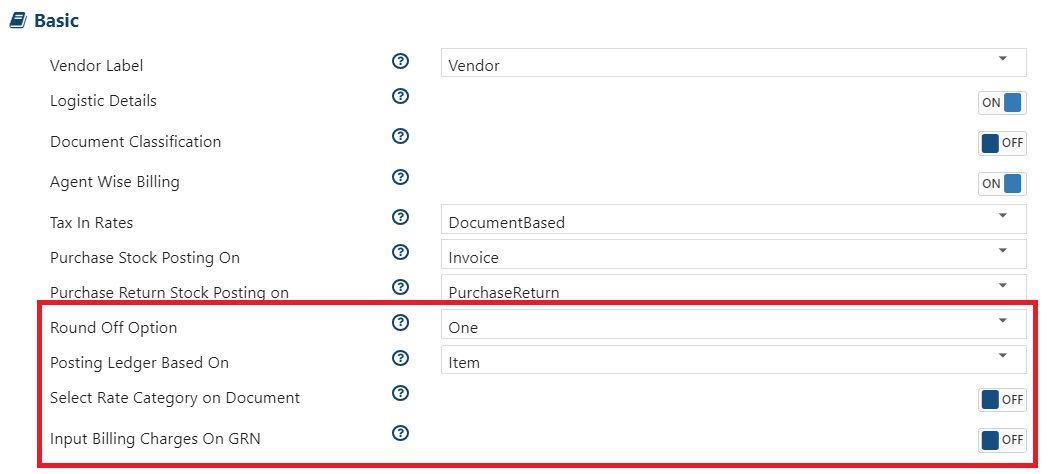
Round Off option: AlignBooks gives you the flexibility to round off your purchase documents according to your preference. For example, if your base currency is INR, you can round off your invoices to the nearest rupee, or to the nearest multiple of Rs. 5, Rs. 10, and so on. Simply choose your preferred rounding option from the dropdown menu.
-
Posting Ledger Based On: Select the relevant option to maintain your purchase ledger posting - Item wise/Tax wise as per the requirement.
-
Select Rate Category on Document: In AlignBooks, you can create a price list category for a specific vendor, so that the item's rate will automatically load into the purchase documents based on the selected category during invoice generation. Turn this option 'ON' to choose the Price Category while creating the purchase document.
-
Input Billing Charges on GRN: Turn 'ON' this option, to mention billing charges while creating GRN (Goods Received Note).
Purchase Custom Fields:
-
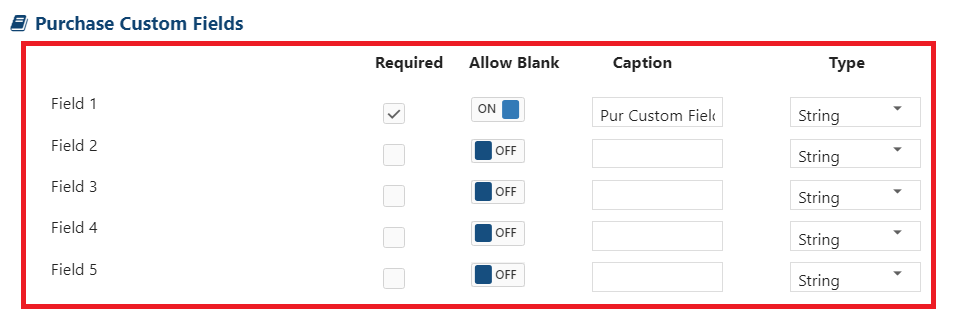
Purchase Custom Fields: Add extra fields in Purchase related Invoice as per the industry requirement. These field will display at the bottom of the document.
Required: To enable field tick the checkbox.
Allow Blank: Set this option to 'OFF' if you want the additional field to be mandatory for documents and prevent it from being left blank. The software will not allow you to save the document unless the field is selected. Set this option to 'ON' if you want to allow the field to be left blank.
Caption: Specify the field that you want to display in the document as per the requirement.
Type: Select the type of field whether it's required as String/Numeric/Currency/Date. If you want the extra field to be Alpha numeric then select 'String'. To mention only numbers in the Extra field select 'Numeric'. Similarly if you are enabling the field for currency, then select 'Currency', or for Date format, select 'Date'. You can enable upto 5 Fields.
Vendor Custom Fields:
-
You can Add extra fields for Vendor Ledger Master as per your industry requirements. These fields will display while creating a New Vendor Ledger. You can enable upto 5 Fields.

Billing Setup - Item Level:
-
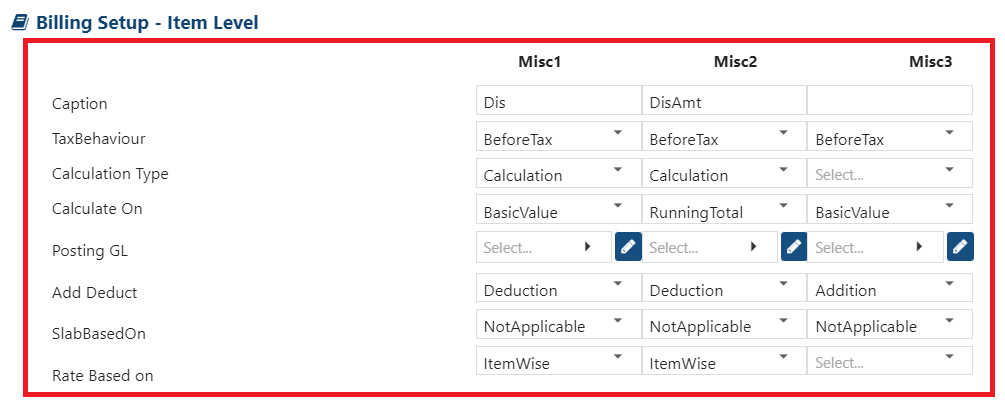
You can Add extra fields In Purchase Documents for Item Selection Part. These fields will display in your purchase related documents while selecting Item. You can enable upto 3 Fields, no additional field can be added.
Billing Setup - Document Level:
-
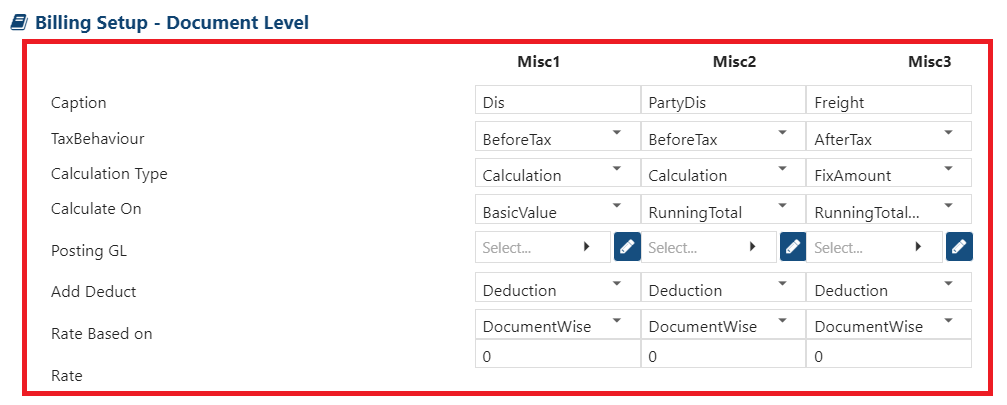
You can Add extra fields In Purchase related Invoice on Document Level. That means you can use this field to maintain for entire document. You can enable upto 3 fields, no additional field can be added.
-
Click on 'Save' button.
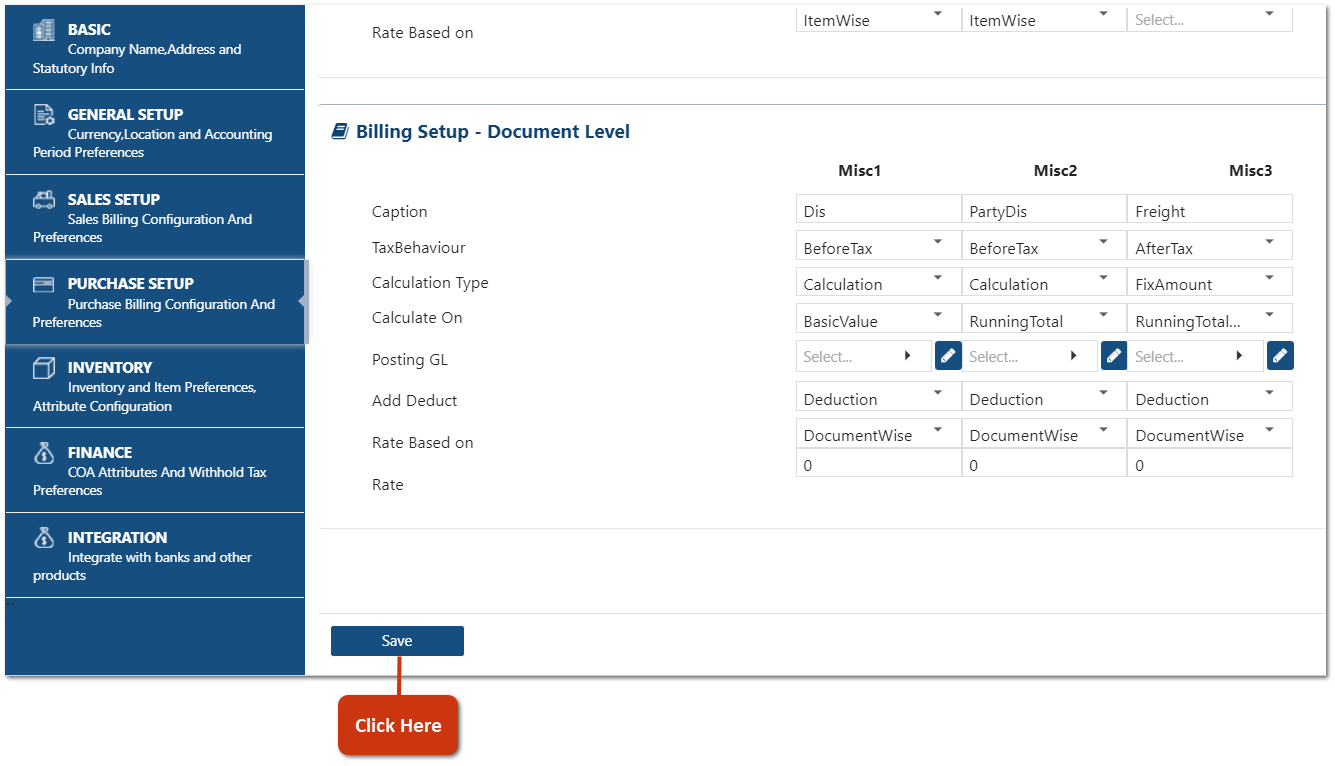
This process completed the Purchase Setup of the company in AlignBooks.