
Roster Wise Holidays
The Roster-Wise Holidays feature in AlignBooks allows you to efficiently manage employee holidays on a month-by-month basis. With this option, you can easily set the specific holidays for employees for each month, giving you the flexibility to customize holiday schedules based on your organizational needs.
Additionally, to save time and effort, AlignBooks provides the option to copy the holiday roster from the previous month. This is particularly helpful if the holiday schedule remains consistent across months, as it eliminates the need to manually re-enter the details.
With these features, managing employee holidays becomes simpler, more organized, and less time-consuming, ensuring your team stays informed and your records remain accurate.
-
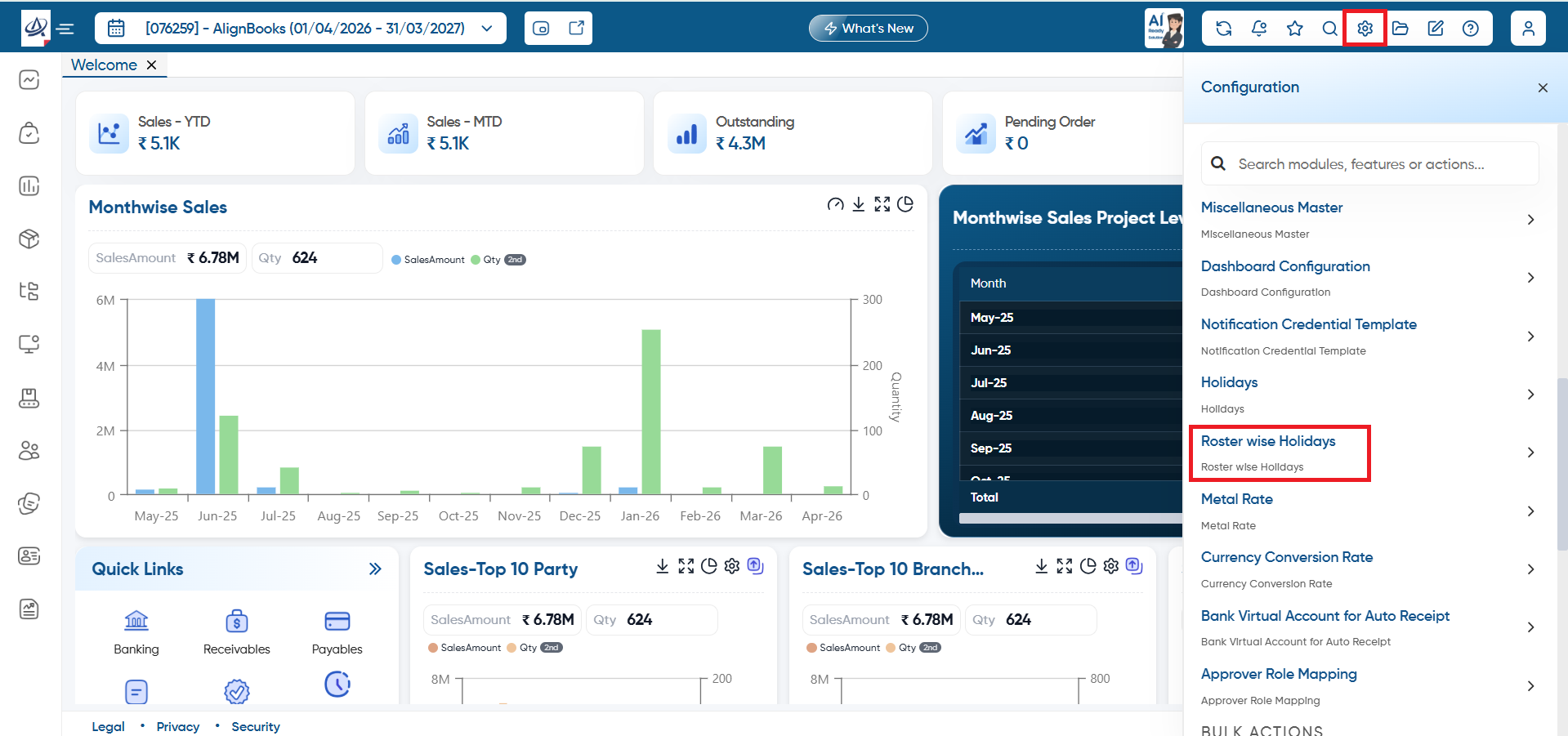
First, click on the 'Configuration' icon and select 'Roster wise Holidays' option.
Case - 1. Update Roaster Manually
In this process, you are required to manually update the roster for each employee. This involves individually reviewing and entering the necessary details for every employee's roster. It ensures that each employee's information is accurately recorded and kept up-to-date, but it may also require close attention to detail and consistency to avoid errors.
-
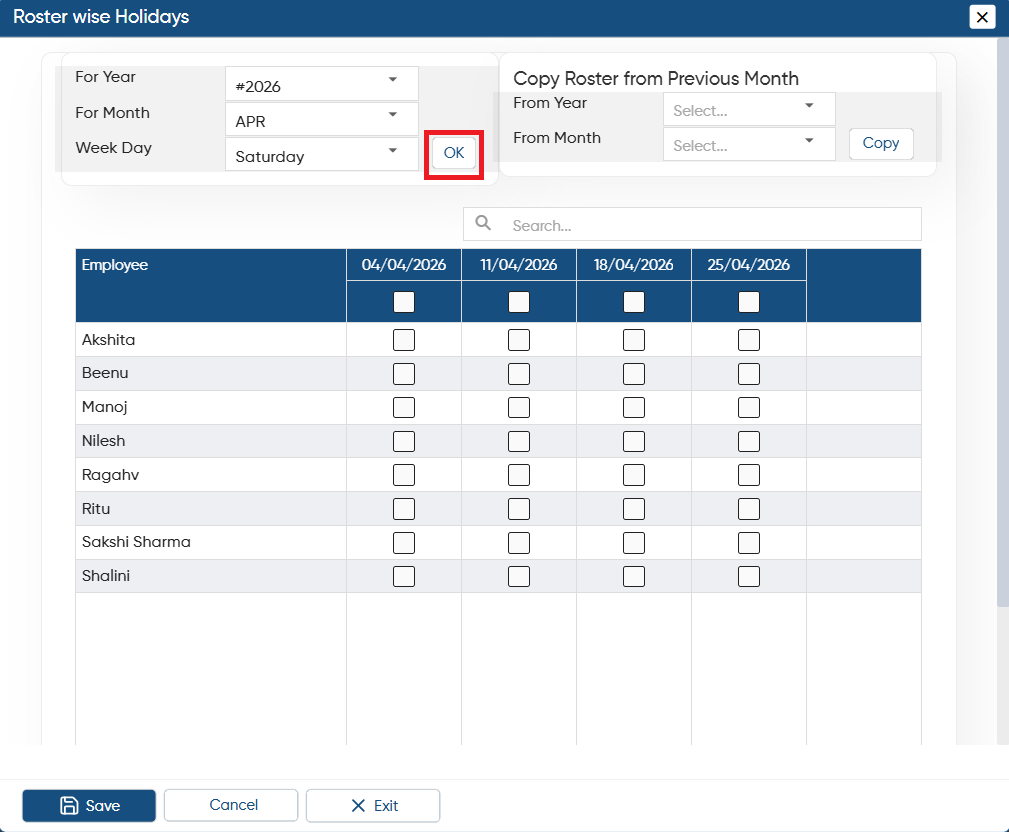
Select the Year, Month, Week Day for which you want to fix the roster of the employee and click on 'OK' button.
-
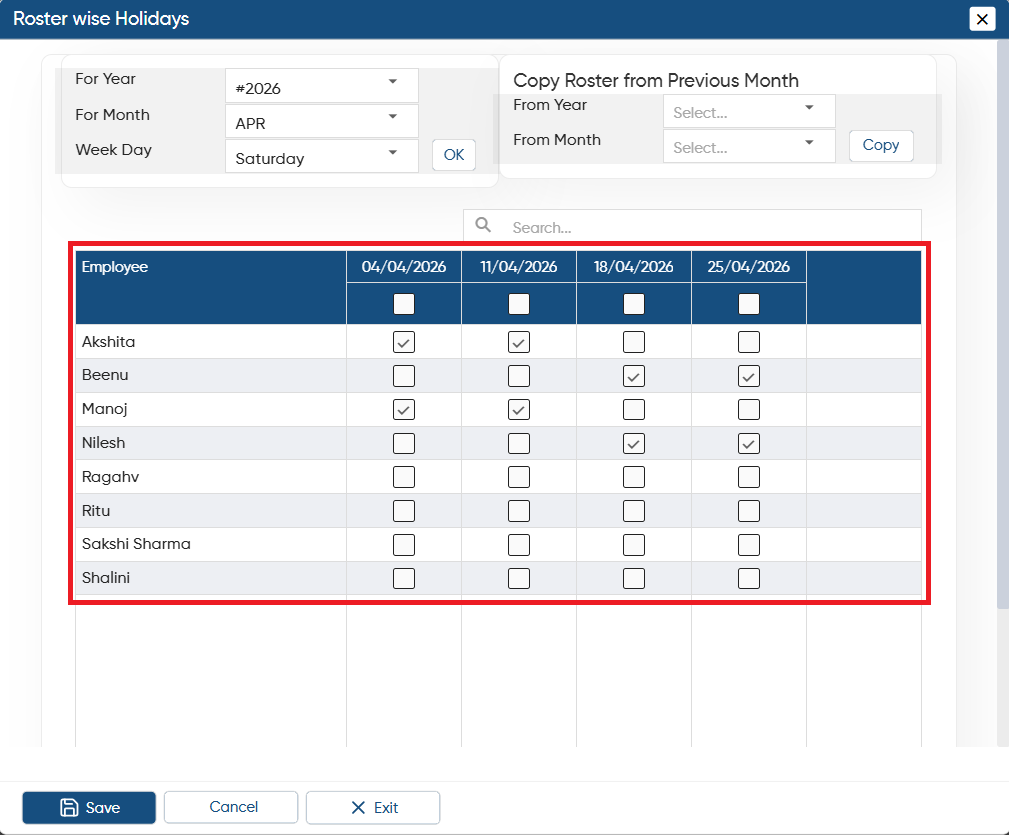
Tick the checkbox next to the employee's name and the corresponding date for which you want to set the roster for that specific employee.
-
Click on 'Save' button.
Case 2. Copy Roster from any Previous Year and Month.
You can replicate the roster by copying it from any previous year and month. This process involves selecting an existing roster from a specific time period, such as a prior year or month, and using it as a base for the current schedule. By doing so, you save time and effort, as it eliminates the need to create a new roster from scratch.
-
First, select the Year, Month, Week Day for which you want to fix the roster of the employee.
-
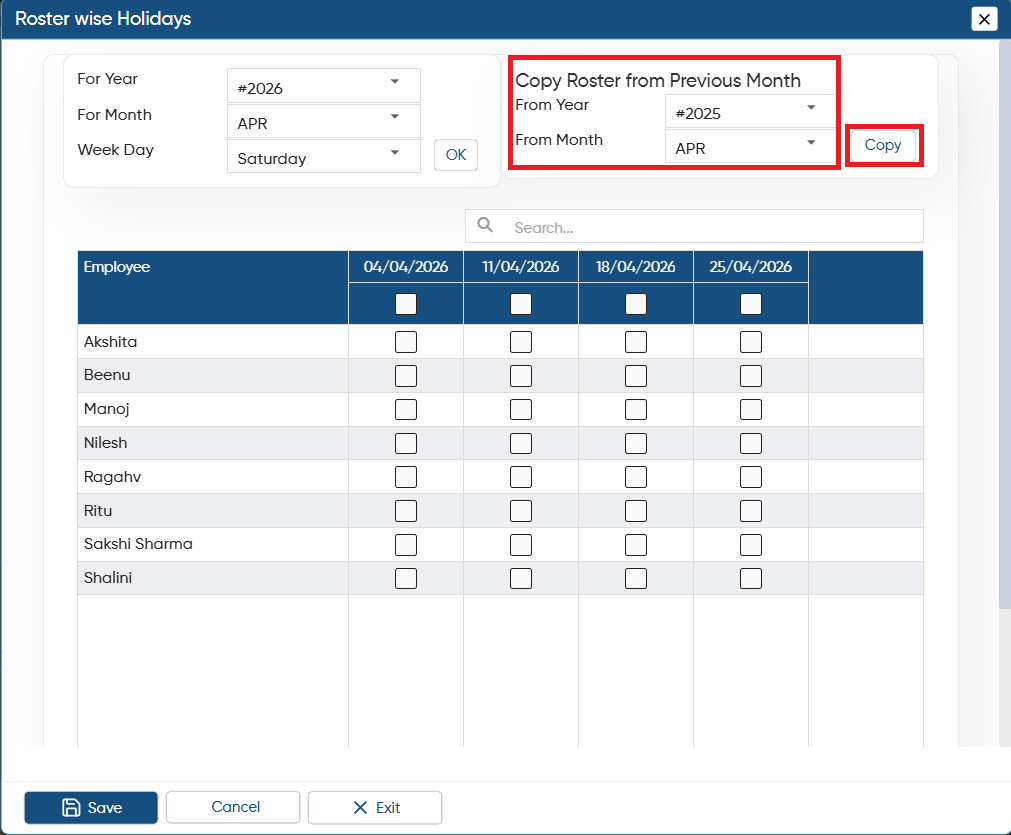
In 'Copy Roster from Previous Month' option, select the Year and Month from which the roster needs to be copied.
-
Click on 'Copy' button.
-
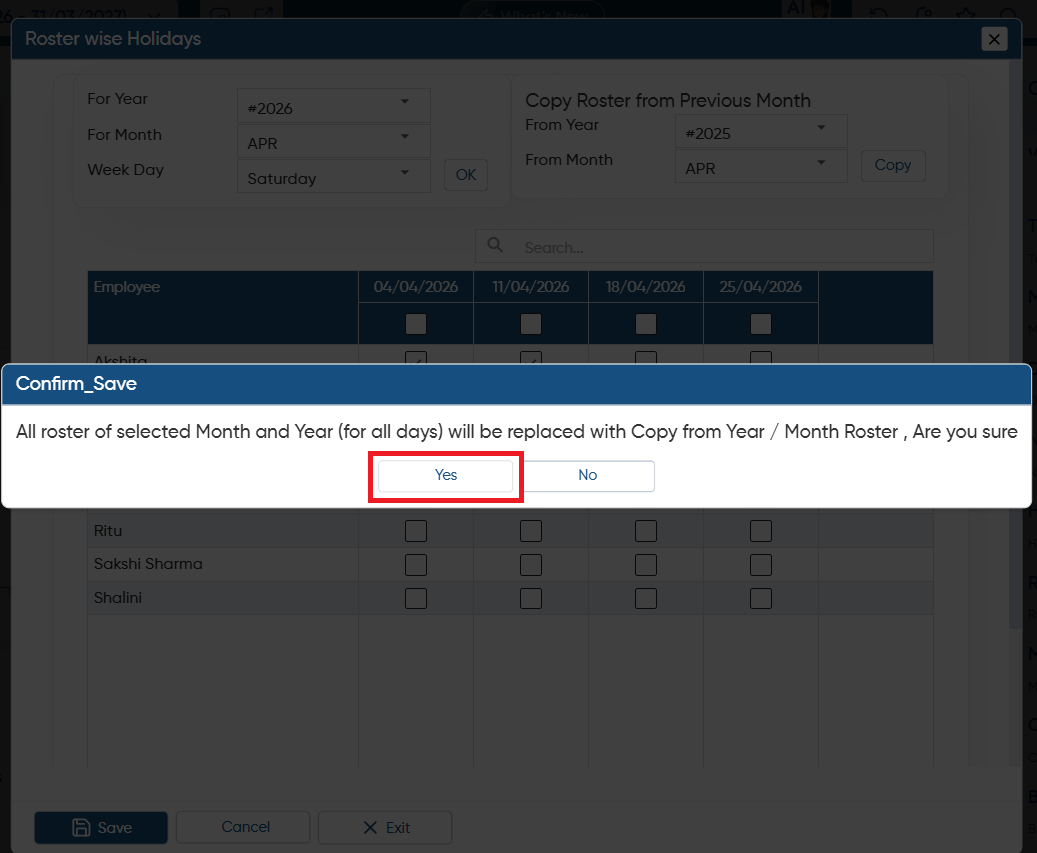
A confirmation window will appear indicating that roster will be updated with the selected Year and Month, click on 'Yes' button.
-
Thereafter, the roster will get auto updated of the employees.
In this way, you can Add Roster Wise Holidays of Employees in AlignBooks.