
Brandwise Discount/Charges
In AlignBooks, you can set different discount rates or charges for each brand of items. When you create an invoice, the system will automatically apply the correct discount/ charges based on the brand on which you have specified. This makes your invoicing faster, reduces mistakes, and ensures the same discount/ charges is always applied for each brand.
In Brand wise Discount/ charges, you can set separate discount/ charges on the basis of Retailer, Wholesaler and Dealer.
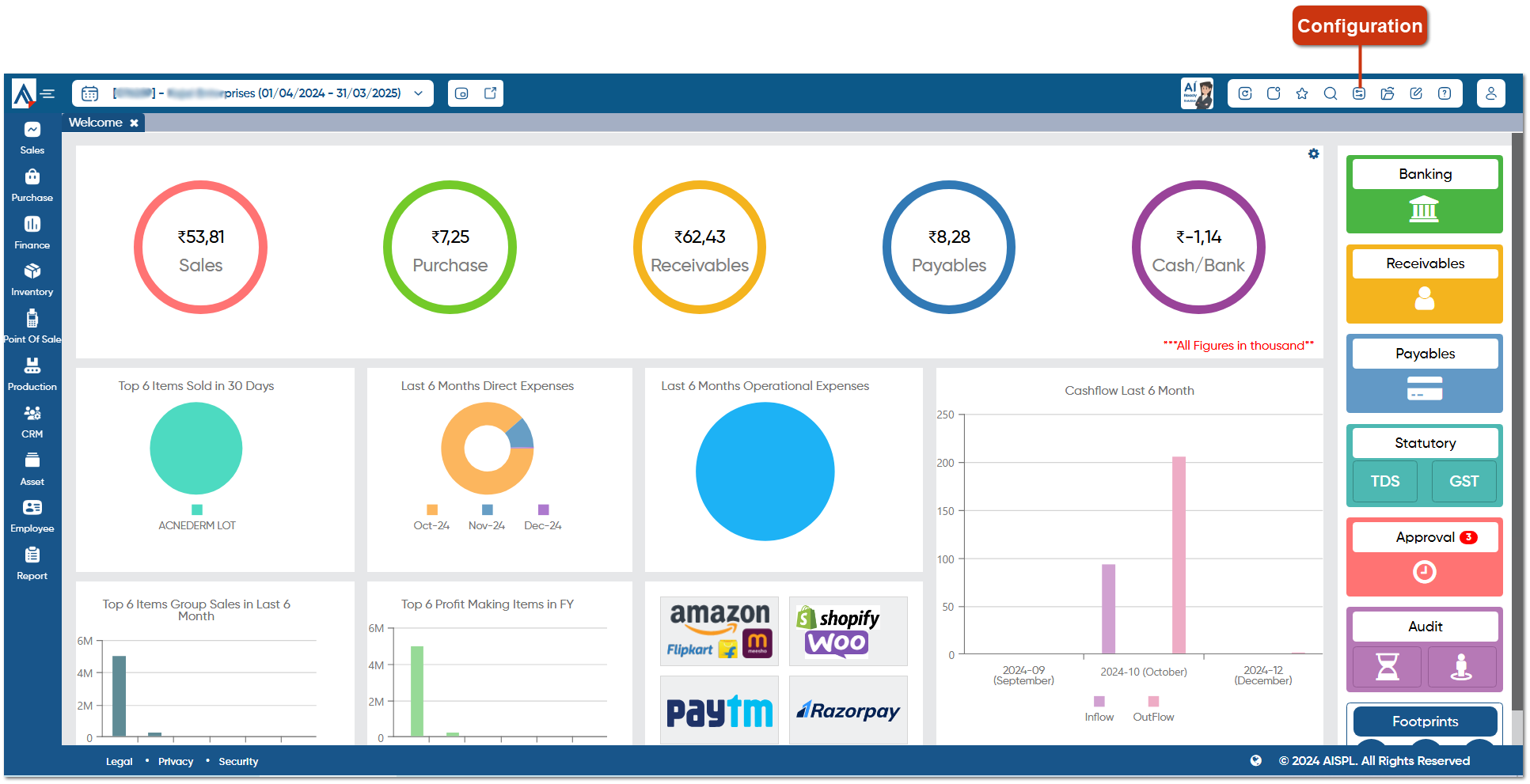
• First, you need to enable the discount/ charges field for fixing them Brands wise. To configure the discount/ charges field click on 'Configuration' icon.
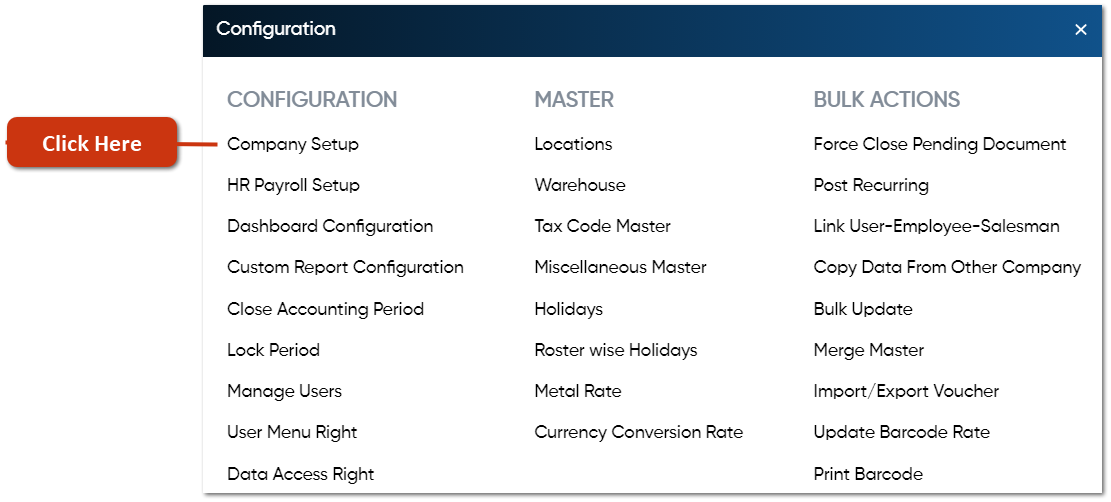
• Now you need to click on 'Company Setup' option.
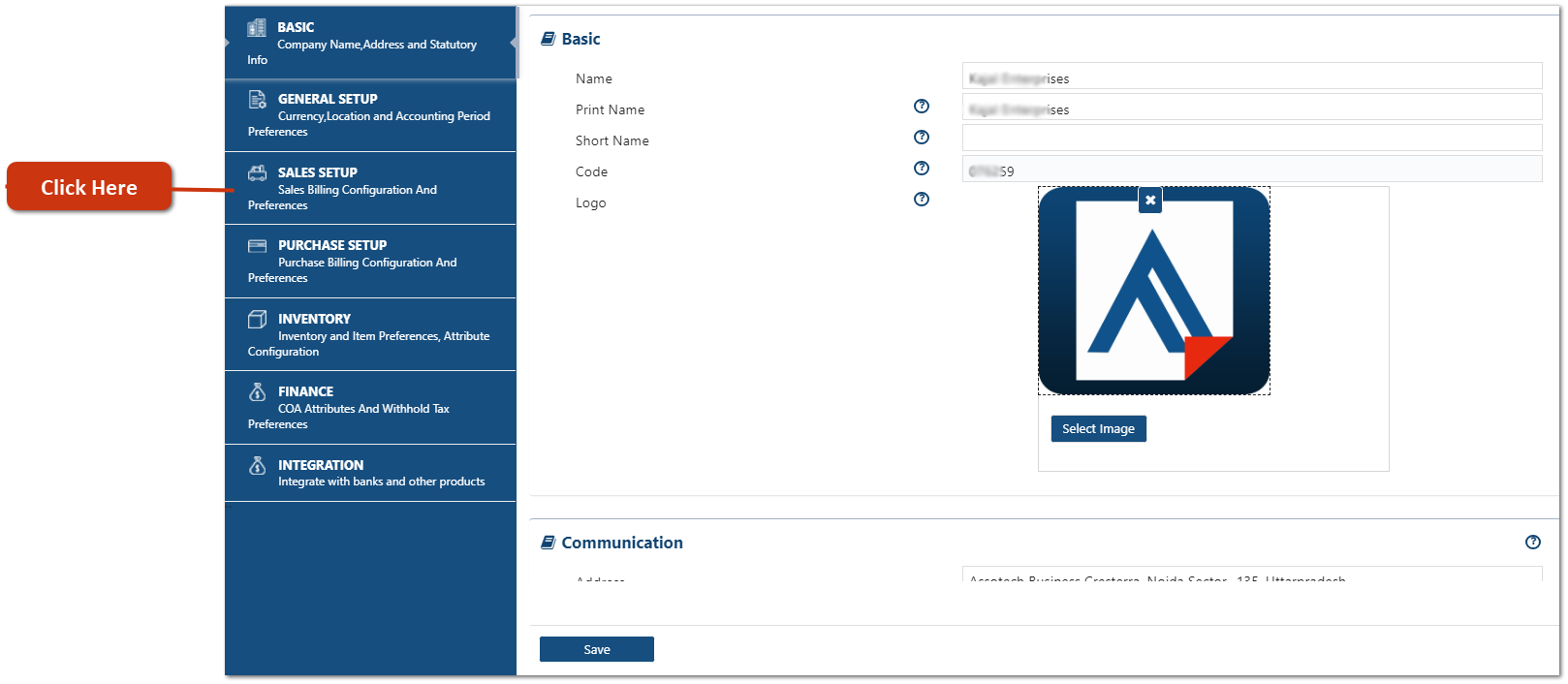
• Click on 'Sales Setup' tab.
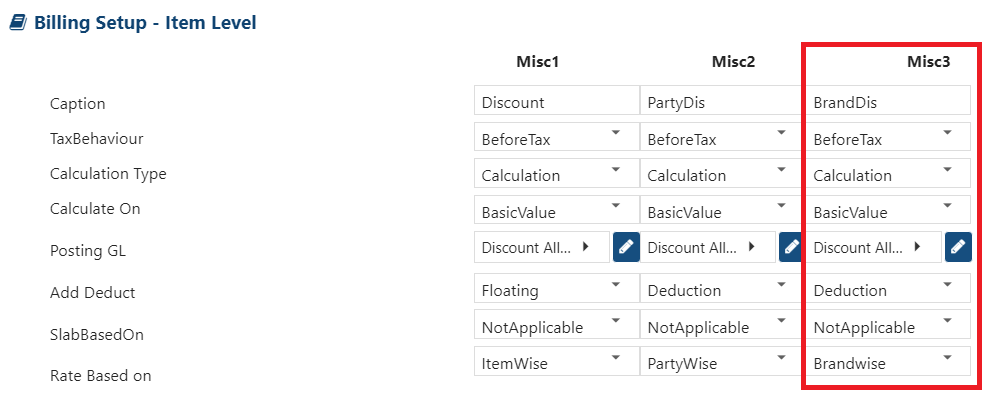
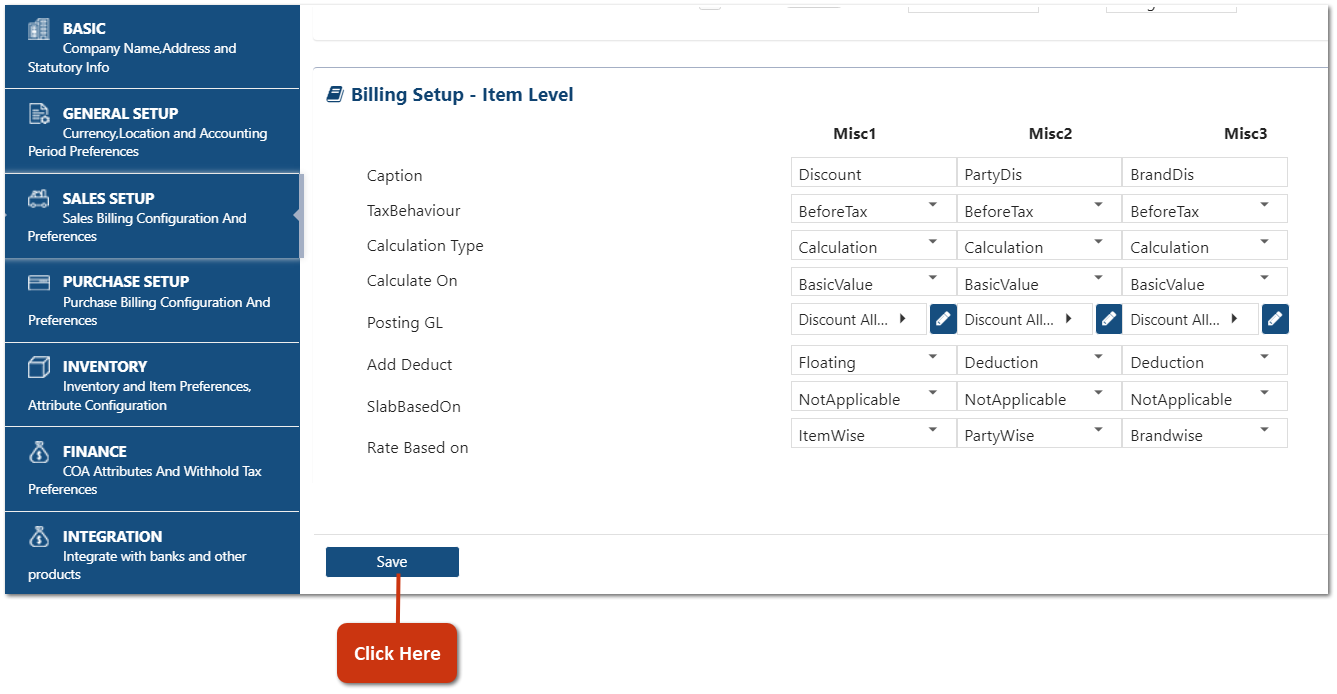
In 'Billing Setup - Item Level', you need to Add the Discount/ Charges field in any of the 'Misc' Column as per the requirement. Suppose you want to enable Discount field in 'Misc3' Column.
• Caption: Specify the field name for the Discount that you want to display in the Brand wise Discount setup. Suppose mention 'BrandDis'.
• TaxBehaviour: Choose whether the Discount should be calculated Before Tax or After Tax.
• Calculation Type: Select the calculation method, either as a fixed value or as a percentage.
• Calculate On: Determine the base for the discount calculation, such as Basic Value, Quantity, Taxable Value, etc.
• Posting GL: Choose the Account Group where the discount value will be recorded in your books of account.
• Add Deduct: Select the option, whether you want to Add discount, Less discount Value etc.
a. Addition: Select this option, to Add discount Value in Invoice.
b. Deduction: Select this option, to Deduct Discount value in Invoice.
c. Floating: Use this option to specify a '+' or '-' sign for adding or deducting the discount while creating the Brand Discount List as needed.
• SlabBasedOn: Choose whether the discount rate should be applied based on Quantity or Amount.
• Rate Based On: Select 'BrandWise' to enable the Brand Wise Discount/ charges field.
• After mentioning all the details, click on 'Save' button.
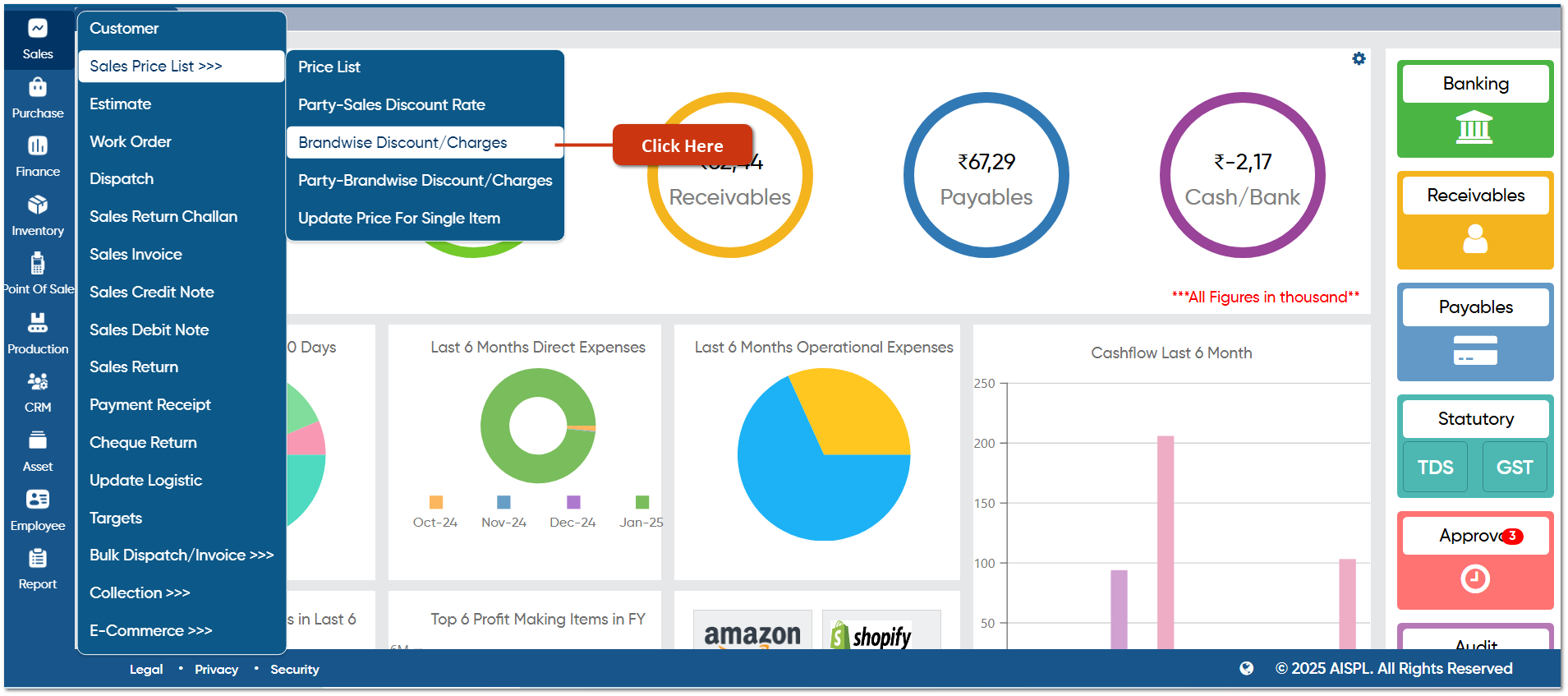
• Now you need to fix the Brand wise Discount/ Charges as per the requirement. To fix them go to Sales > Sales Price List > Brandwise Discount/ Charges.
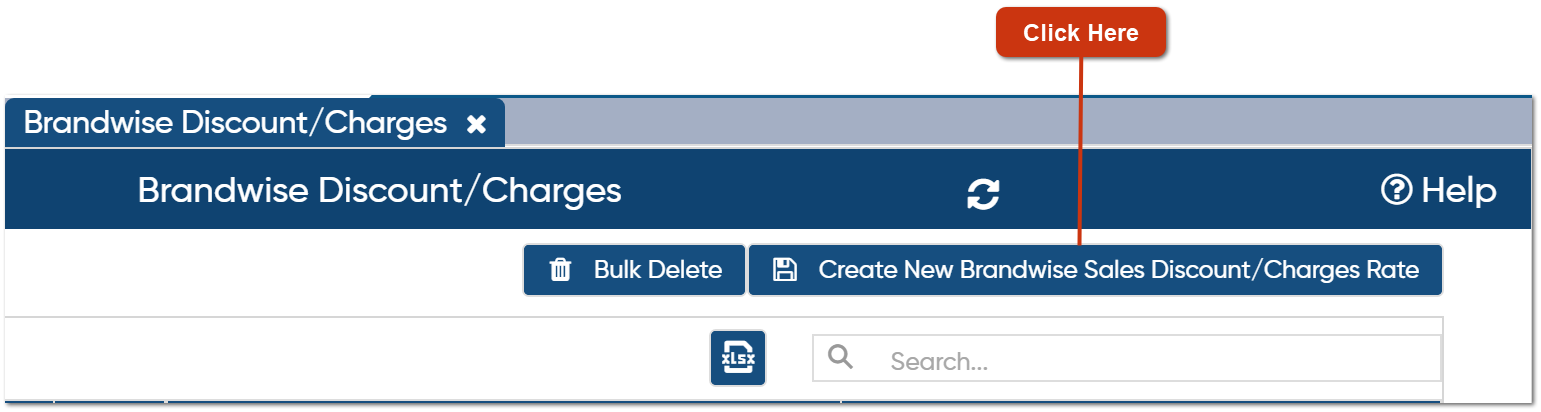
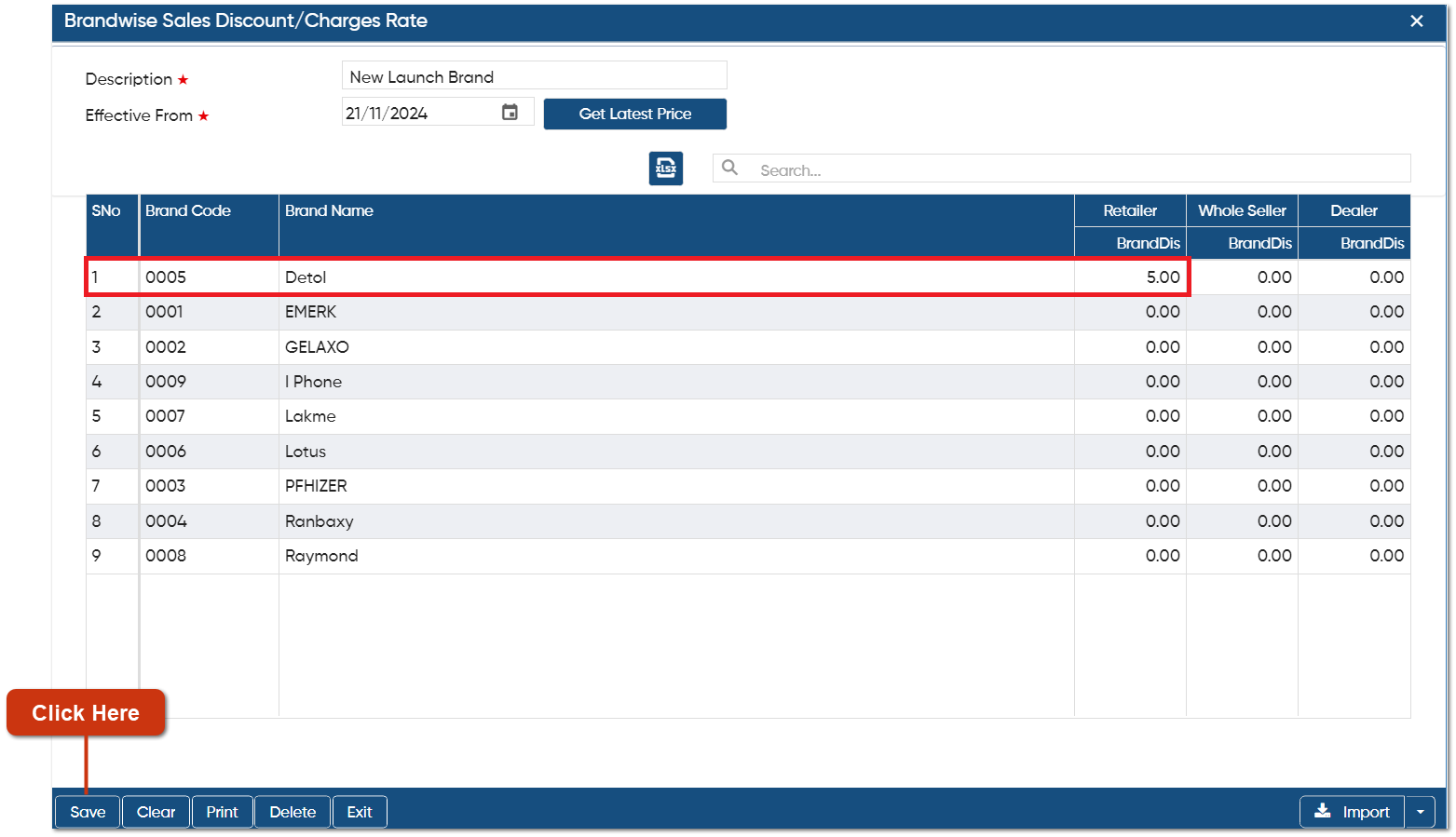
• Click on 'Create New Brandwise Sales Discount/Charges Rate'.
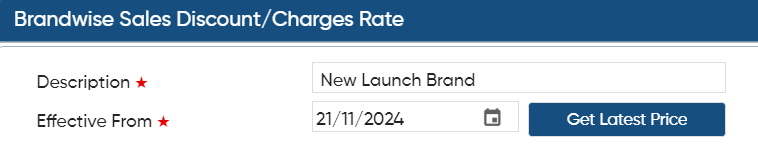
• The 'Brandwise Sales Discount/Charges Rate' window will open.
• Provide the Description for the discount category, specify the Effective Date, and enter the discount rate for the specific brand as needed.
• For instance, you want to set a discount rate for the New Launch Brand, so enter "New Launch Brand" in the Description field and set effective date from '21 Nov 2024'.
• Suppose, 'Detol' a New Brand has been launched, so set the discount of '5%' for the retailers.
-
Similarly, you can set the discount for the other brands also as per the requirement, and click on 'Save' button to save the discount rates.
-
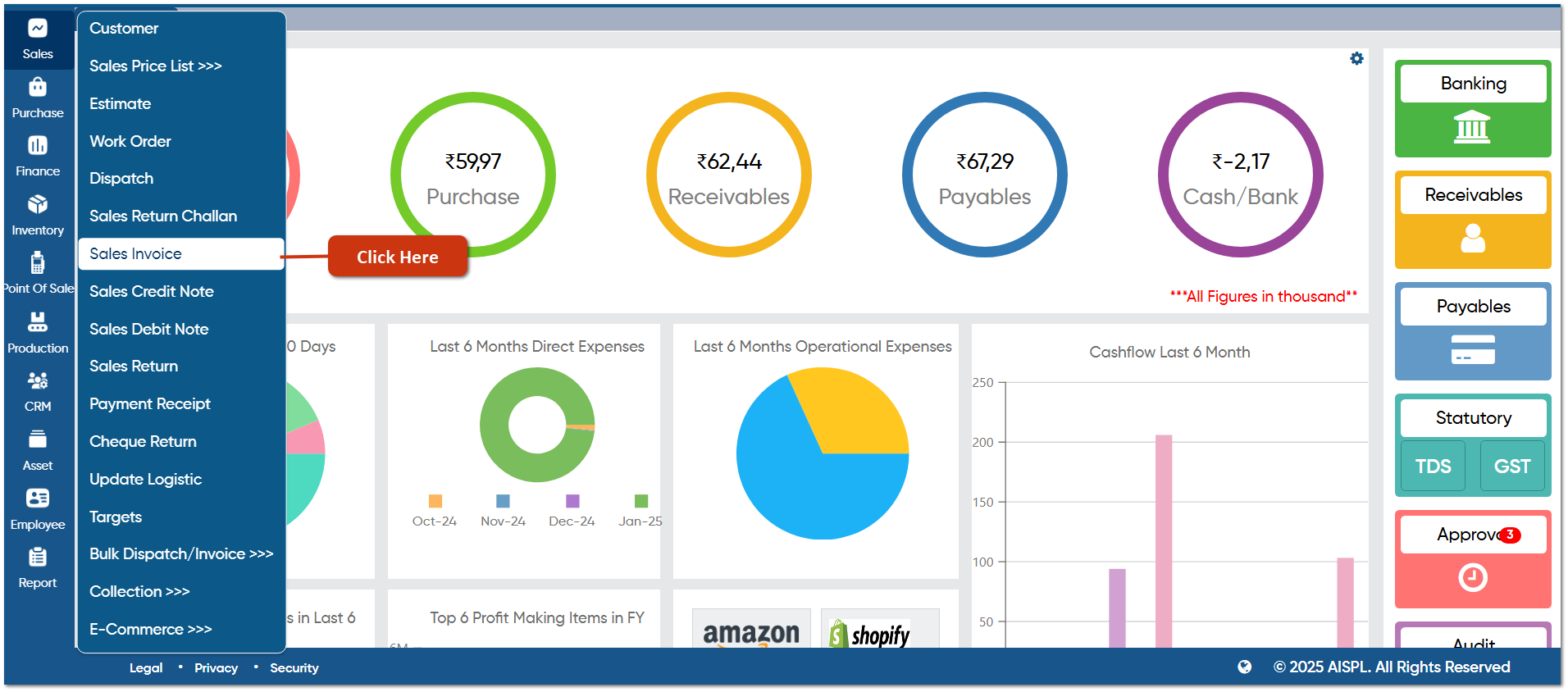
Now let's view how the Discount/ Charges will get auto loaded in the invoice. To create an Invoice go to Sales > Sales Invoice.
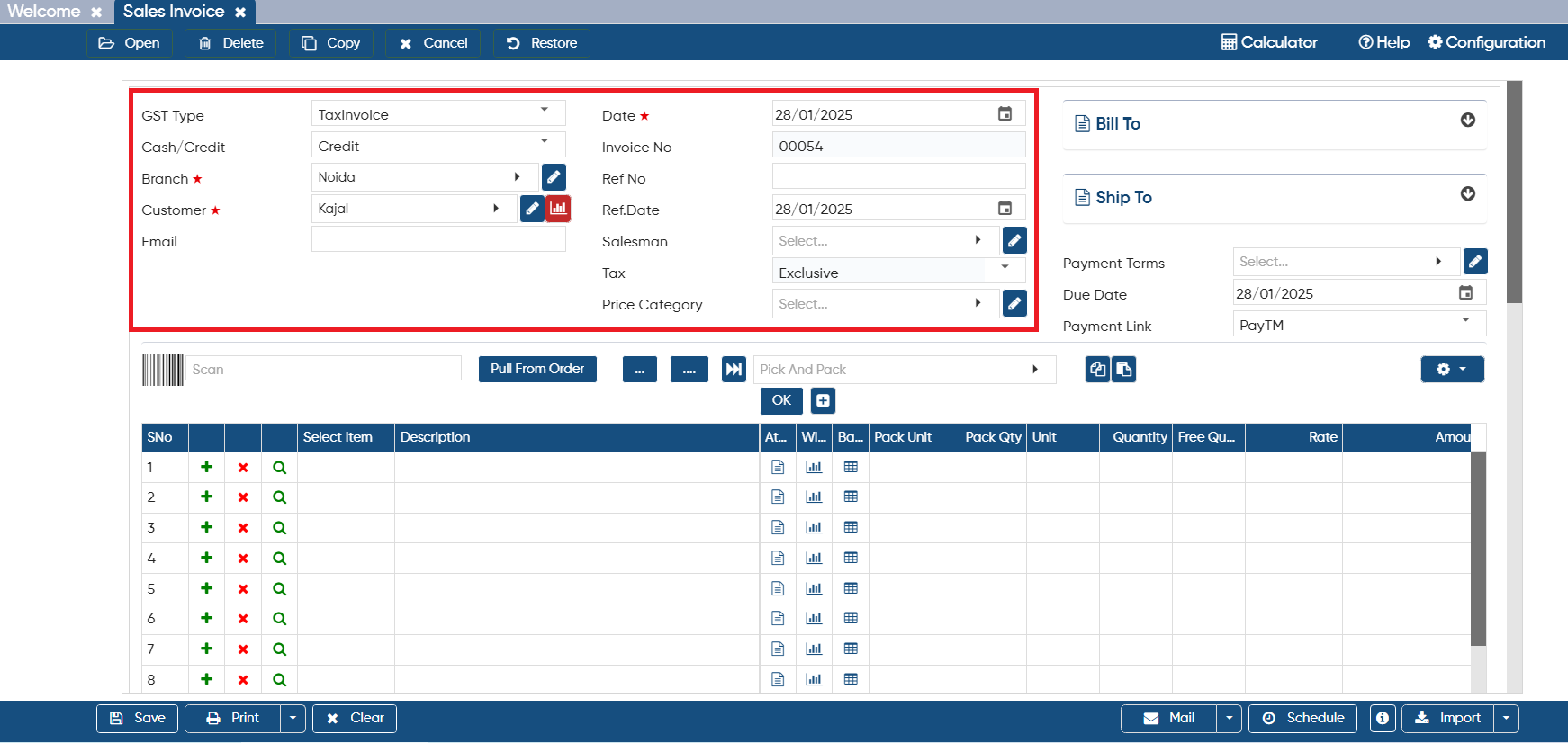
• You need to select Branch, Warehouse, Customer, and mention other invoice details as per the requirement.
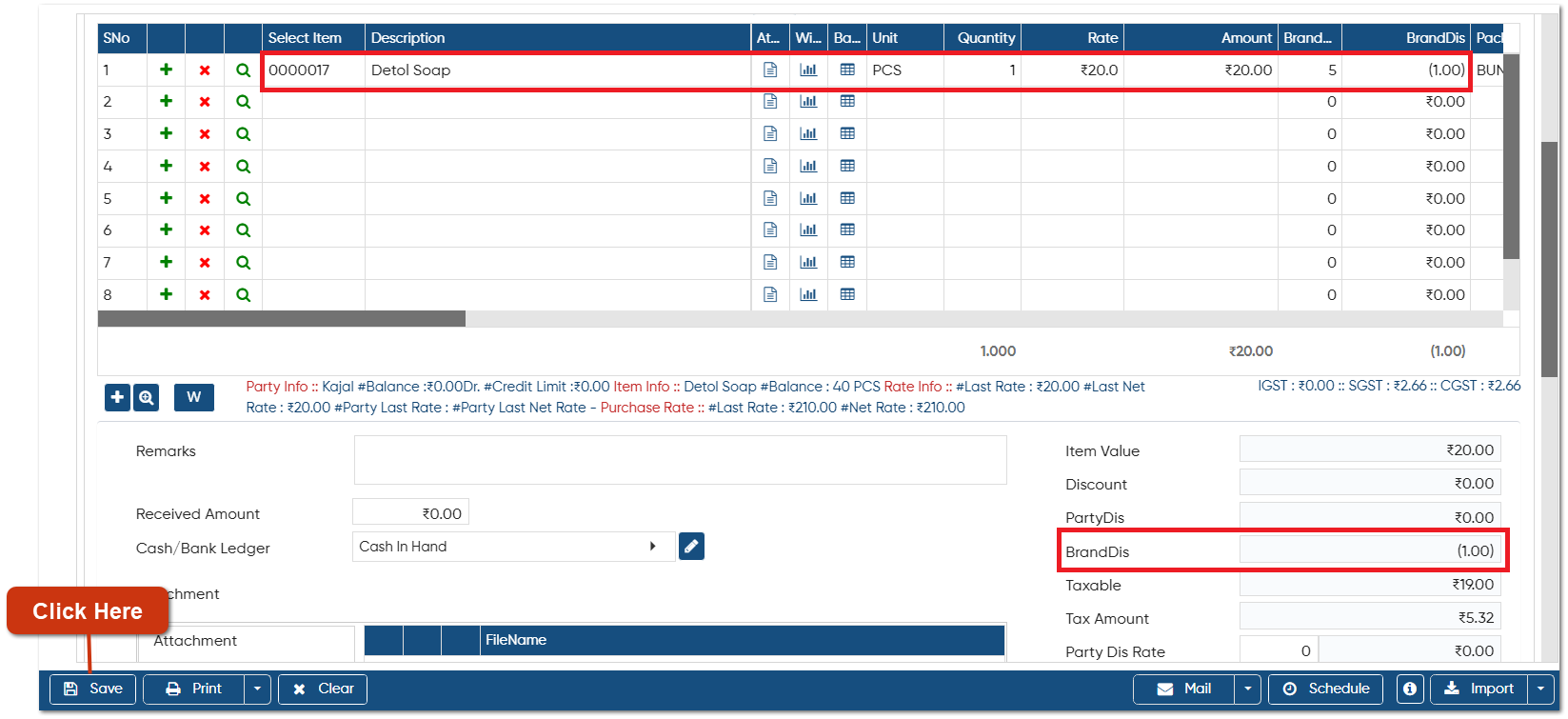
• Load the item, Quantity, and Rate, you can view the Brand Discount for of '5%' will get auto loaded in the invoice.
• Item 'Detol Soap' brand is 'Detol', on which the discount of '5%' has been fixed.
• Scroll down the page and you can view the Brand Discount Amount is '1.00'.
• ( Item Qty * Rate ) * 5% = Party Discount Amount
• ( 1*20 ) * 5% = 1
• To save the Invoice click on 'Save' button.
-
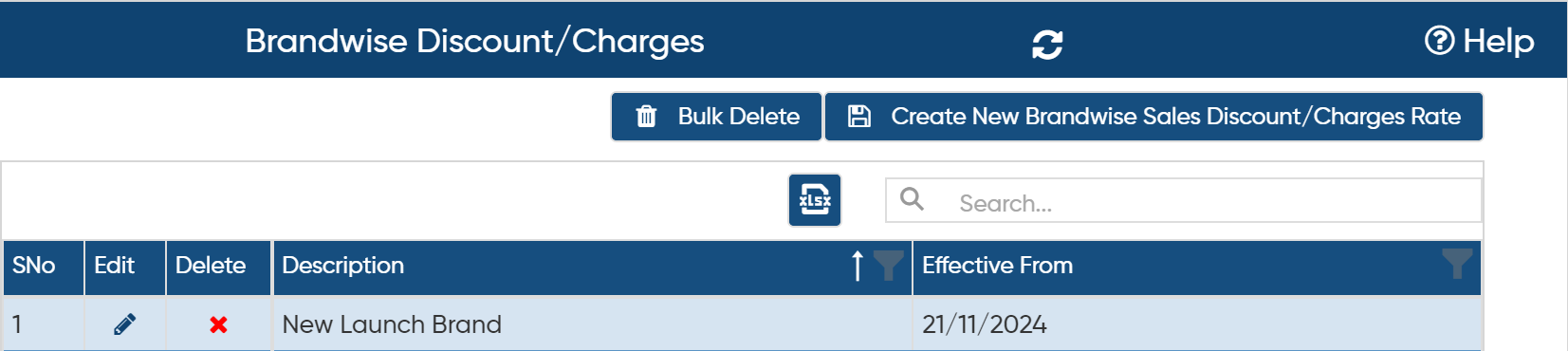
 Click on edit icon to make any changes or updation to the Brand wise list.
 -
 Click on cross icon on the specific brand discount to delete or remove it.
-
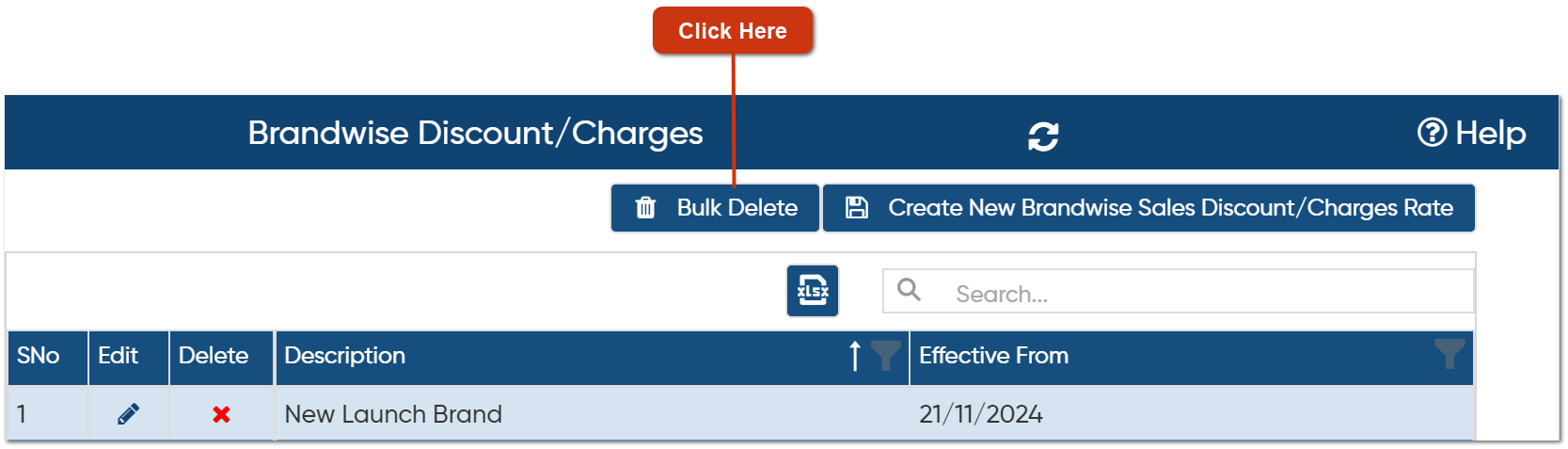
If you want to delete the Multiple brand discount rates then click on 'Bulk Delete' option.
-
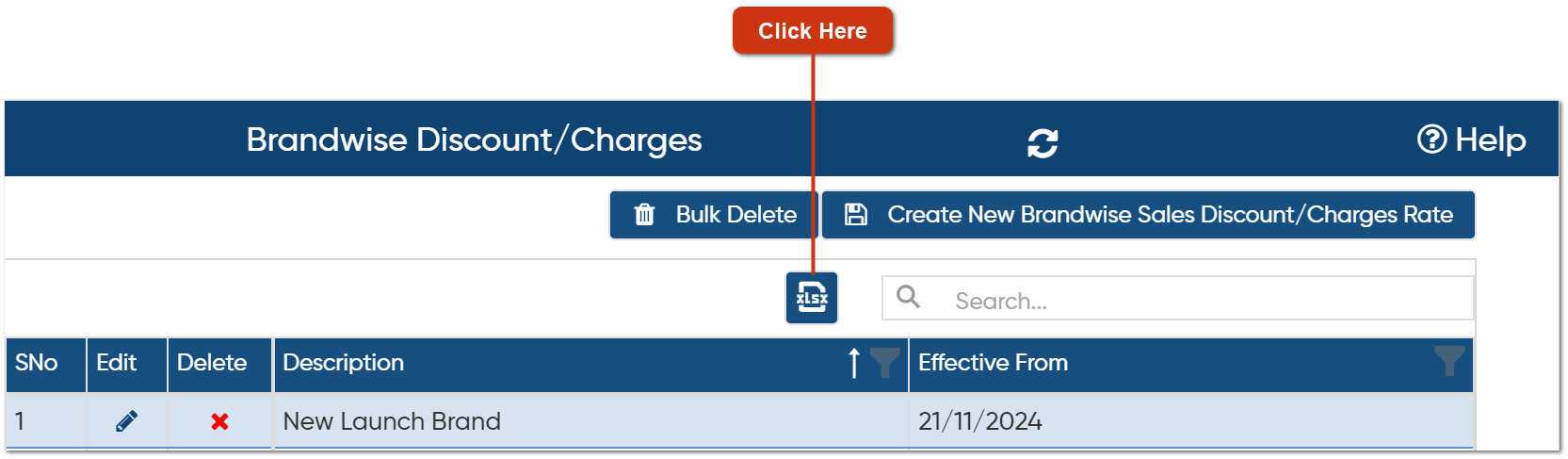
To export the data you can click on excel icon, all the brand discount rate list will get exported to the excel file.
-
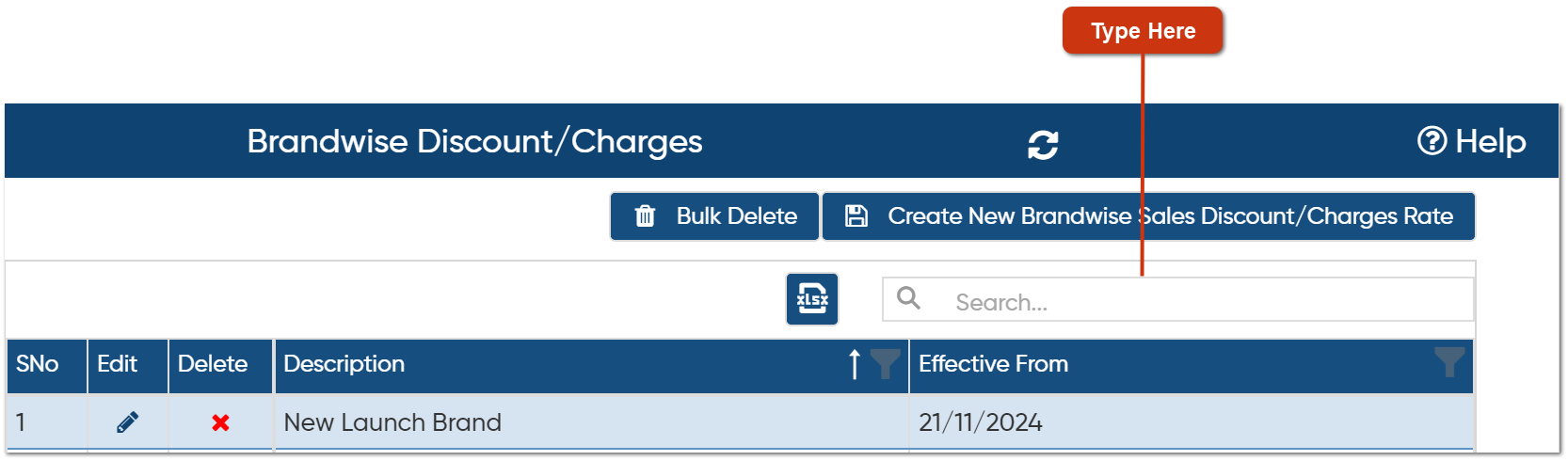
To search any record type the name in search box, software will automatically display the searched result.
-
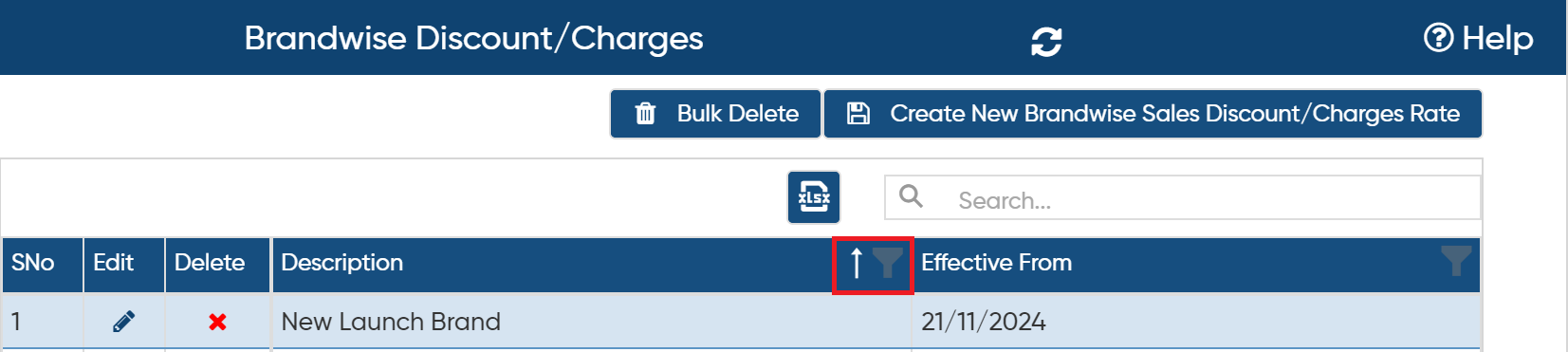
Click on Arrow or column header name to sort the list based on specific field.
-
You can also drag and drop any column besides any other column as per your requirement.
In this way, you can easily fix the Discount/ Charges Brand wise in AlignBooks.