
Currency Conversion Rate
If your business deals with invoices or purchase documents in different currencies than the one you use for accounting, you’ll need to convert those currencies into your base currency for accurate bookkeeping.
Currency exchange rates change constantly, making it impractical to update the rate for every transaction. To simplify this, you can use a fixed exchange rate for a set period, daily, weekly, or monthly. Documents are then converted using this fixed rate and recorded in your accounts accordingly.
When you actually pay or receive money, the exchange rate may differ from the one you used earlier. Any difference between the two rates is recorded in a Fluctuation Difference Account.
To streamline this process, a Currency Conversion Rate system is set up to store exchange rates for each currency. This helps automate the creation of documents and reports in your required format, saving you time and ensuring consistency.
-
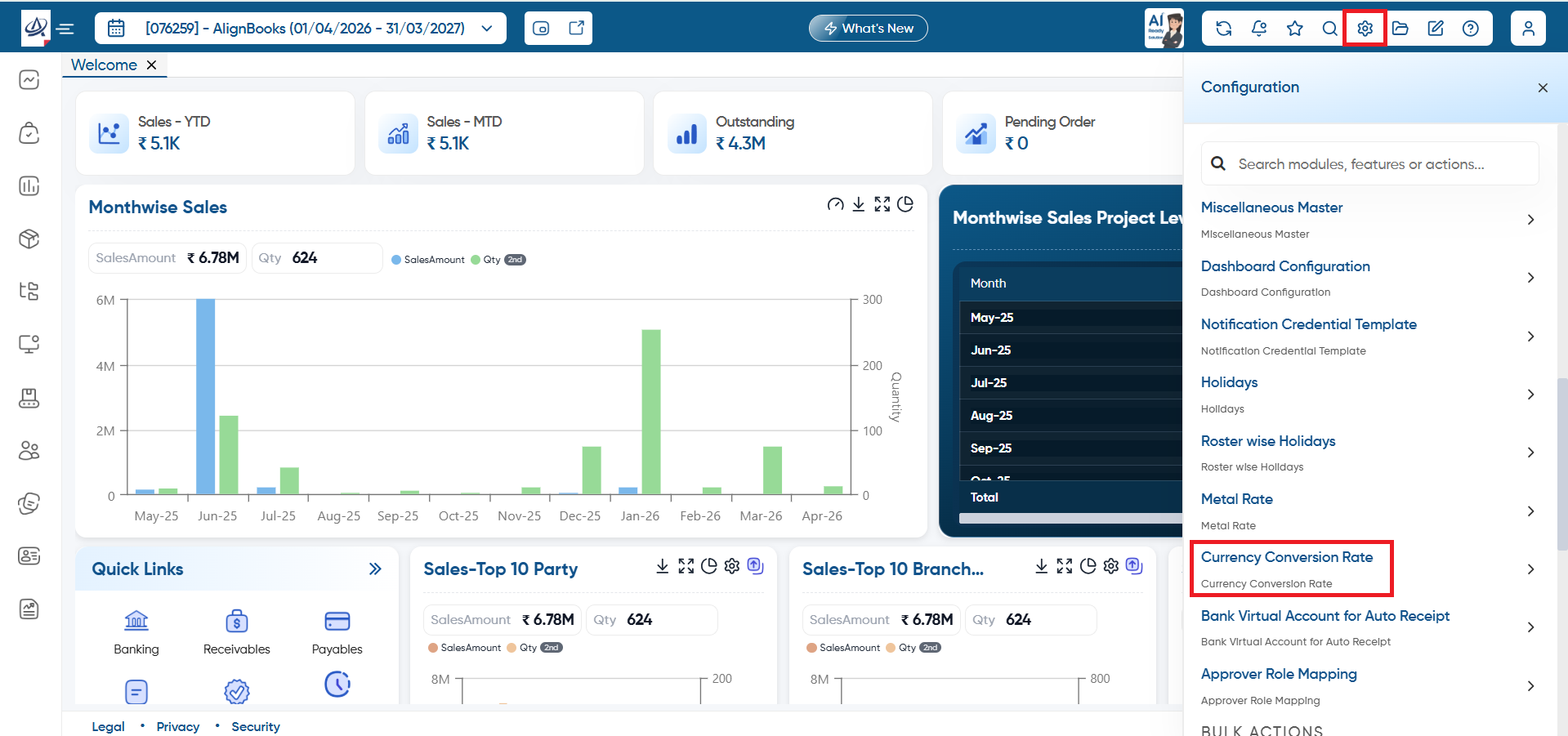
Click on 'Configuration' icon and select 'Currency Conversion Rate' option.
-
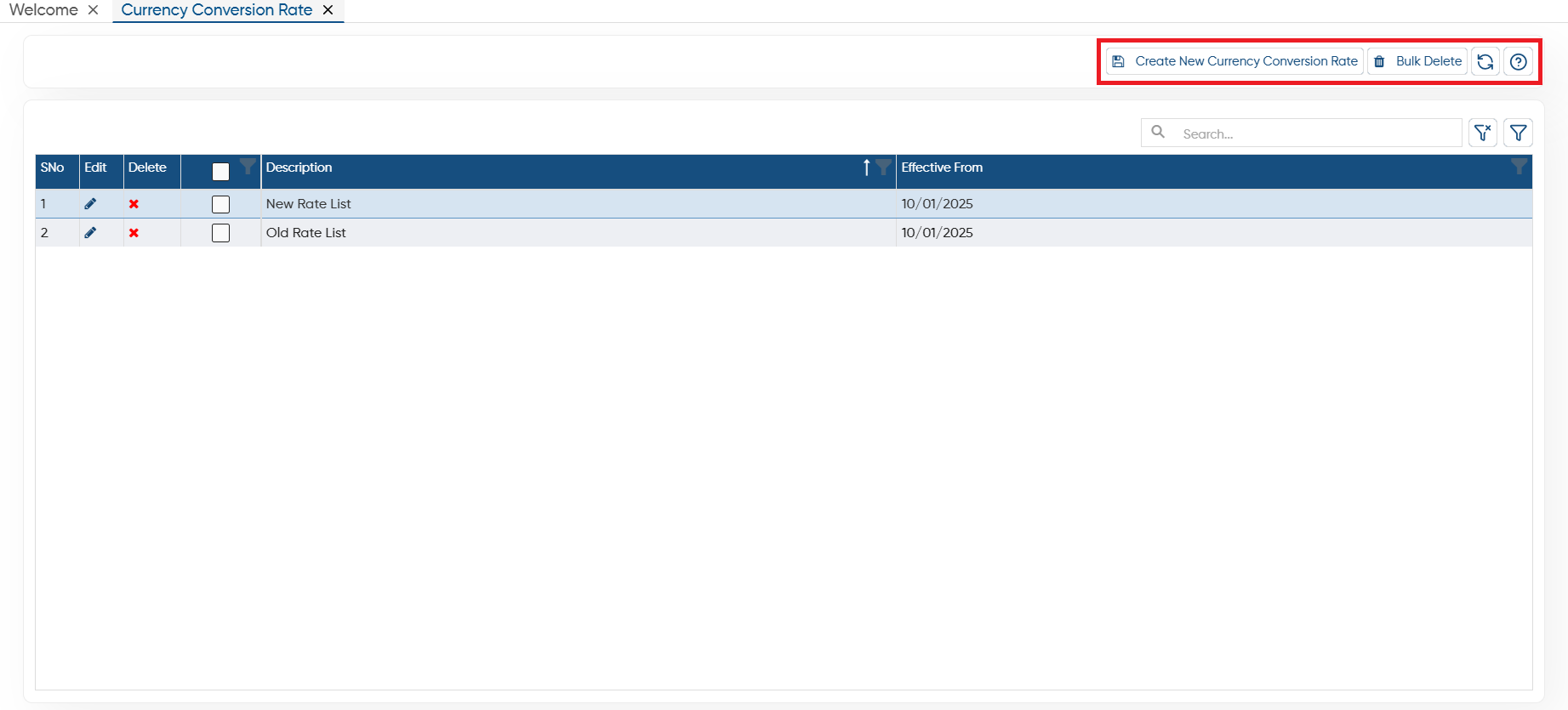
Create New Currency Conversion Rate: To create a new list for currency Rate click on 'Create New currency Conversion Rate' button.
-
Bulk Delete: To delete the multiple currency conversion rate at once select them (checkbox provided next to the warehouse's name) then click on this button.
-
Refresh: After making changes if screen doesn't update you can refresh the screen. This will display the latest changes on the screen.
-
Help: Click on the help icon to access the step by step guide of the Process.
-
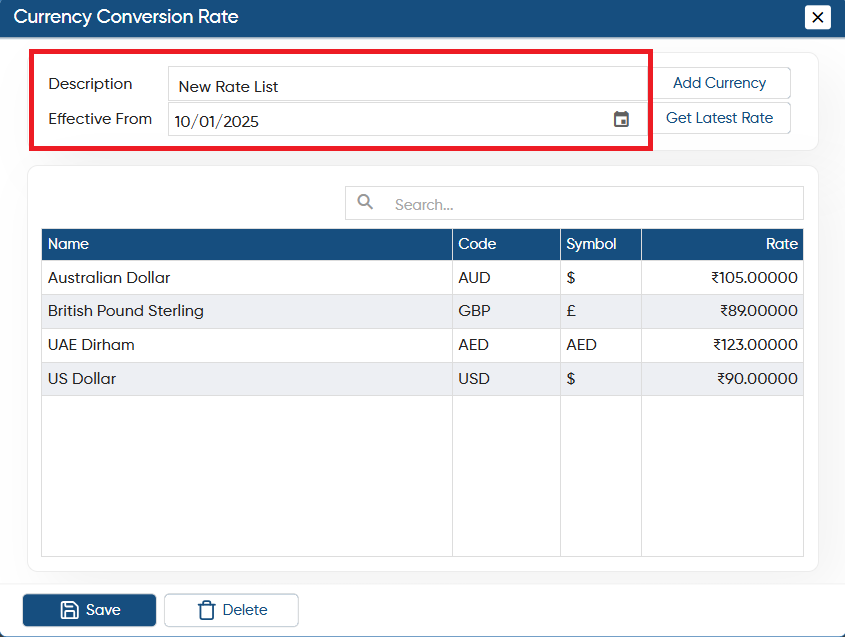
Description: Mention the name you wish to display for identifying the Conversion Rate.
-
Effective From: Specify the date from which the conversion rate should be applied. You can also conveniently select the date using the calendar icon.
-
If the desired currency is not listed below and you wish to add its exchange rate, click the 'Add Currency' button.
-
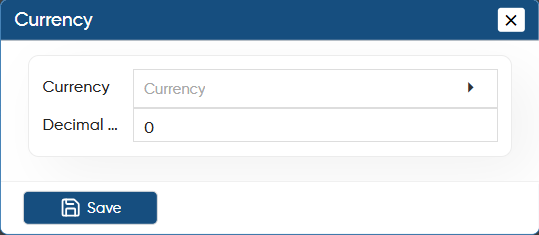
A new 'Currency' window will open, allowing you to select the currency from the dropdown and specify the required number of decimal digits.

-
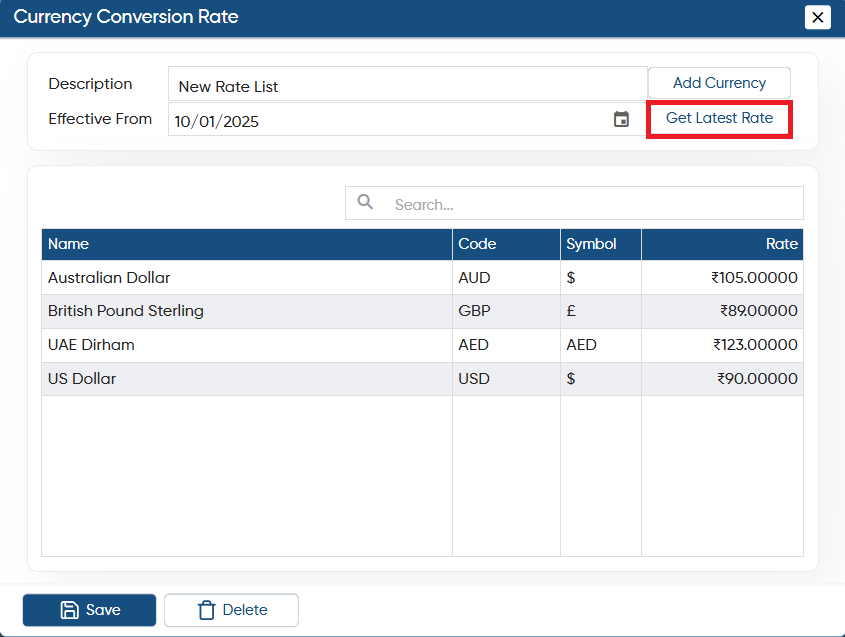
To update the Last Rate available in the system click on 'Get Latest Rate' option. It will auto update the Last Rate in the currencies.
-
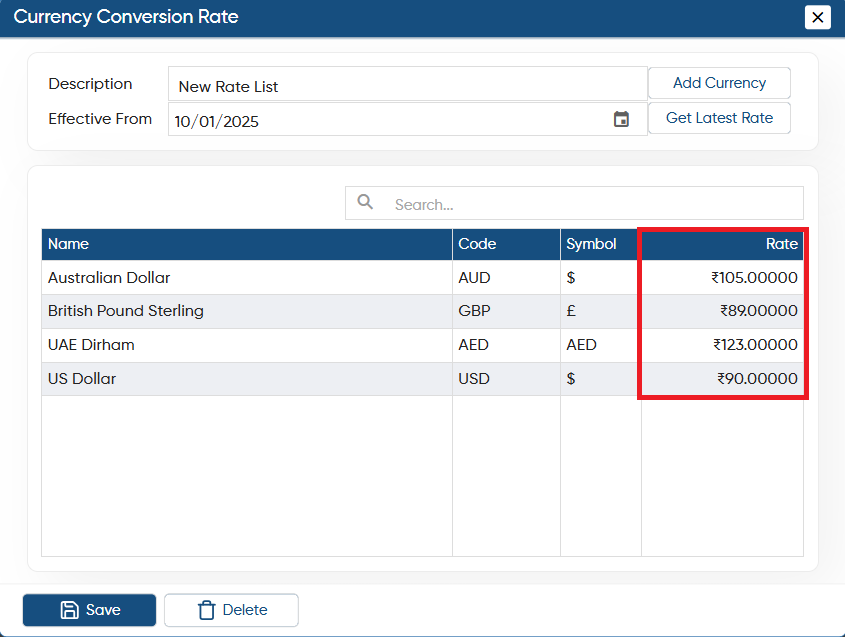
In 'Rate' column you can mention the rate of each currency and click on 'Save' button.
-
Click on
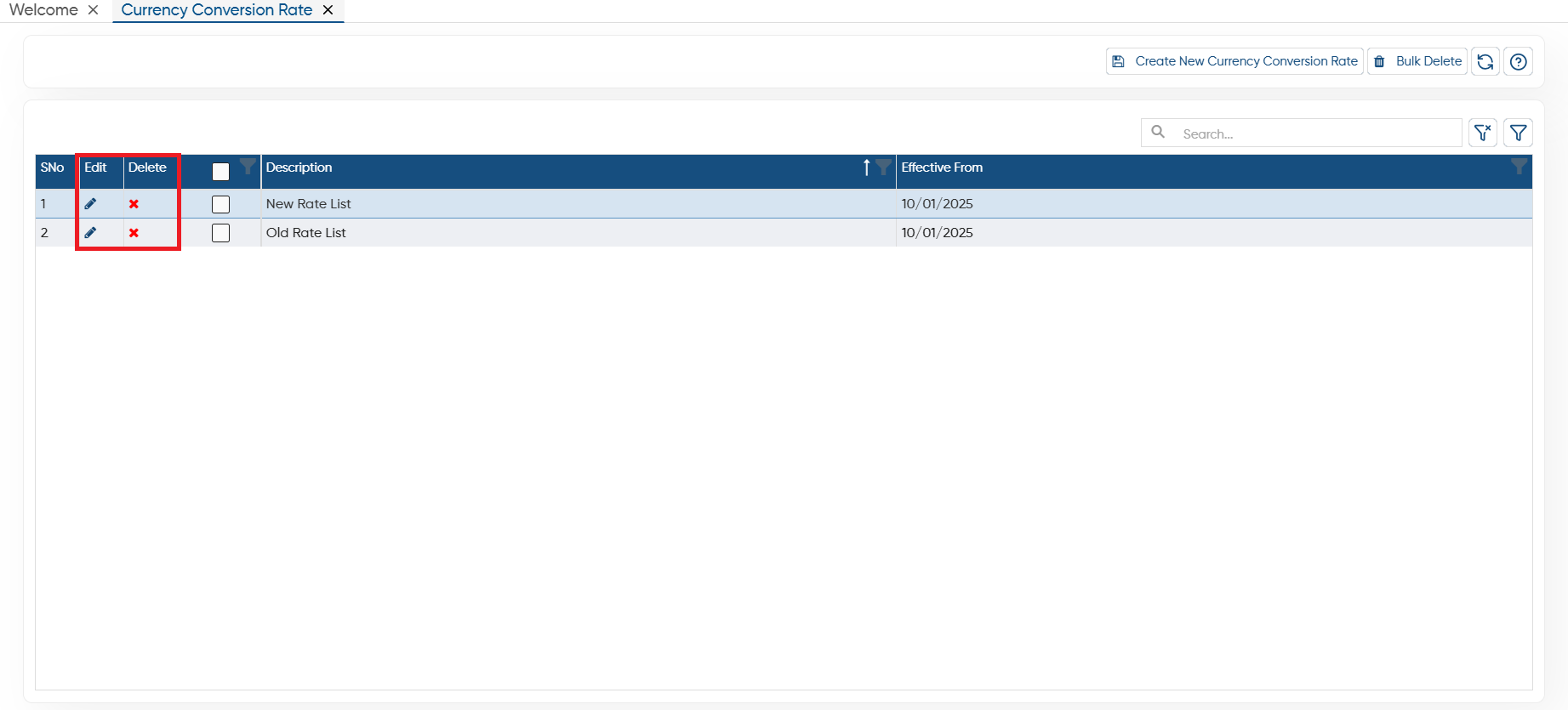
 'Edit' icon to modify or make any changes to the specific currency list.
 -
Click on
 'Cross' icon to delete any currency Rate list.
-
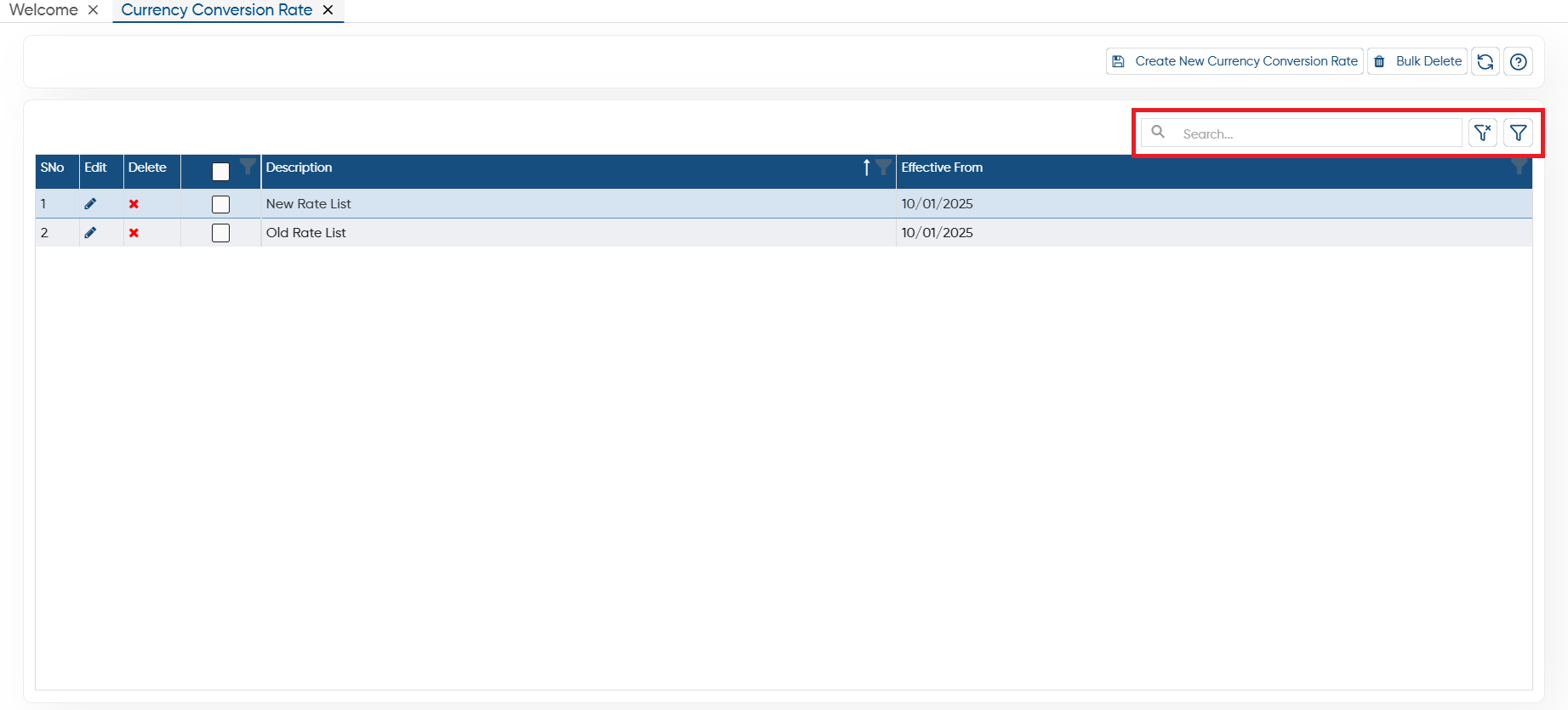
Search: To search any record in the list, only type the related information in search box, software will display the result on the screen.
-
Clear Filter: Click on the Clear Filter icon, to remove all the filters you have applied on the list.
-
Show Filter: Through the ‘Show Filter’ icon, you can enable column-wise filtering. Once activated, a search icon will appear at the top of each column, allowing you to filter the list easily.
In this way, you can Manage the Currency Conversion Rate in AlignBooks.