
Job Work Outward Rate
When sourcing materials for a Job Work process, it is essential to stay informed about the prices offered for a specific product. Accurately specifying the rate of materials sent for Job Work ensures transparency and consistency in cost management. By entering this information into your system, you enable automated price retrieval across various processes involving the same material.
Benefits Of Job Work Outward Rate:
-
Automated Price Retrieval – Saves time by automatically fetching prices for similar processes involving the same material.
-
Improved Accuracy – Reduces manual errors and ensures pricing consistency.
-
Cost Control – Helps in tracking expenses and maintaining budget limits effectively.
-
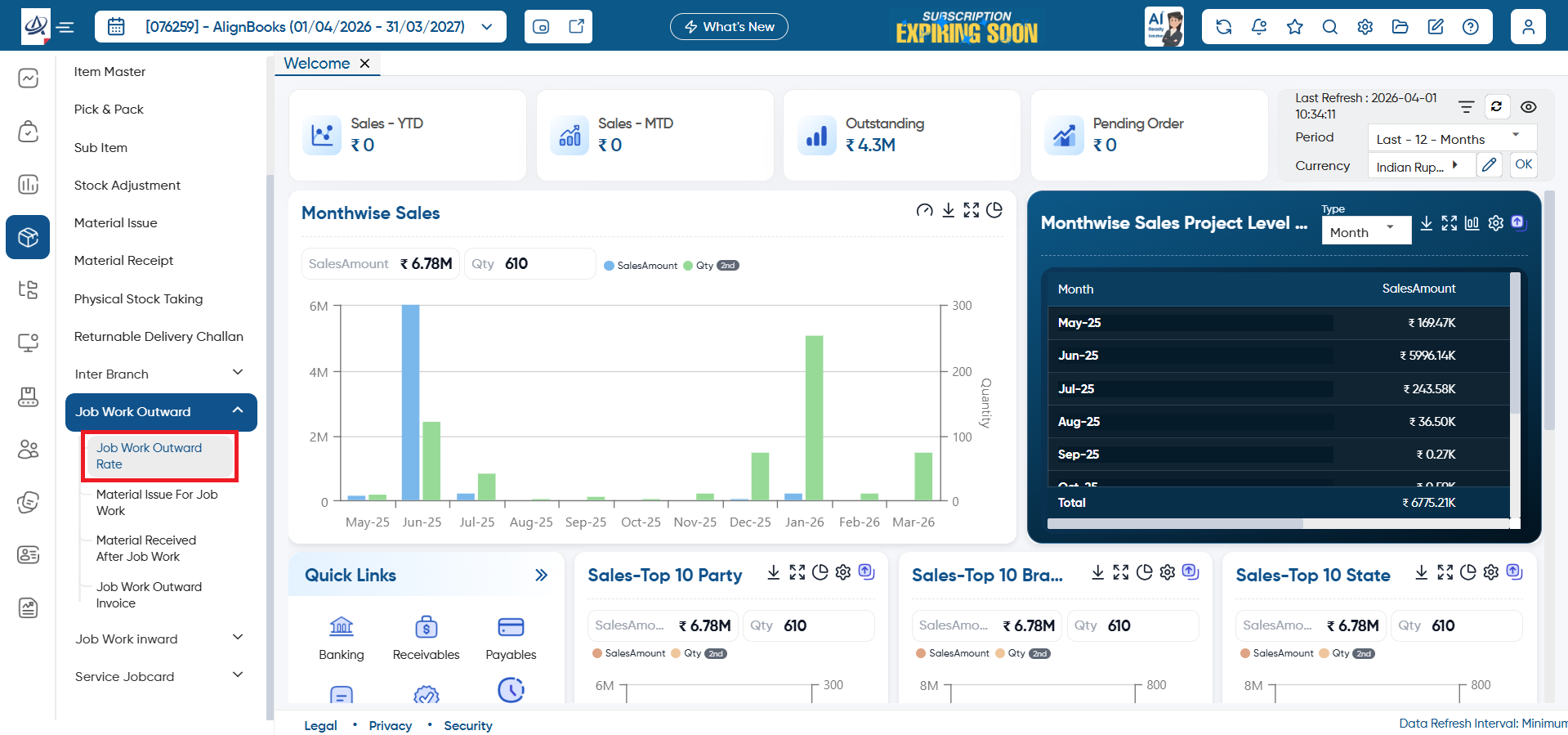
Go to Inventory > Job Work Outward > Job Work Outward Rate.
-
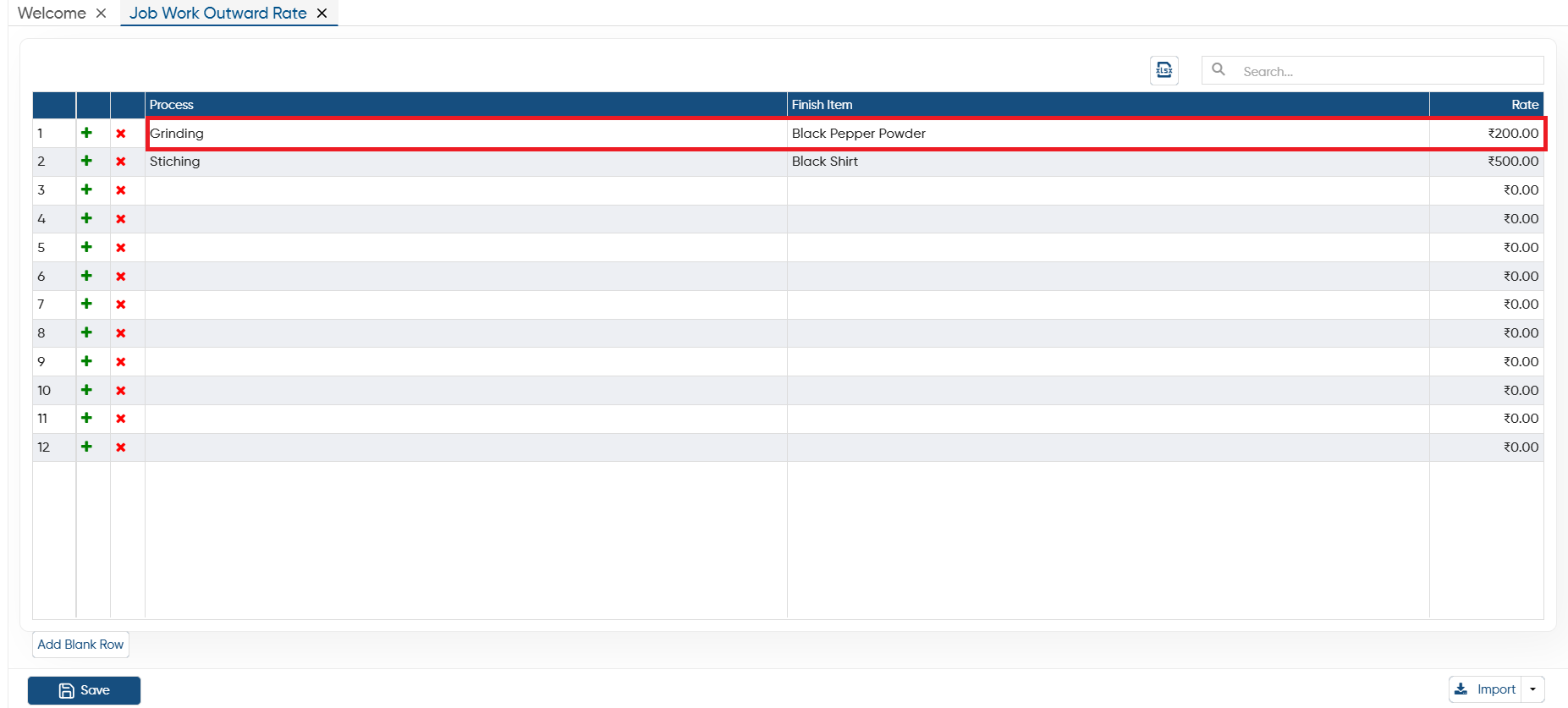
In 'Process' column, select the type of process for which you want the job work.
-
In 'Finished Item' option, select the finished item you required from this job work.
-
In 'Rate' column, mention the rate of the Job work.
Click on 'Save' button.
-
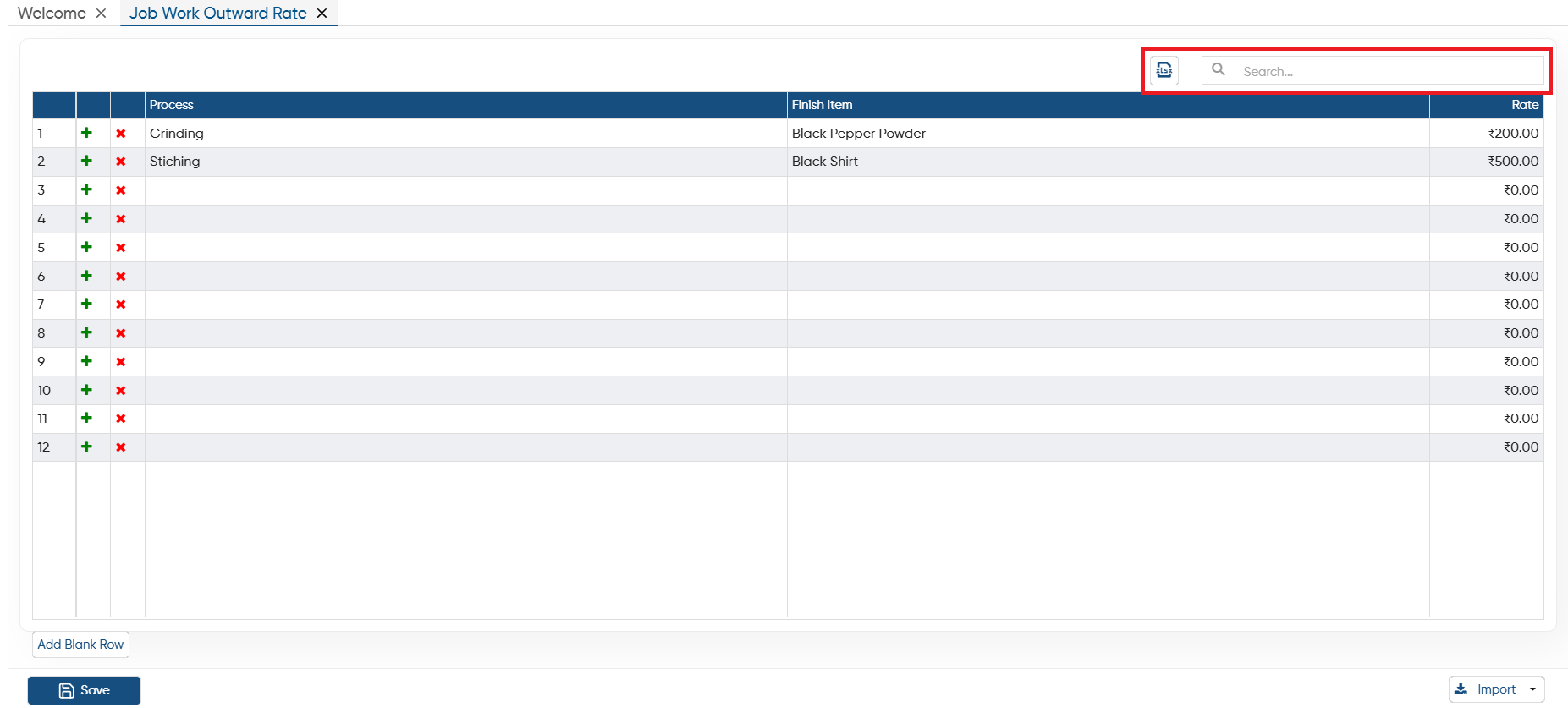
Excel: If you required to export the Job Work outward Rate list then click on the Excel icon. All the Rate list will be exported to the excel File.
-
Search: To search any process, Finished Item, rate type the details in the search box the software will display the result on the screen.
 Click on the plus icon to add more rows to the table.
 Click on the cross icon to remove the any specific row from the table permanently.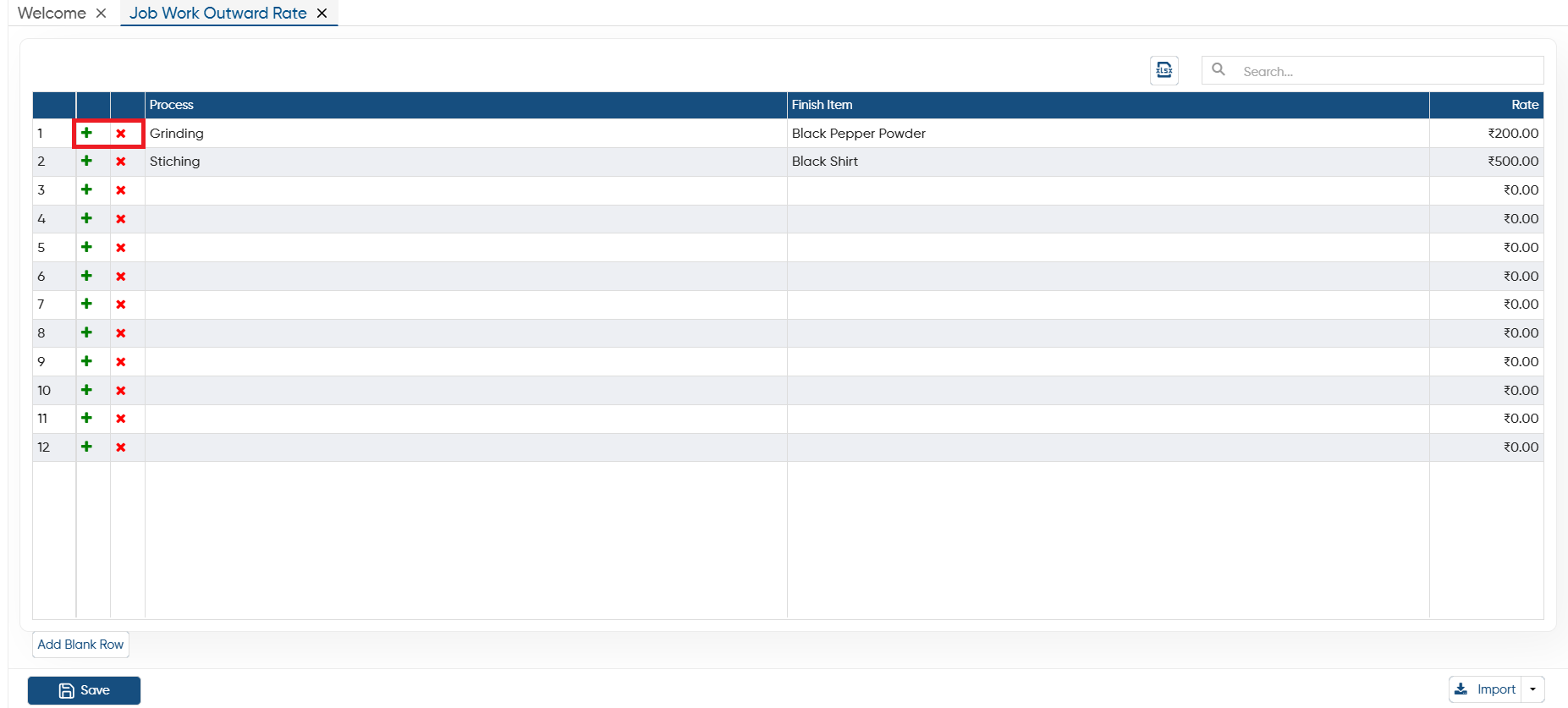
-
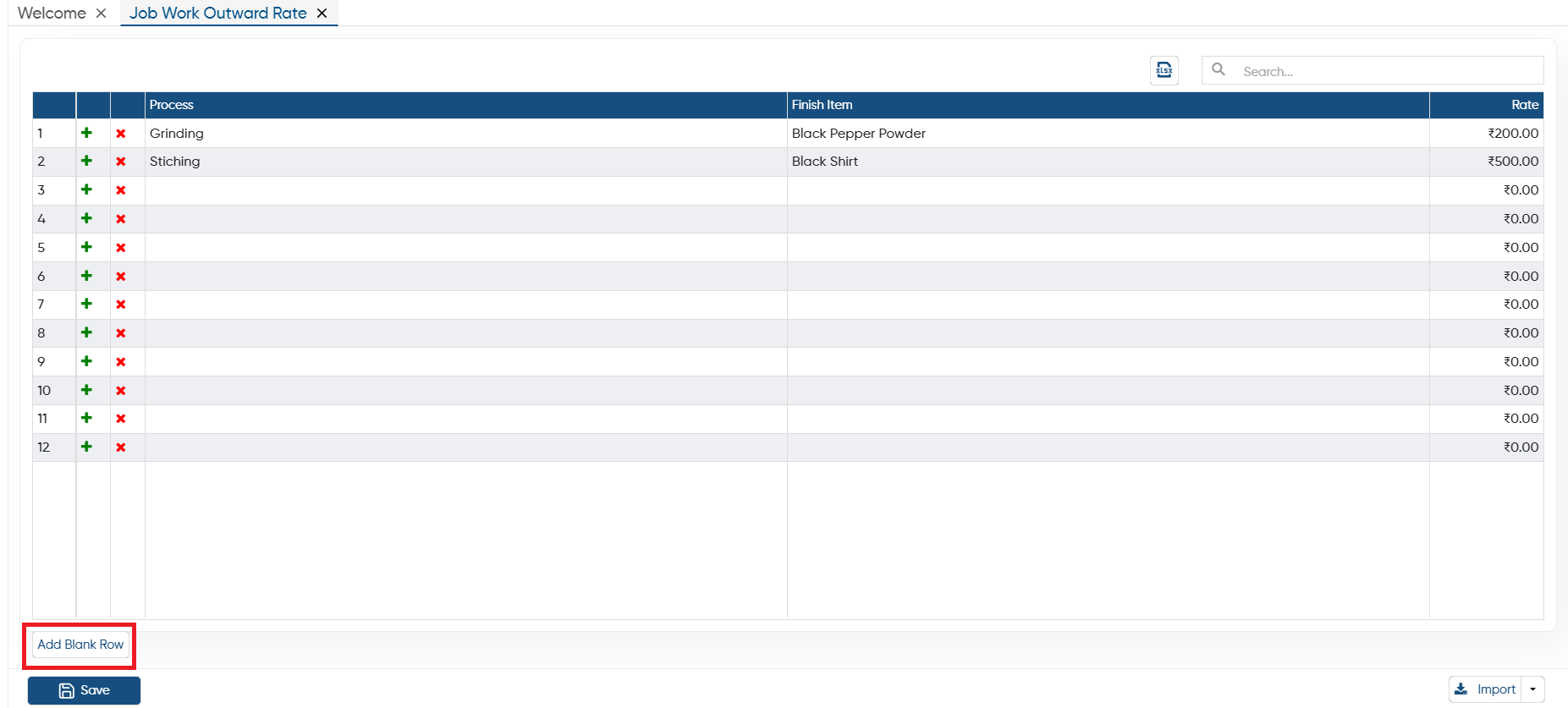
Click the 'Add Blank Row' button to add more rows to the table. It functions similarly to the '+' icon displayed in the table.
-
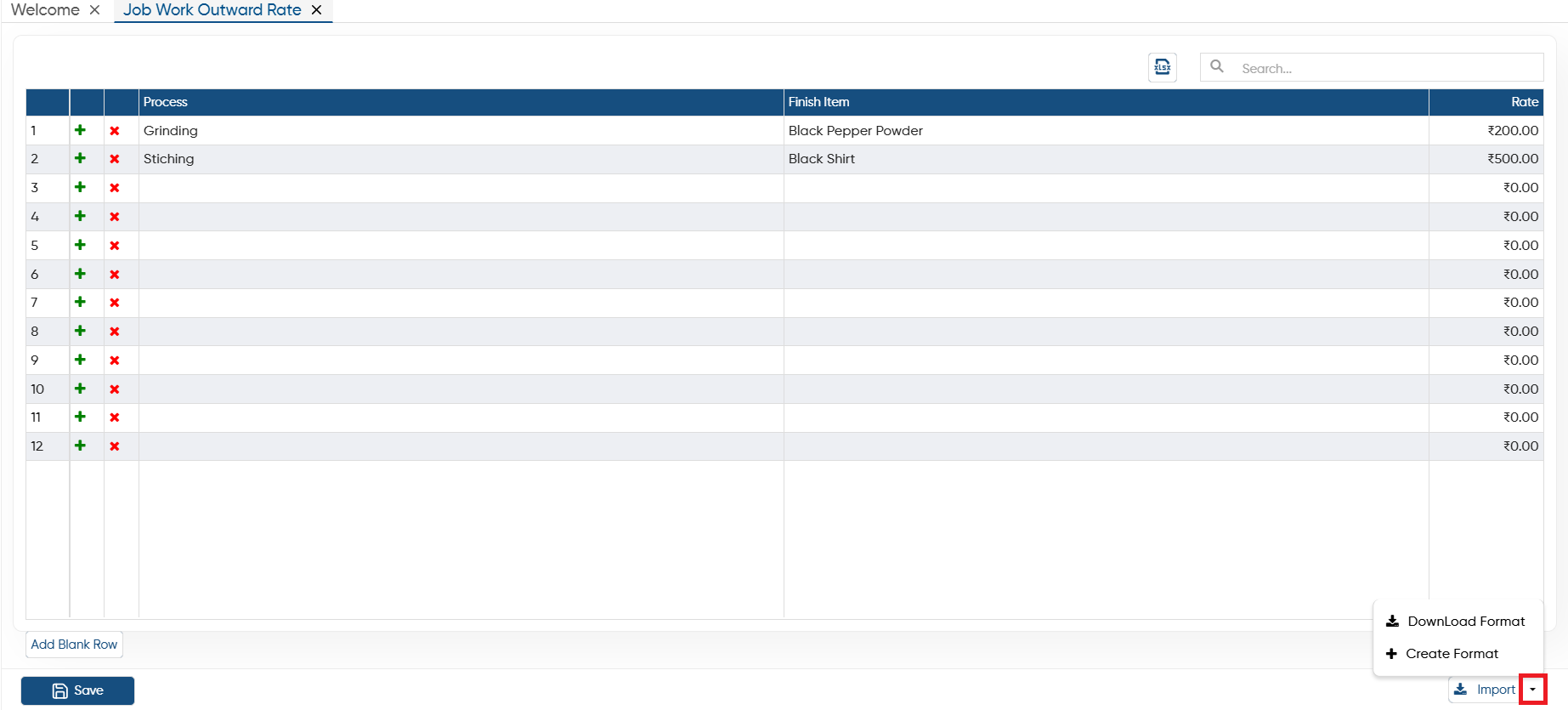
Download Format: If you want to import data from an Excel file, you can download the template through this option. After entering the data, you can directly import the file into AlignBooks.
-
Create Format: You can also create a custom format and map the columns with your Excel file. Make sure the field headings in the Excel file match those in the software when mapping the columns.
In this way you can Add and Manage the Job Work Outward Rate In AlignBooks.