
Physical Stock Taking
With the help of Physical Stock Taking option, you can update the stock quantity for reporting purposes without affecting the actual stock recorded in the software. This is particularly useful when there is a discrepancy between the physical stock and the stock shown in the system, and the reason for the mismatch is unclear.
In such cases, you can update the stock quantity in the report to reflect the correct physical count while keeping the system’s actual stock unchanged. This helps in tracking and analyzing stock differences without making permanent changes to the inventory records.
-
Go to Finance > Physical Stock Taking.

-
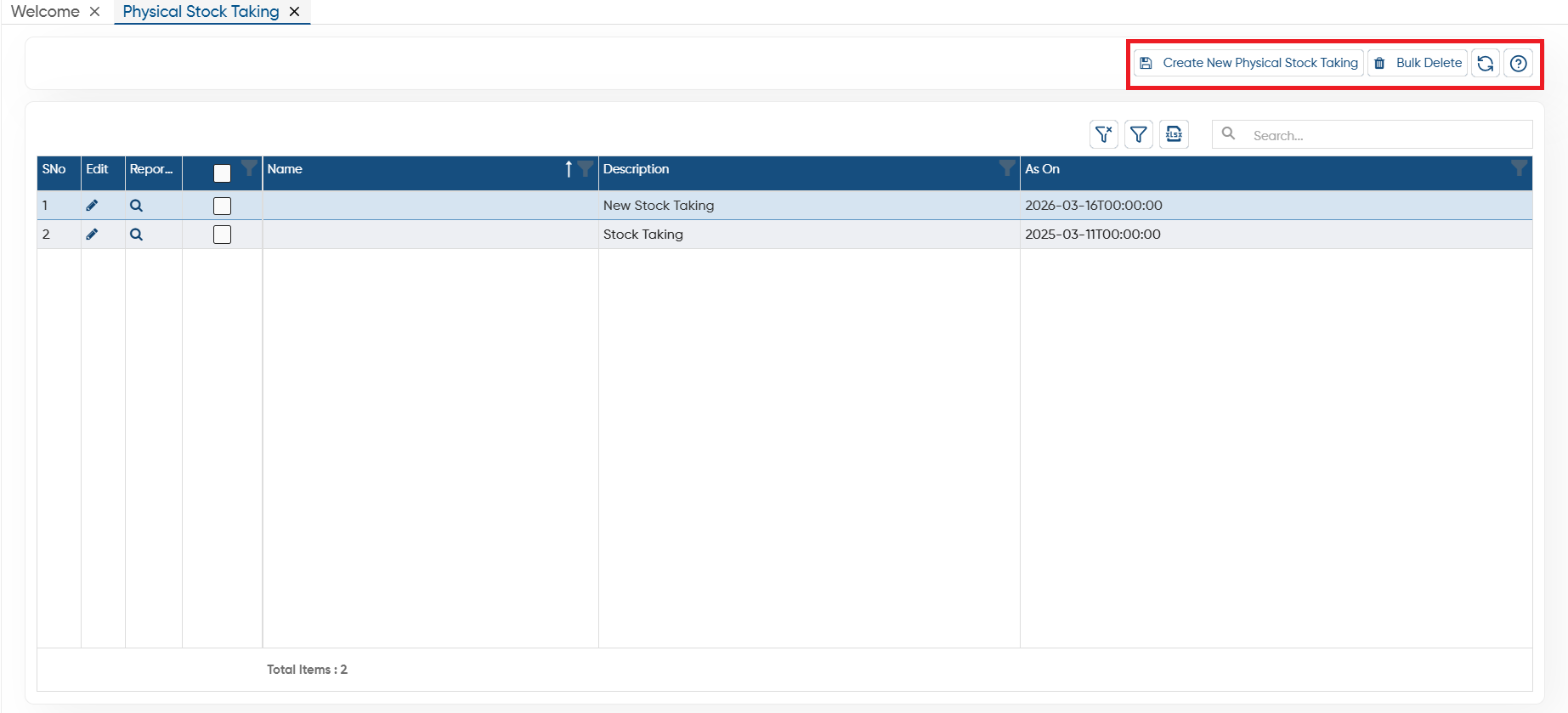
Create New Physical Stock Taking: Click on 'Create New Physical Stock Trading' option, to add new stock taking.
-
Bulk Delete: If you want to delete multiple stock taking then tick the checkbox corresponding to the Names and click on the button.
-
Refresh: If after making changes to any physical stock taking or newly added physical stock taking does not display on the screen, click on the 'Refresh' icon, this will refresh the data and display with latest changes to the physical stock taking.
-
Help: To access the help manual related to the feature, click on the given icon.
-
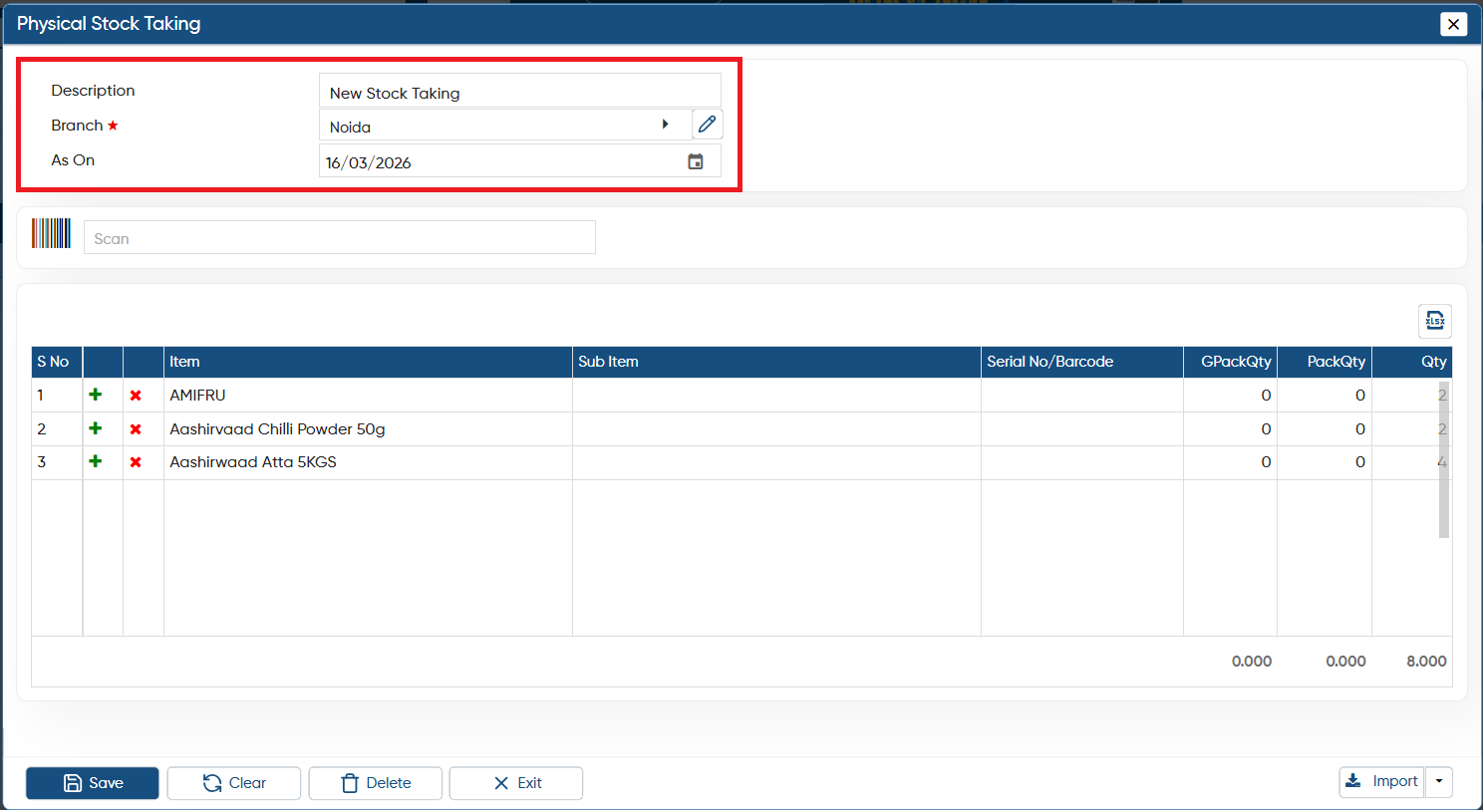
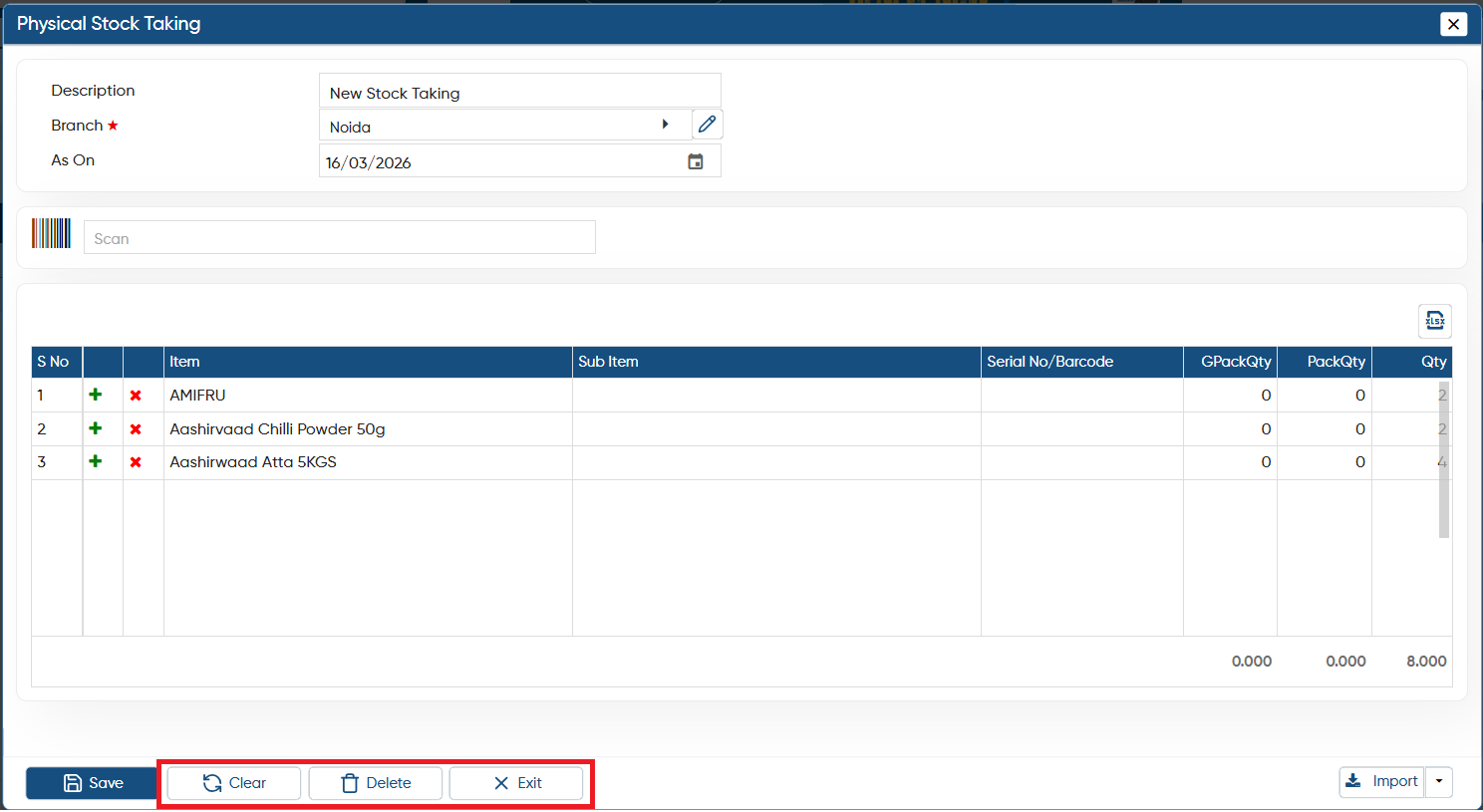
Description: Mention the field name for your identification.
-
Branch: Select a specific branch or location in which you want to add physical stock taking.
-
As On: Mention the date for which you want to add the physical stock taking.
-
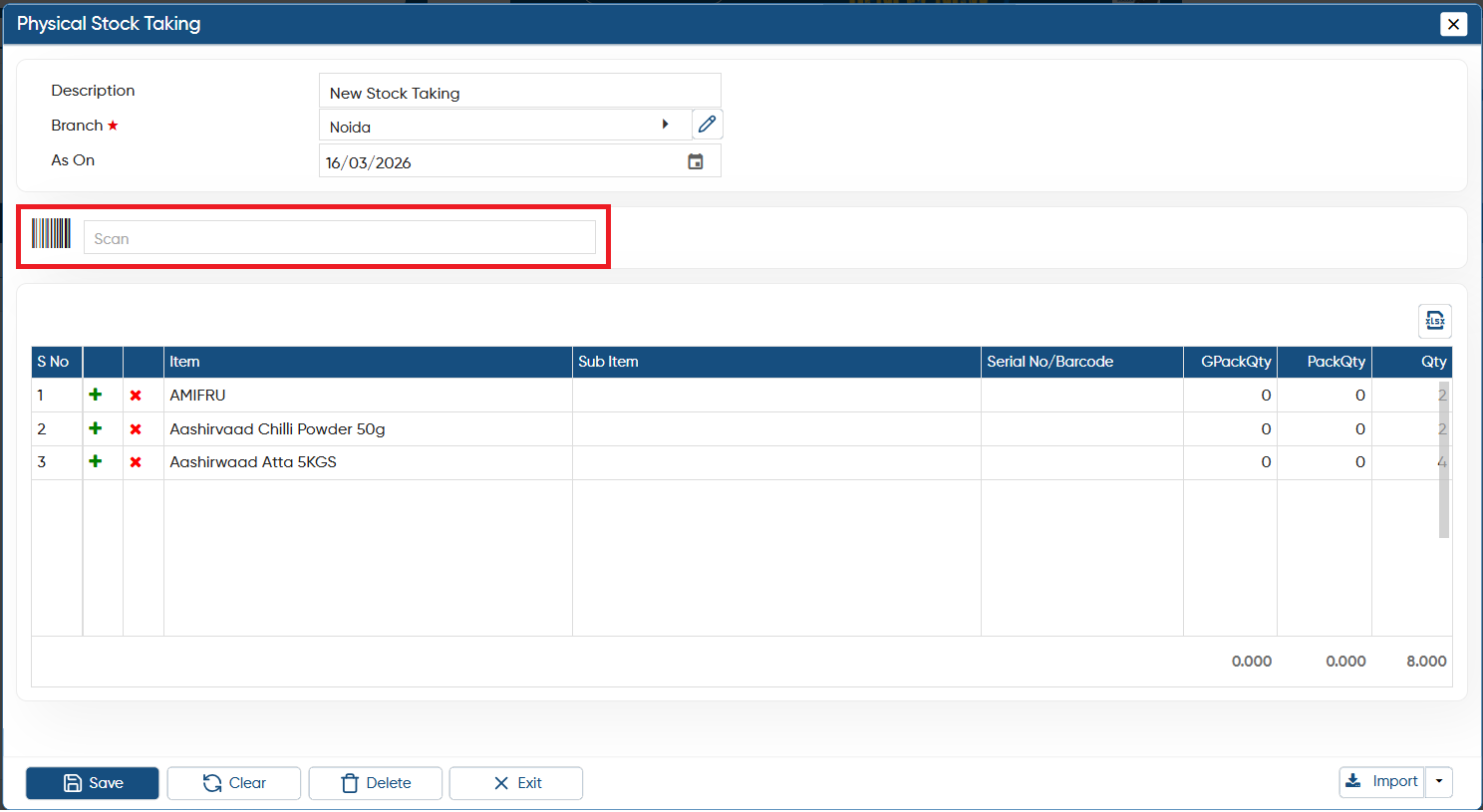
Scan: You can enter the Item Barcode or Item Code here, and the software will automatically add the item to the invoice. This option saves your time by removing the need for manual selection, just type in the Barcode or Item Code, and the item will be added instantly.
-
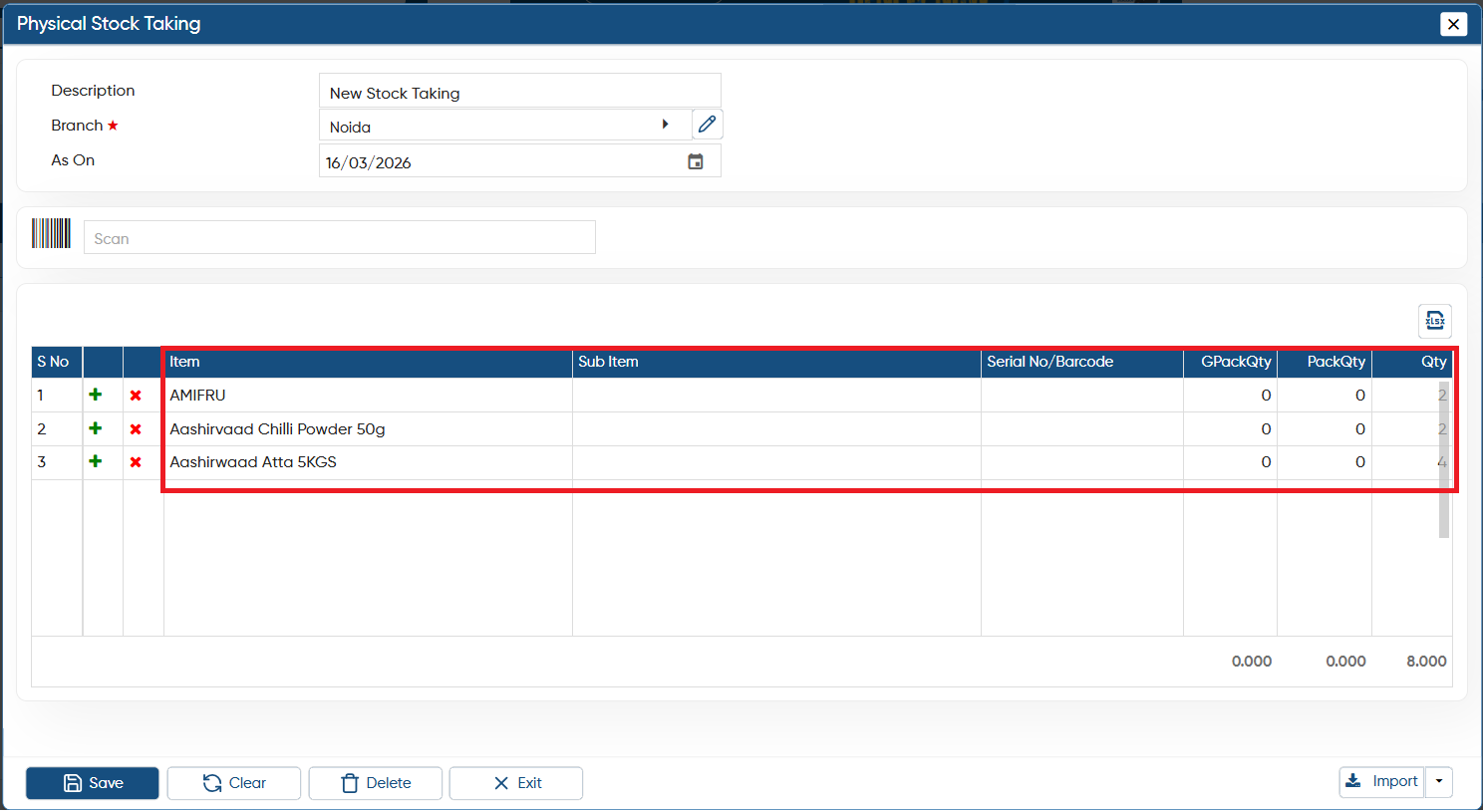
Now, select the item whose stock you want to update for reporting, mention the pack quantity, Quantity as per your requirement.
-
And click on 'Save' button.
-
Clear: Click on this button to remove the data from the current screen and to feed the fresh document details.
-
Delete: Click on this button to remove the physical stock taking permanently.
-
Exit: Click on this button to exit from the screen.
-
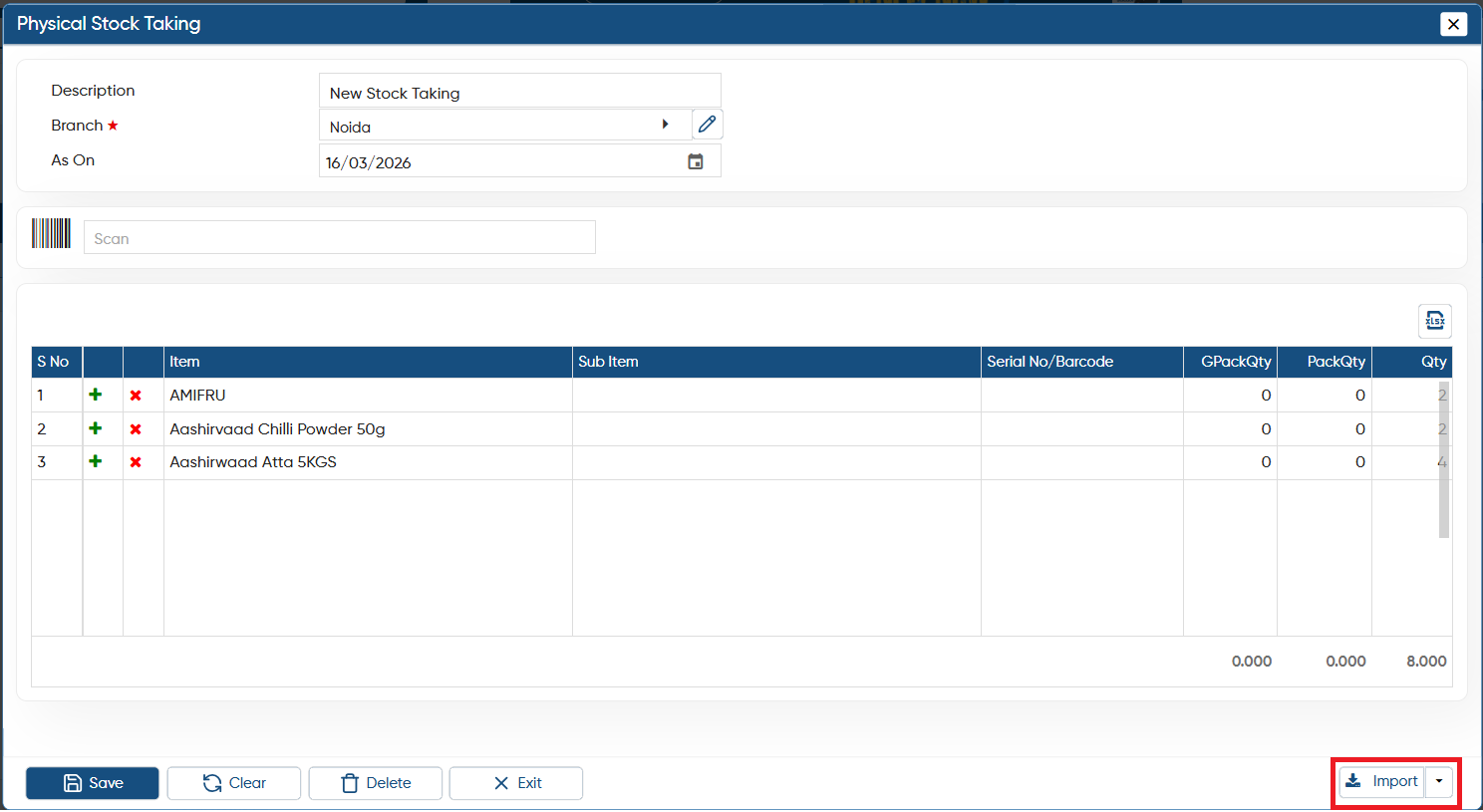
Download Format: If you want to import data from an Excel file, you can download the template through this option. After entering the data, you can directly import the file into AlignBooks.
-
Create Format: You can also create a custom format and map the columns with your Excel file. Make sure the field headings in the Excel file match those in the software when mapping the columns.
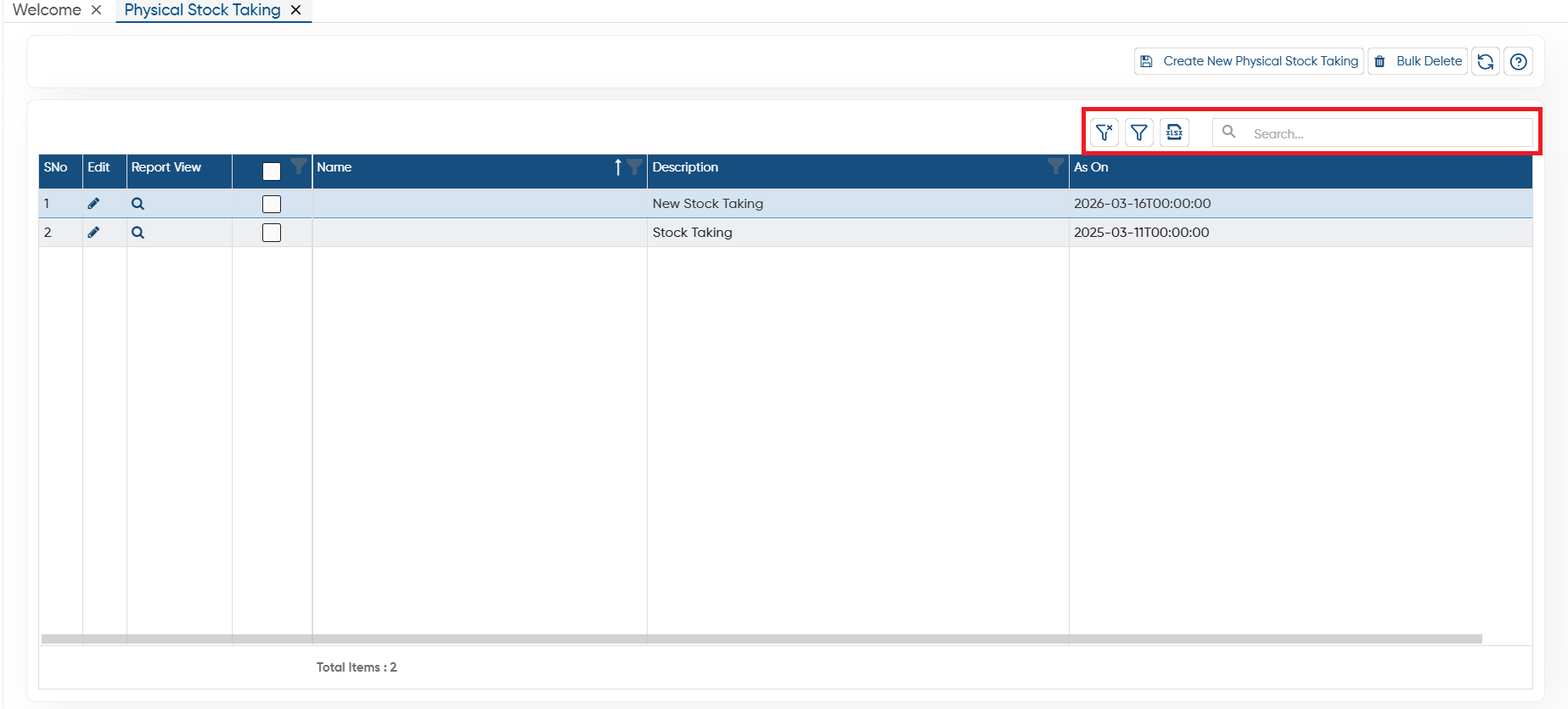
 Click on Edit icon to make any changes to the item stock you have updated.
 Click on Report View button to display the report of physical stock.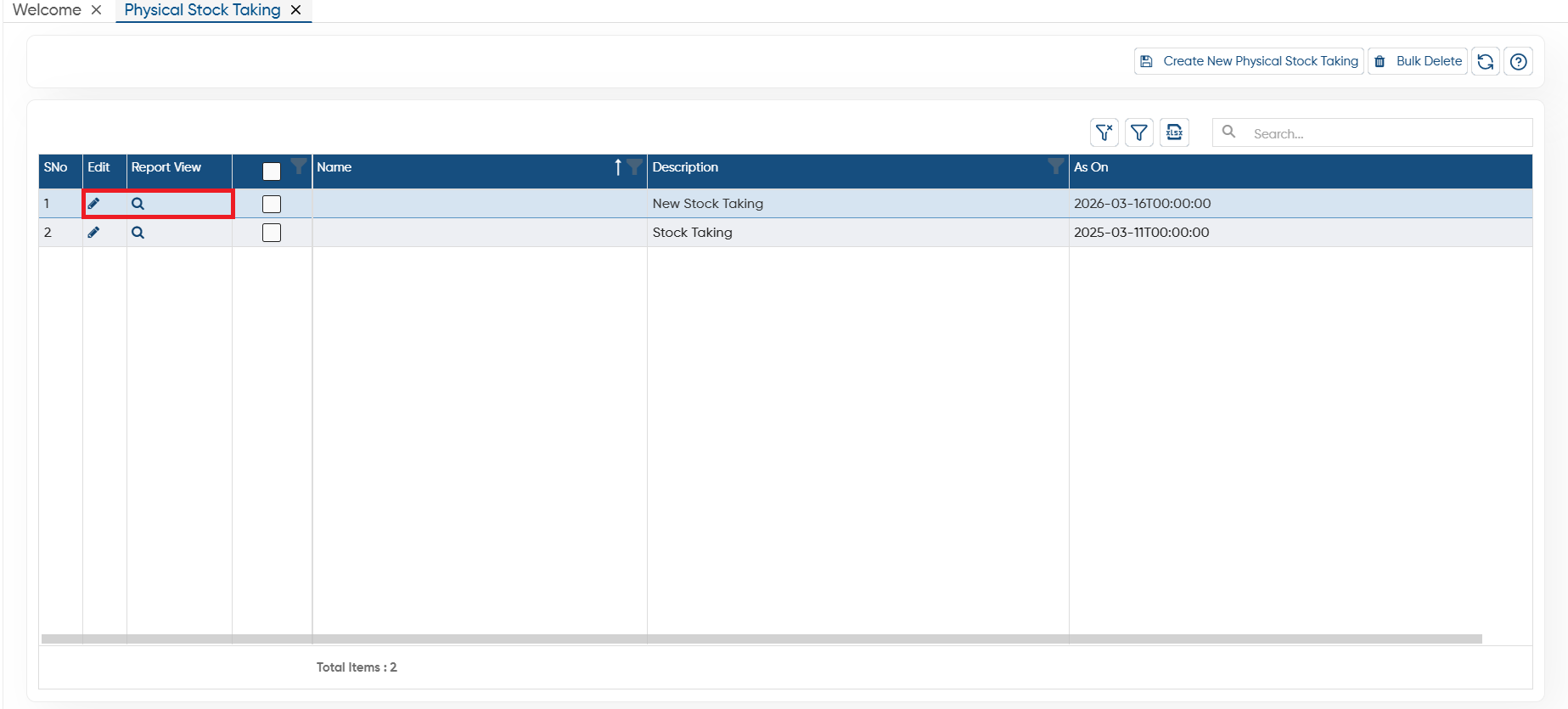
-
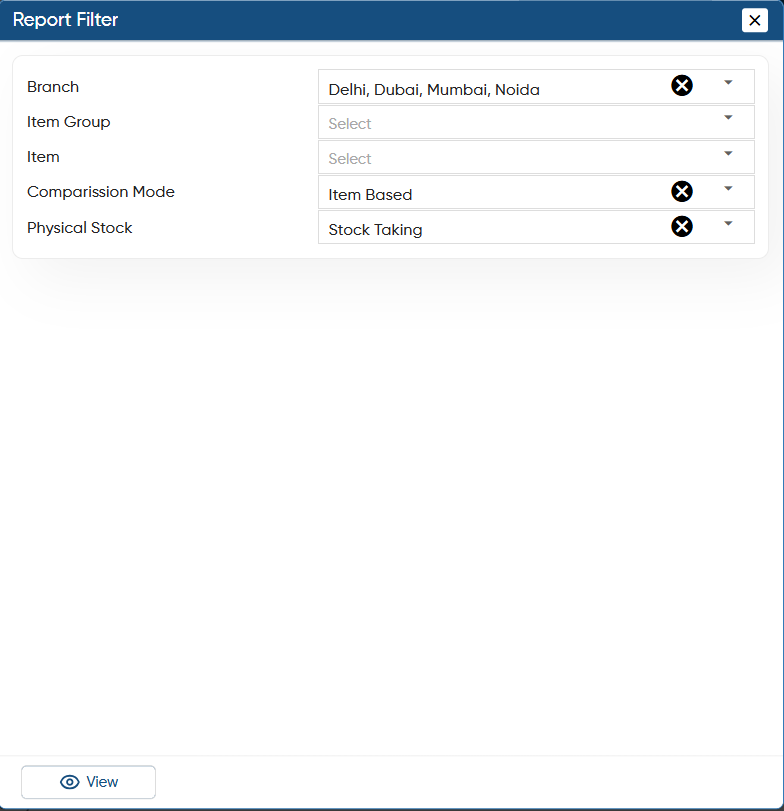
After clicking on the report view button, select the filter option and click on 'View' button to display the report.
-
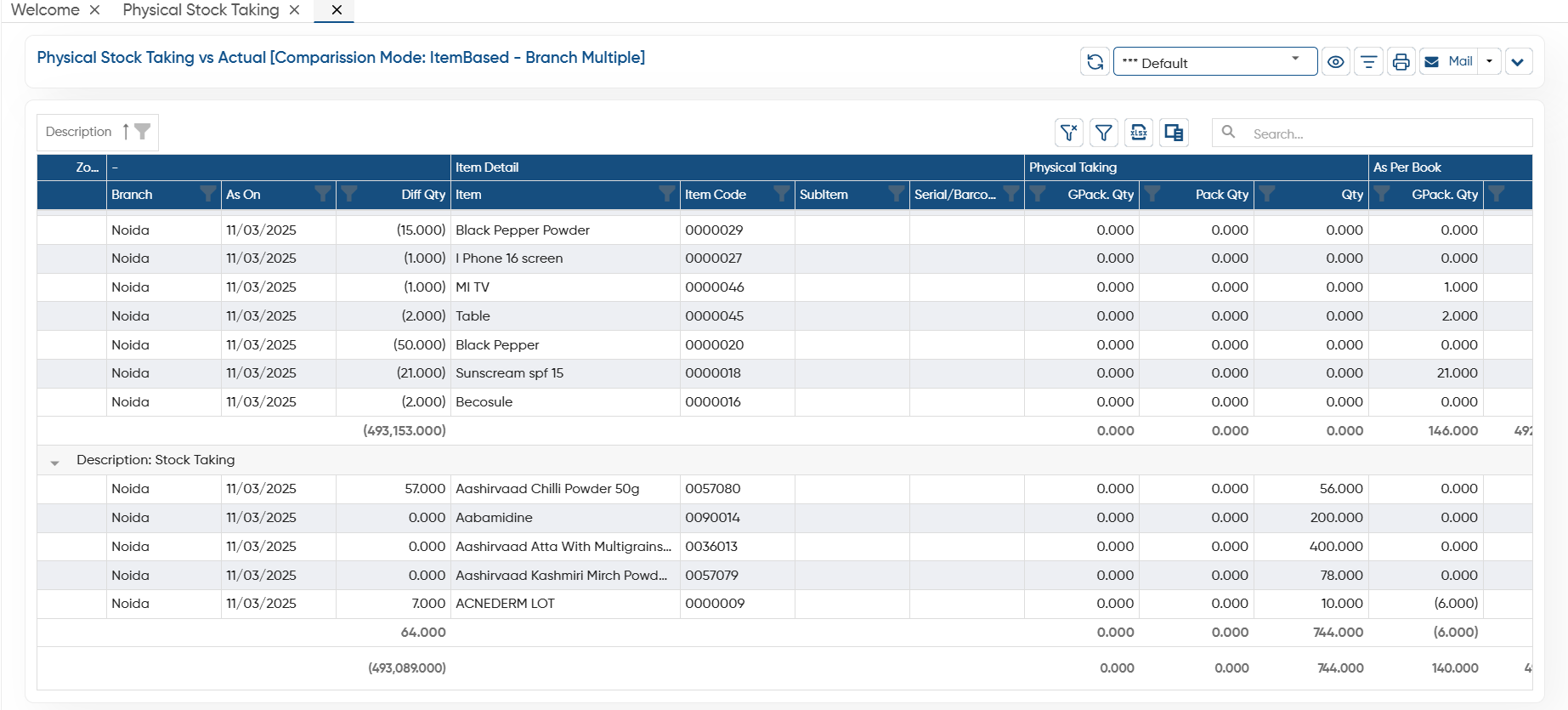
You can view the report, updated Item Quantity will reflect in the report.
-
Clear Filter: After filtering the report, if you want to hide or clear the all filter then click on 'Clear Filter' button.
-
Show Filter: Clicking on this button will display the filter option in all the fields, thereafter you can filter the data based on columns.
-
Excel: If you want to generate the list in excel file, click on the icon and all the details will be generate in Excel File.
-
Search: To find any of the detail from the list you can search it here and the software will display the result on the screen.
In this way, you can update the Physical Stock Taking in the AlignBooks.