
Price List
In AlignBooks, you can easily create custom price lists based on your needs. These lists can be made for the specific customers, special occasions, or unique business situations. This is helpful when you want to set fixed rates or discounts for certain items in advance. By using these price lists, you can simplify billing and can keep the price consistent.
After making a price list, you can quickly apply it to any bill whenever needed. This saves time, avoids mistakes, and makes the pricing process more efficient and professional. You can Fix these price list in the Customer Master also.
In this content we will learn to Fix Price/ Discount/ Charges Item wise.
Benefits:
• Simplified Billing: You can quickly apply the price list to any invoice or bill, reducing the need to manually calculate prices or discounts.
• Time-Saving: Reusable price lists save valuable time, especially when handling frequent transactions or managing multiple customers.
• Error Reduction: Automated pricing helps eliminate mistakes caused by manual entry, leading to more accurate billing.
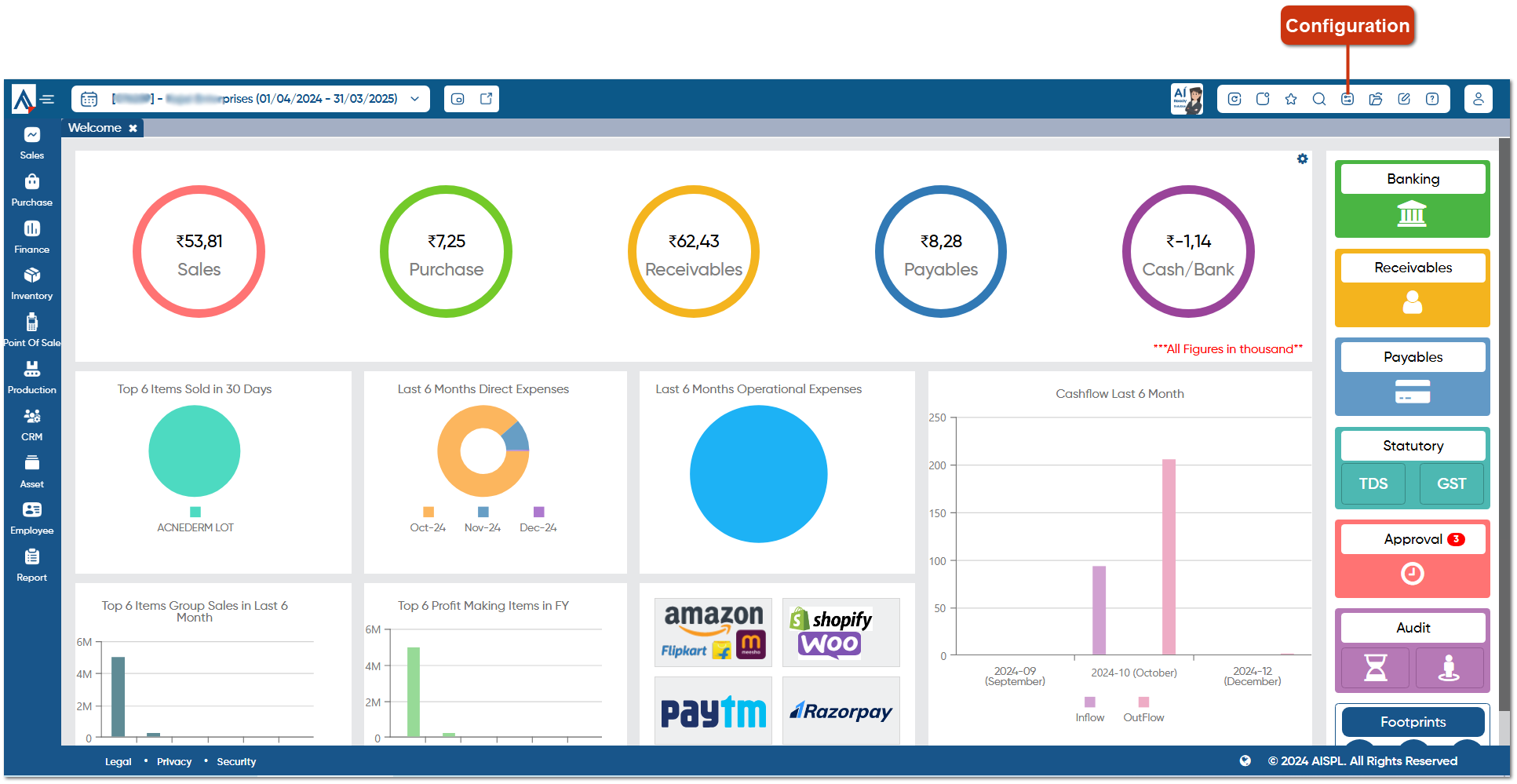
• For fixing Discount/ Charges, first you need to enable the field. To enable the field click on the 'Configuration' icon.
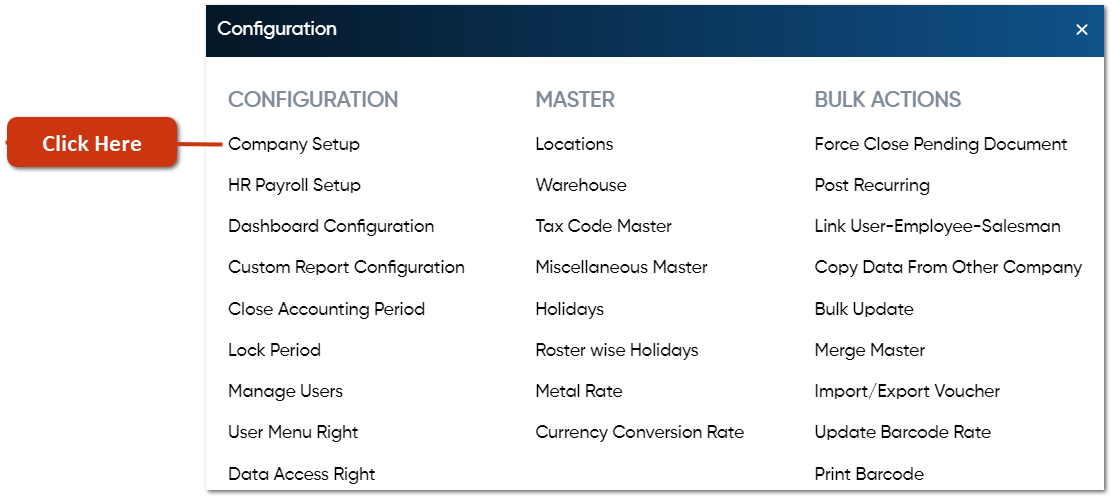
• Now you need to click on 'Company Setup' option.
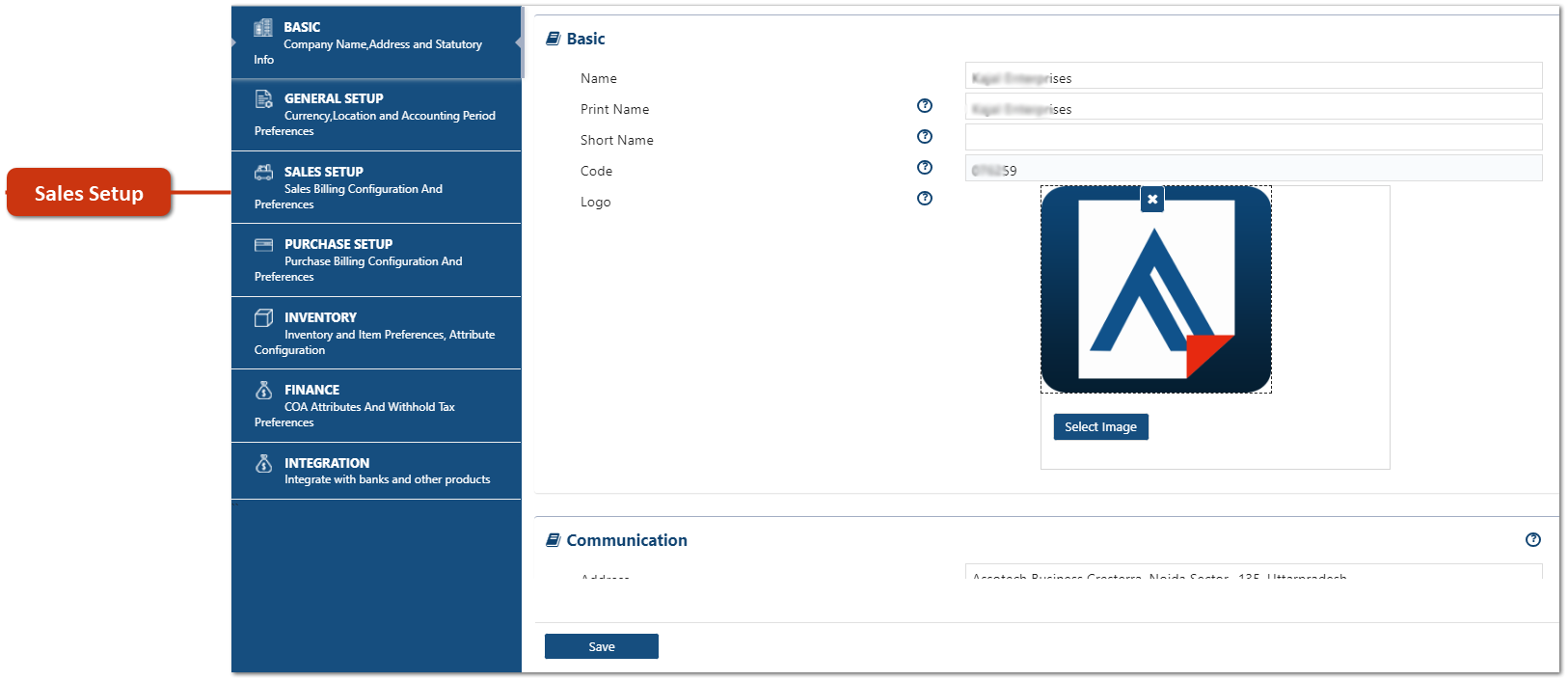
• Click on 'Sales Setup'.
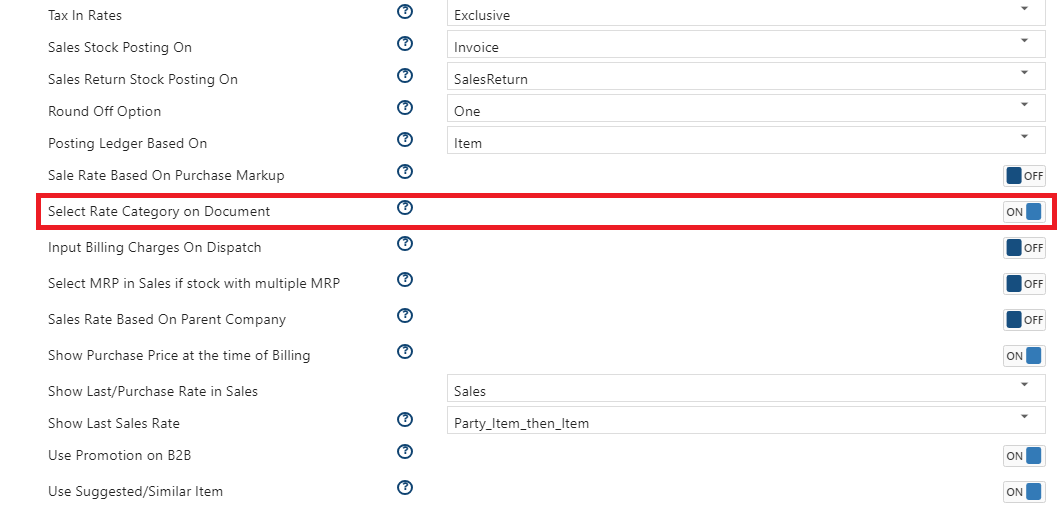
• In 'Select Rate Category on Document' option, Turn it 'ON'.
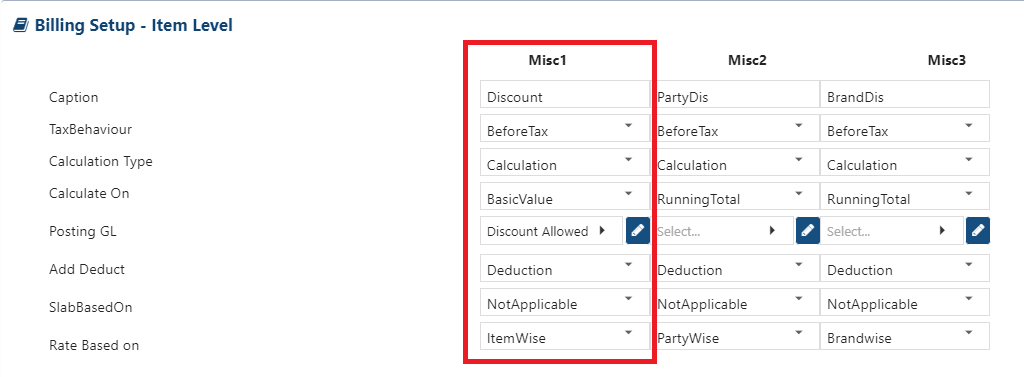
• If you want to fix Discount/ Charges also with Item's prices then you need to enable the field for Discount/ Charges in Billing Setup - Item Level. Here, you can set things like how discounts are calculated, which ledger to use for posting, and discounts based on items or parties.
• For example, if you want to set discounts for customers along with the prices, scroll down the page and enable the Discount field in any of 'Misc' column.
Suppose enable in 'Misc 1' column, mention the Discount details, caption, calculation etc as per the requirement.
• Caption: Mention the field name for Discount which you want to display in the Price List setup.
• TaxBehaviour: Select the option whether the Discount should be calculate Before Tax or After Tax.
• Calculation Type: Select whether the calculation should be fixed or in percentage.
• Calculate On: Select the option based on which discount should be calculate like whether you want to calculate on Basic Value, Quantity, Taxable Value etc.
• Posting GL: Select the Account group in which you want to post the discount value in your books of account.
• Add Deduct: Select the option whether you want to Add discount, Less discount Value etc.
a. Addition: Select this option, to Add discount Value in Invoice.
b. Deduction: Select this option, to Deduct Discount value in Invoice.
c. Floating: Select this option, if needs to mention '+' or '-' sign for adding or deduct the discount while creating Price list as per the requirement.
• SlabBasedOn: Select whether the discount rate should be on Quantity or Amount.
• Rate Based On: In this option you need to select 'Item Wise' to enable field in Price List.
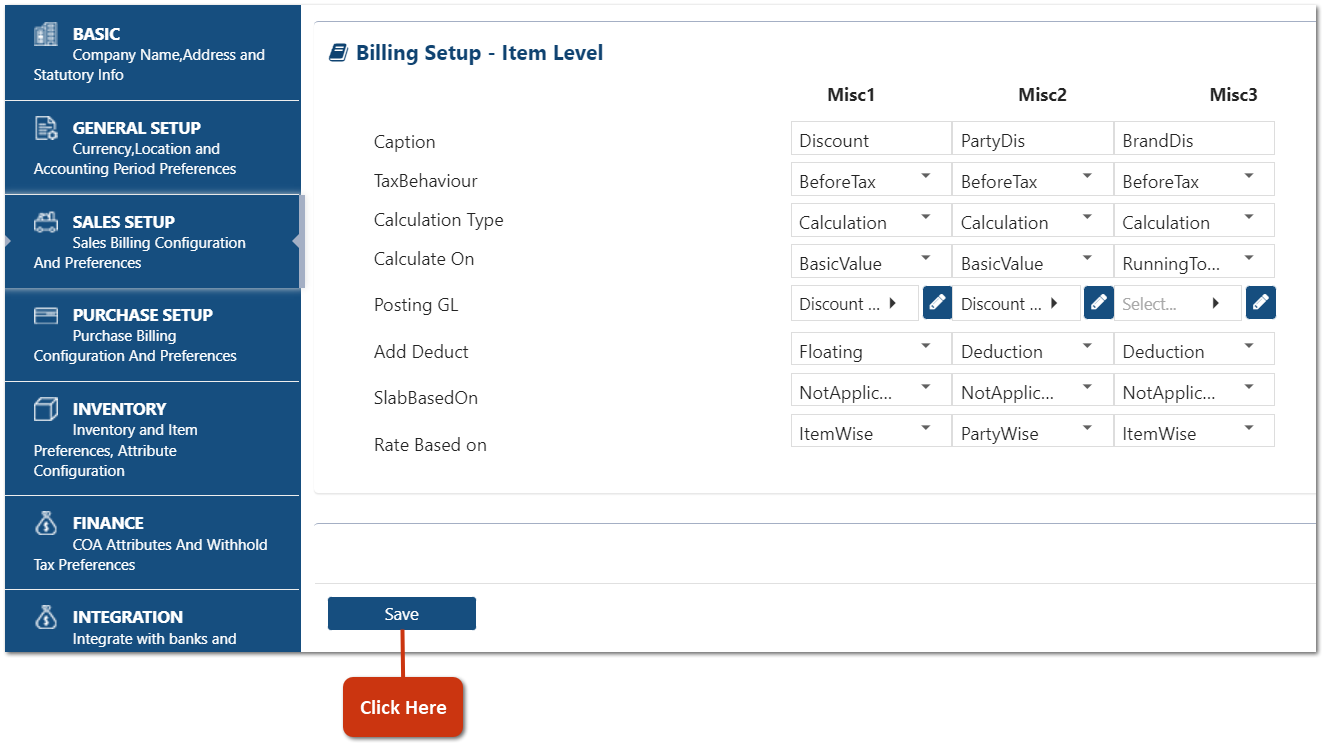
• Click on 'Save' button.
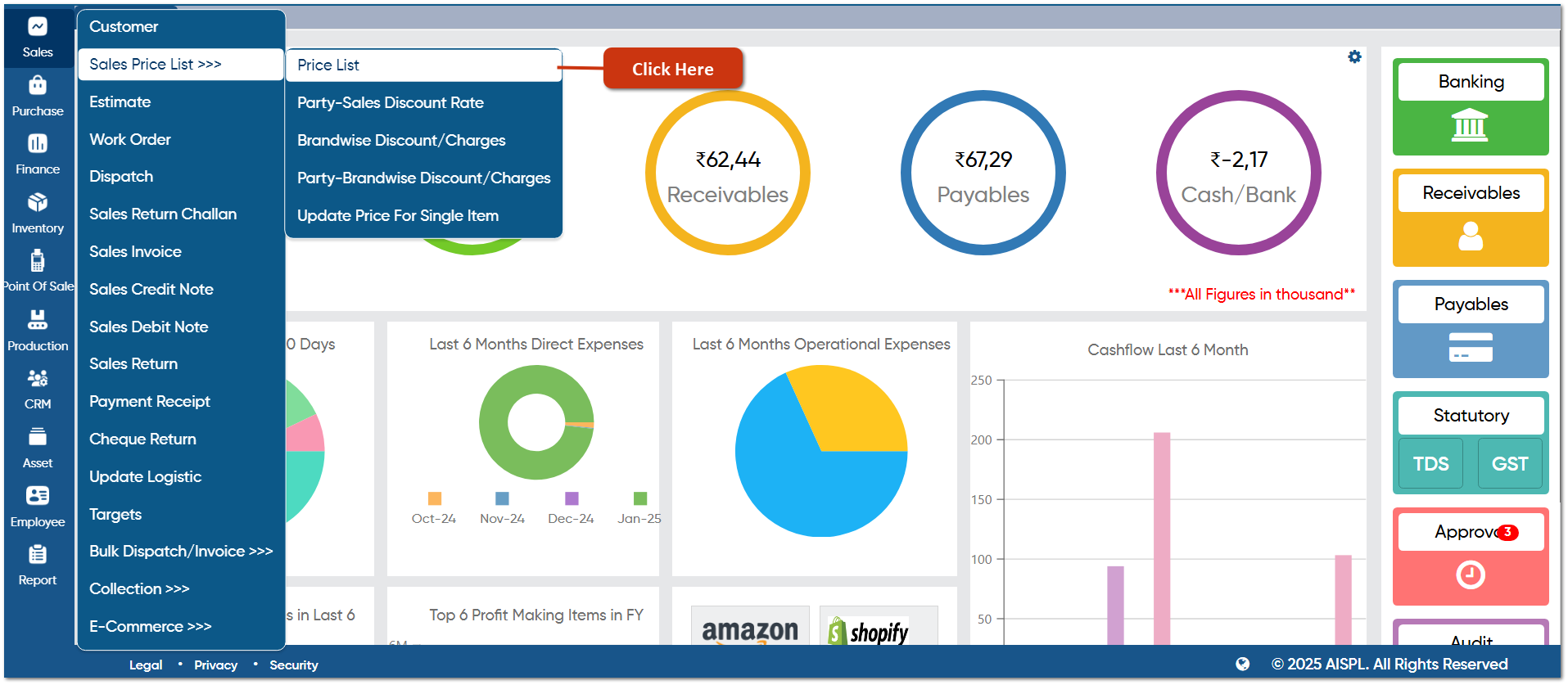
• Go to Sales > Sale Price List > Price List.
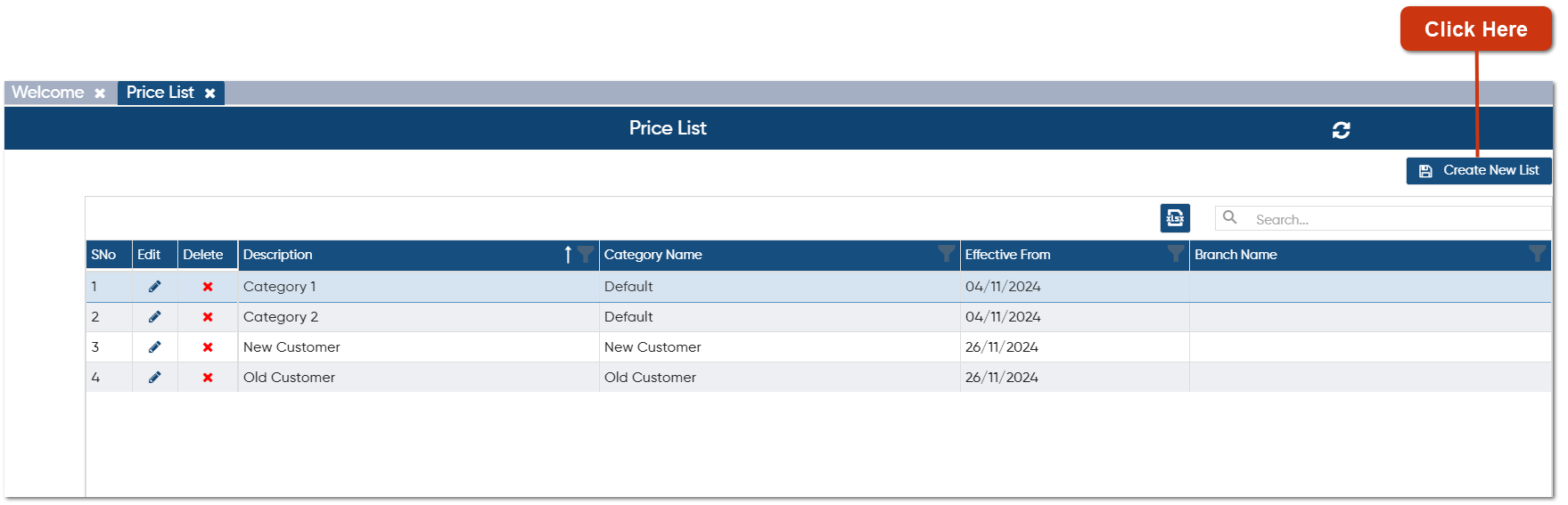
• Click on 'Create New List' to add a New List.
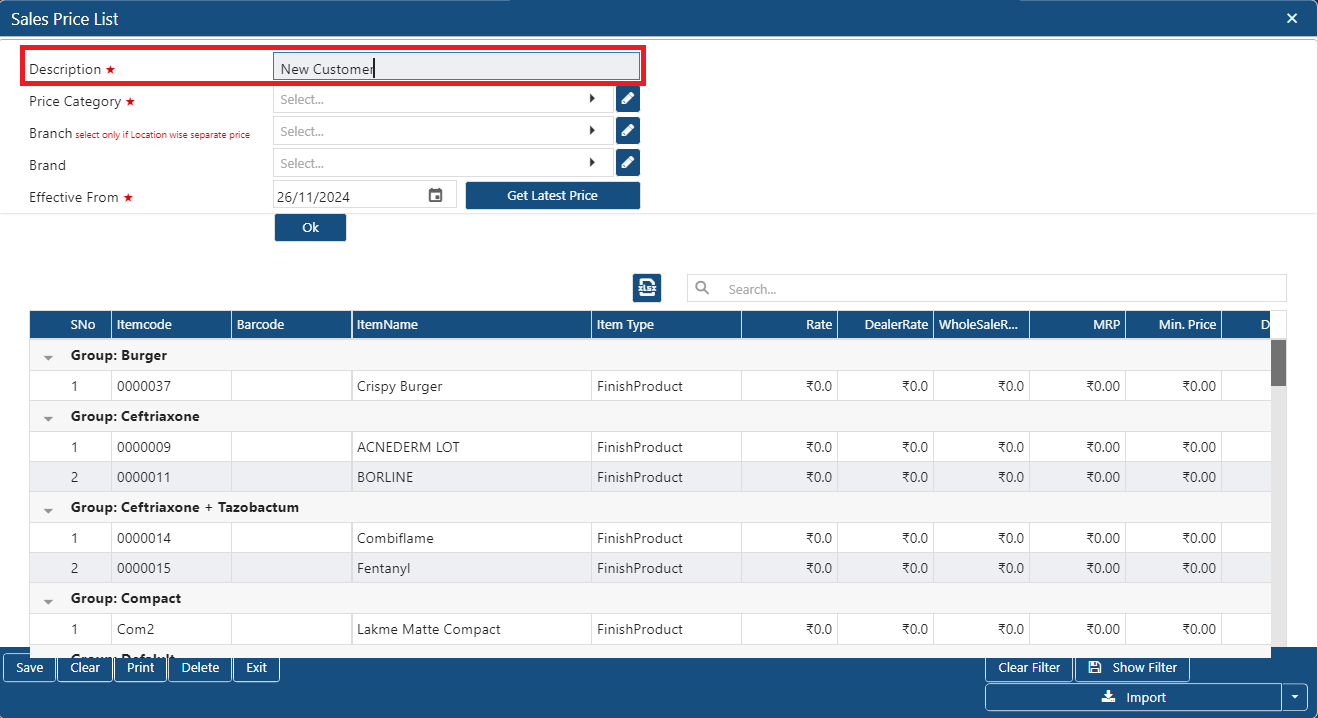
• In 'Description' option, you need to mention the name of the Price List, this name will display in the data for your identification.
• Suppose you want to create the price list for New customer so mention 'New Customer'.
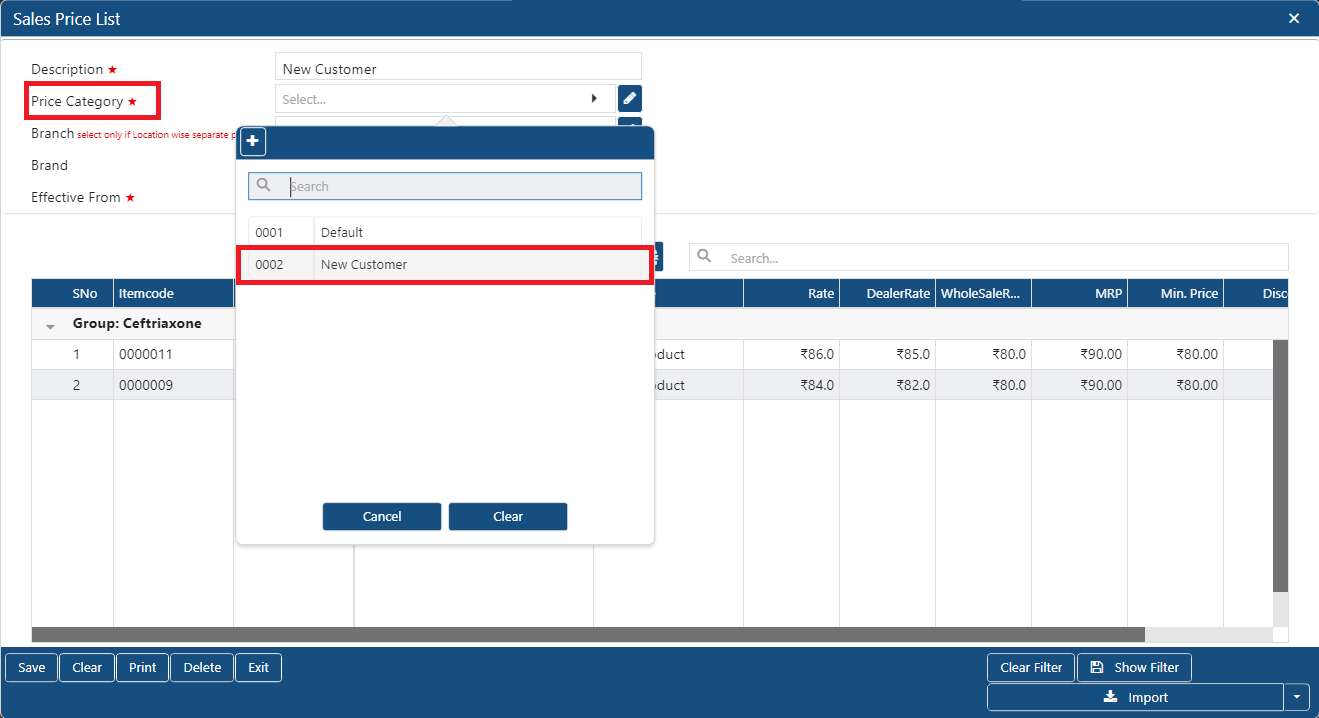
• In 'Price Category' option, select the category as you can categories them as per your business needs.
• Suppose select 'New Customer'.
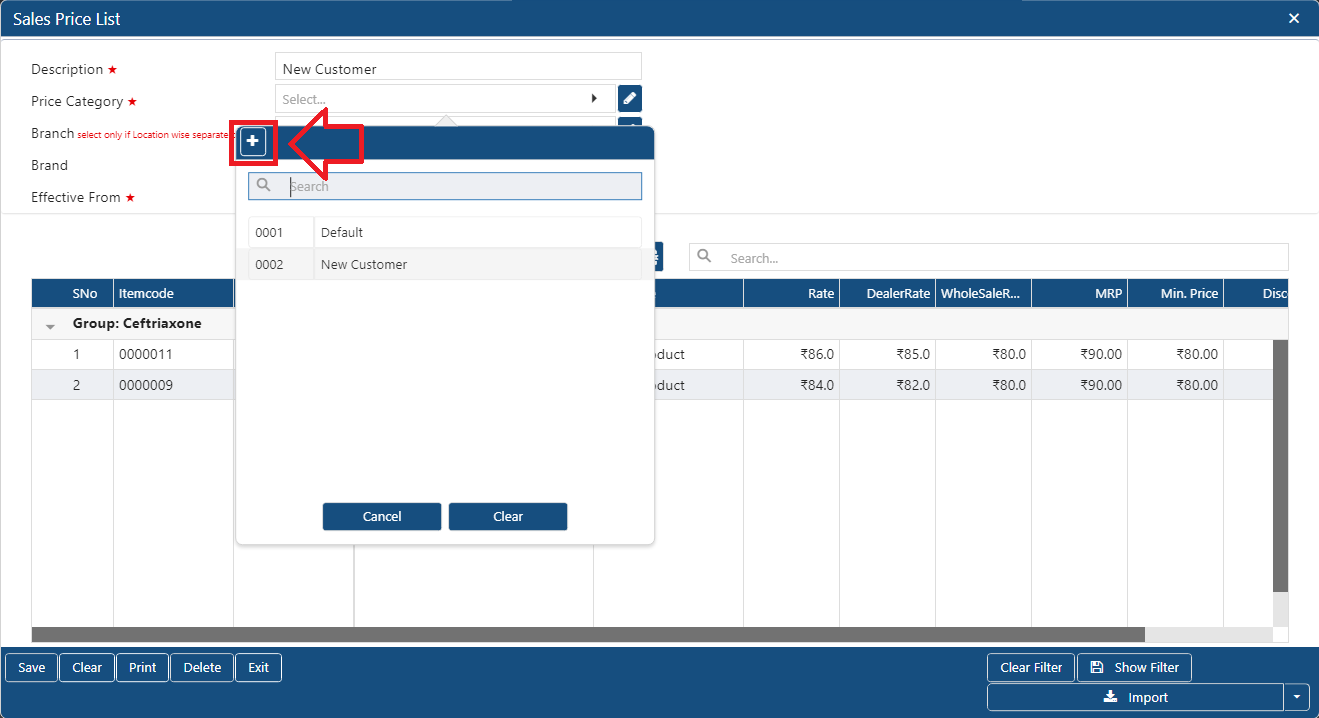
• You can Add Price Category on same window by clicking on '+' icon.
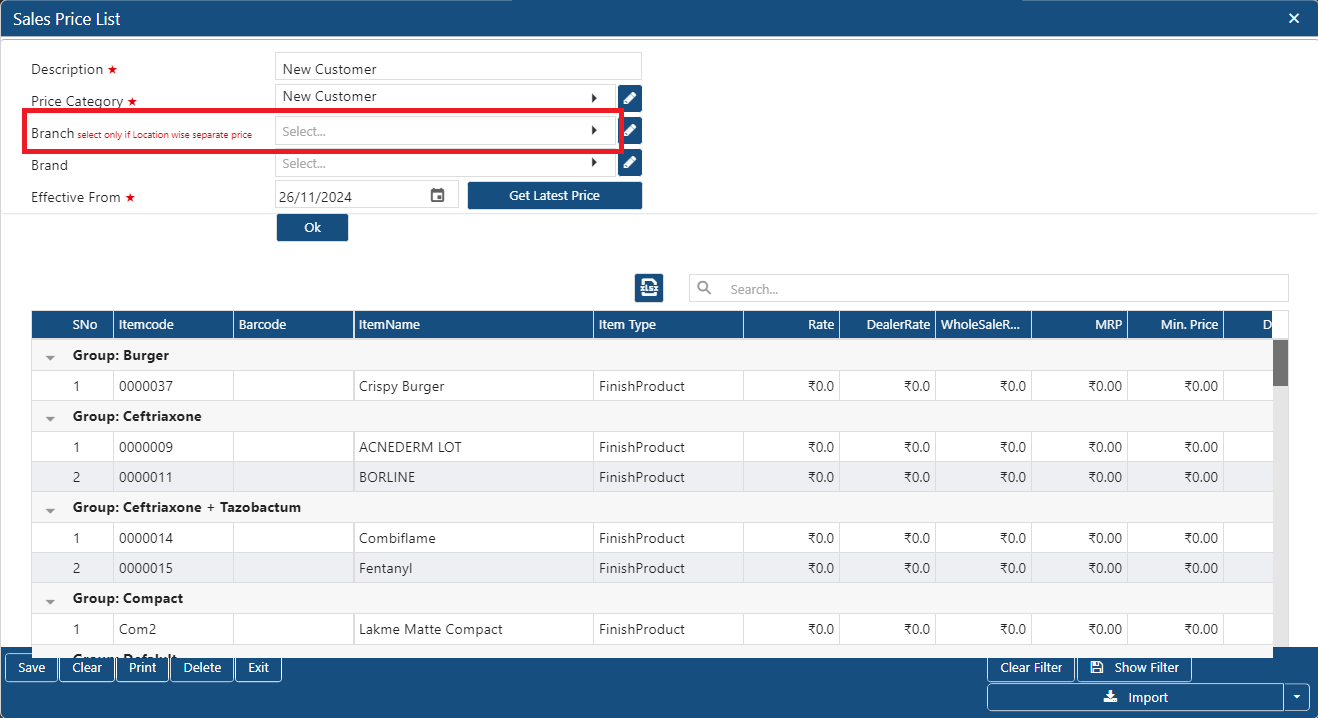
• In 'Branch' option, you can select the branch if you want to set the Price/ Discount/ Charges for specific Branch.
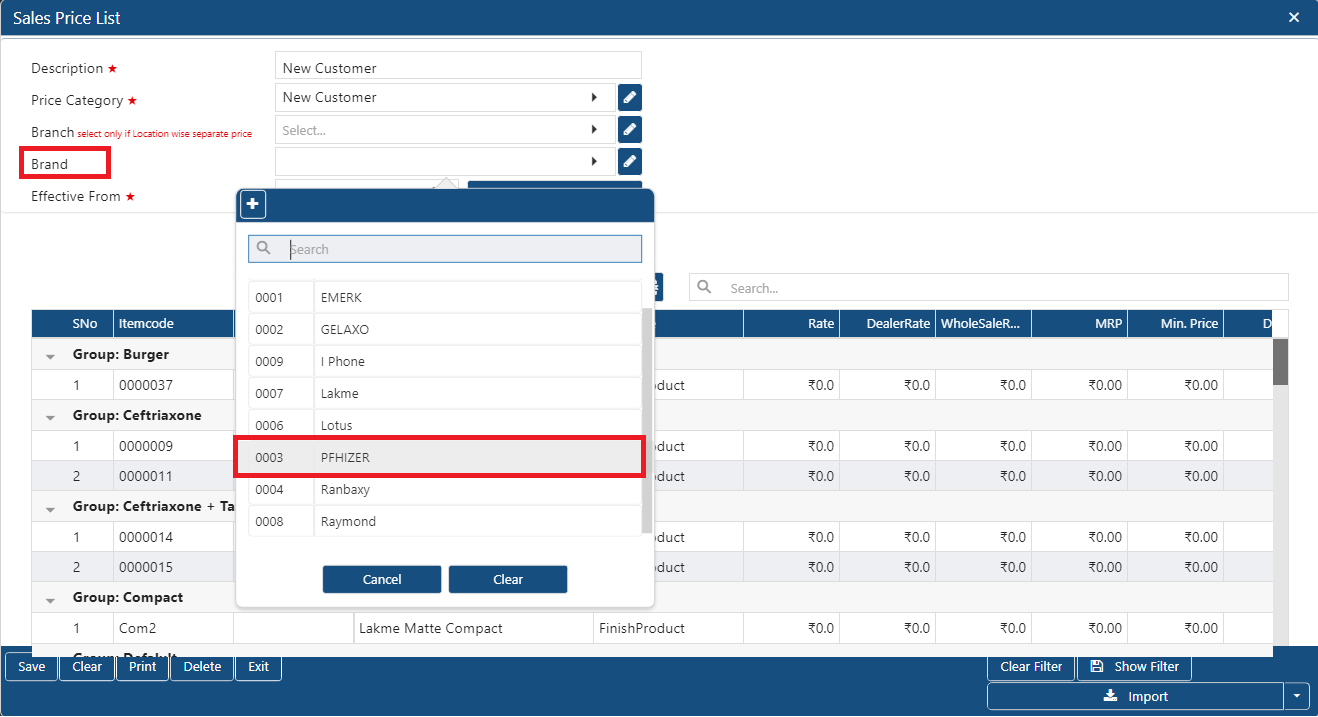
• In 'Brand' option, click on dropdown to select the brand to set the prices for specific brand's items.
• Suppose select 'Phizer'.
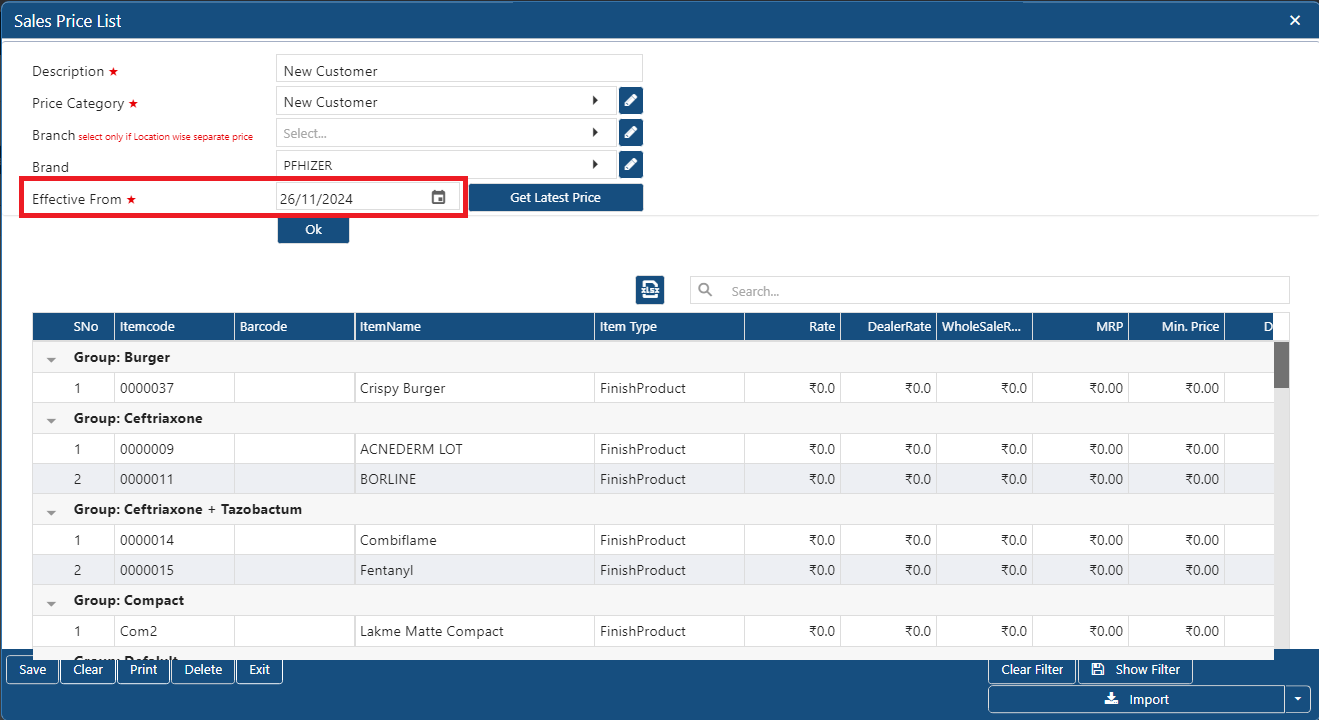
• In 'Effective from' option, select the date from when the Price/ Discount/ Charges needs to be applied for the customer.
• Suppose select '26 Nov 2024'.
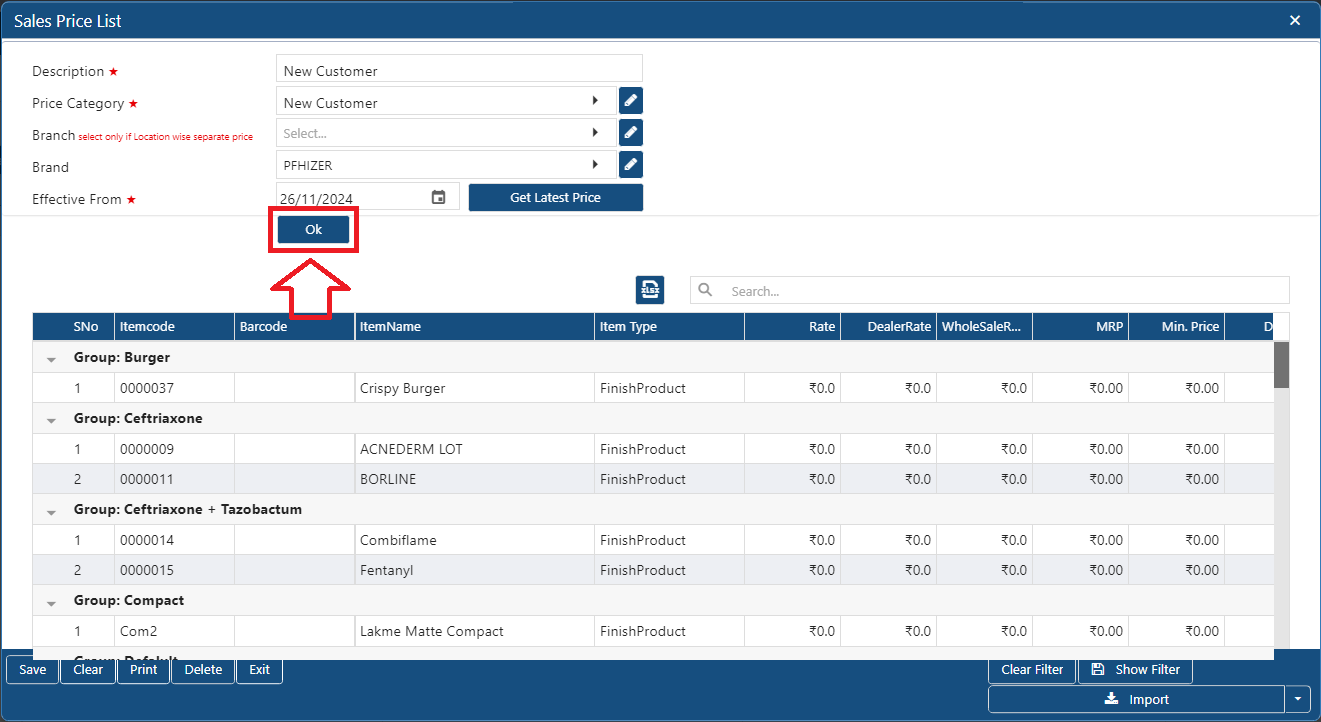
• Click on 'Ok' button.
• Now, suppose set Rate '84' for Item 'Acnederm Lot'.
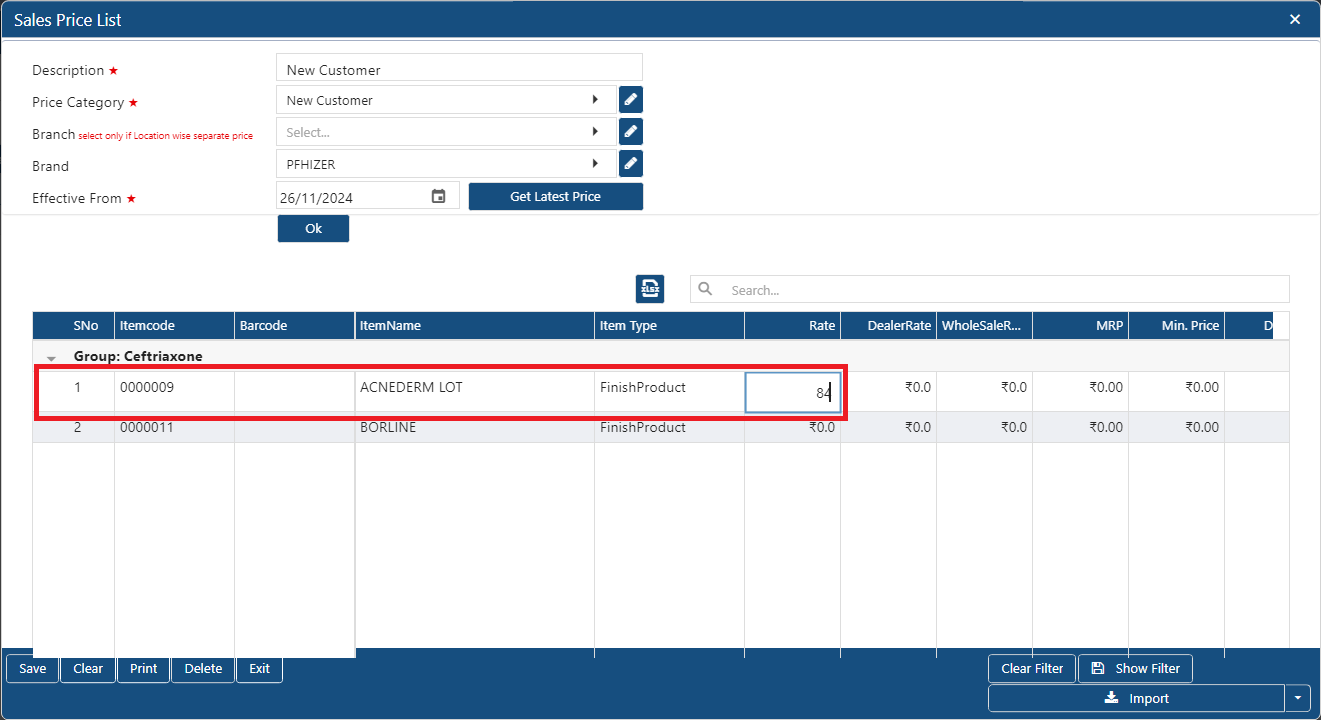
• For the Dealer suppose set Rate '82'.
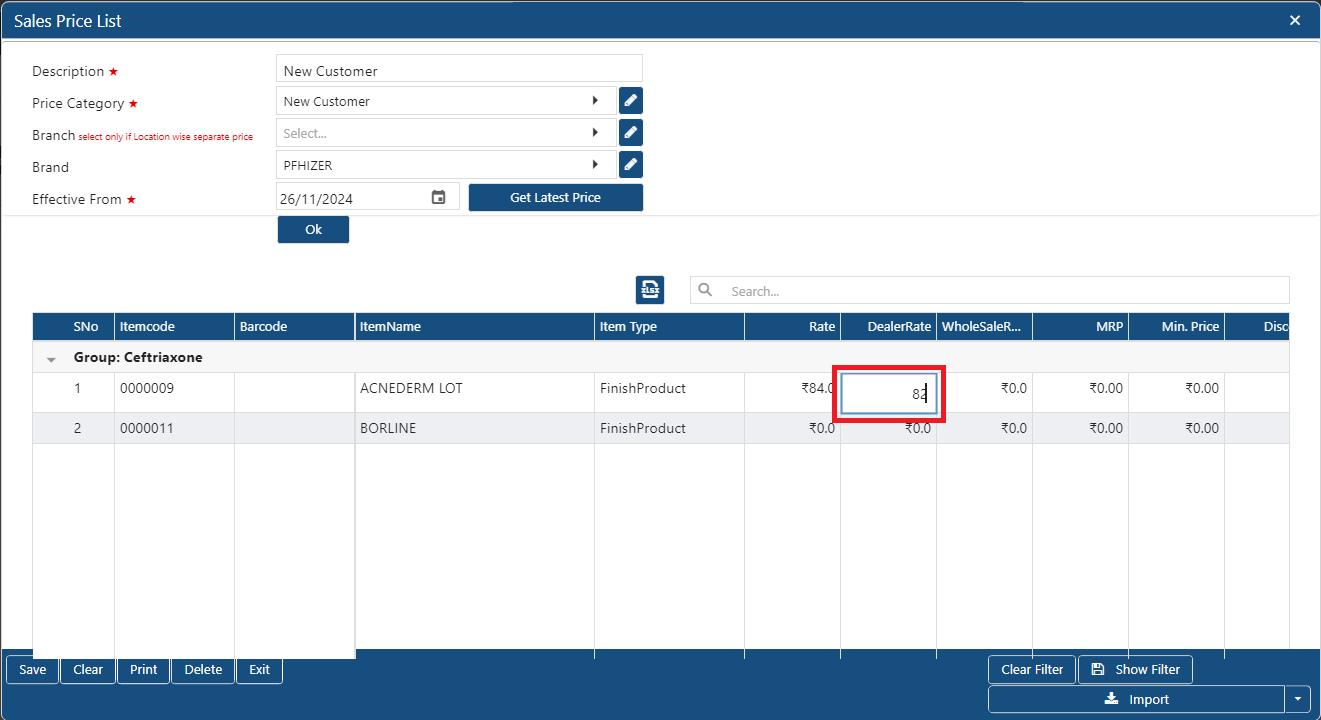
• Similarly, you can set MRP, Min. Price, Discount for your customer for each item separately.
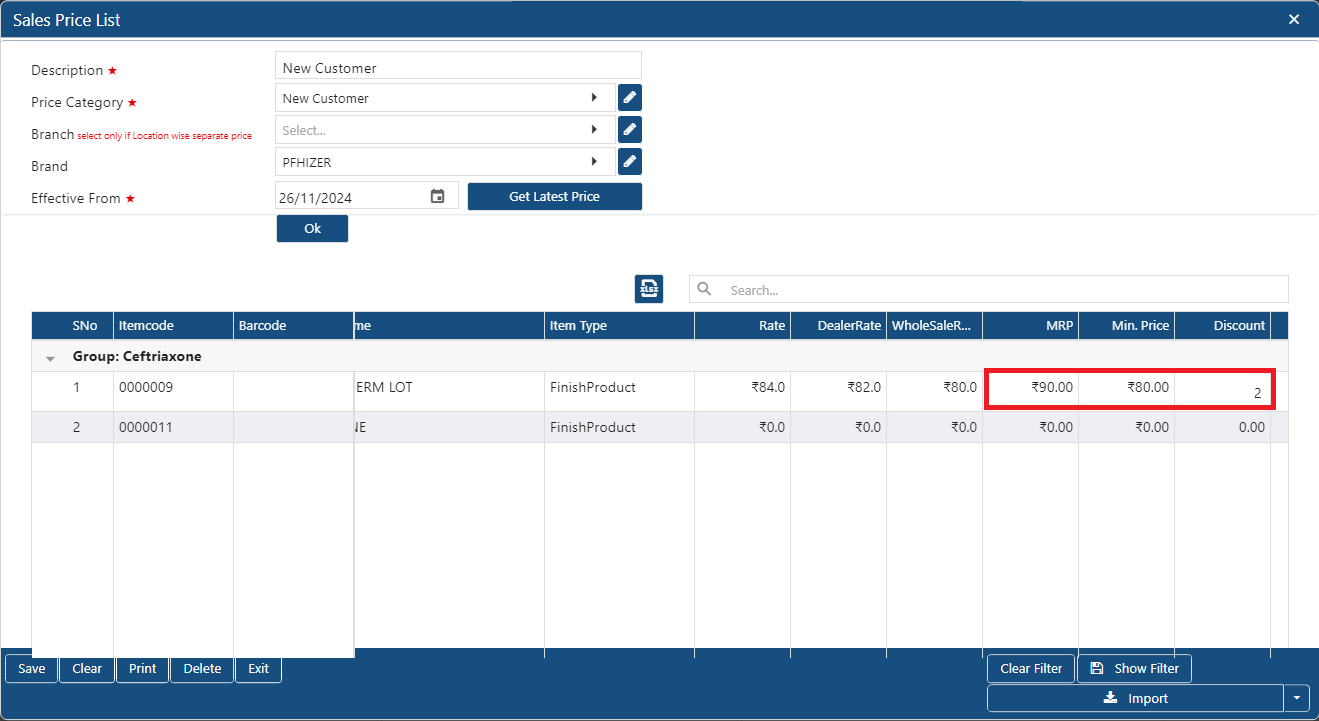
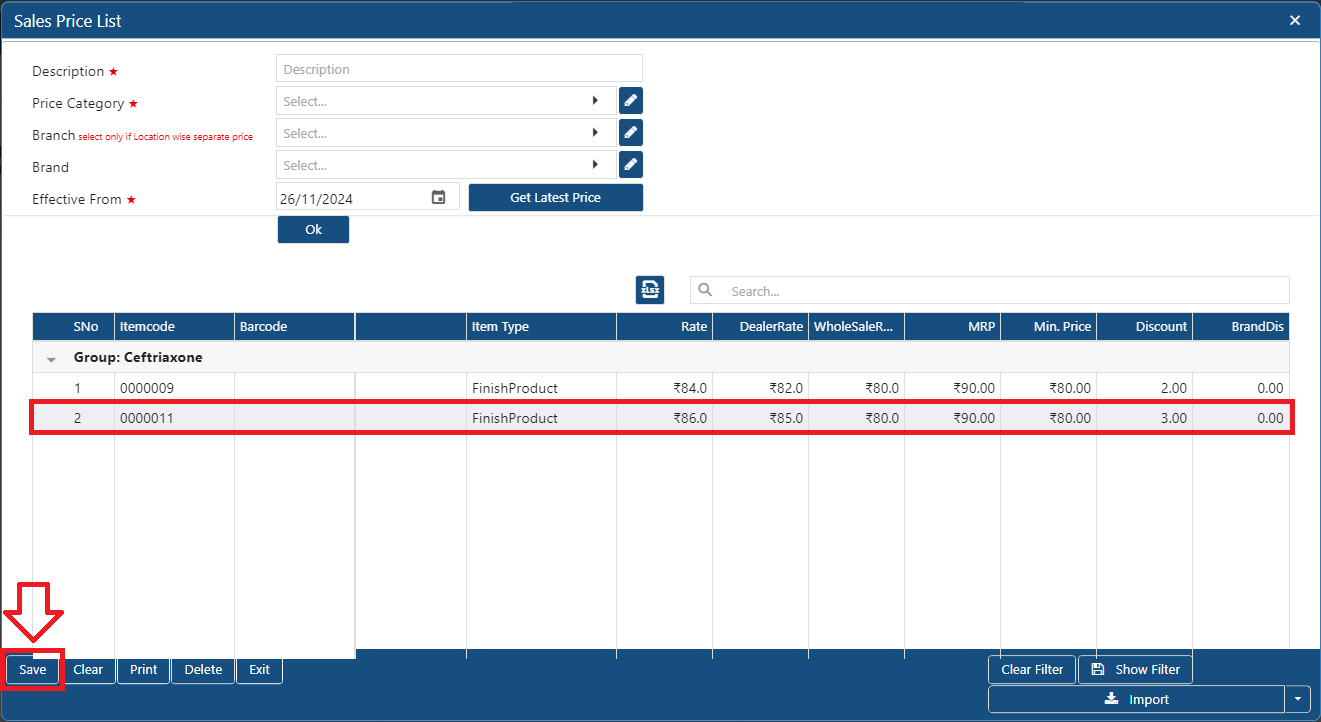
• And in the same way set the Prices/ Discount for another item.
-
Click on 'Save' button.
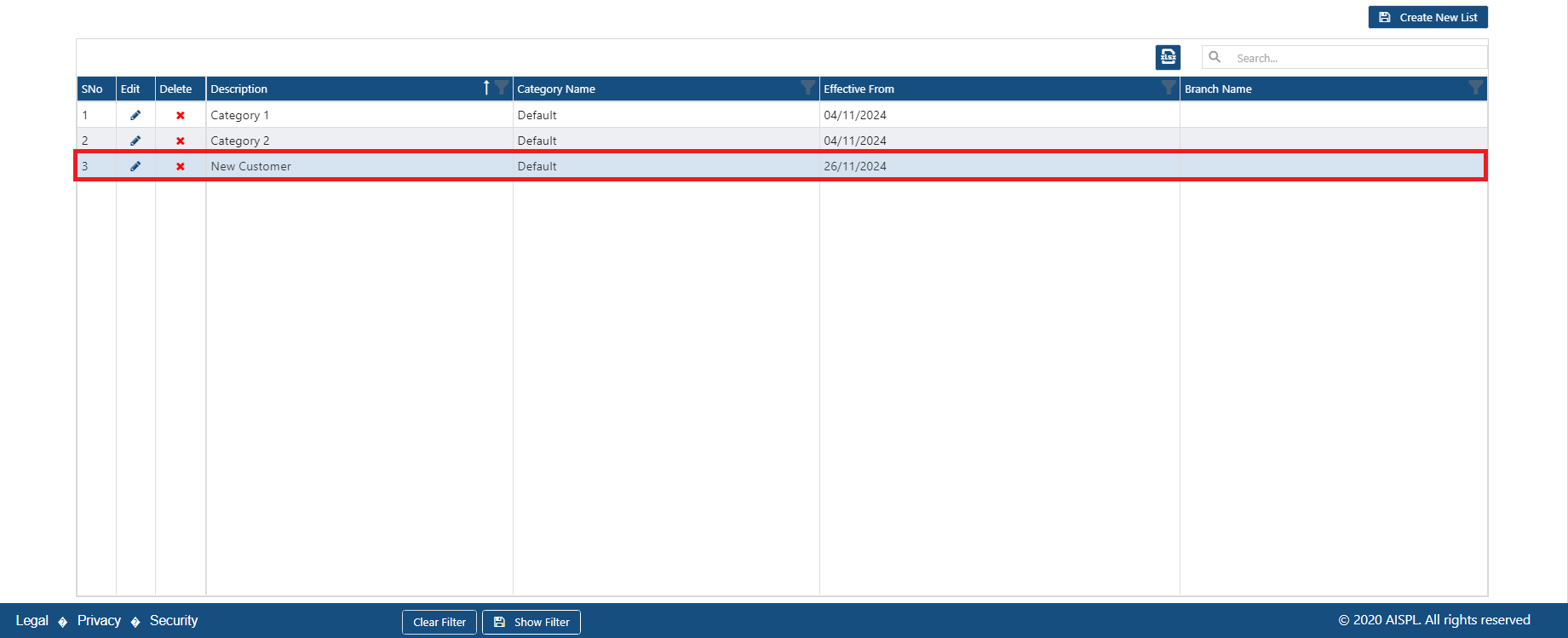
• Thereafter, you can view a New Price list will get created in the software.
Now let's view how the price/ discount will be auto picked in the Sale Invoice. There are 2 ways to load Price/ Discount/ Charges in Invoices
1. Select Price Category Manually While Billing
2. Fix Price Category in Customer Master
Case 1. Select Price Category Manually While Billing
You can manually select the prices category while billing, prices will be loaded in the invoice based on the price category selection.
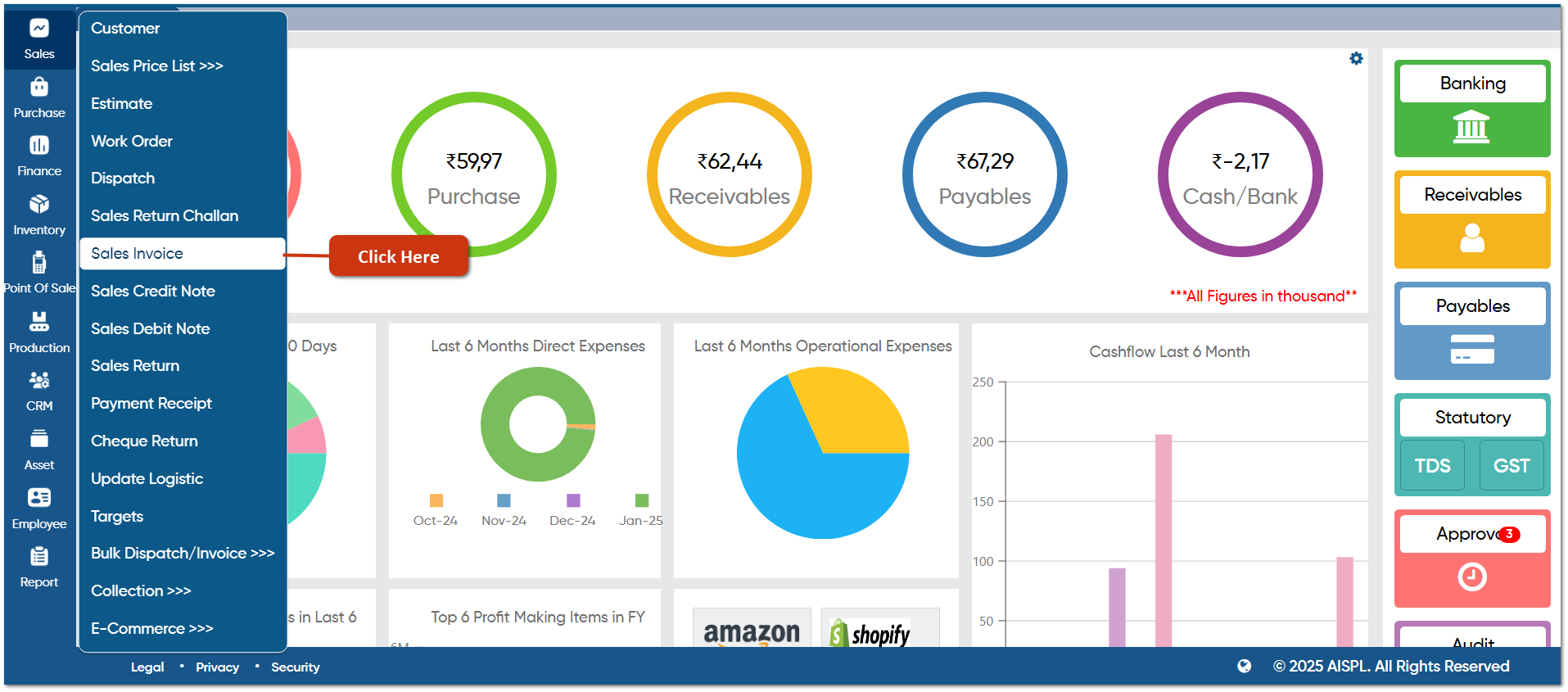
• Go to Sales > Sales Invoice.
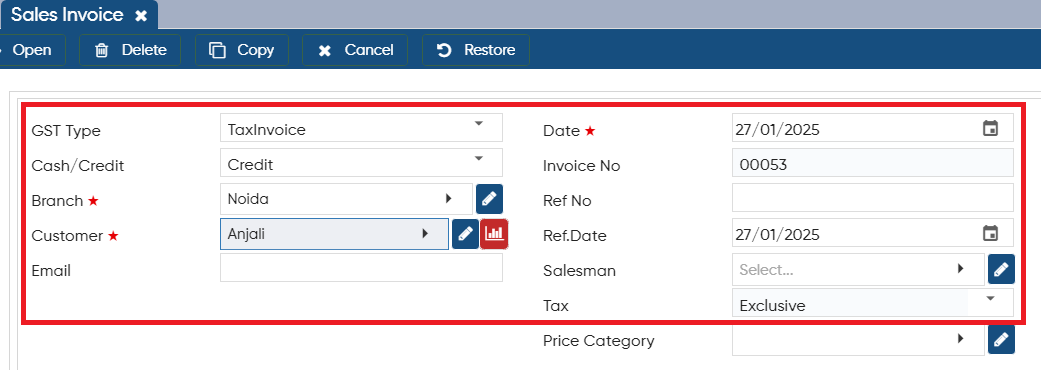
• Select the Branch/ Warehouse/ Customer and other required fields as per the requirement.
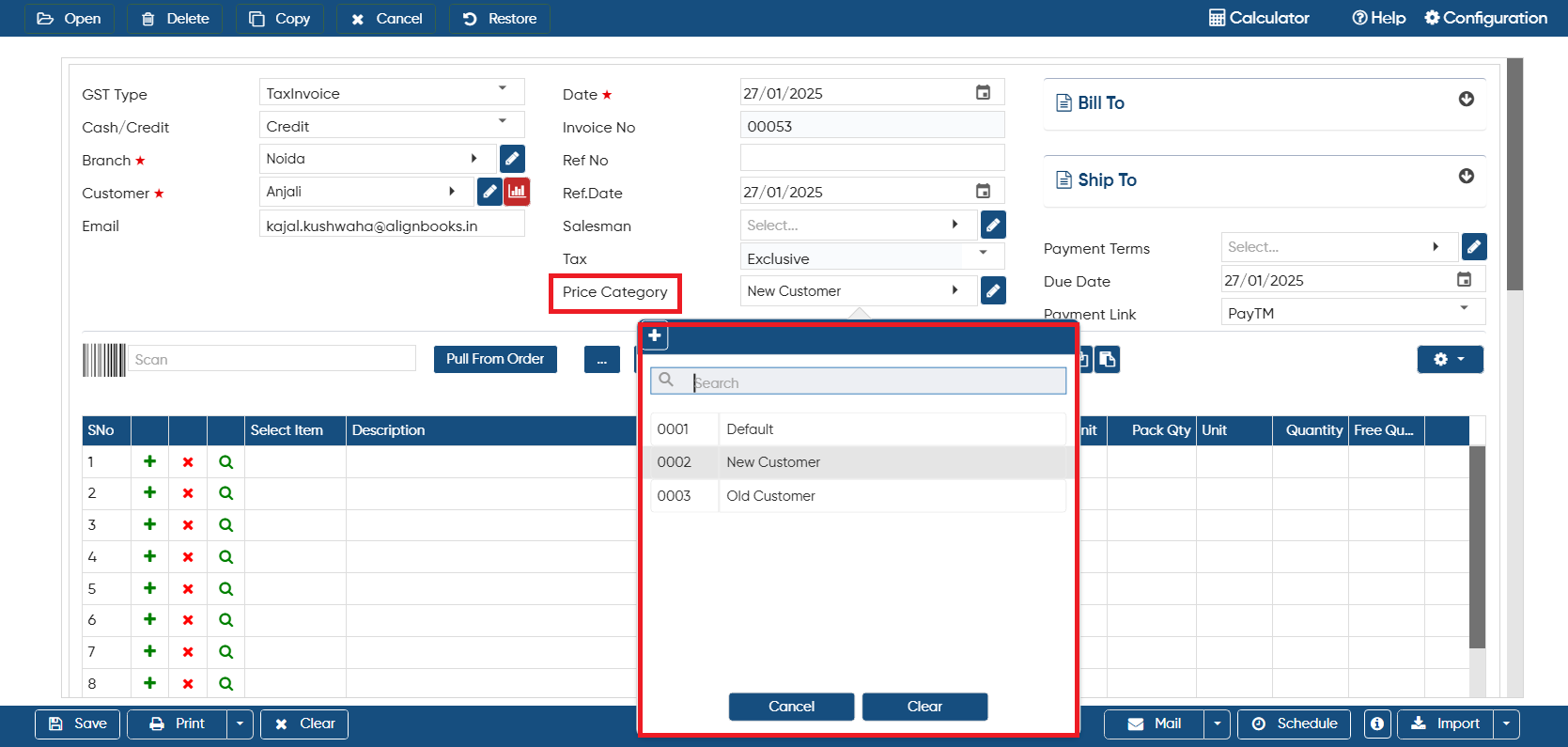
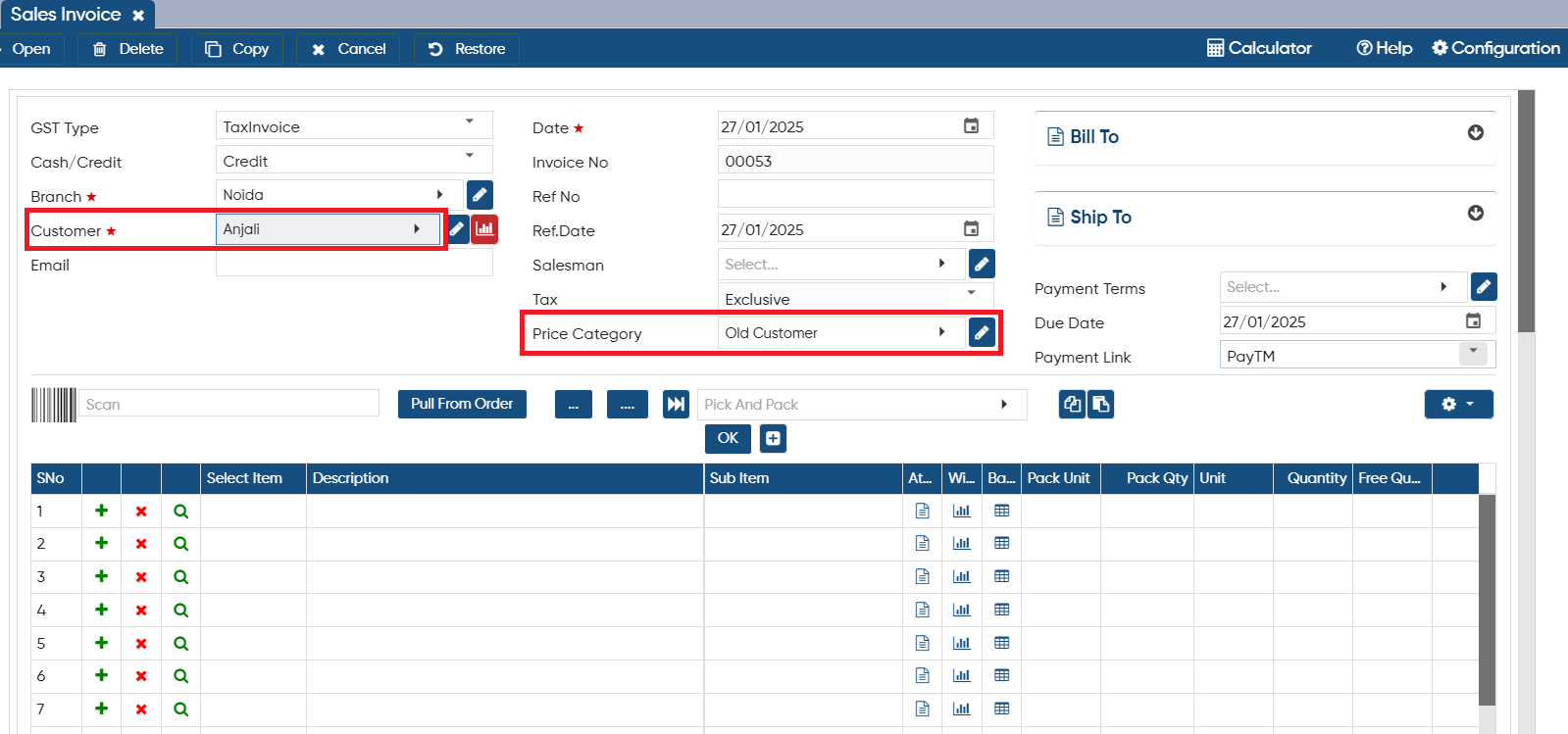
• In 'Price Category' option, click on the dropdown to select the price category according to which you want to load the Prices/ Discount/ Charges for the customer.
• Suppose select 'New Customer'.
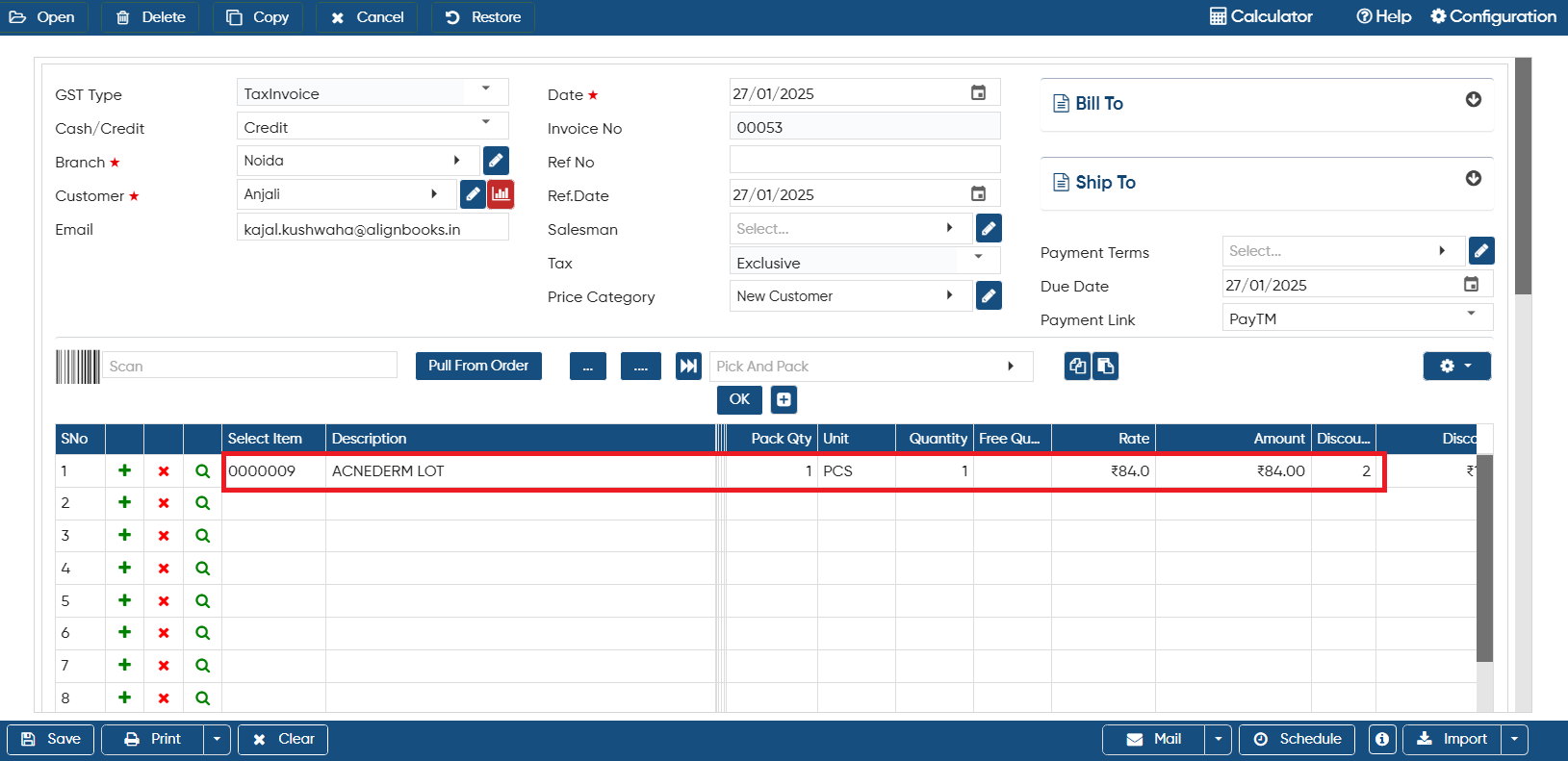
• Now suppose load the item 'Acnederm Lot' in the Invoice and mention Qty as '1', you can view Rate '84' and Discount '2' (in percentage) will get auto picked in the invoice.
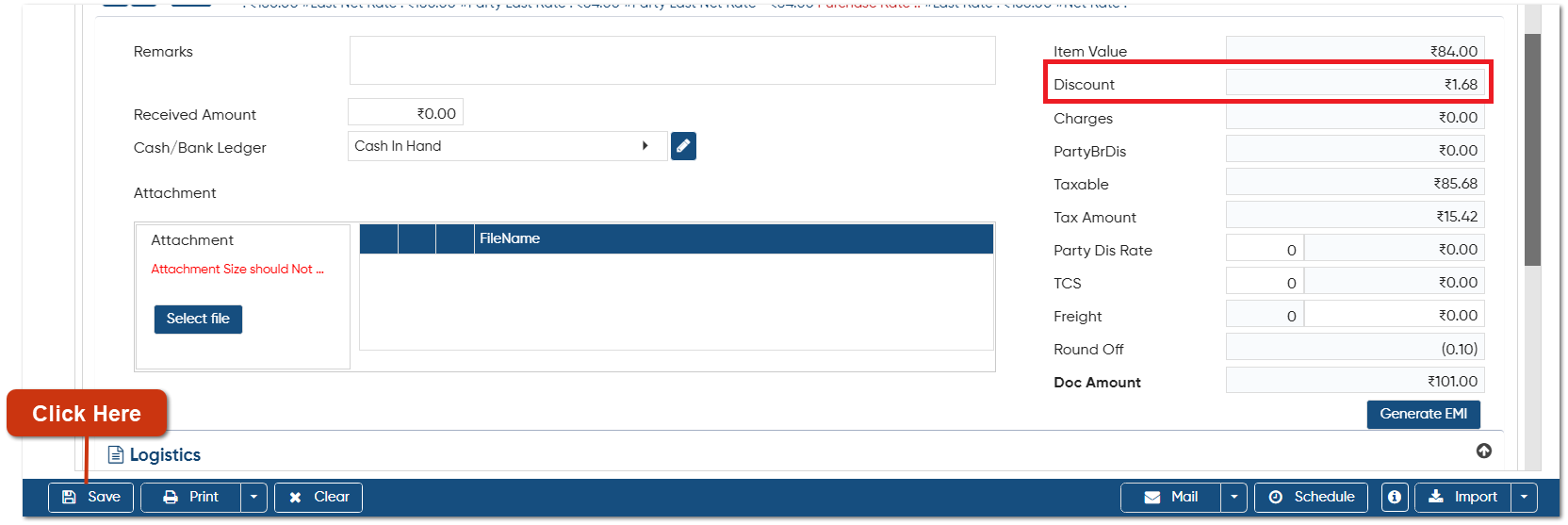
• And as we have mentioned '2' % discount for 'Acnederm Lot' item, if you scroll down the page, you can view Discount will also get calculate.
• (Qty * Rate ) * 2% discount = Discount Value
• (1 * 84) * 2% = 1.68
• Thereafter, click on 'Save' button.
Case 2. Fix Price Category in Customer Master
-
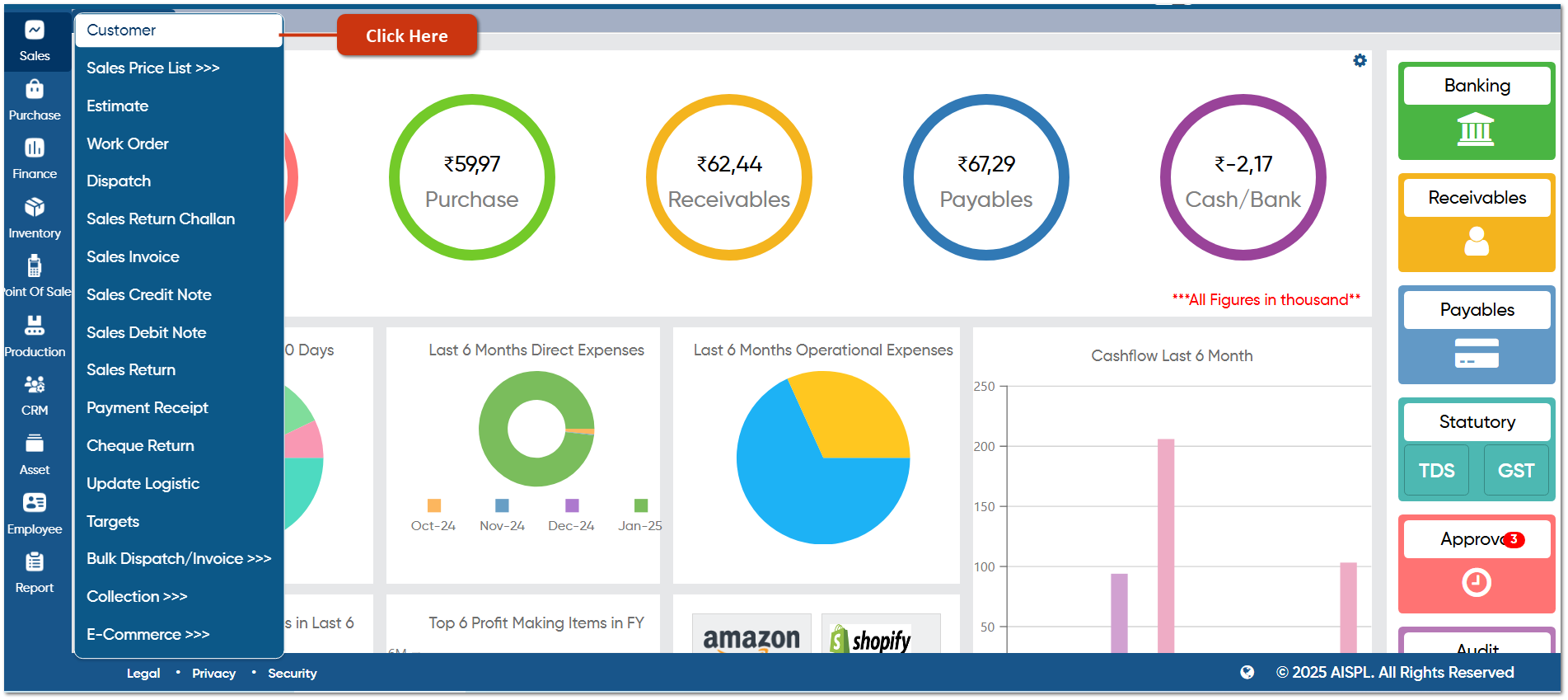
Go to Sales > Customer.
-
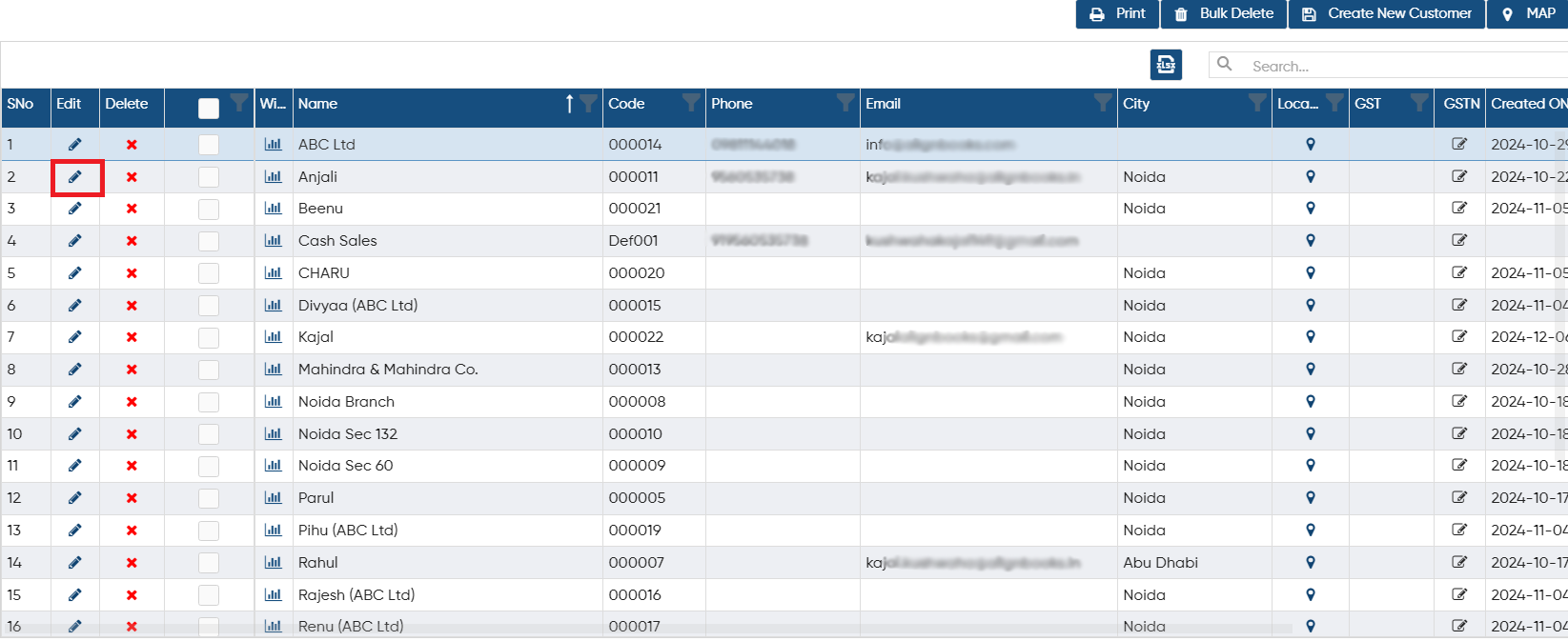
Click on edit icon against any of the customer for whom you want to fix the Price Category.
-
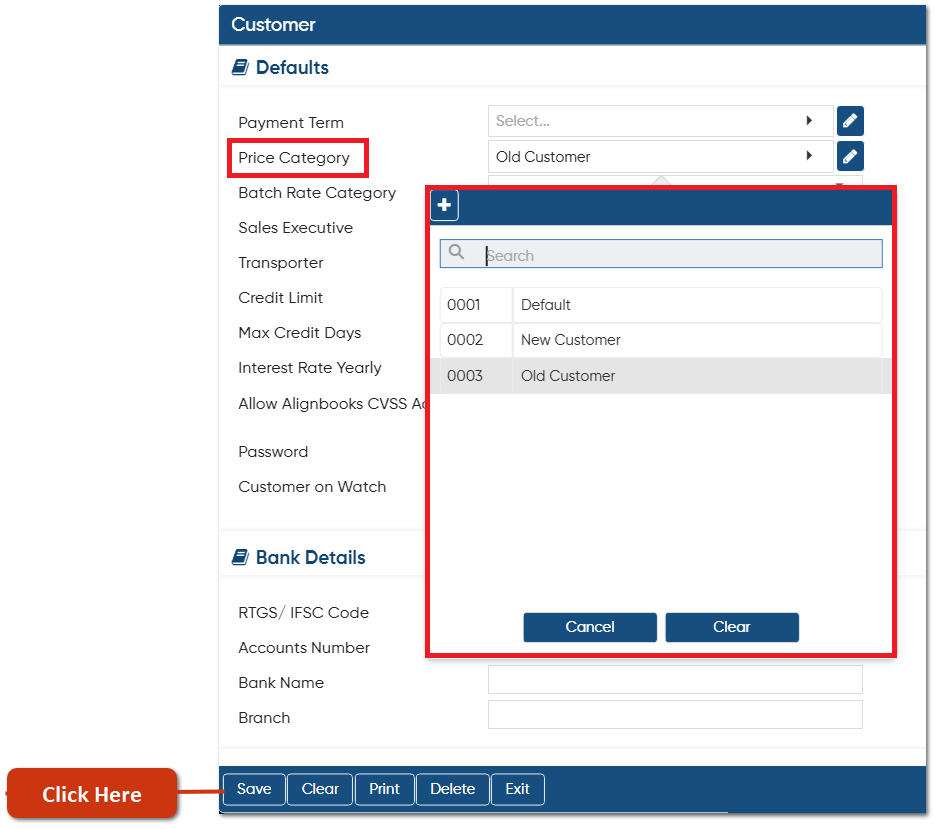
Scroll down the page, in 'Price Category' option, select the price category that you want to fix for this specific customer.
-
Click on 'Save' button.
-
Now when you create a Sale Invoice and select the specific customer, price category will be auto picked by the software.
-
 Click on Edit icon to make any changes or updation to the price category.
 -
 Click on cross icon on the specific price list to remove or delete it.

-
If you want to export the price list in excel then click on excel icon, all the price list will be exported to the excel file.

-
To search any record in the list mention the name of the price category in search box, software will display the result on the screen.

-
You can sort the list based on any field, click on the arrow icon or click on the column header name based on which you want to sort the list.
-
You can also drag and drop any column besides any other column.

In this way, you can fix Price/ Discount/ Charges Item wise in AlignBooks.