
Pull PO From Other Company as SO
Manually creating sales and purchase invoices can be time-consuming and tedious. To simplify this process, AlignBooks offers a seamless solution that allows businesses to import sales and purchase invoices, as well as orders, effortlessly- eliminating the need for manual data entry.
With this integration, both customers and vendors using AlignBooks can directly import invoices and orders into their software. For example, if your customer places a purchase order and they also use AlignBooks, it will be automatically imported into your system as a Sales Order, ensuring accuracy and efficiency.
This automated process enhances collaboration between businesses, saves time, and minimizes errors, allowing users to focus on more critical aspects of their operations.
Key Benefits of Pulling PO from Other Company as SO:
-
Time-Saving: Eliminates manual data entry for sales and purchase invoices.
-
Seamless Integration: Enables direct import of invoices and orders within AlignBooks.
-
Accuracy & Efficiency: Reduces errors caused by manual entry.
-
Automation: Automatically converts customers' purchase orders into sales orders.
-
Better Collaboration: Enhances coordination between businesses using AlignBooks.
-
Ease of Use: Simplifies invoicing processes for both customers and vendors.
-
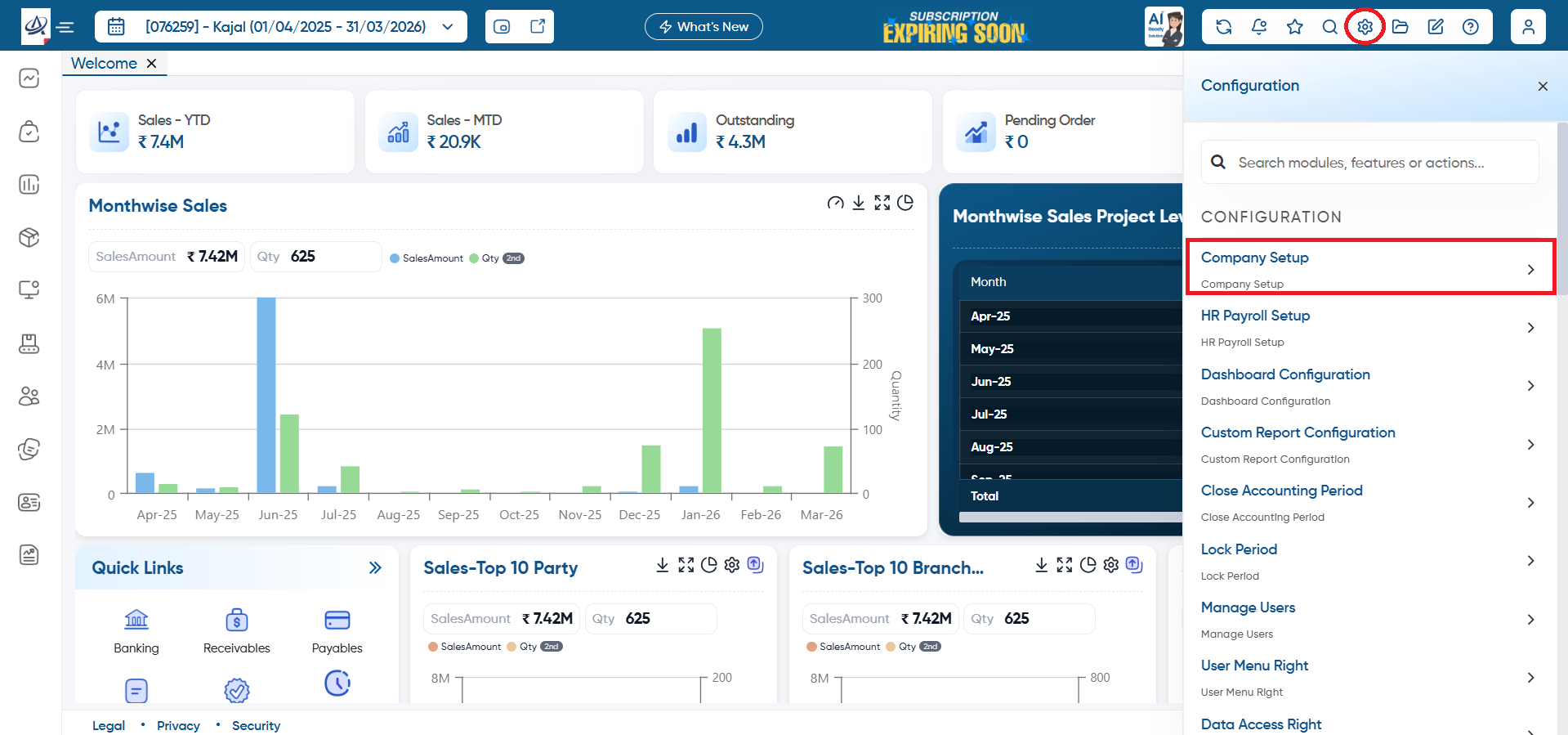
First, you need to do the integration and map the Supplier/ Vendor's Company Code and ledger in the setup, click on 'Configuration' icon and select 'Company Setup' option.
-
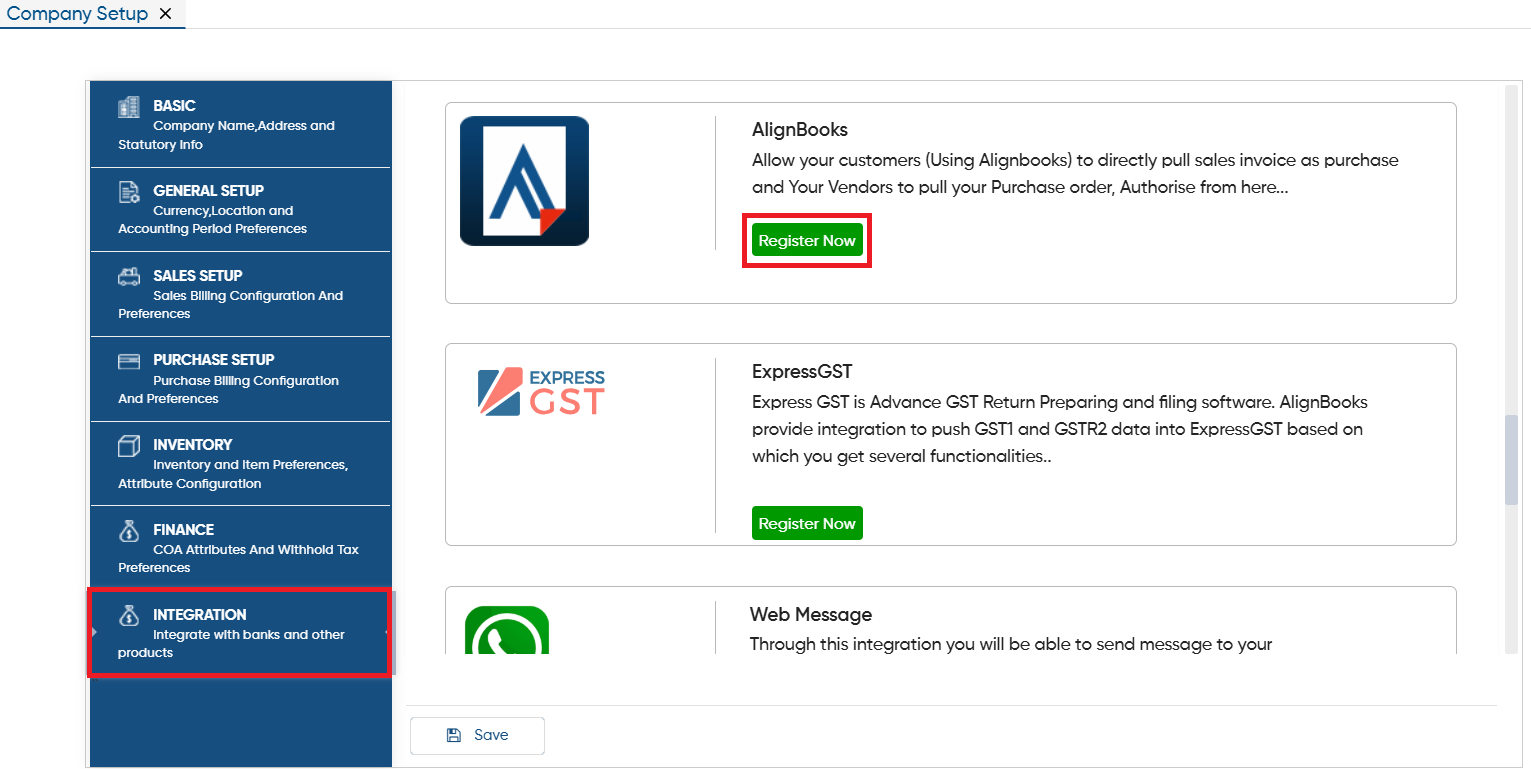
Open the 'Integration' tab. Scroll down the page and in 'AlignBooks' section, click on 'Register Now' button.
-
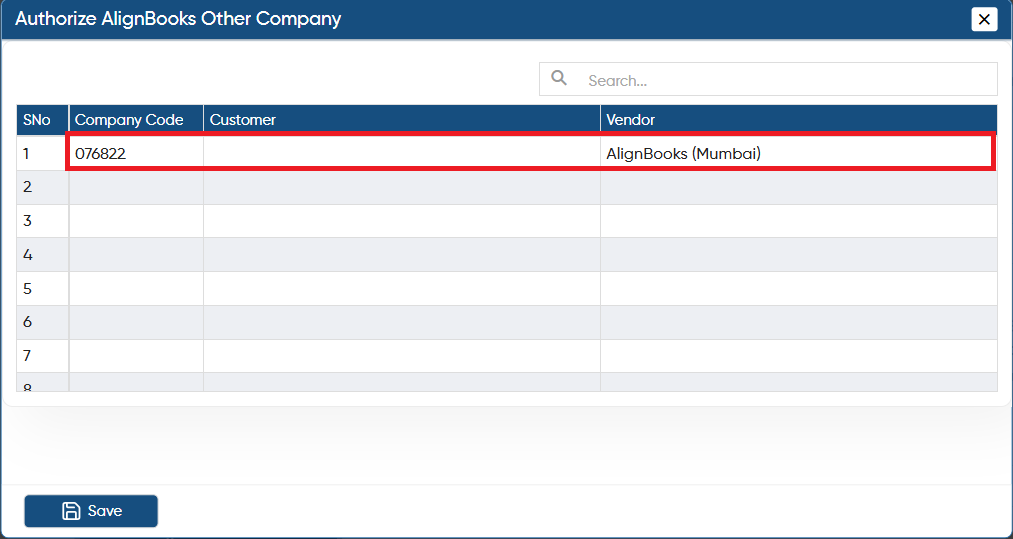
In 'Company Code' column, mention the company code of the Supplier/ Vendor from whom the goods need to be purchased.
-
In 'Vendor' column, select the ledger of the supplier/ vendor and click on the 'Save' button.
Make sure to first create a Ledger for the Supplier/ Vendor using the same company name; only then will the Ledger be displayed here.
|
-
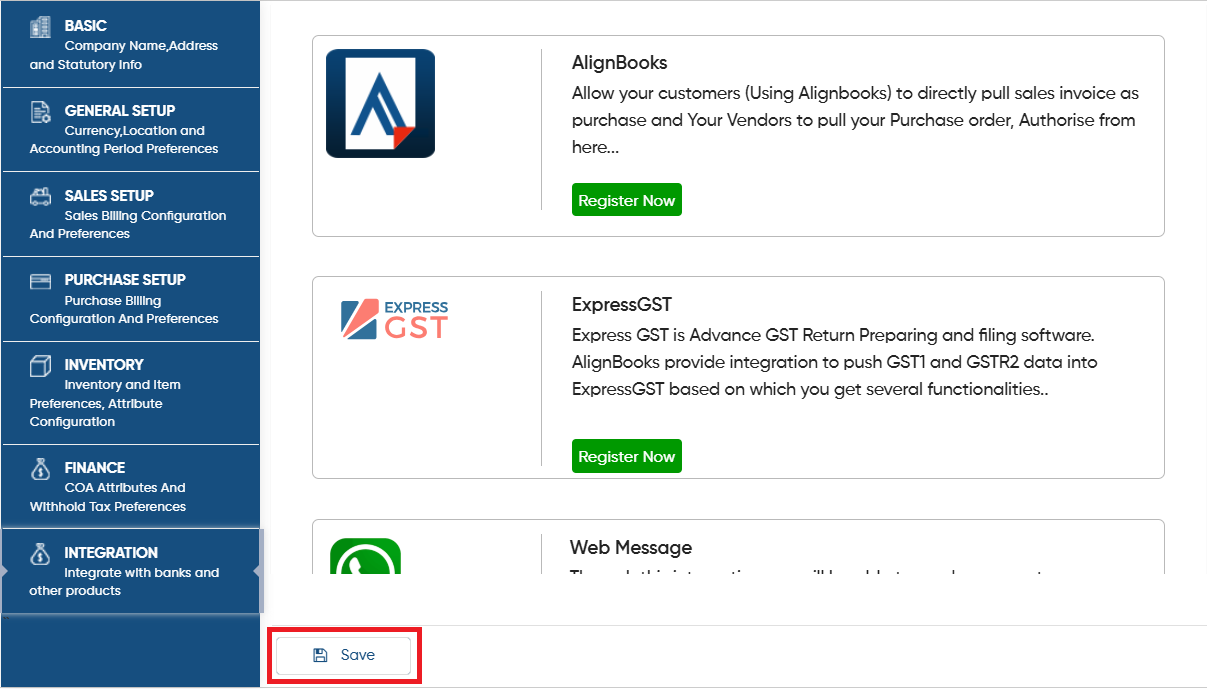
Again click on 'Save' button to save the settings.
After this, it's Mandatory to Re-Login the software.
|
-
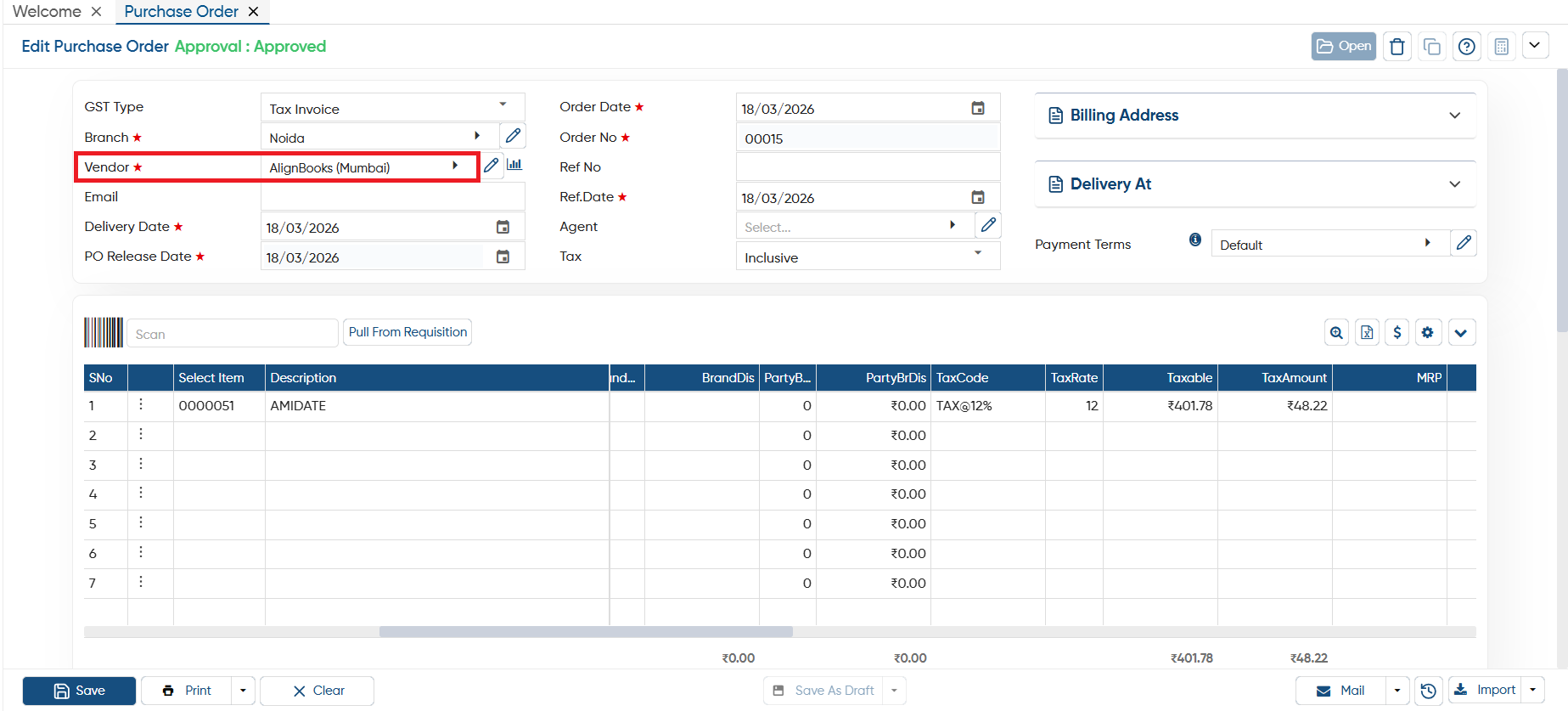
Now, your customer will first generate a Purchase Order in the software for the supplier from whom the goods need to be purchased.
-
Now, the Seller will do the integration and map the customer's Company Code and ledger in the setup, click on 'Configuration' icon and select the 'Company Setup' option.
-
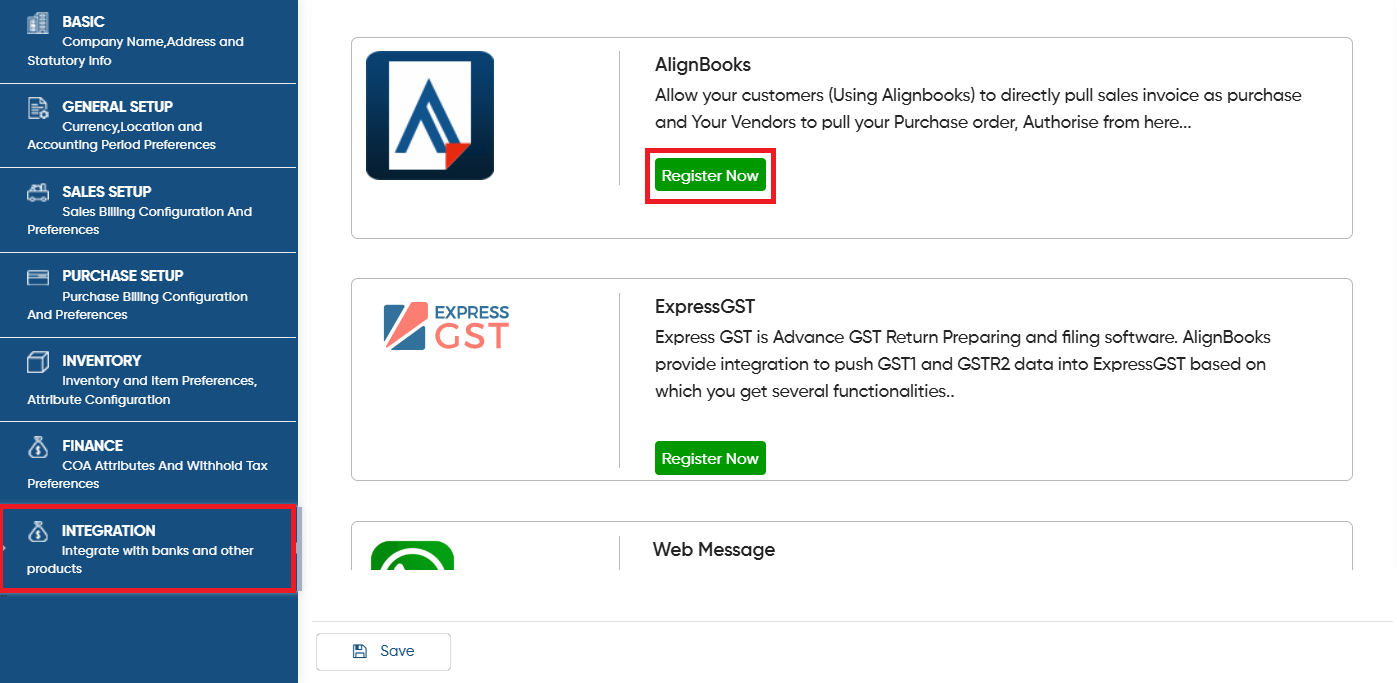
Open the 'Integration' tab. Scroll down the page and in 'AlignBooks' section, click on 'Register Now' button.
-
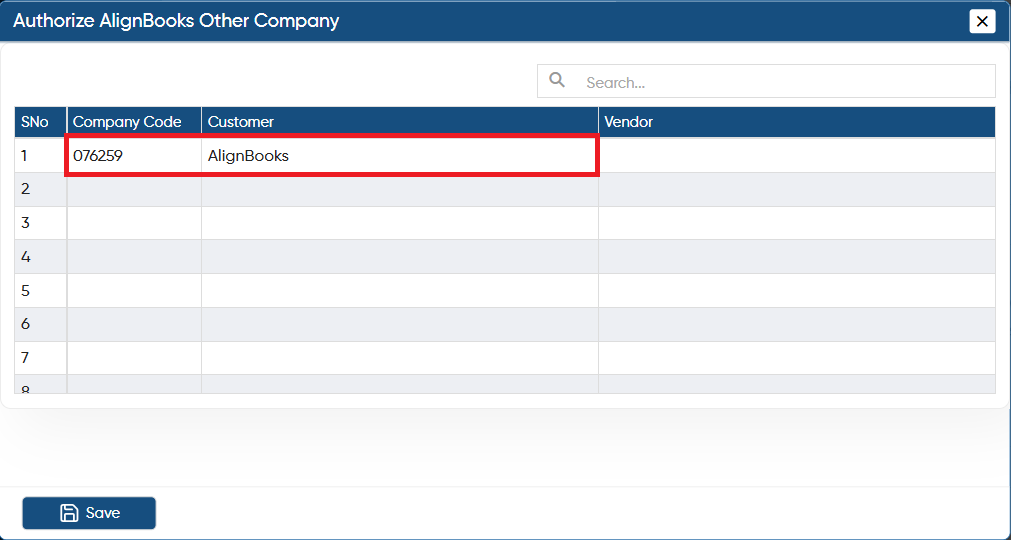
In 'Company Code' column, mention the company code of the customer to whom the goods need to be sold out.
-
In 'Customer' column, select the ledger of the customer.
-
Click on 'Save' button.
Make sure to first create a Ledger for the Customer with the actual company name; only then will the Ledger be displayed here.
|
-
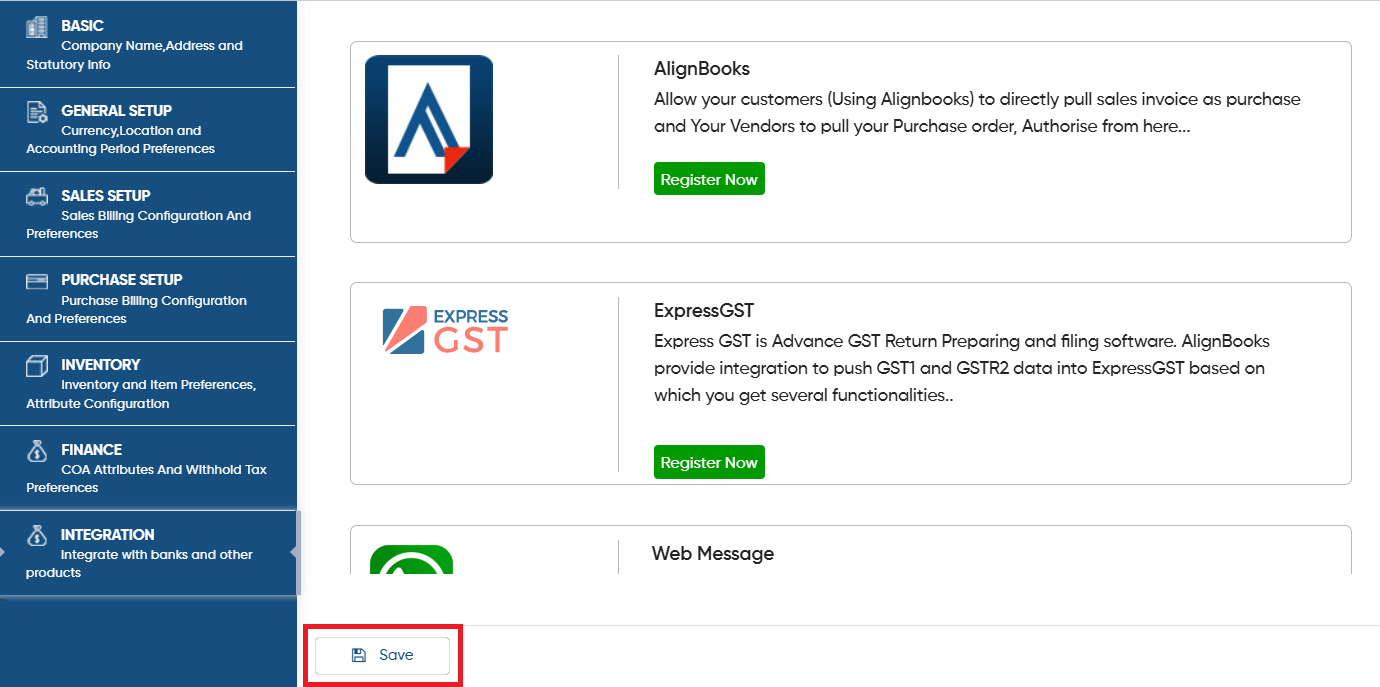
Again click on 'Save' button to save the settings.
After this, it's Mandatory to Re-Login the software.
|
-
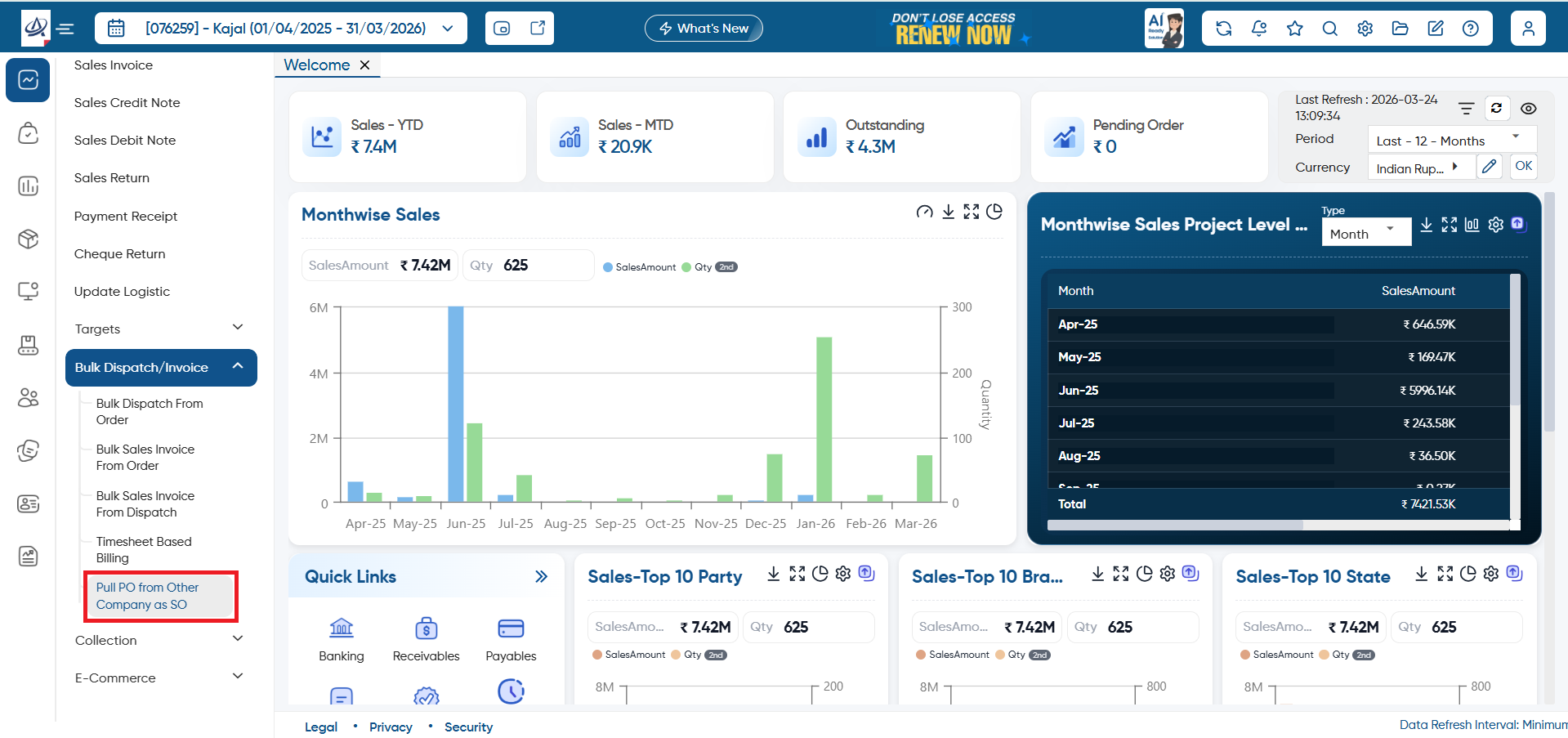
After the integration, you need to Pull the PO as SO, therefore go to Sales > Bulk Dispatch/ Invoice > Pull PO from Other Company as SO.
-
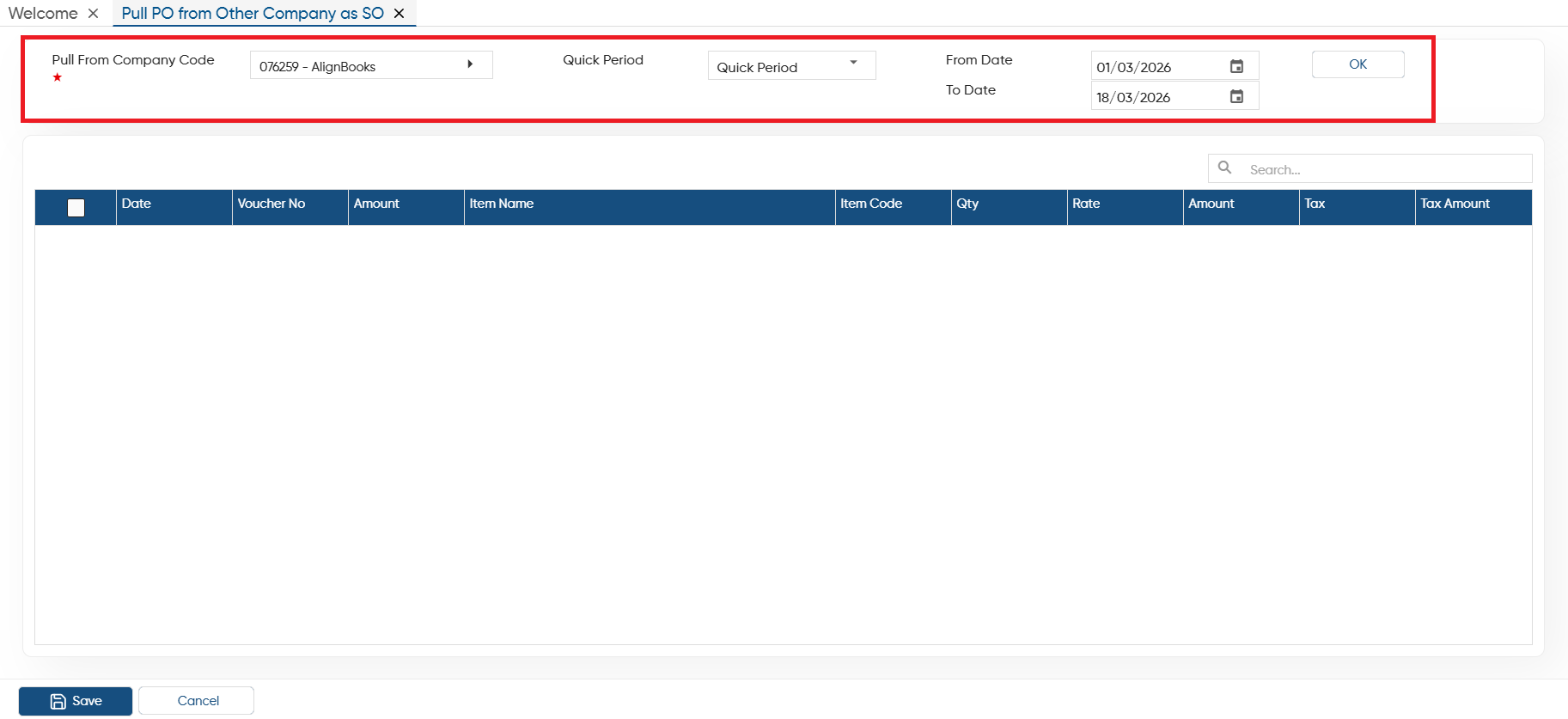
In 'Pull From Company Code' option, select the company name whose purchase order you want to pull.
-
In 'Quick Period' option, select the period for which you want to pull the purchase orders.
-
Click on 'Ok' button.
-
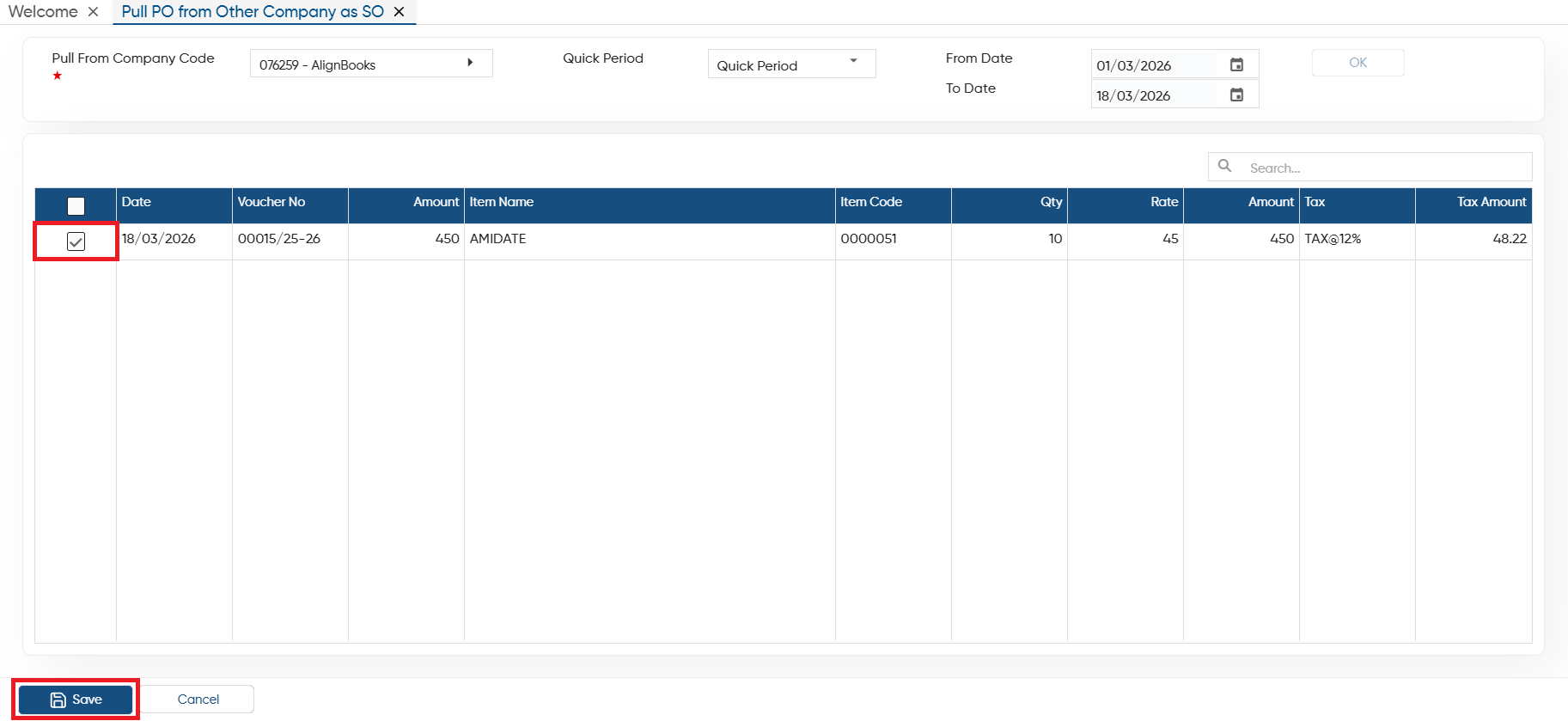
Tick the check box against the order that you required to pull or import.
-
Click on 'Save' button.
-
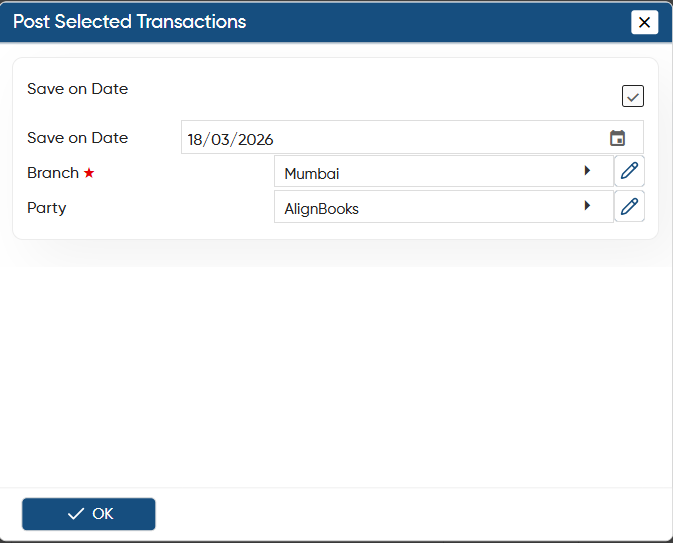
Save on Date: Tick the check box.
-
Save on Date: Mention or select the date from the calendar icon on which you want to save the Sales Order.
-
Branch: Select the branch for which you required to save the sales order.
-
Party: Here, you need to select the party's ledger.
Click on 'Ok' button.
-
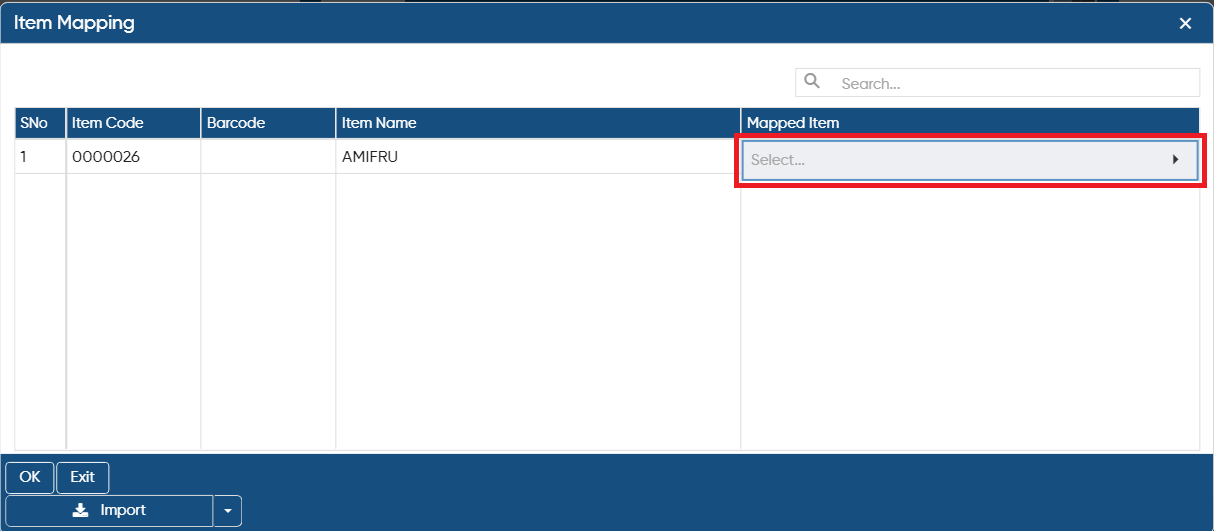
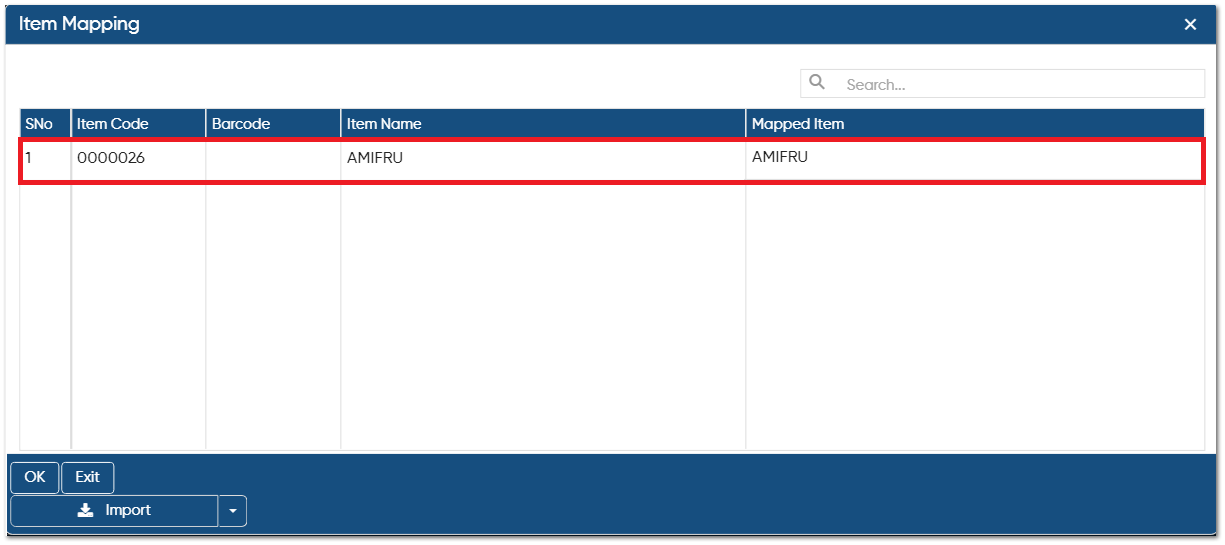
An item mapping window will appear, here you need to map the item name with the items available in your software.
You only need to map it the first time; after that, the software will not prompt you to map it again.
|
-
After mapping the items, click on 'Ok' button.
-
Thereafter, you can view purchase order will be pulled as sales order.
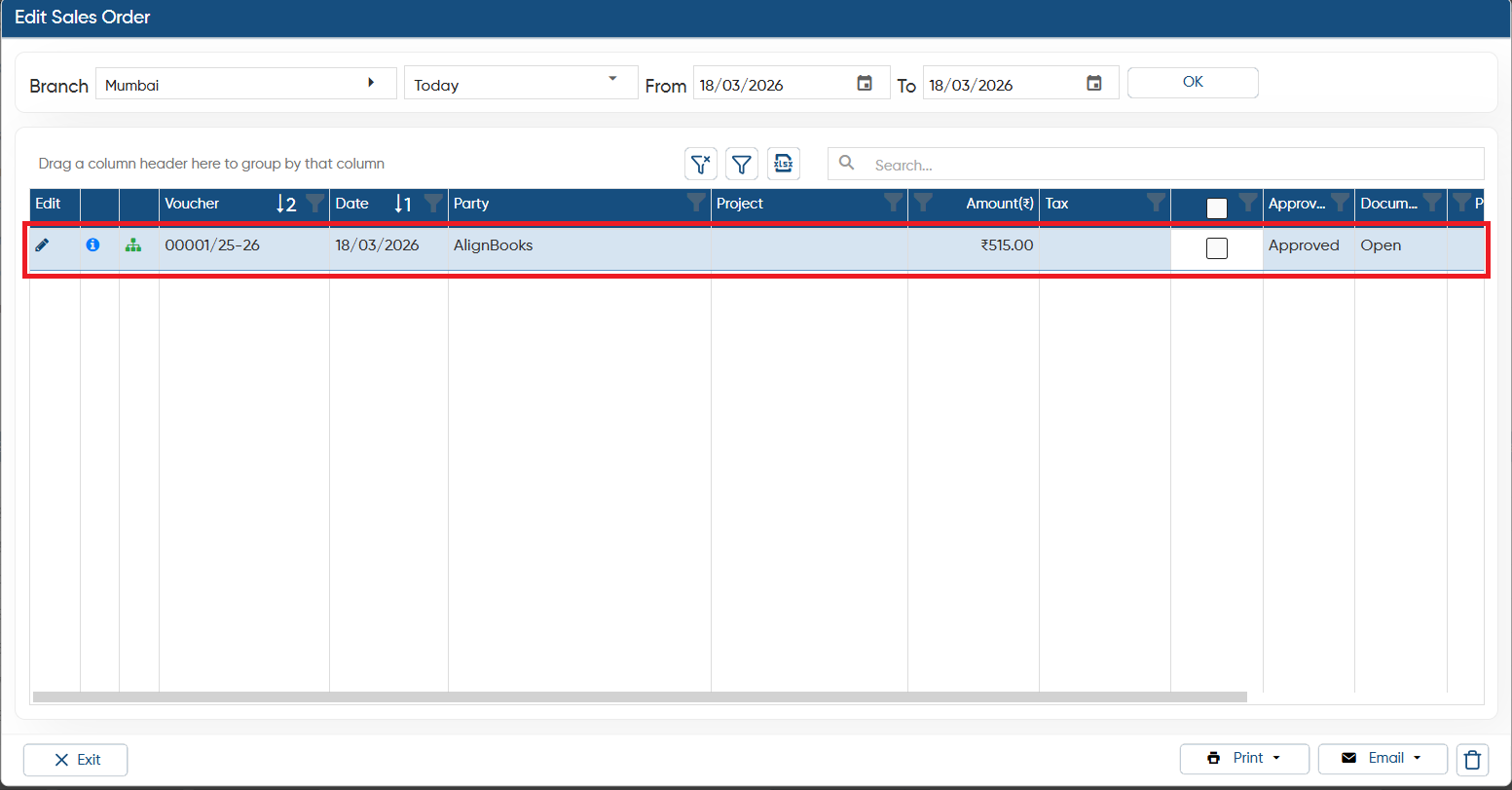
In this way you can Pull the Purchase Orders from Other Company as Sales Order in AlignBooks.