
Scheme Input
Scheme Input is used to define purchase schemes applicable to vendors, party categories, or agents. It includes details such as eligible items or item groups, quantity or value slabs, validity period, and the type of benefit offered, such as discounts or incentives. In accounting and purchase management, Scheme Input ensures that supplier and agent-based schemes are clearly recorded and consistently applied across all relevant transactions.
In AlignBooks, this option allows you to configure schemes centrally so they can be applied automatically for all applicable vendors, party categories, or agents during purchase.
-
Go to Purchase > Purchase Scheme > Scheme Input.
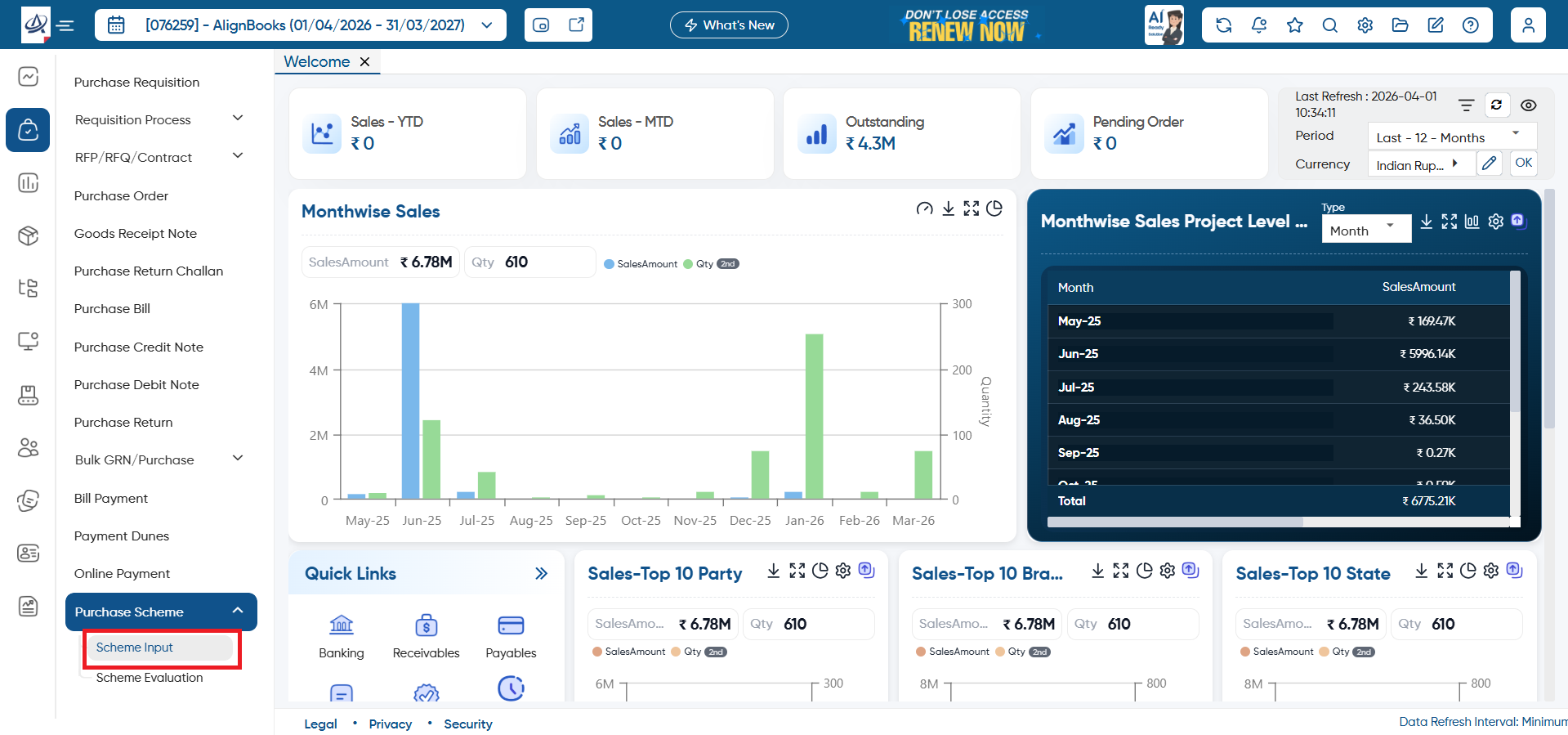
-
In 'Template' option, click on the dropdown and then click on 'Add' icon to add the new scheme.
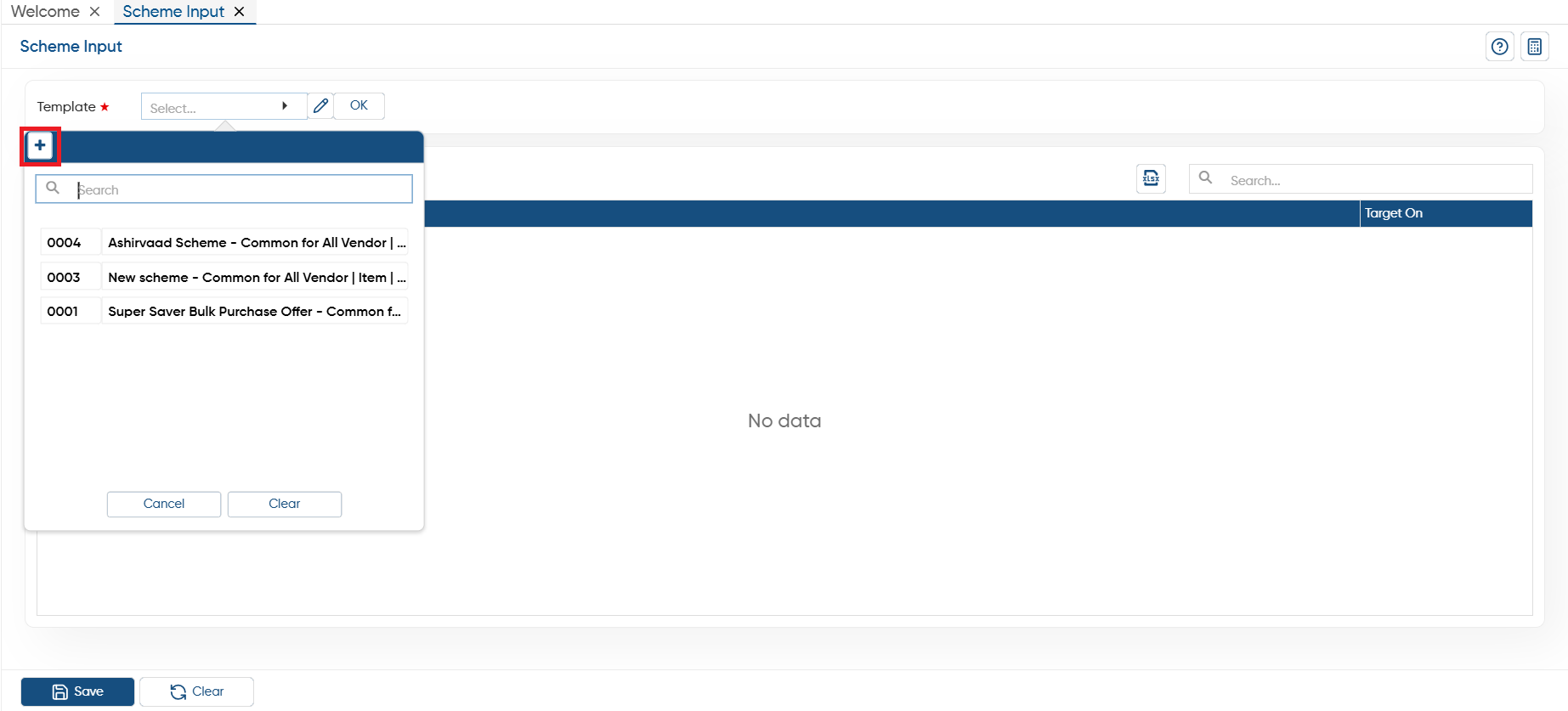
-
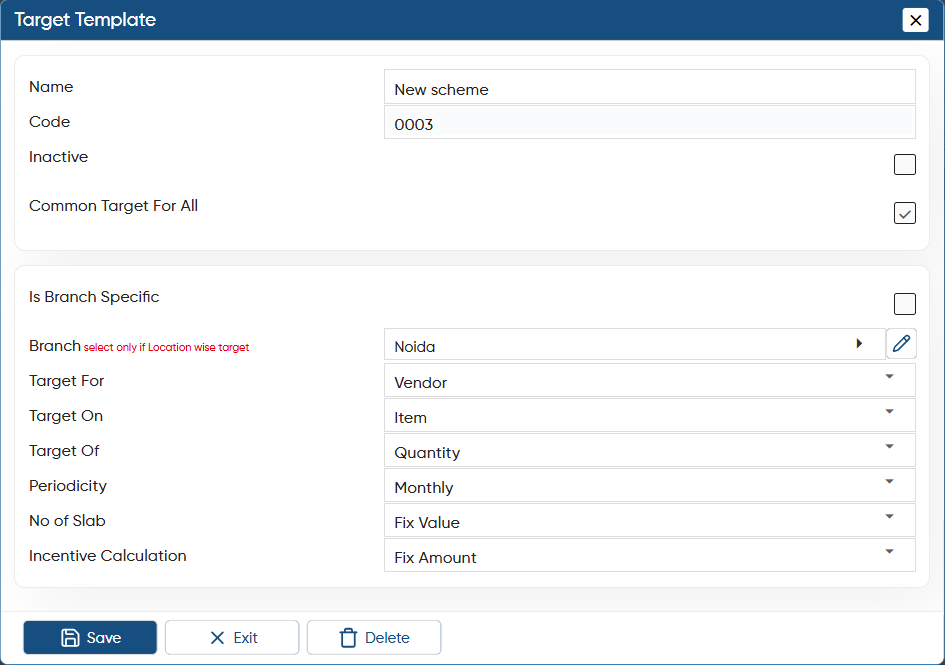
Name: Mention the name of the target for your identification.
-
Code: Code will auto picked by the software for each target you will create.
-
Inactive: Tick the check box if the target/ scheme get inactive.
-
Common Target For All: If target will be common for all the Agent/ Vendor/ Party Category then tick the check box.
-
Is Branch Specific: To fix the target for a particular branch, tick the check box.
-
Branch: Here, you can select the branch for which you are fixing the target/ scheme.
-
Target For: Select whether the target is for Agent, Vendor or Party etc as per your business requirement.
-
Target On: Select how you want to fix the target - Overall, on Item, Item Group, Brand or Overall.
-
Target Of: Select whether the target is based on quantity, pack_qty, g_pack_qty, or Bill amount etc as required.
-
Periodicity: Select the time period for the target as per your requirements.
-
No of Slab: Mention number of slab you want to define the target.
-
Incentive Calculation: Select the calculation for incentive - Fix amount or should be based on percentage_PerQty.
Click on 'Save' button to save the details.
-
Now, click on 'Ok' button.
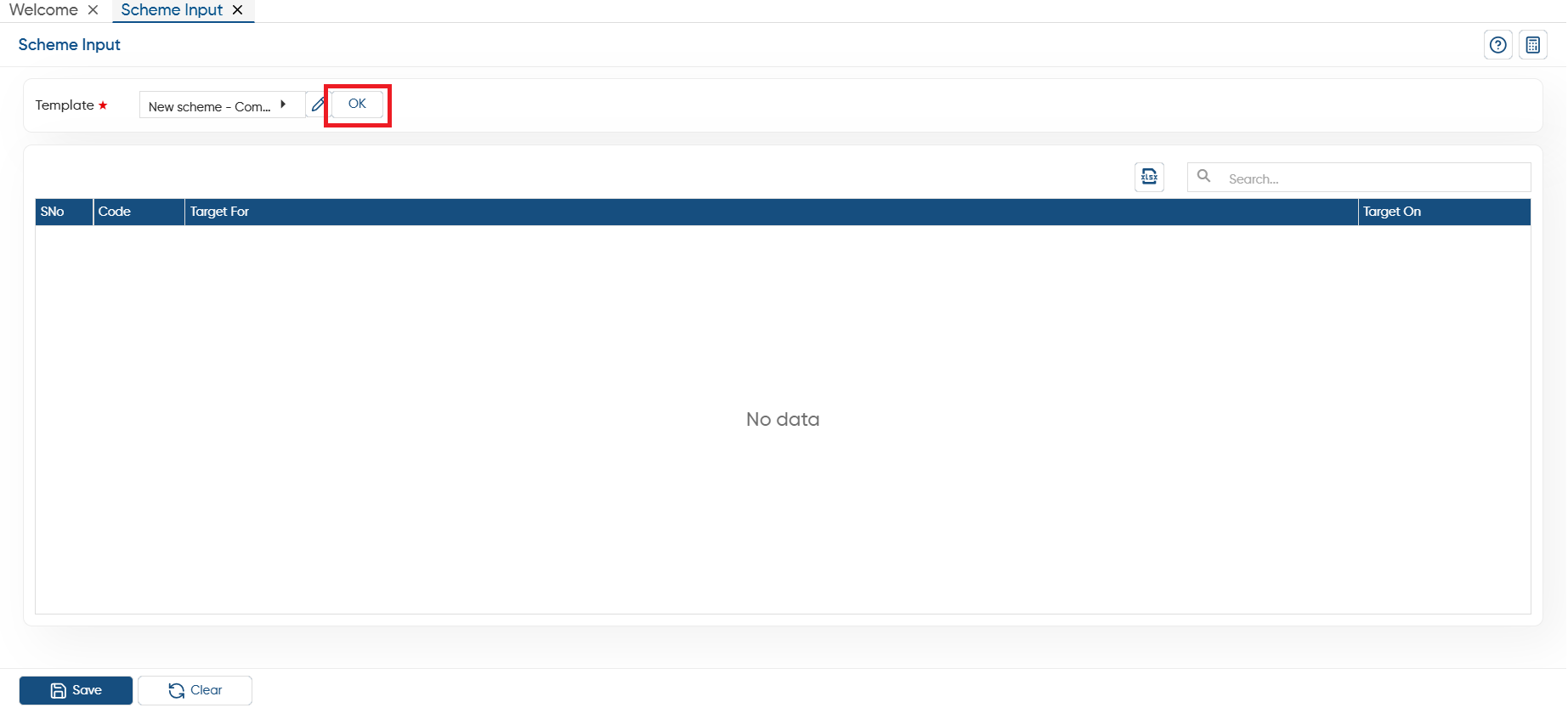
-
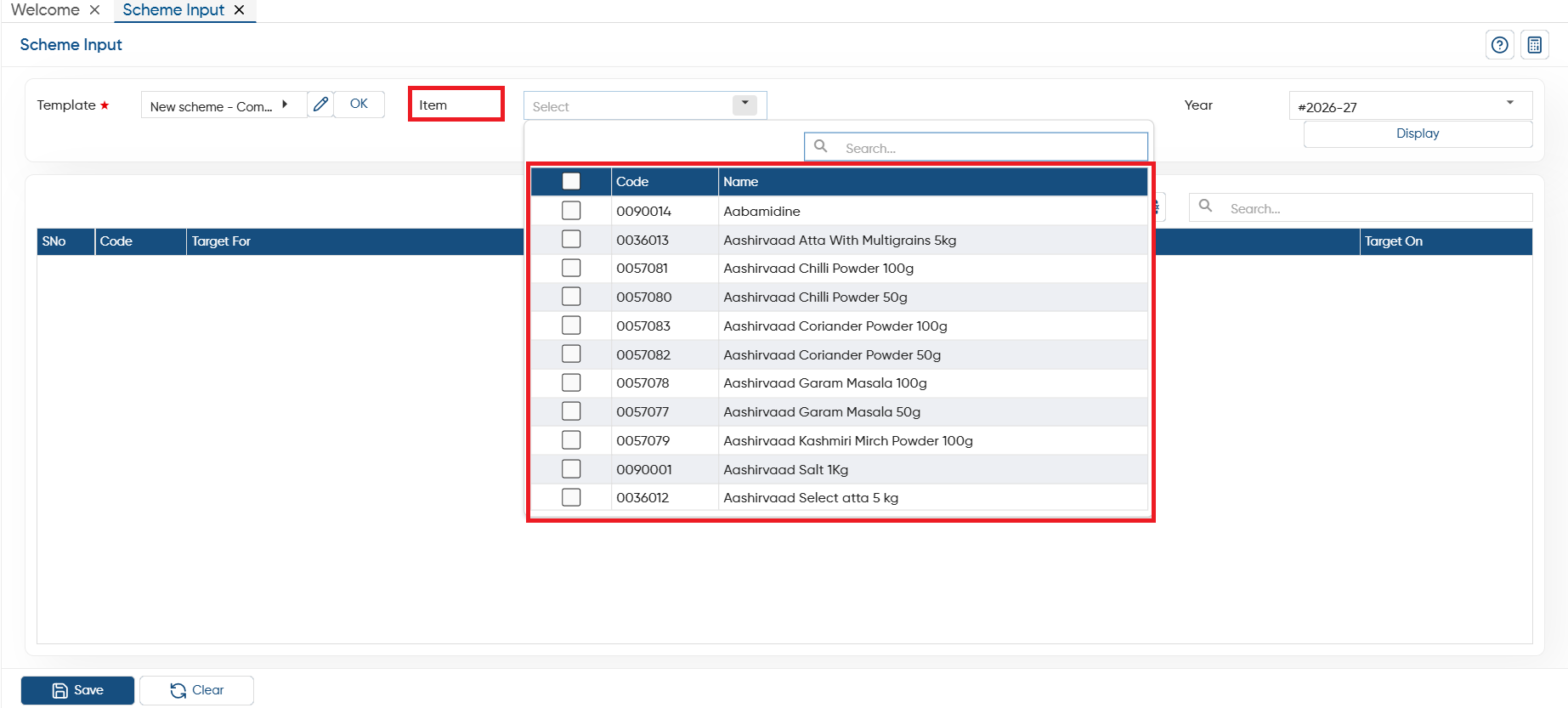
In 'Item' option, you can select the items to set the schemes.
-
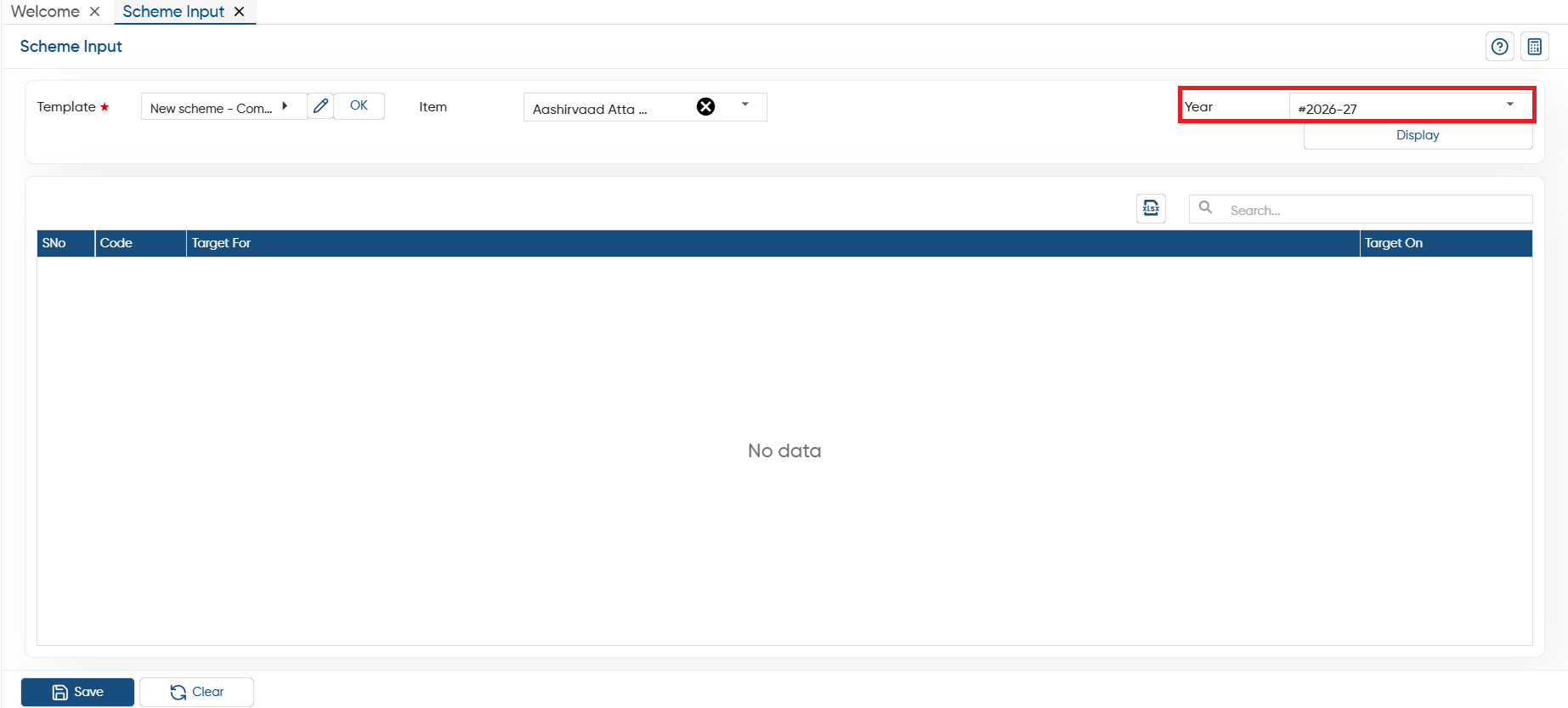
In 'Period' option, select the period for which you want to fix the target and click on the 'Display' button.
-
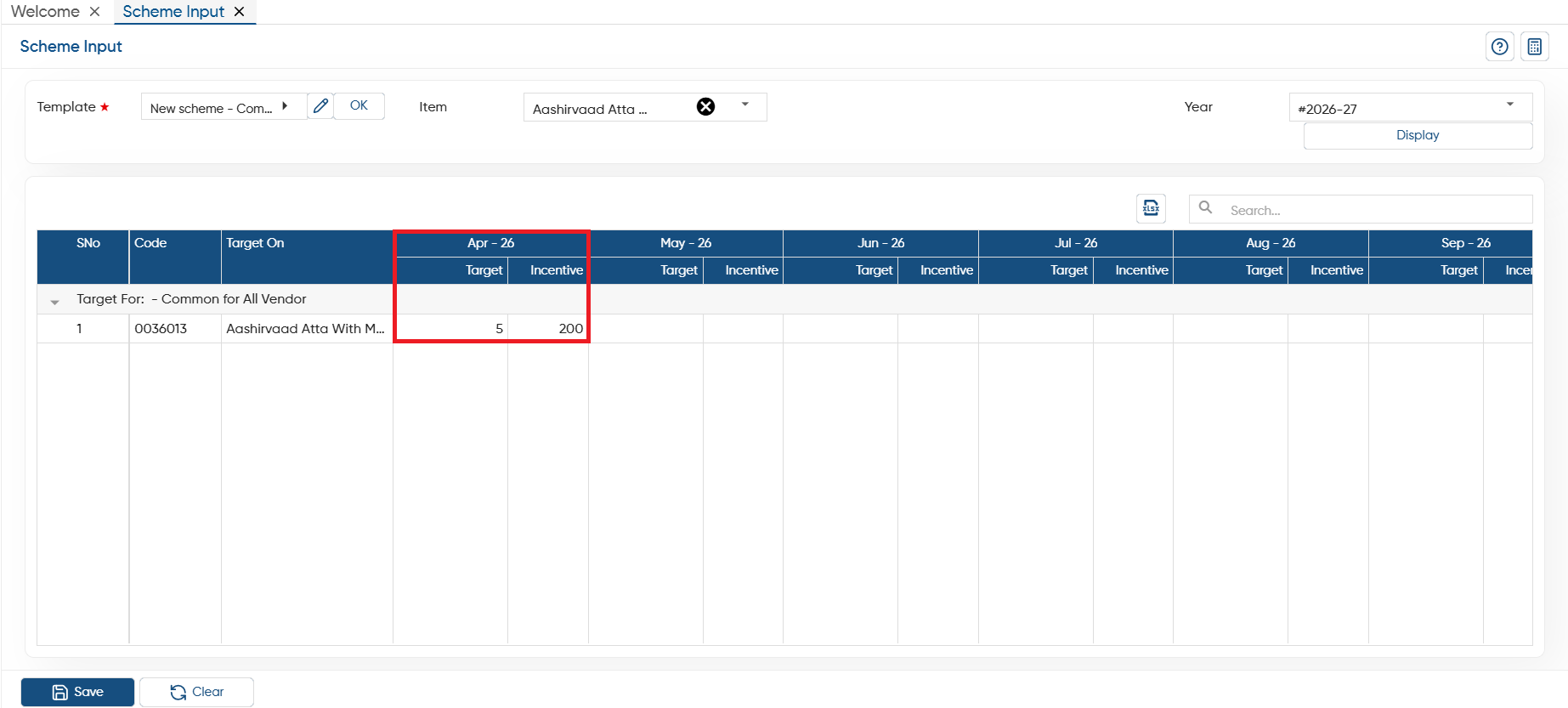
Mention the target and incentive for each month as per your requirement and click on the 'Save' button.
In this way you can Add Scheme Input in AlignBooks.