
Tax Code Master
You need to set up tax codes if you're registered under your country’s Indirect Tax Laws, like GST in India. This applies if you pay taxes on your purchases and charge taxes on your sales.
Different items often have different tax rates and accounting rules. To make your work easier, you should assign specific tax codes to the items you buy or sell.
Once your tax codes are properly set up and linked to your items, creating sales and purchase documents becomes quicker and more accurate. This setup ensures you comply with Indirect Tax Laws while simplifying your processes.
-
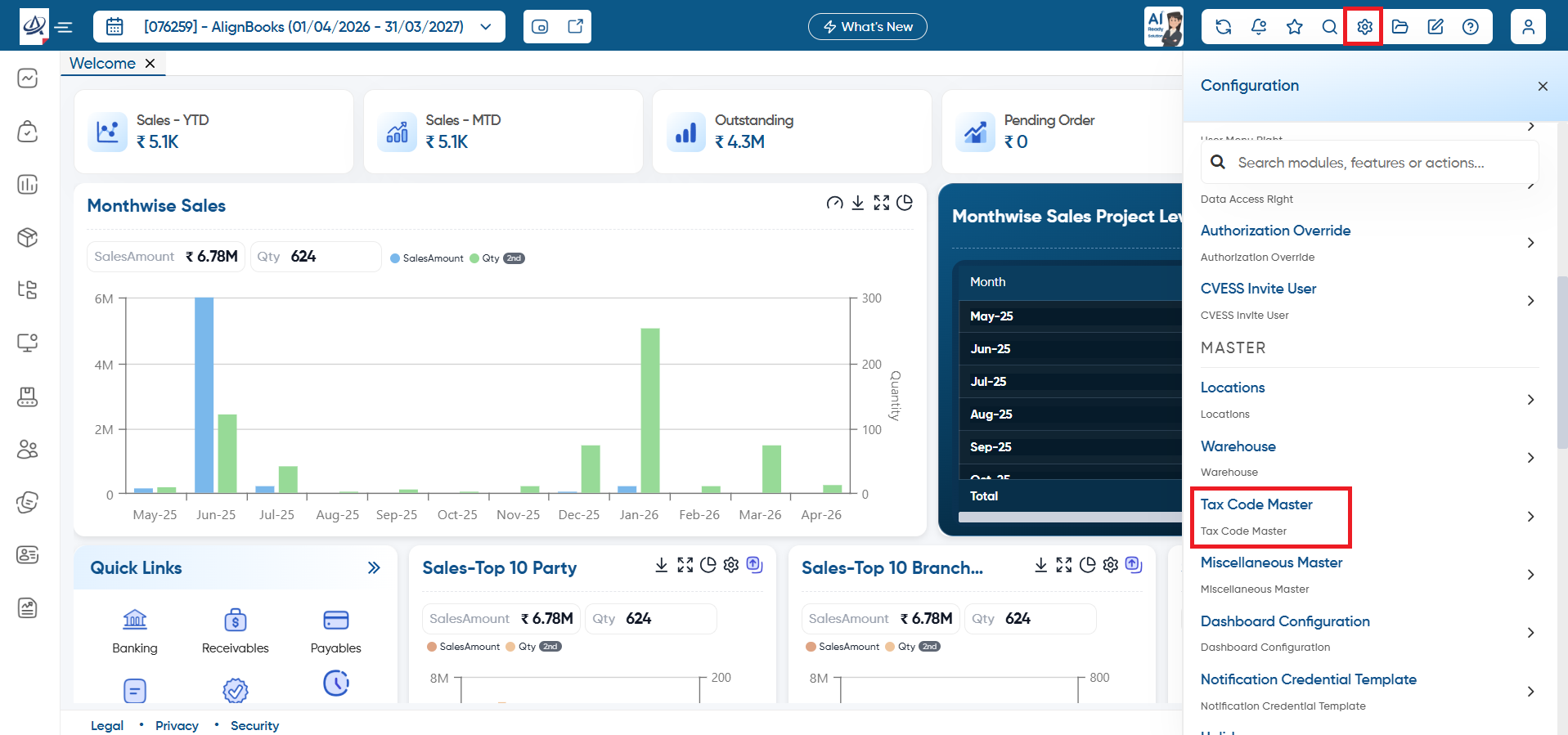
To create new Tax Code Master, click on 'Configuration' icon and select 'Tax Code Master' option.
-
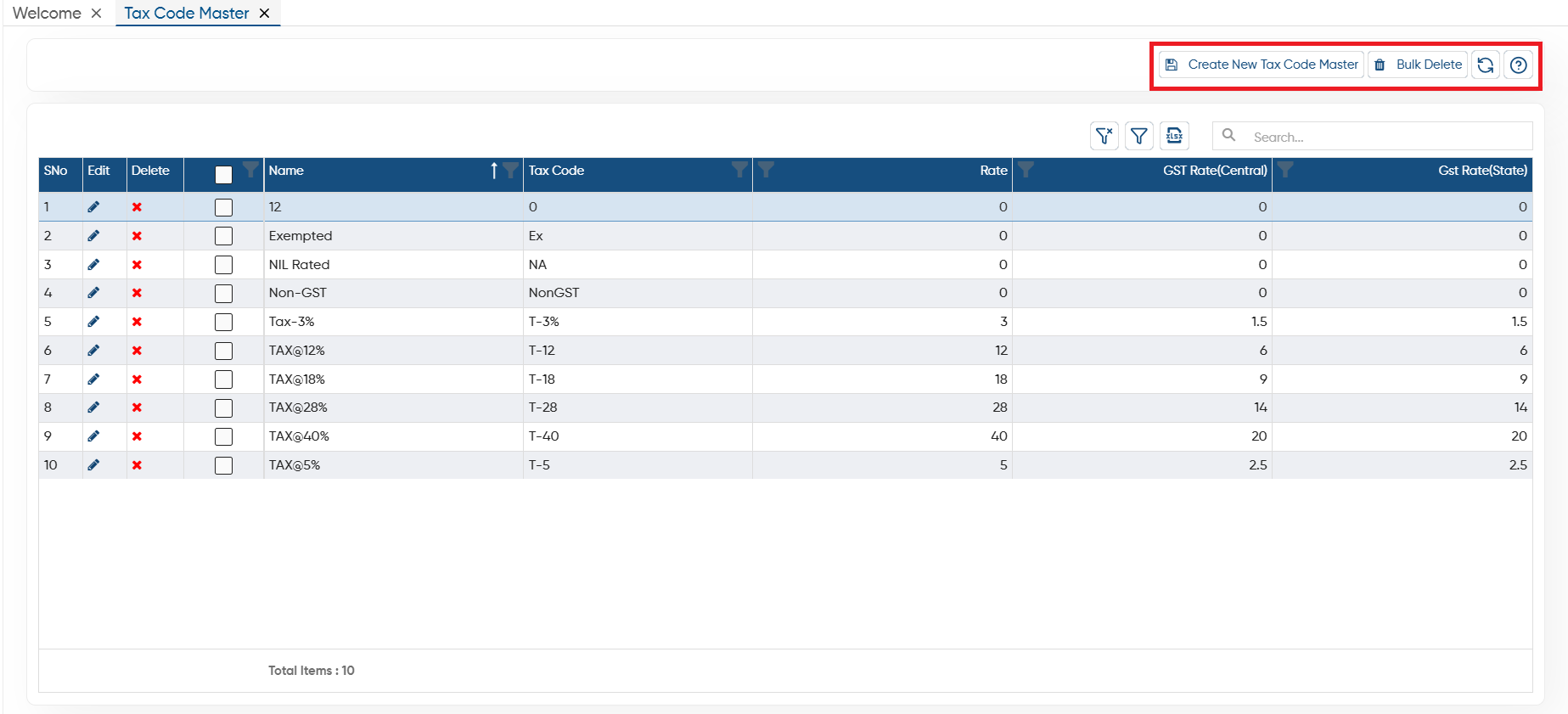
Create New Tax Code: Now, click on 'Create New Tax Code' button to add a new tax code.
-
Bulk Delete: To delete the multiple at once select them (checkbox provided next to the name) then click on this button. (Make sure the tax code don't have any transaction or data, only then the software will allow you for bulk deletion).
-
Refresh: After making changes, if screen does not update, you can refresh the screen. This will display the latest changes on the screen.
-
Help: Click on the help icon to access the step by step guide of the Process.
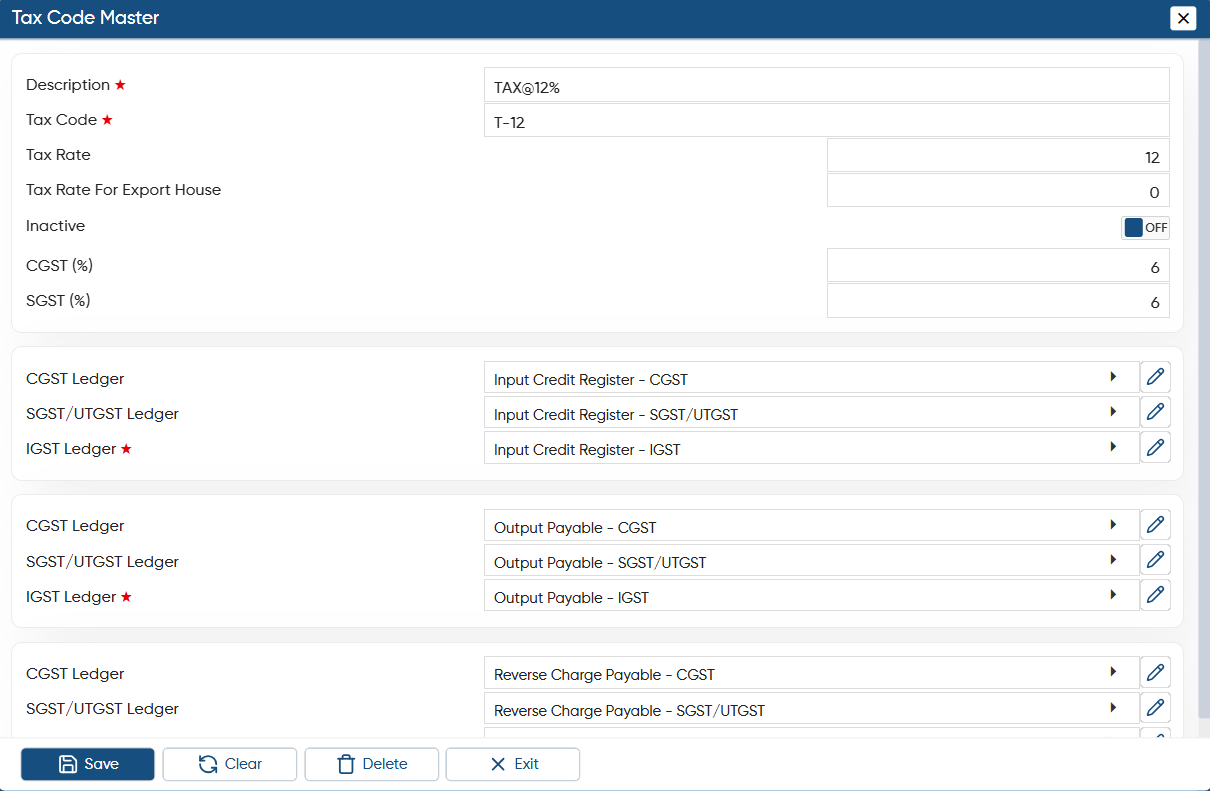
In Basic details you need to mention the description, Tax Rate, SGST, CGST etc of the Tax code.
-
Description: Mention the name of the Tax Code for your identification in the software while billing.
-
Tax Code: Mention the Tax Code as per your requirement.
-
Tax Rate: Here you need to mention the tax rate.
-
Tax Rate For Export House: Alignbooks allows for the special tax rebate provided to Export Houses under the GST Act. When you select a customer with the GST Category as 'Export House' in a transaction, these rates will automatically apply.
-
CGST (%): Mention the share of the Central Government from the total Tax Rate.
-
SGST (%): Mention the share of the State Government from the total Tax Rate.
You can select the ledger group under which you want to post the tax value of Sales, Purchase, Reverse Charge Ledger.
In AlignBooks, the account group are already updated, but if you want to change it you can.
Click on 'Save' button to save the details.
-
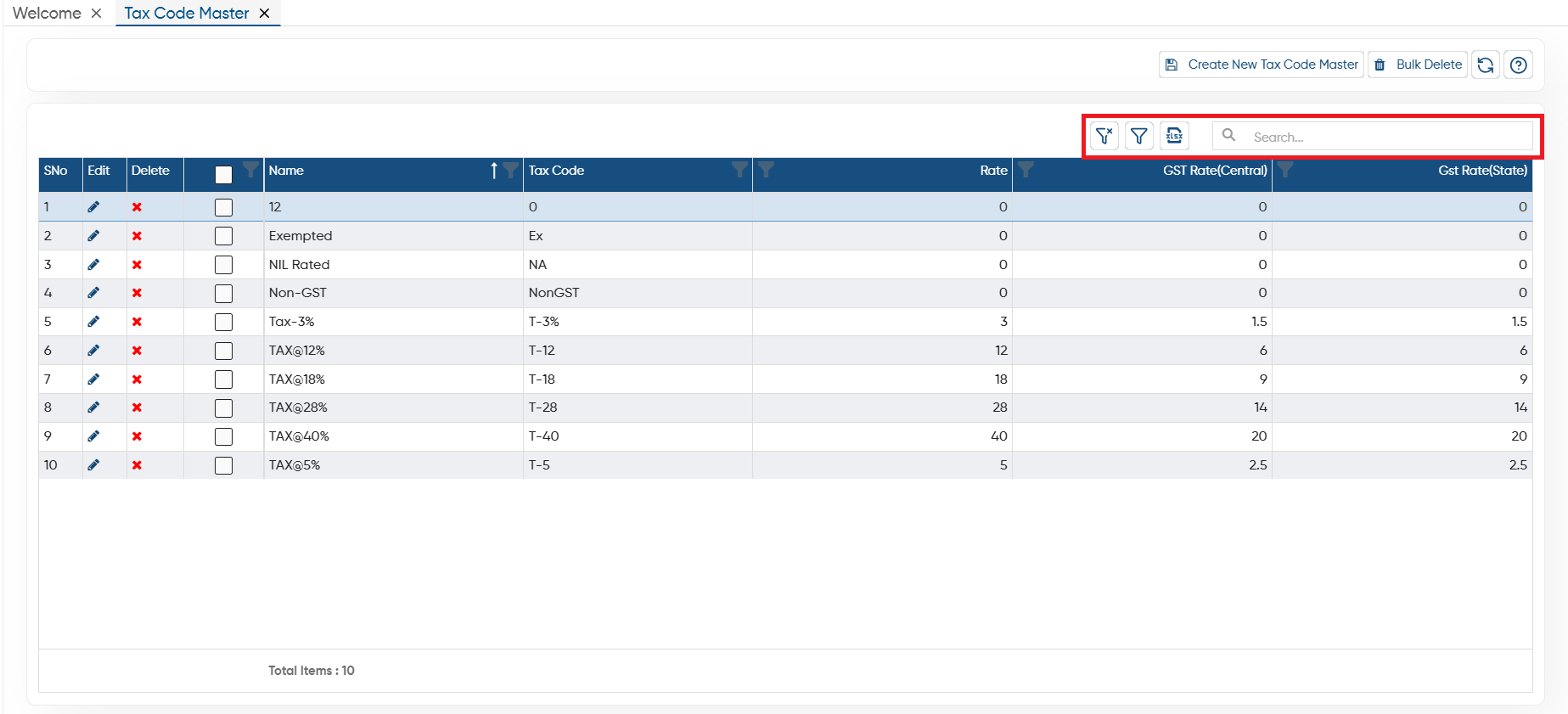
Clear Filter: Click on the Clear Filter icon, to remove all the filters you have applied on the list.
-
Show Filter: Through the ‘Show Filter’ icon, you can enable column-wise filtering. Once activated, a search icon will appear at the top of each column, allowing you to filter the list easily.
-
Excel: You can export the all data in excel file also, to export the data click on excel icon.
-
Search: To search any record in the list, only type the related information in search box, software will display the result on the screen.
-
Through the 'Edit' icon you can make changes or updation to the tax code master easily.
-
With the help of the 'Cross' icon, you can delete the specific tax code as required.
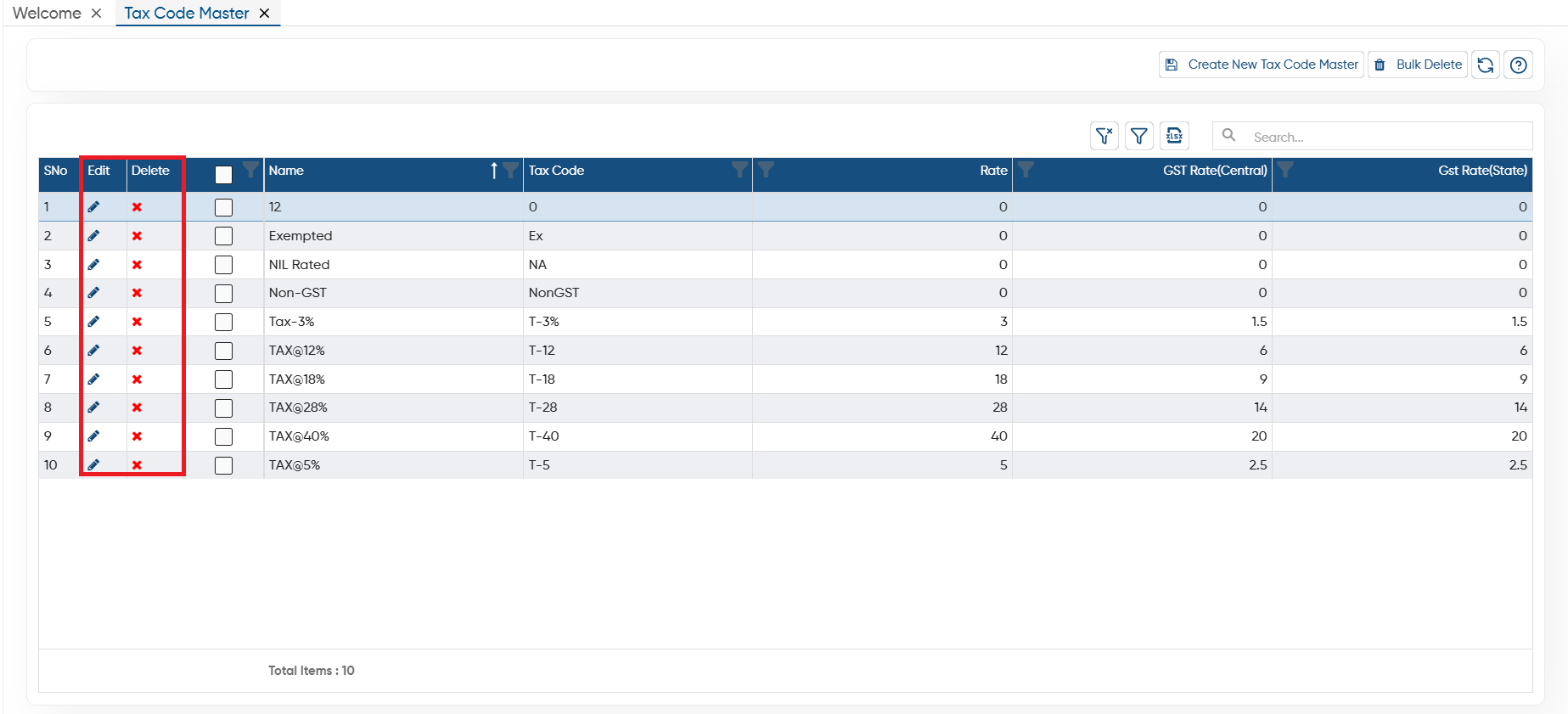
In this way you can manage Tax Code Master in AlignBooks.