
Update Logistics
Logistics details pertain to the essential information related to a shipment. This includes the name of the shipping company, the shipment's origin and destination, tracking number, vehicle number, and other relevant transportation details. Additionally, logistics details may encompass e-way bill information, such as the bill generation date, invoice number, and other associated records.
In AlignBooks, you have the flexibility to enter and update these logistics details while generating an invoice. However, if you forget to add them or need to update the information later, manually updating each invoice can be time-consuming. To simplify this process, AlignBooks provides the 'Update Logistics' feature, allowing you to update logistics details for multiple invoices in a single screen efficiently. This ensures accuracy, saves time, and enhances record management within the system.
Watch a Video:
-
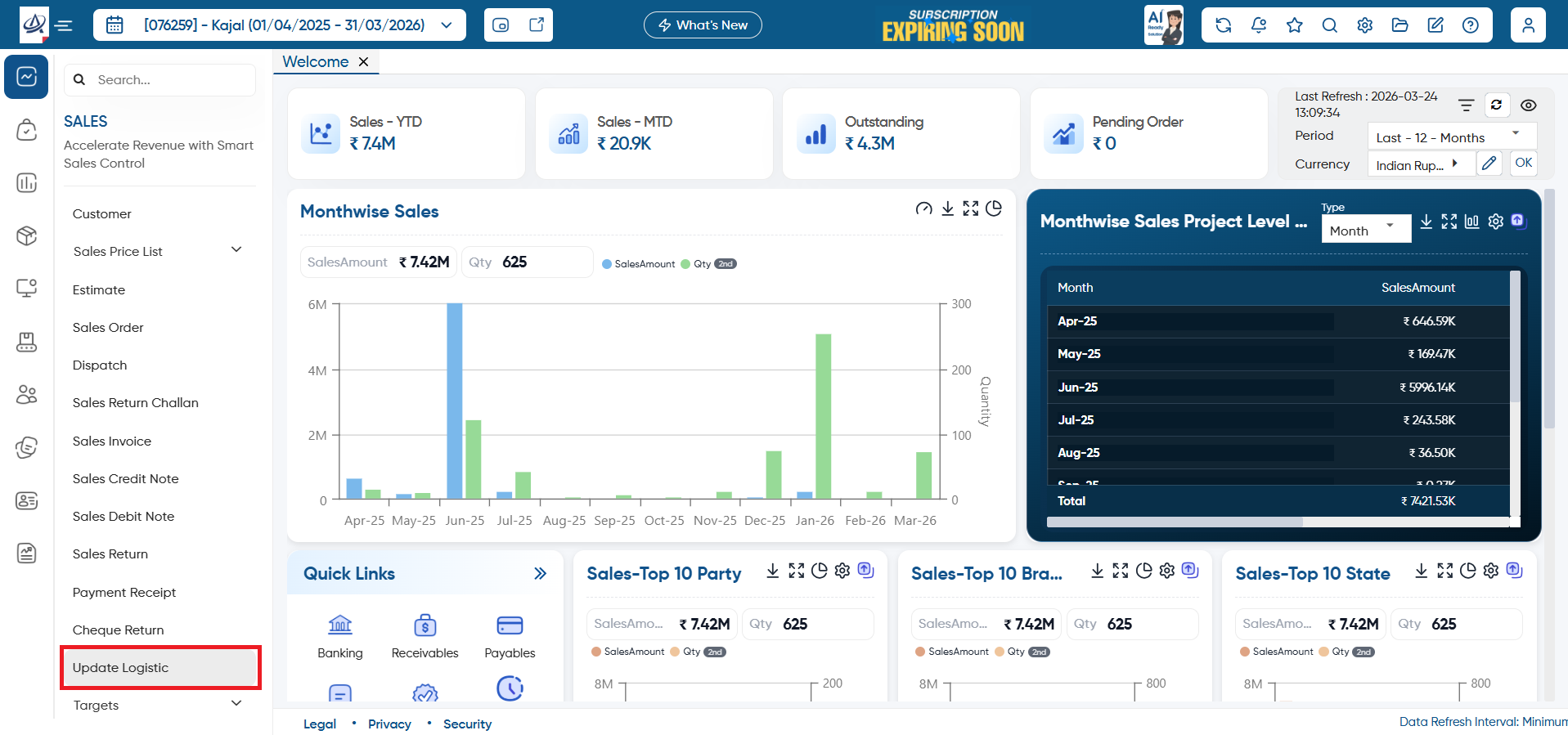
Go to Sales > Update Logistics.
-
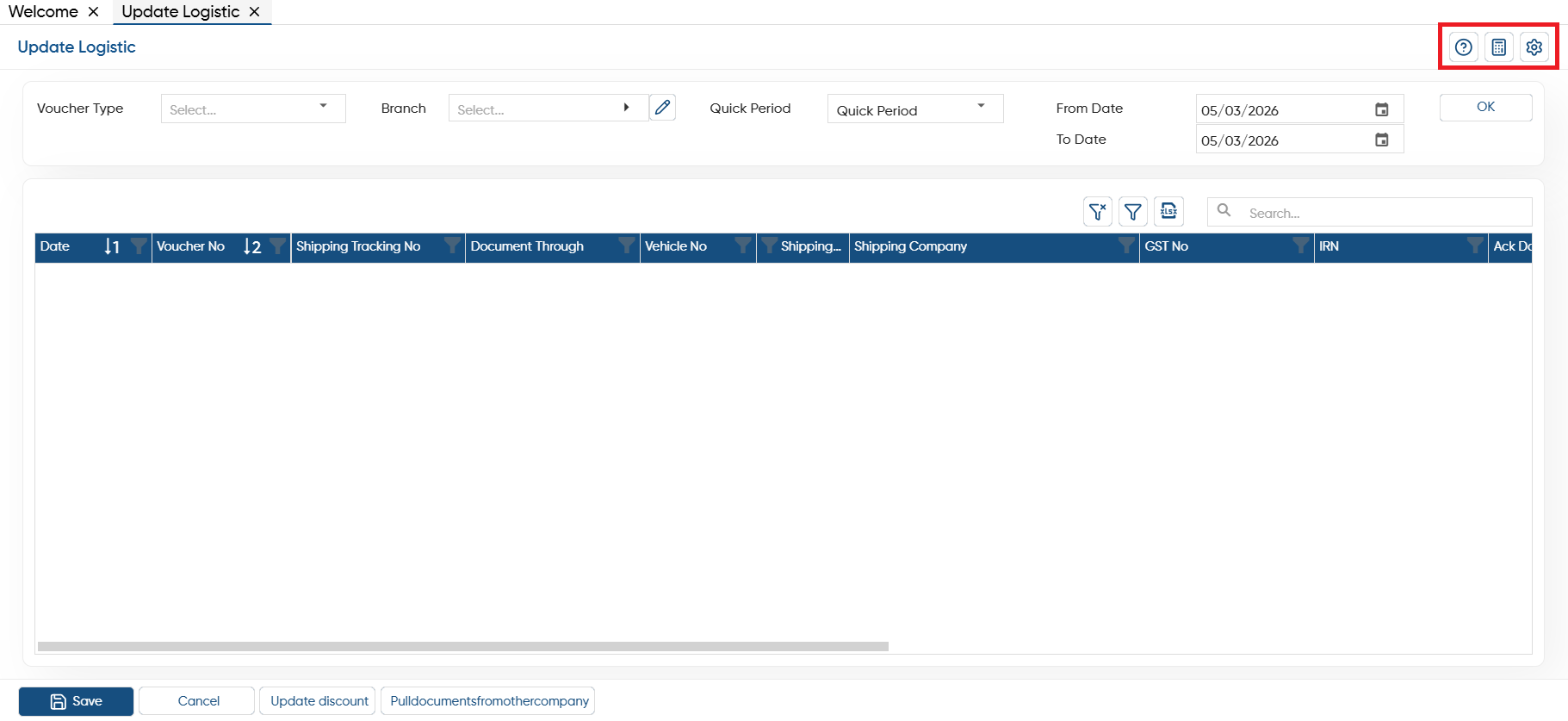
Help: Click on the help icon to access the step by step guide of the Update Logistic Process.
-
Calculator: AlignBooks includes an inbuilt calculator that you can use while working within the software, making calculations easier.
-
UI Configuration: For additional settings related to this voucher, navigate to the configuration option. There, you can adjust settings such as invoice numbering, email, WhatsApp, SMS, approvals, and more.
-
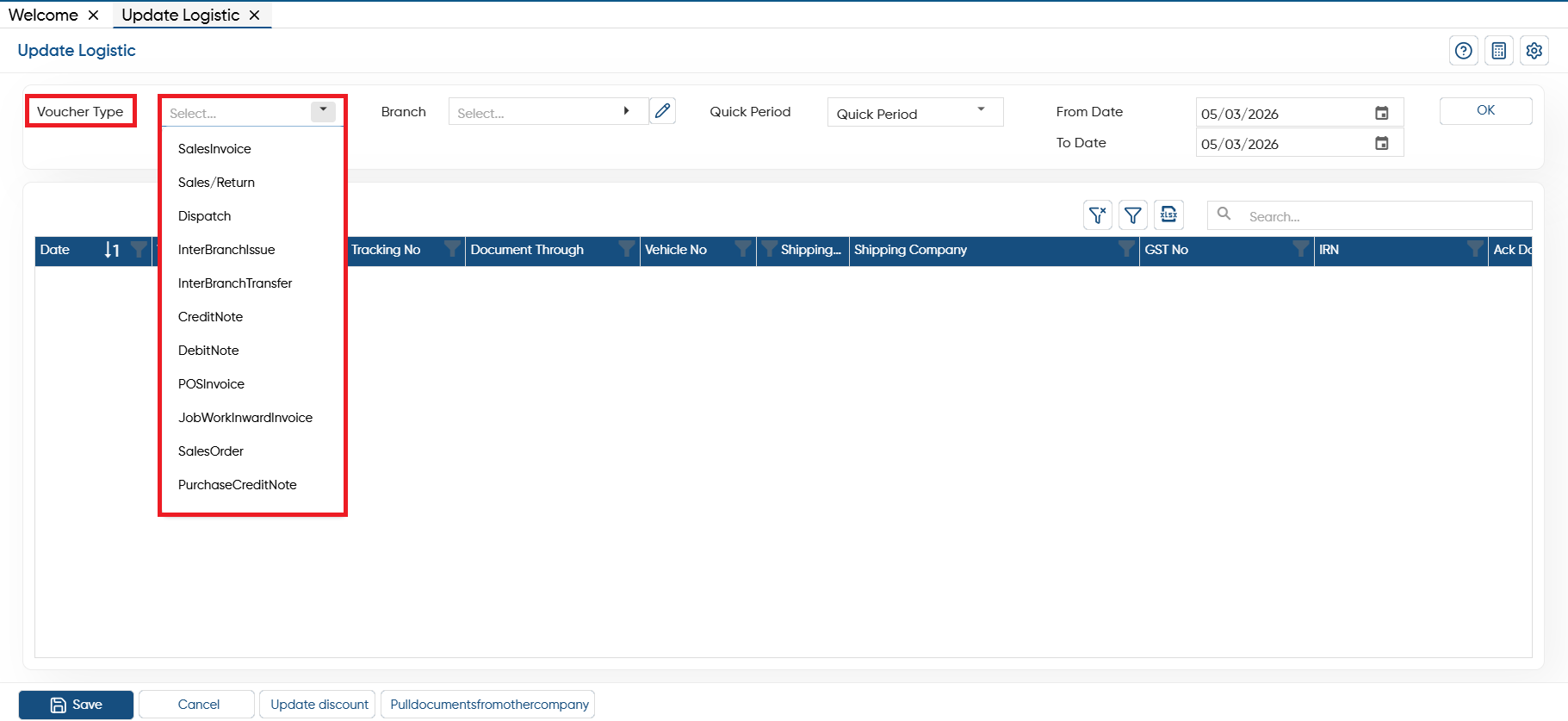
In 'Voucher Type' option, select the type of voucher in which you want to update the logistics details.
-
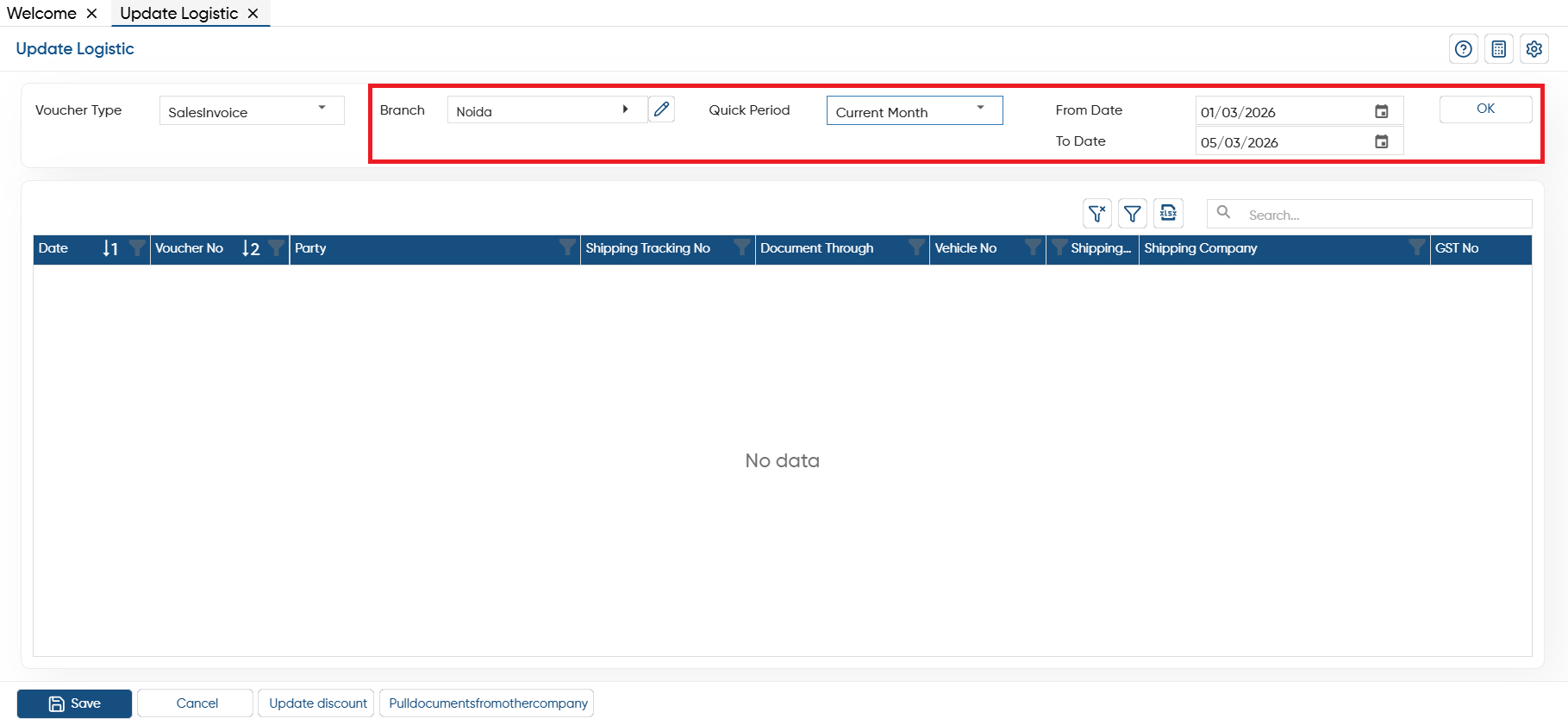
Branch: If your company has multiple branches, they can be in the same state or different states. Therefore, select the branch whose invoices details you want to update.
-
Quick Period: Through this option you can select the period for quick date selection such as 'Yesterday/ Current Month/ Year To Date/ Previous Month etc.
-
From Date: Select the date from which you want the update logistics details in the invoices.
-
To Date: Select the date till which you want to update the logistics details in the invoices.
Click on 'Ok' button.
-
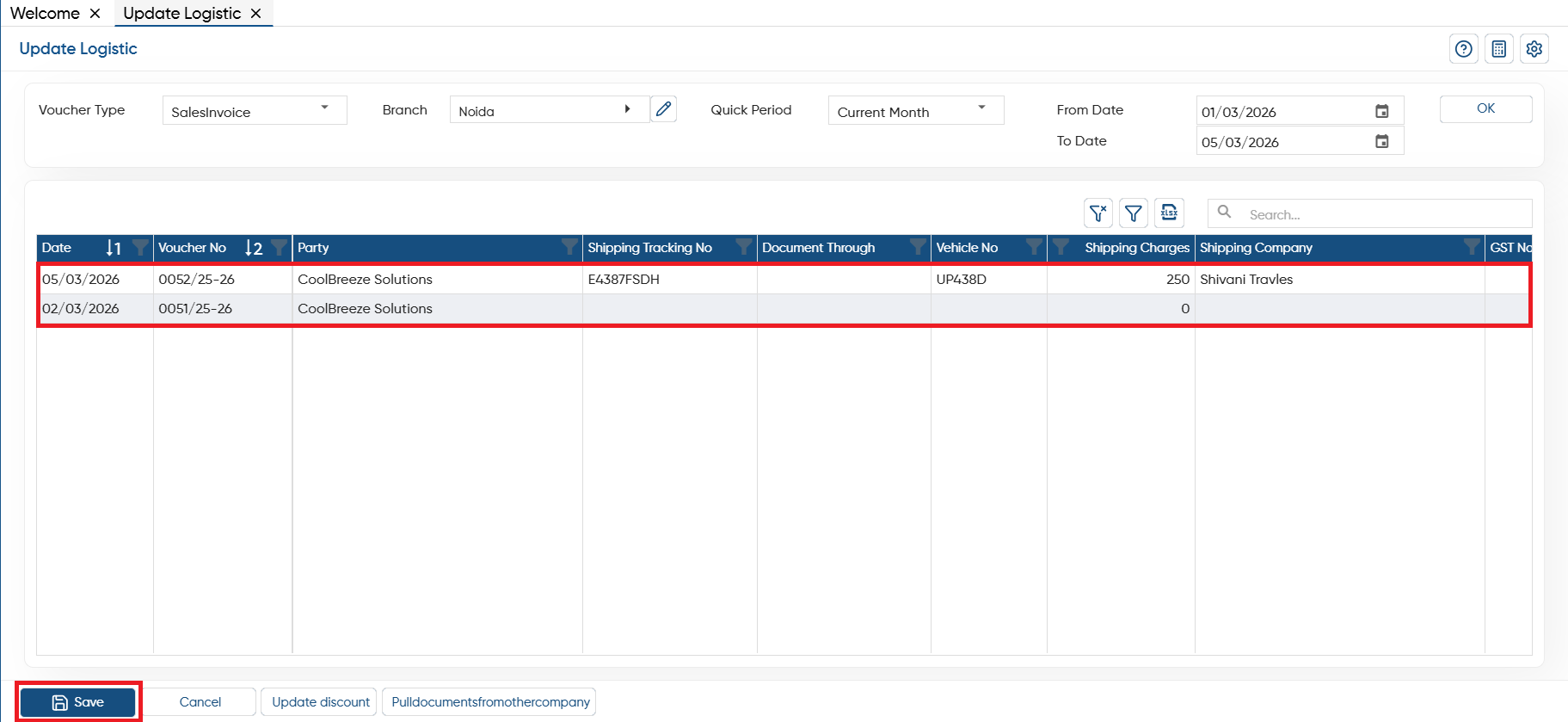
Thereafter, you can mention the Shipping Tracking No, Document Through, Vehicle No, Shipping Charges, GST No. for each invoice separately.
-
Click on 'Save' button.
-
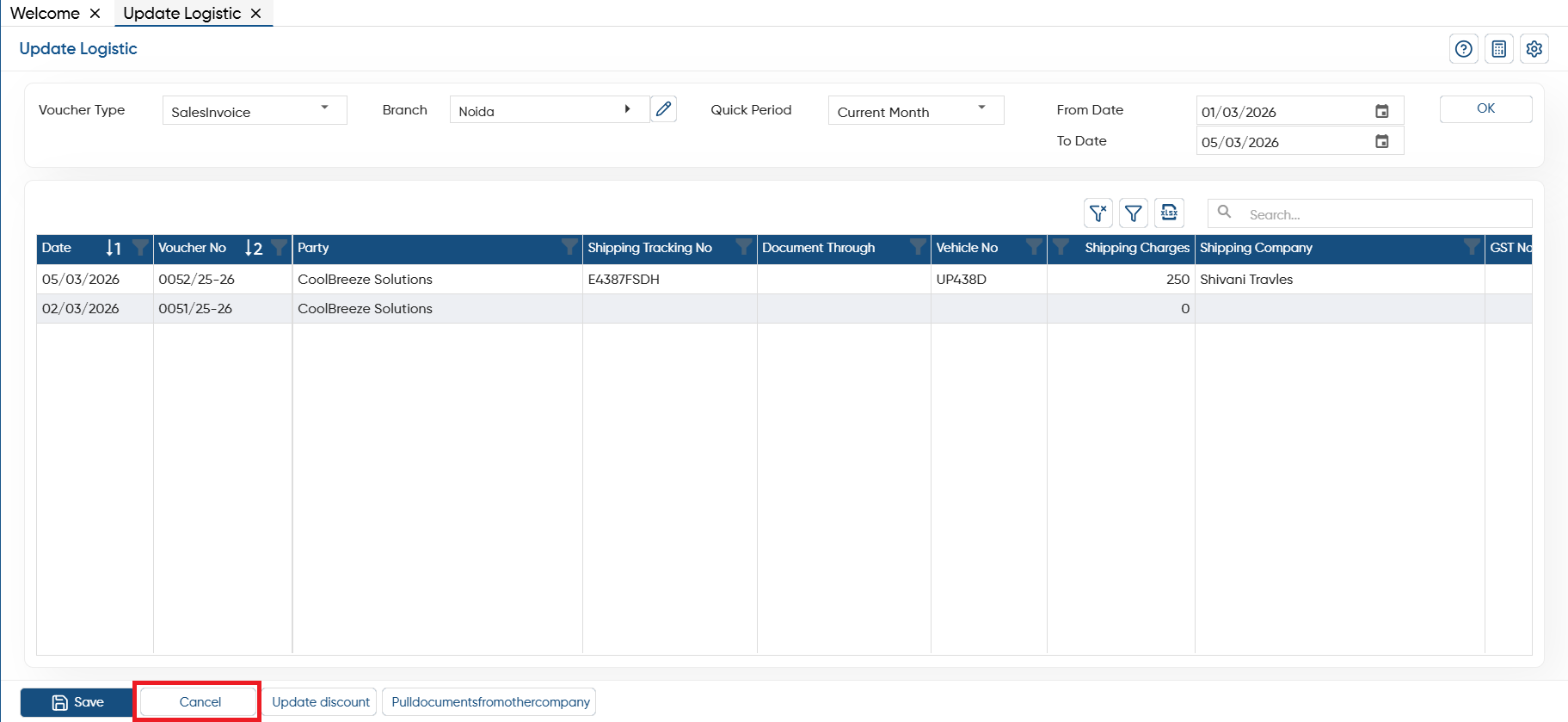
Cancel: Click on the 'Cancel' button to remove the changes you have been made or select the filter again.
In this way you can Update Logistics Details in AlignBooks.