
Warehouse
If you manage multiple warehouses, it’s important to keep separate inventory records for each one. This helps you make smarter decisions about shipping based on the location of each warehouse. AlignBooks makes this easier by keeping individual records for each warehouse while also combining them into a single report for the whole company.
-
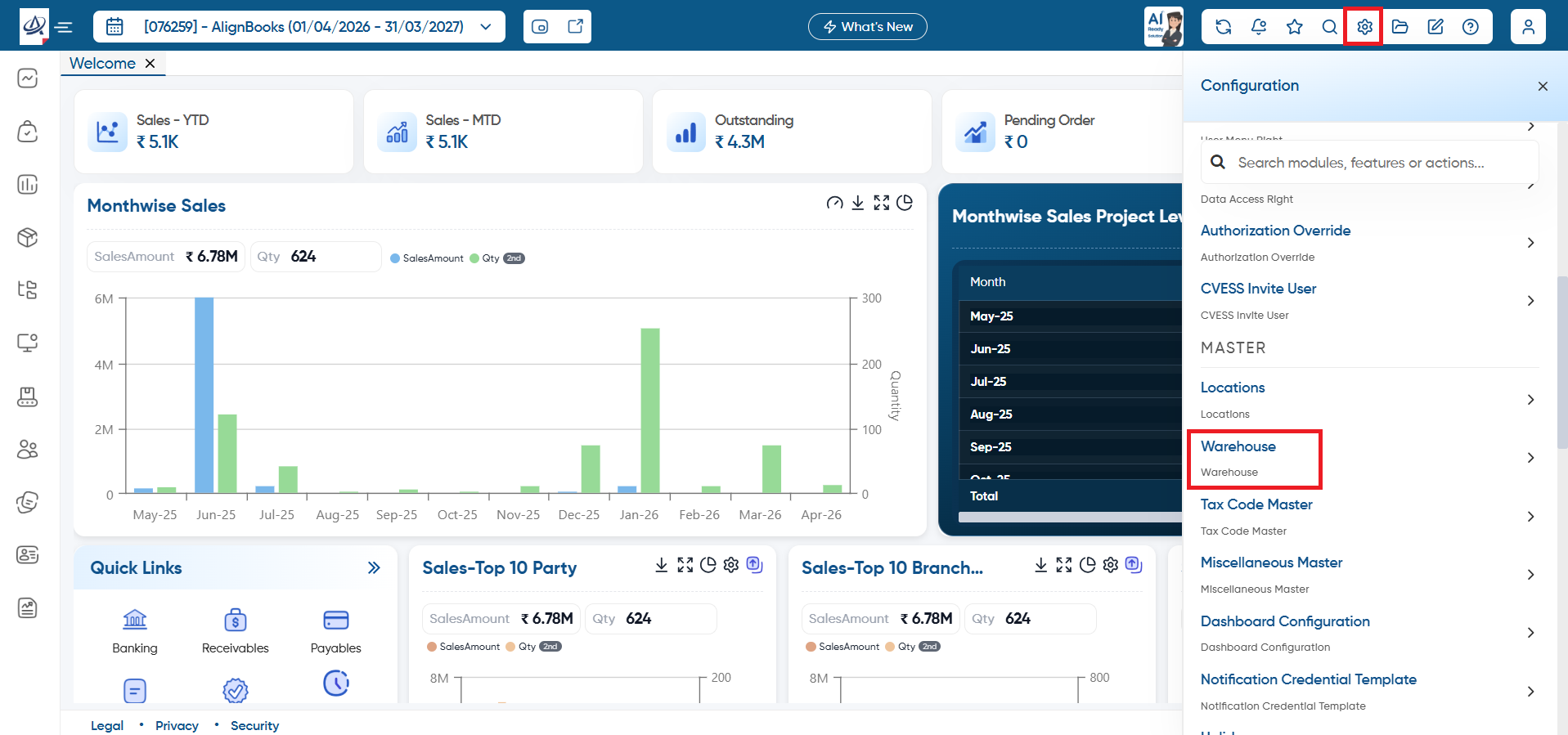
To create Warehouse, click on 'Configuration' icon and select 'Warehouse' option.
-
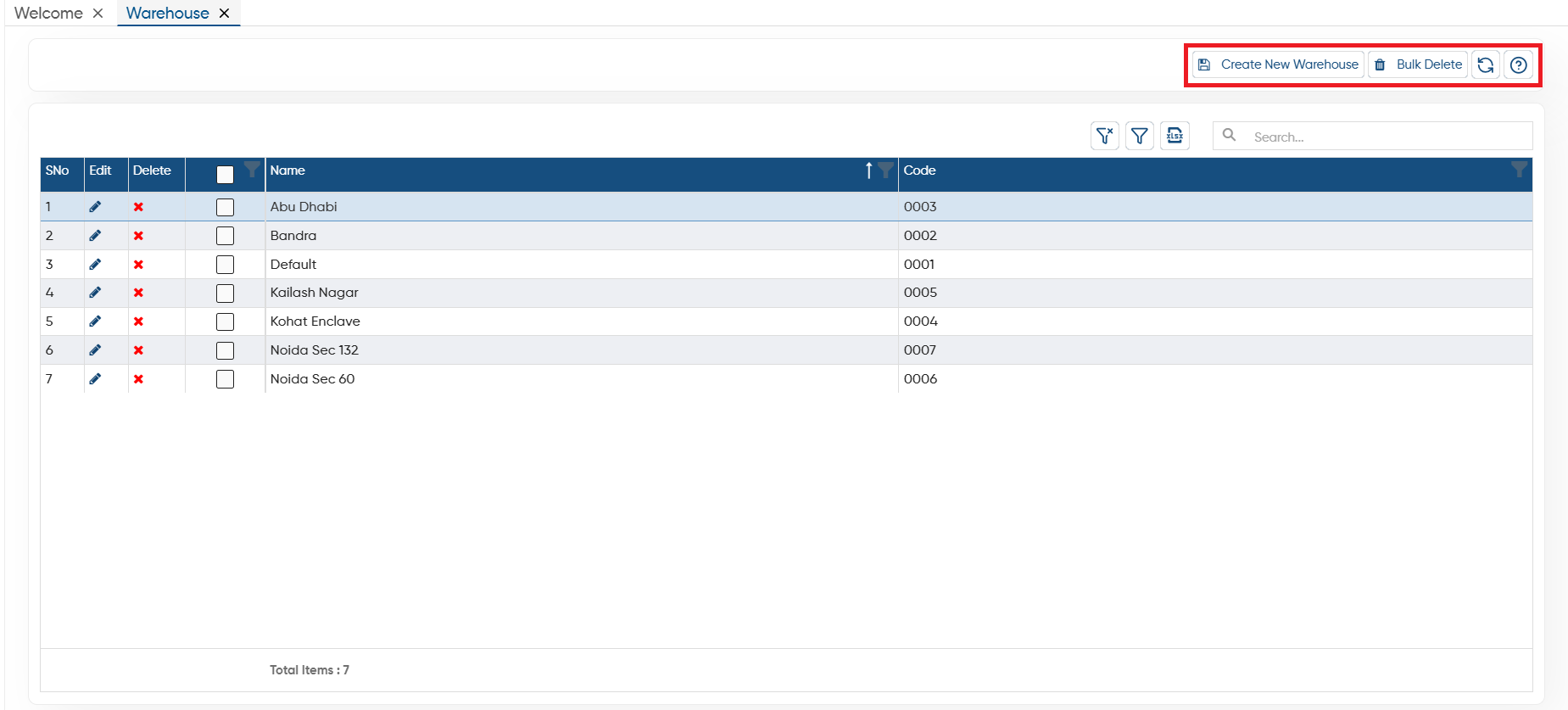
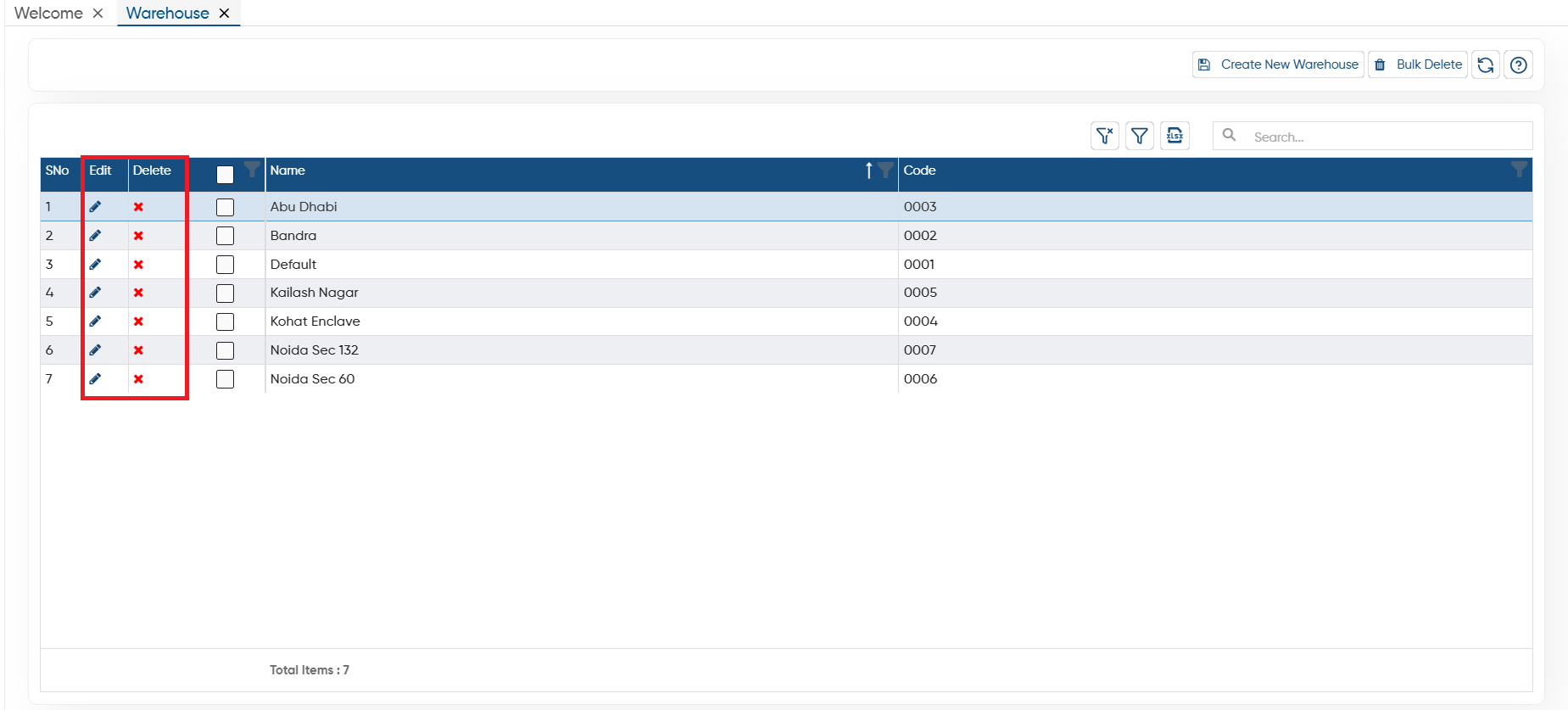
Create New Warehouse: To create a New warehouse, click on 'Create New Warehouse' button.
-
Bulk Delete: To delete the multiple warehouse at once select them (checkbox provided next to the warehouse's name) then click on this button. (Make sure the warehouse don't have any transaction or data, only then the software will allow you for bulk deletion).
-
Refresh: After making changes to the warehouse if changes doesn't appear you can refresh the screen. This will display the latest changes on the screen.
-
Help: Click on the help icon to access the step by step guide of the Process.
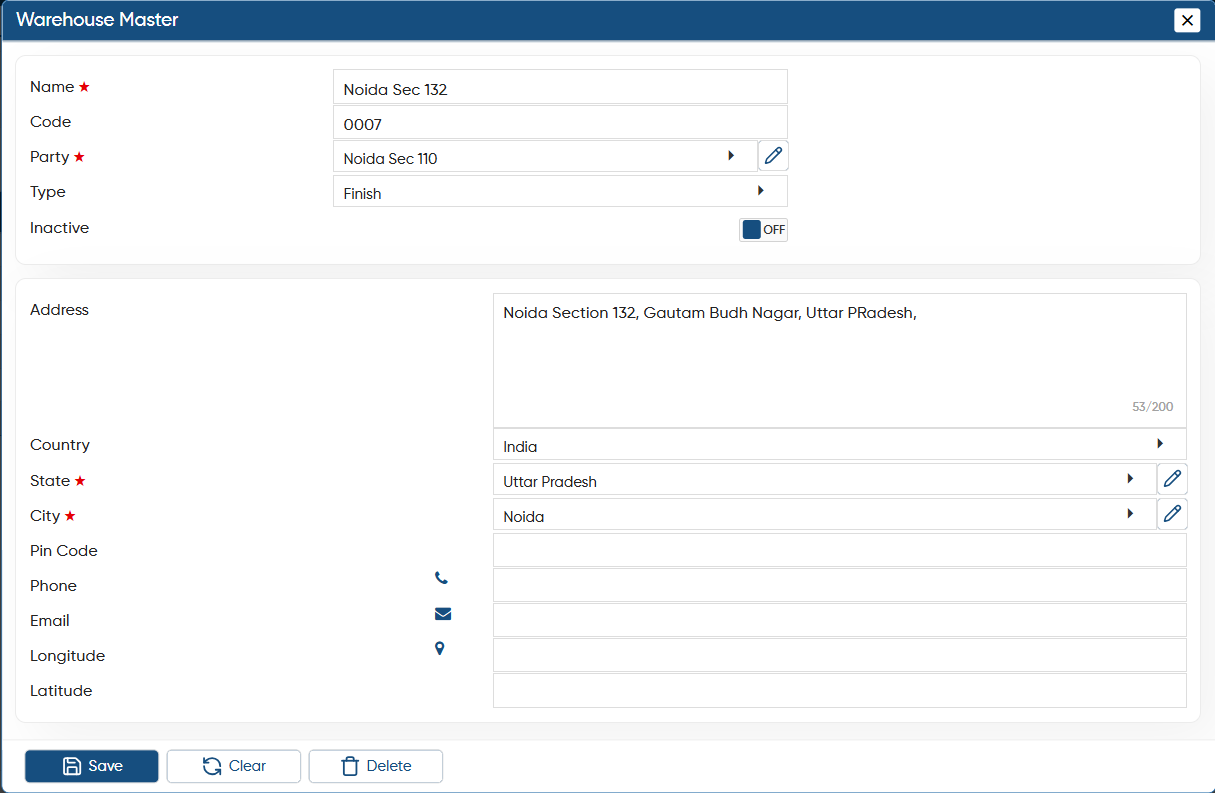
A 'Warehouse Master' window will appear. Here you can mention the details related to the warehouse. The Warehouse master have 2 parts 'Basic' and 'Address'.
Basic
-
Name: Specify the Warehouse Name you want to use to identify the warehouse in the data. This name will display in documents and reports.
-
Code: The software will automatically generate a unique code for each warehouse. This code can be used to locate the warehouse when creating any document.
-
Type: If your company’s warehouses store different types of products, such as Raw Materials, Finished Goods, Scrap, etc., you can specify the type of warehouse accordingly.
-
Party: A 'Party' refers to a Location Control Account, which is used to track financial and stock movement transactions for a specific warehouse. Here, you need to choose the party managing the warehouse.
To make things simple, Align Book treats warehouse like customers interacting with each other.
For example, if Location 'A' sends goods to Warehouse 'B,' Warehouse 'A' will reduce (credit) its inventory and record (debit) the value owed by Warehouse 'B.' Similarly, Warehouse 'B' will increase (debit) its inventory and record (credit) what it owes to Warehouse 'A.'
In the Address section, you can provide warehouse-related details, which will be printed on invoices and reports. The state and city fields are mandatory, and if your state or city is not listed, you can create them as needed.
Click on 'Save' button to save the changes.
-
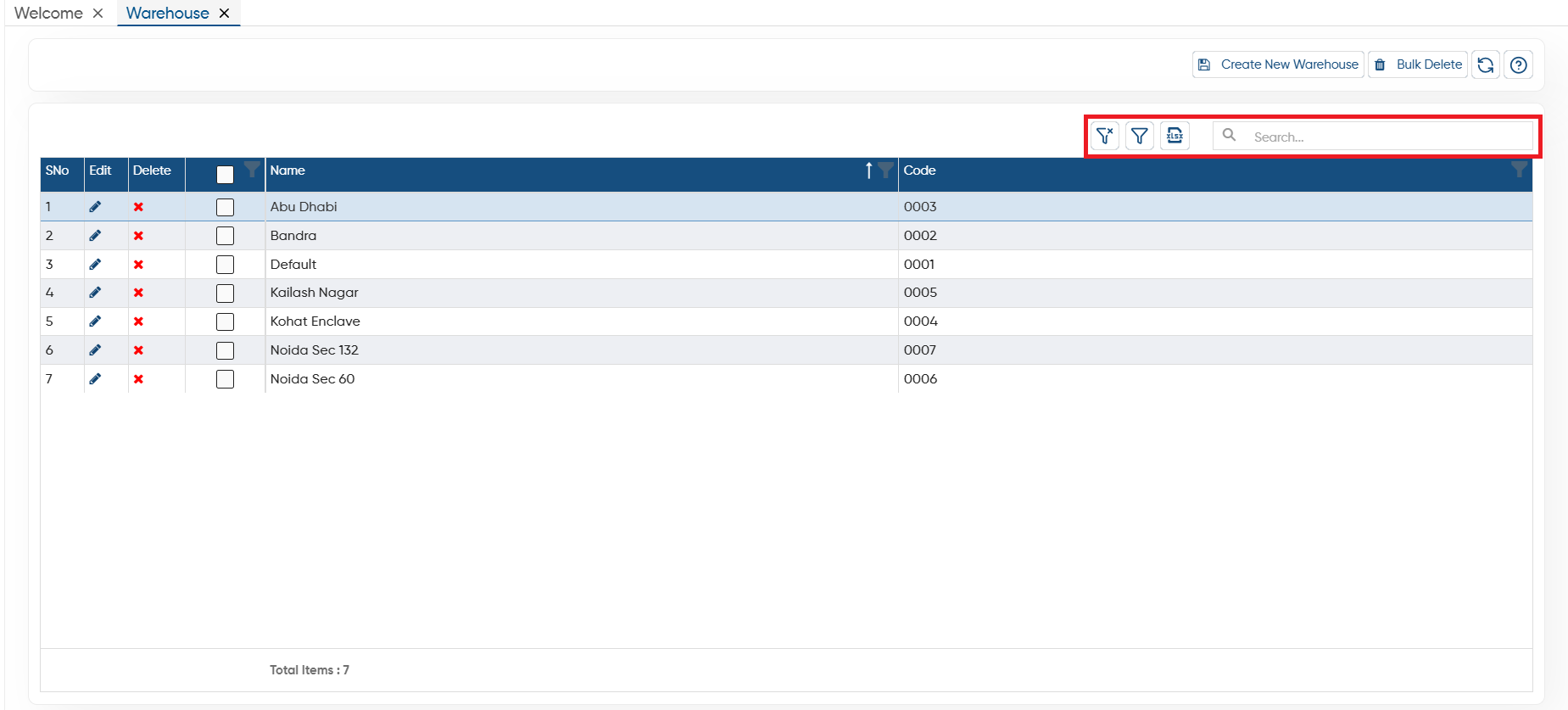
Clear Filter: Click on the Clear Filter icon, to remove all the filters you have applied on the list.
-
Show Filter: Through the ‘Show Filter’ icon, you can enable column-wise filtering. Once activated, a search icon will appear at the top of each column, allowing you to filter the list easily.
-
Excel: You can export the all data in excel file also, to export the data click on excel icon.
-
Search: To search any record in the list, only type the related information in search box, software will display the result on the screen.
-
Through the 'Edit' icon you can make changes or updation to the location/ branch master easily.
-
With the help of the 'Cross' icon, you can delete the specific location as required.
In this way you can Manage Warehouse in AlignBooks.