
WhatApp Setup
AlignBooks offers a powerful WhatsApp integration feature that makes communication faster and easier. With this integration, you can send important updates and documents directly to your customers, vendors, or employees through WhatsApp.
For example, you can share invoices, Account statements, payment vouchers, or other details instantly with just a few clicks. It eliminates the need for emails or physical copies, making your processes smoother and more efficient.
Benefits of WhatsApp Integration with AlignBooks:
-
Faster Communication: Send messages and documents instantly to your customers, vendors, or employees, ensuring timely communication.
-
Convenience: Share invoices, payment reminders, and other important documents directly on WhatsApp, where people are most active.
-
Improved Customer Service: Keep your customers updated with order confirmations, payment receipts, or account statements, enhancing their experience.
-
Cost-Effective: Reduce the cost of printing and mailing physical documents by sending them digitally.
-
Time-Saving: Automate routine communication like reminders or follow-ups, saving time for you and your team.
-
Enhanced Professionalism: Demonstrate modern and customer-friendly practices by using WhatsApp for seamless communication.
By integrating WhatsApp into AlignBooks, your business can enjoy these benefits, making it an attractive tool for streamlining operations and improving customer satisfaction.
Watch a Video
-
First you need to register the detail for WhatsApp. To register details click on 'Configuration' icon. Click on 'Company Setup' option.

-
Click on 'Integration' tab.

-
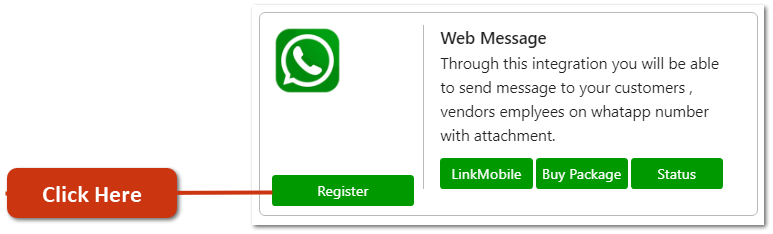
Scroll down the page, and in Web Message column click on 'Register' button.
Now you need to mention the details for creating a WhatsApp Account.
-
login_ID/Email: Mention the login ID or Email ID that you want to set for your WhatsApp Account as per the requirement.
-
Mobile No: Mention the Mobile Number (Mobile number that you will mention here, make sure it does not have any WhatsApp Account).
-
Password: Mention the password that you want to set for your WhatsApp Account.
-
Verify Password: Mention the password again to verify.
Thereafter, click on 'Register' button.

-
A Message of 'Registration Initiated Successfully' will appear. Thereafter, the registration for WhatsApp will be completed.

-
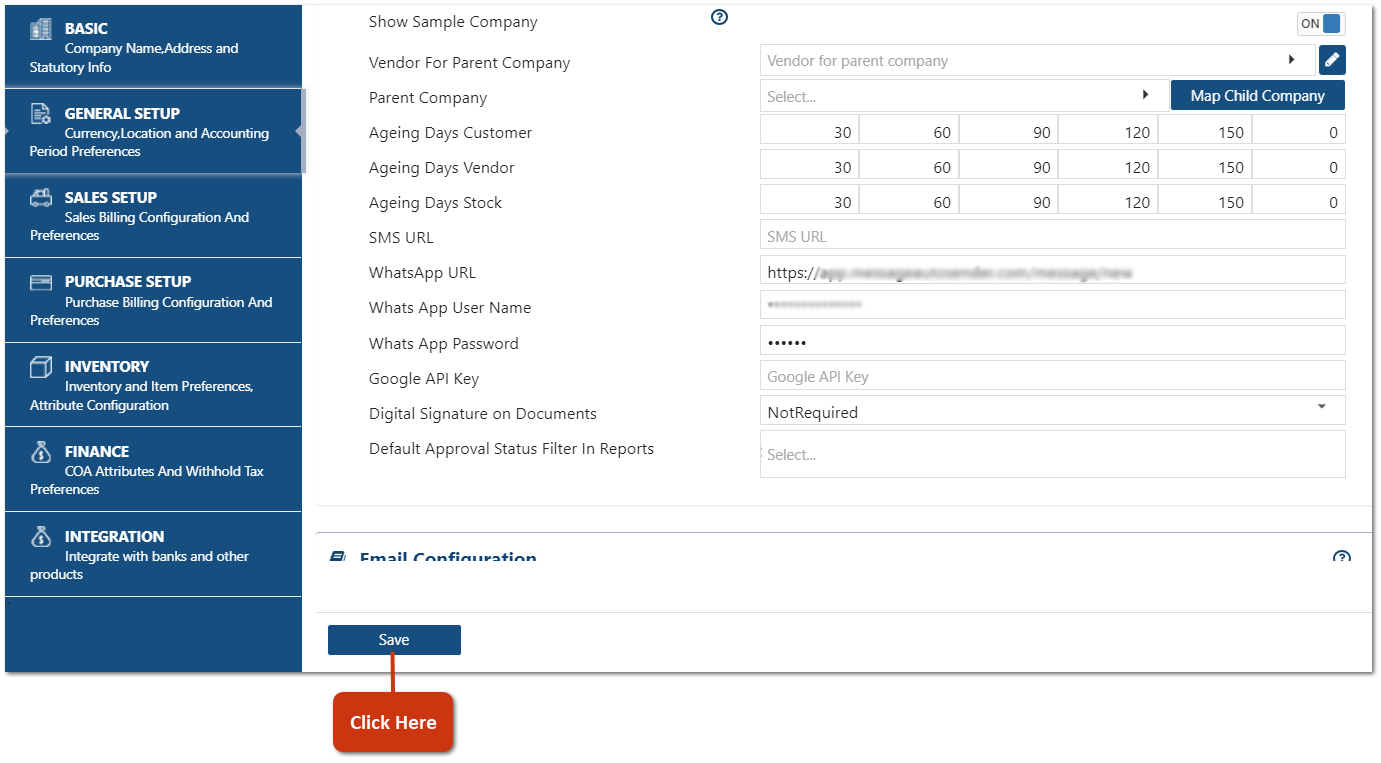
Now you need to click on 'General Setup' tab.

Scroll down the page and check whether the WhatsApp details are mentioned here or not. Usually after the registration process these details in general setup get auto filled by the software.
-
WhatsApp URL: WhatsApp URL get auto picked by the software.
-
Whats App User Name: Here, the user name that you mentioned while registration is saved.
-
Whats App Password: Password mentioned while the registration will saved here.

-
After this you need to click on 'Save' button.

-
A 'Login' page will appear, mention the User Name and Password that you created while doing the Registration for the WhatsApp.
-
Click on 'LOGIN' button.

-
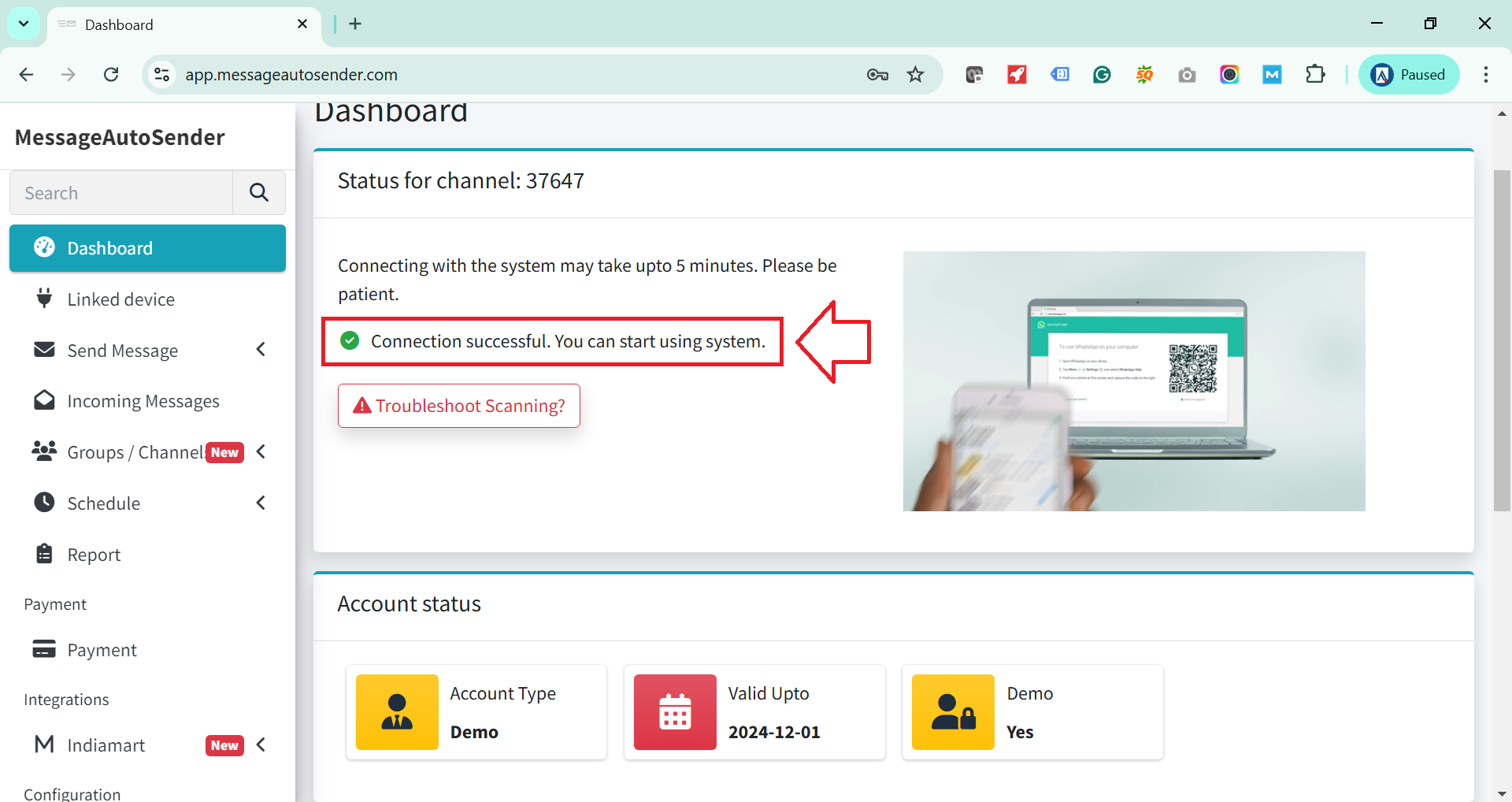
Your WhatsApp Account will get open, Scan the QRCode from any of the WhatsApp from which you want to send the Invoices to your customer.

-
Thereafter, you can view 'Connection successful. You can start using System' will appear that means the WhatsApp has been connected and you can start sending Invoices on the WhatsApp.
After the registration and Login of WhatsApp, you have to configure WhatsApp setting on Document or Voucher as per the requirement, like When and How you want to send the document/ Voucher?
-
While creating or Modifying the Document/ Voucher.
-
After the Document/ Voucher approval.
-
Whether you want to send document/ Voucher print as an attachment or not.
-
What will be the Message Format.
-
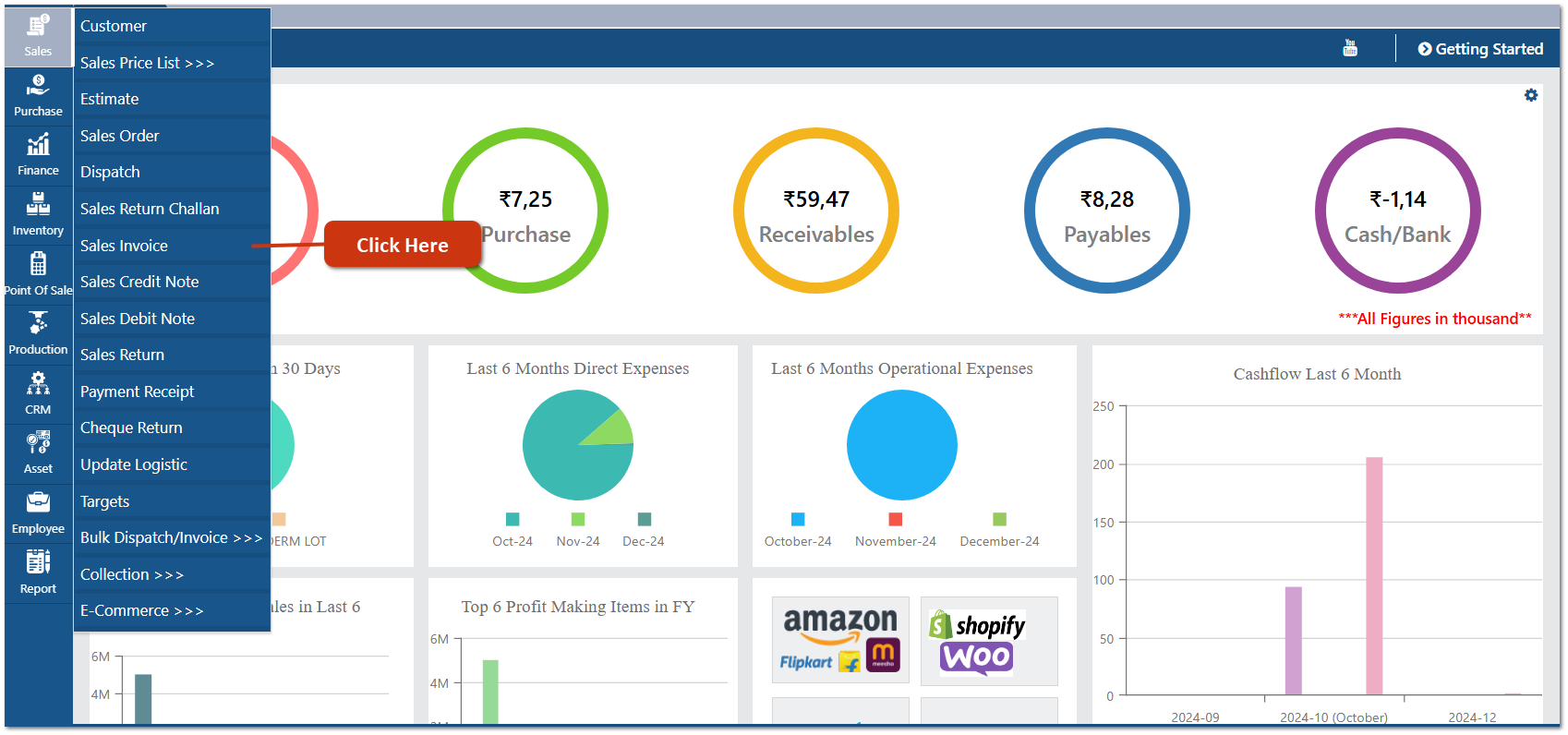
For instance, you want to send Sale Invoice via WhatsApp so go to Sale > Sale Invoice.
-
In the Sale Invoice, click on 'Configuration' icon.
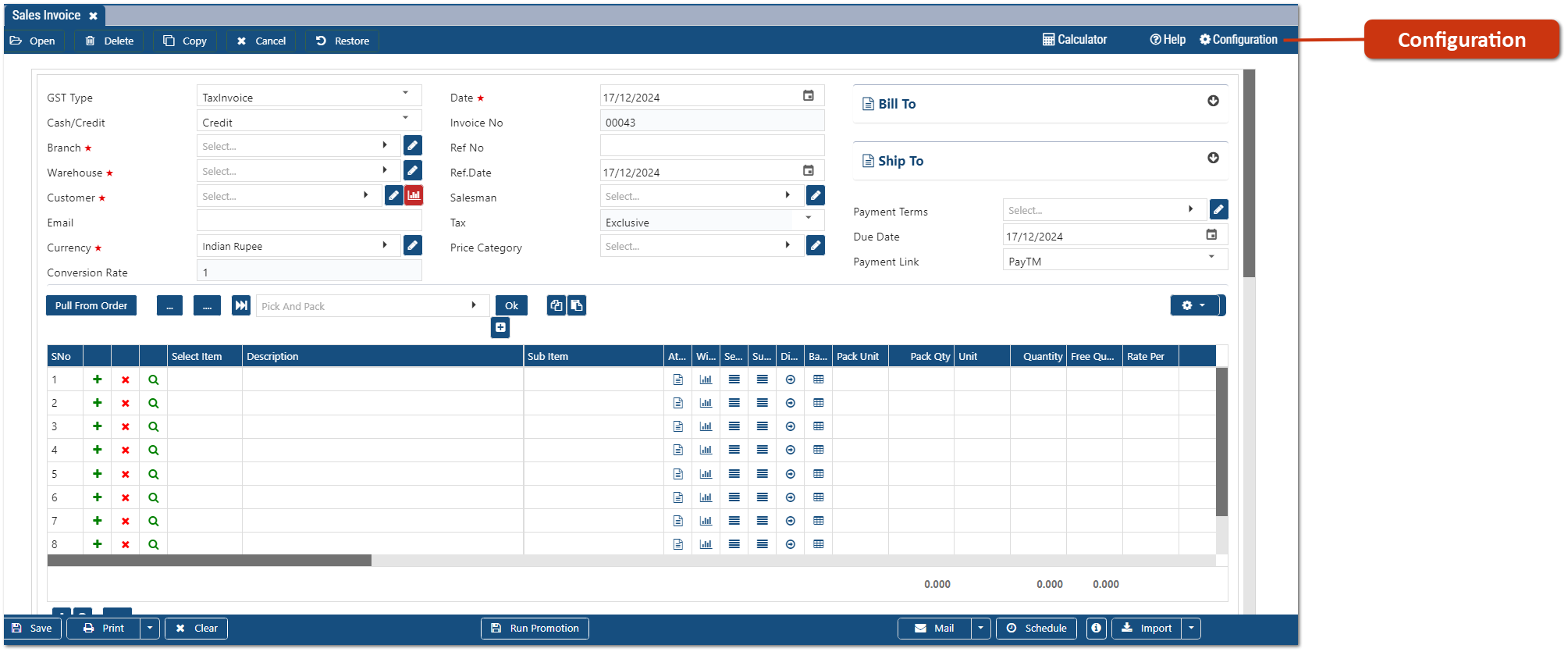
In 'Auto WhatsApp On' option, you need to select the option when you want software to share the Invoice on WhatsApp.
-
Create: Select this option, to send the invoice after creating a new invoice, so that whenever you generate the Sale Invoice it will get auto send on WhatsApp.
-
Edit: Select this option, to send the invoice while modifying the invoice, so that when you modify the Sale Invoice only then it will be shared on WhatsApp.
-
Approved: In most of the scenarios, operator creates a Sale Invoice and Manager approved them for further process or payment. AlignBooks has provided a feature in which document will be shared on WhatsApp only after the approval of the invoice by higher person or manager.
-
All: Select this option, if you want to share the invoice at each level, whether you generate a New Invoice, Modifies the invoice or after the approval.
For now suppose select 'Create'.

-
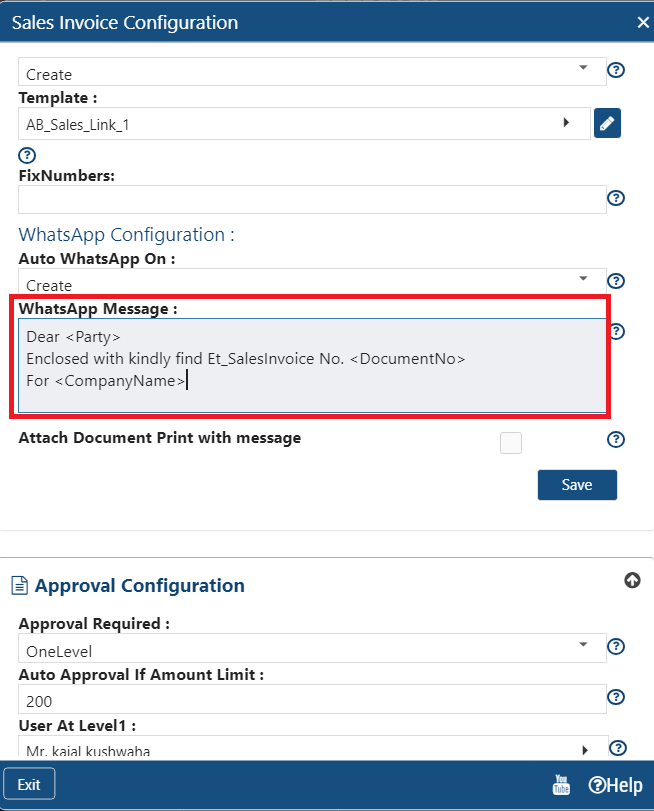
In 'WhatsApp Message' option, mention the format of the message, the way you want to send on WhatsApp.
-
Message format contains Greeting, Invoice number, Company Name, Regards etc, mention these details as per the requirement.
The details are mentioned in the variables form like:
-
Party Name should be mentioned as <Party>
-
Document Number as <DocumentNo>
-
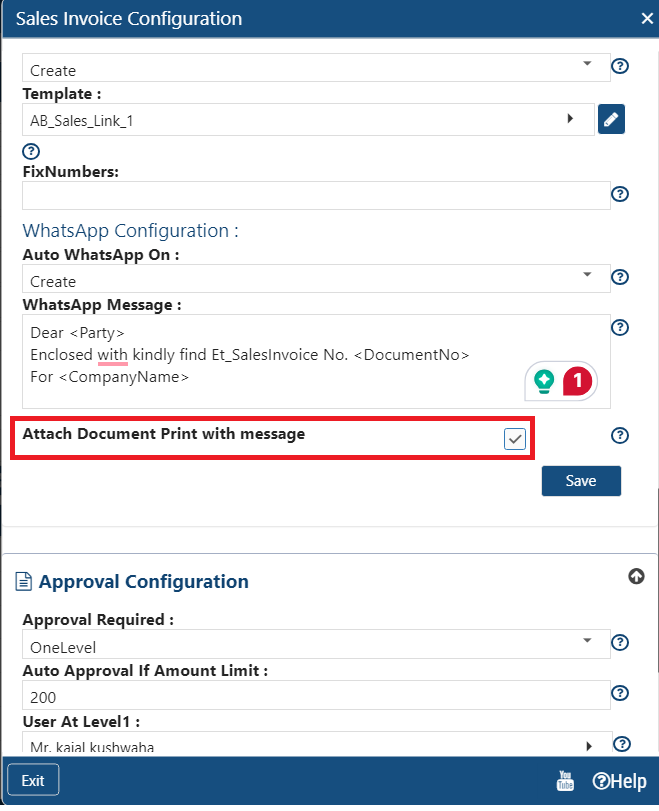
In 'Attach Document Print with Message' option, Tick the checkbox if you want to share the invoice print as an attachment in the WhatsApp message.
-
If this checkbox remains Un-Tick, then only the invoice details you mentioned in the message format will be shared to the customer on WhatsApp.
-
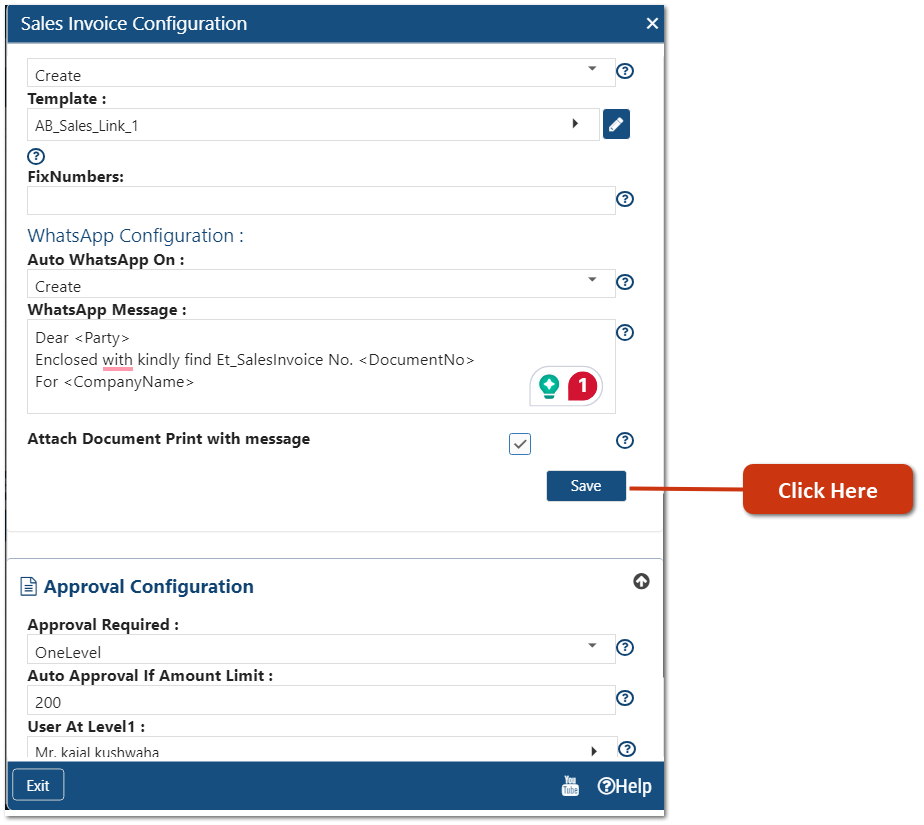
After the configuration, click on 'Save' button to save the details.
-
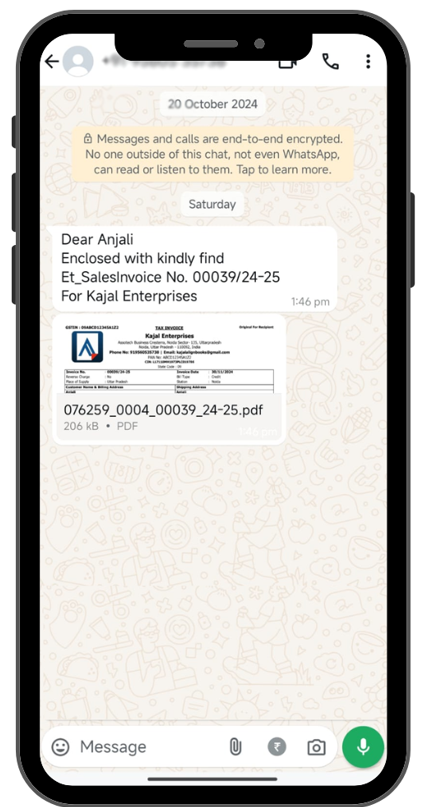
Now when you create a Sale Invoice and click on 'Save' button.

-
Thereafter, the Invoice details with an Attachment will get shared to the customer.
-
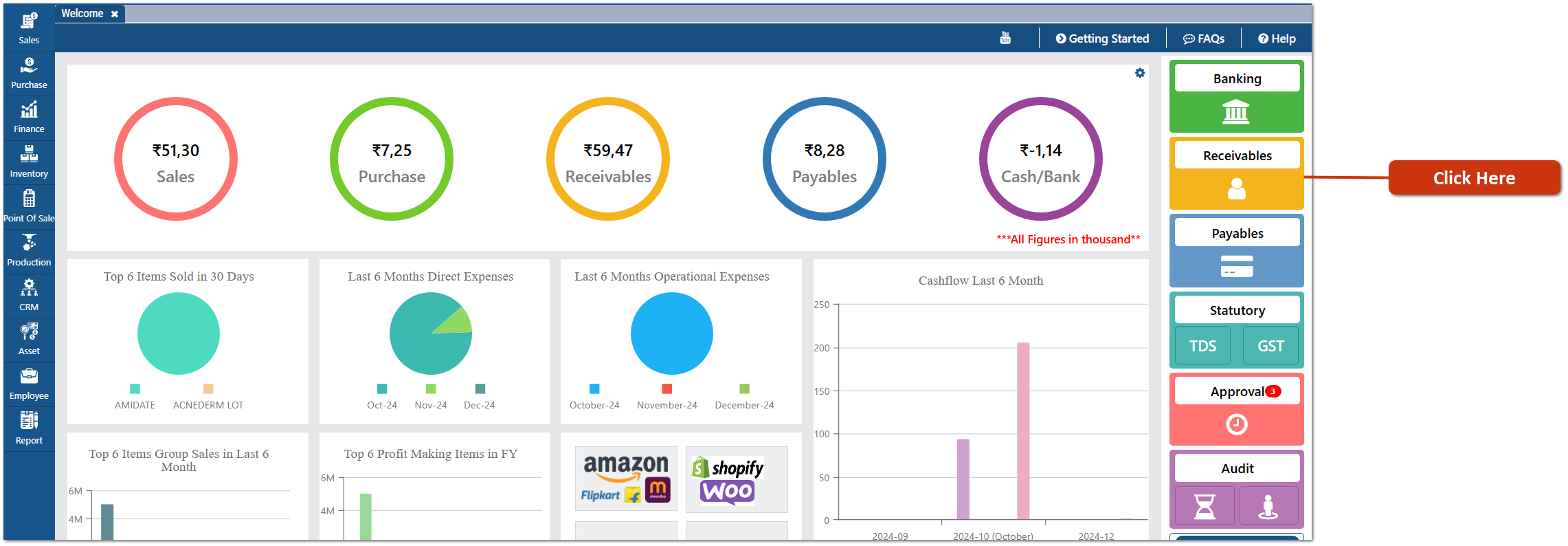
Similarly, suppose you want to share the Party Outstanding directly on WhatsApp, so Click on the 'Receivables' tab.
-
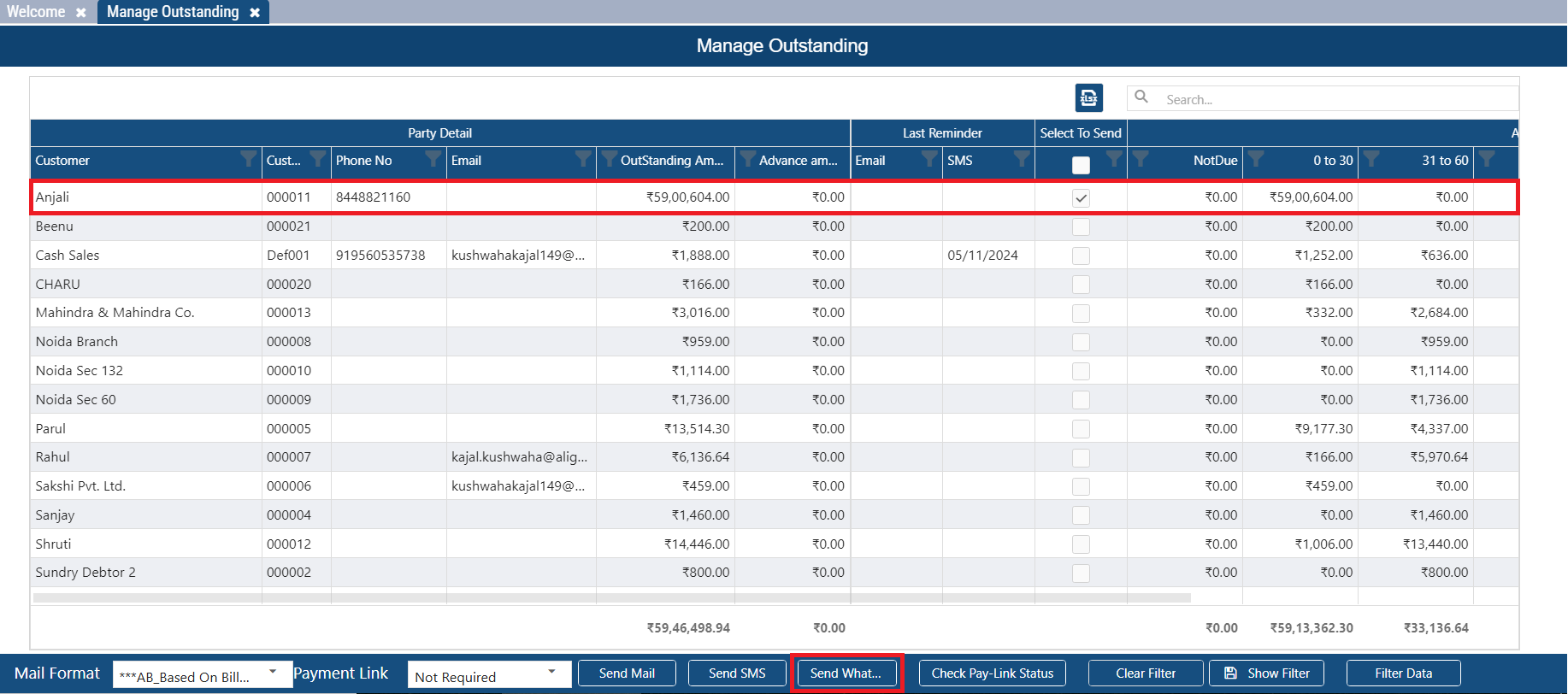
Now you need to tick on the checkbox for selected party whose outstanding needs to be share on the WhatsApp.
-
Suppose tick the checkbox for party 'Anjali'.
-
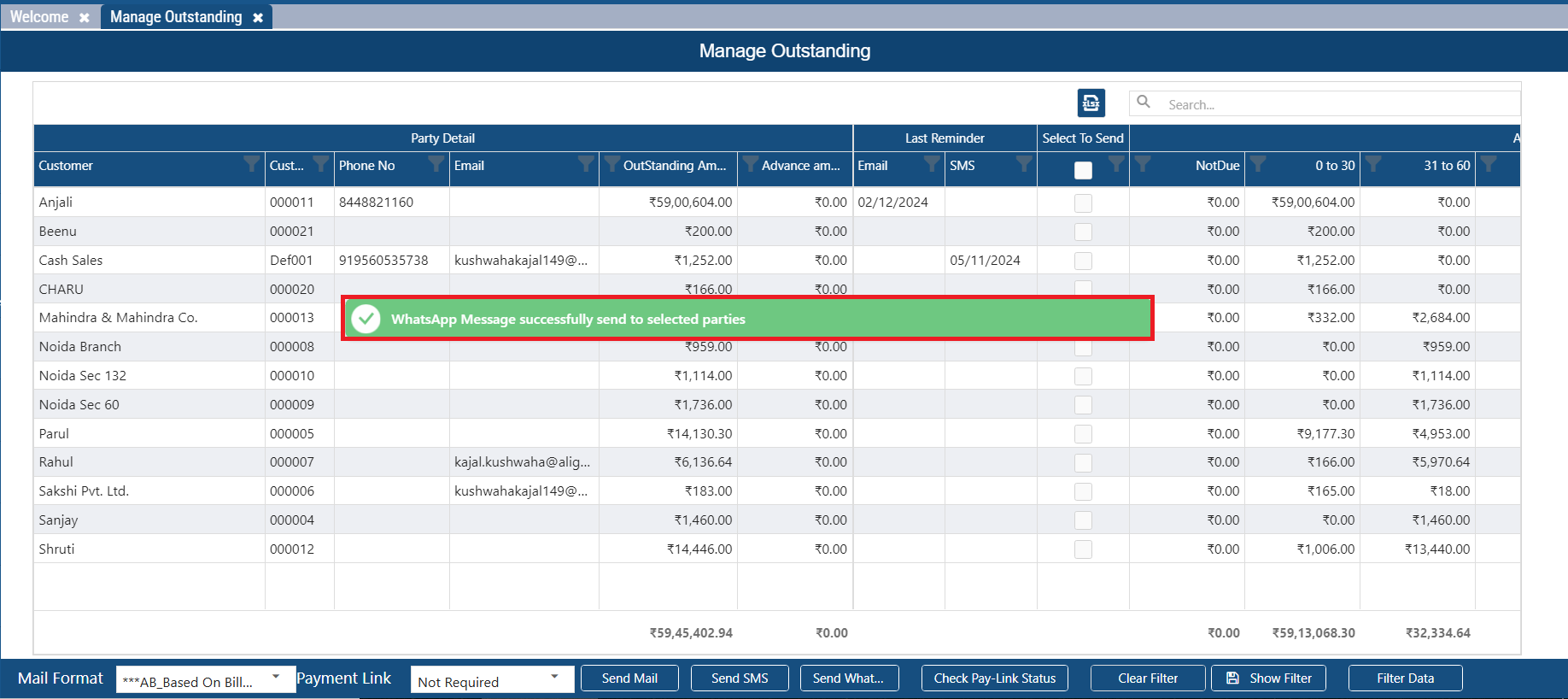
An alert of 'WhatsApp Message successfully send to selected parties' will appear, that means the party Outstanding has been shared on the WhatsApp.
-
Thereafter, the Account Statement will be shared to the customer with an attachment.
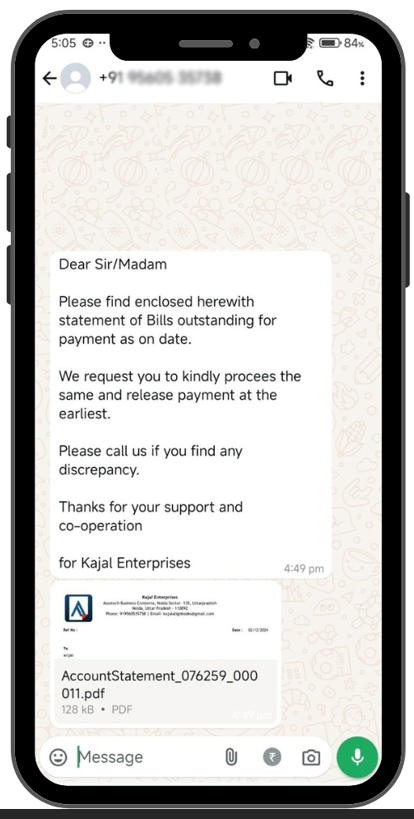
In this way, you can instantly share the Invoices, Account Statements, and other important documents with just a few clicks.