
Basic Setup
The content provides an organized breakdown of company information, starting with fundamental details like name and code, followed by communication channels such as phone and email, and finally, legal and regulatory compliance, including licenses and mandatory documents.
The Basic Setup is divided in 3 Major parts:
1. Basic: This part includes the fundamental details about the company, such as its Name, Code, and other primary information. It serves as the foundation for understanding the company.
2. Communication: This section focuses on how the company connects with others. It includes details like contact numbers, email addresses, website, and other ways to reach the company or communicate with its representatives.
3. Statutory: This part contains all the legal and regulatory information related to the company. It covers compliance details, GST numbers, Drug licenses, FSSAI License etc, and other mandatory documents required by law.
-
To mention all these details, you need to click on 'Configuration' Icon and select 'Company Setup' option.

-
Software will automatically open the 'Basic Setup' window.
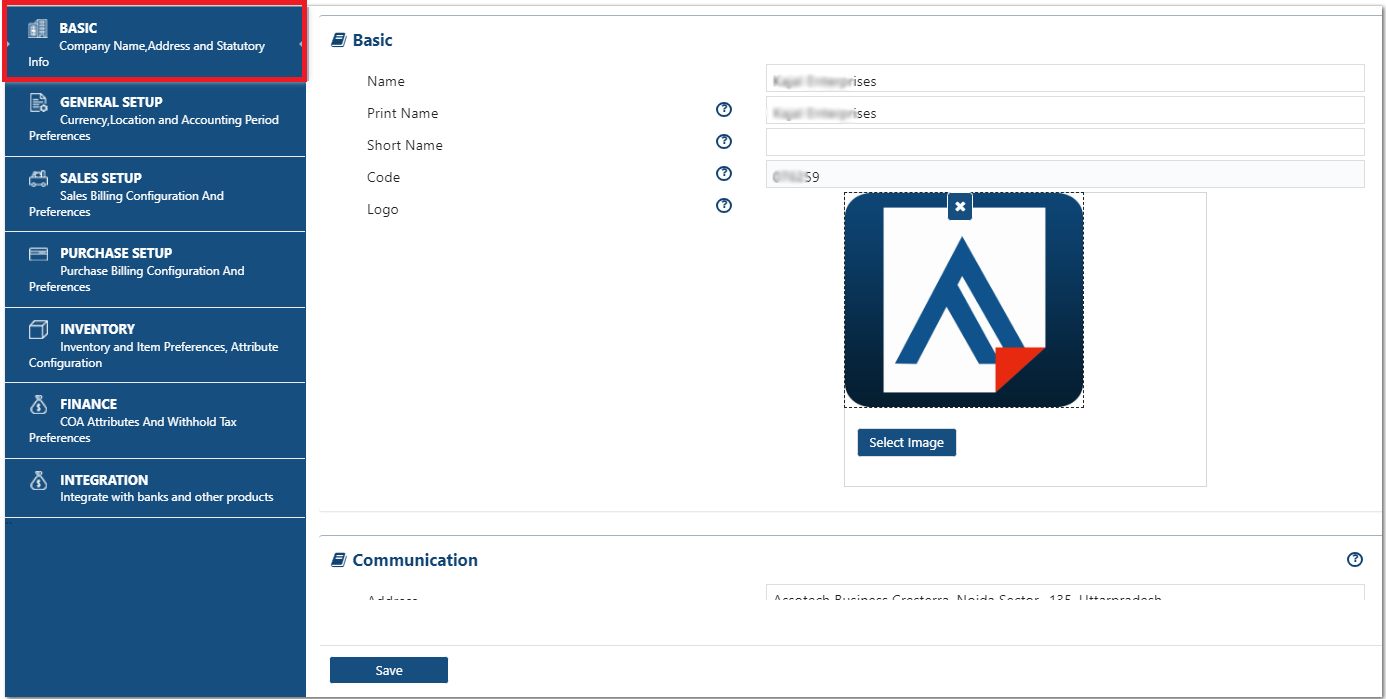
1. Basic:
• Name: Software will auto pick the company name on which AlignBooks account is registered, the user can change it as required.
• Print Name: Mention the Company Name that you want to display on the Invoice Print/Reports etc.
• Short Name: Mention the company short name as per the requirement.
• Code: Software will automatically pick the company code.
• Logo: Select the Company or Brand LOGO which you want to display in the Print format of Documents/Vouchers etc.
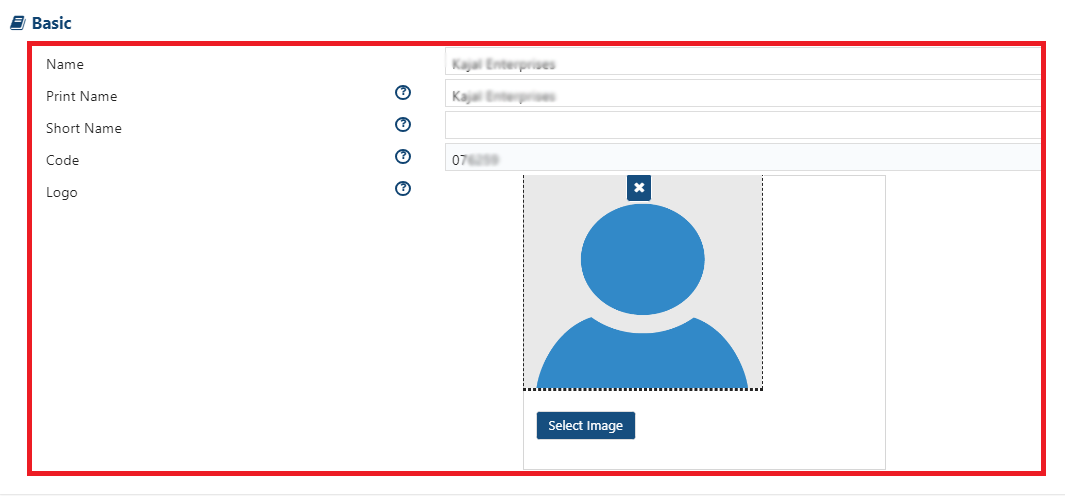
• To Add Company or Brand LOGO, click on 'Select Image' button. Browse the LOGO from the desired location where it has been saved and insert it. This LOGO will display on the print of all your documents like Sales Bill, Vouchers etc.
The Logo File should be in (JPEG/PNG) format and size should not exceed 50 MB.
|

• To Hide the Basic Part detail, click on 'DownArrow' icon.

2. Communication:
In 'Communication' part, you can mention the company's contact Information like Address/Country/State/City etc,.
-
Address: Mention the address of the company, Preferably the registered address of the Company for which books of accounts are being prepared should be entered here because this address will be printed on all Documents/Reports.
-
Country: Select the country from the dropdown.
-
State: Select the state name from the dropdown list. If you don't found your state name in the list then you can create a New State by clicking on '+' icon. Also you can edit the State Name just by clicking on Edit icon.
-
City: Select the city name from the dropdown list. If you don't found your state city in the list then you can create a New City by clicking on '+' icon. Also you can edit the City Name just by clicking on Edit icon.
-
Pin Code: Mention the Pin/Zip code for selected area.
-
Phone: Now you needs to add the Phone Number of the company. This phone will display in the Documents print and reports.
-
Email: Enter the email address of the company, this will also display in the Document prints and reports.
-
Longitude: Mention the Longitude of your company location.
-
Latitude: Mention the Latitude of your company location.
-
Print Address: If you want to display different Address with the address mentioned in the above address field then you can mention the address that you want to display on the Invoice Print/Reports. Preferably the registered address of the Company for which books of accounts are being prepared should be entered here.
If your company have Multiple Locations/ Branches, then you have to mention the Address details in that specific Location/ Branch. To know the process Click Here.
|

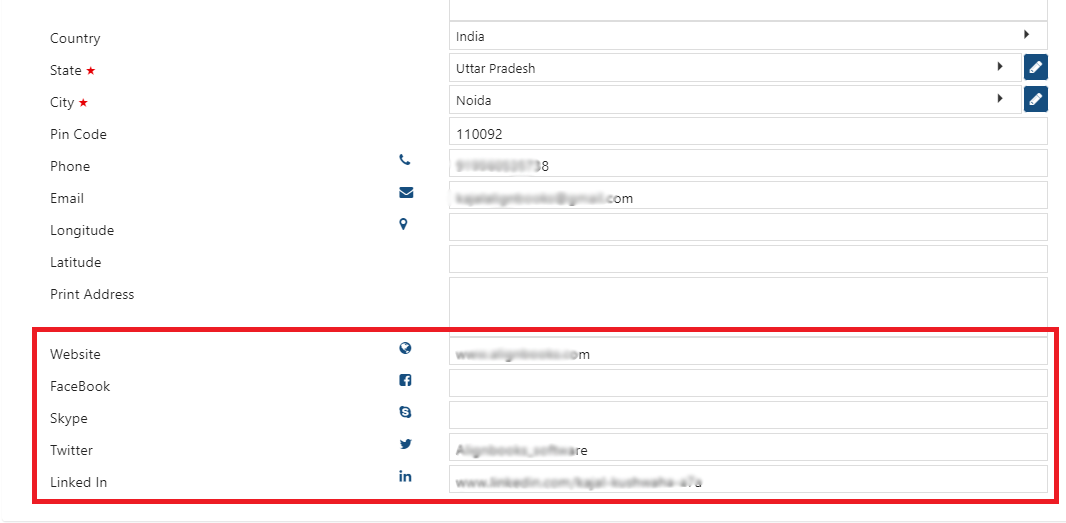
Adding social media details on invoices helps customers find and follow your business online. It’s a great way to stay connected, share updates, and build trust. AlignBooks provides you a facility where you can update your social Media profiles and all these details will display on your Document print.
-
Website: If you have any Website of your company mention it here.
-
Facebook page: Mention the Facebook Page of your company.
-
Skype ID: Mention the Skype ID of your company.
-
Twitter Profile: Mention your company's Twitter profile.
-
Linked In: Mention your company's Linked In.
3. Statutory:
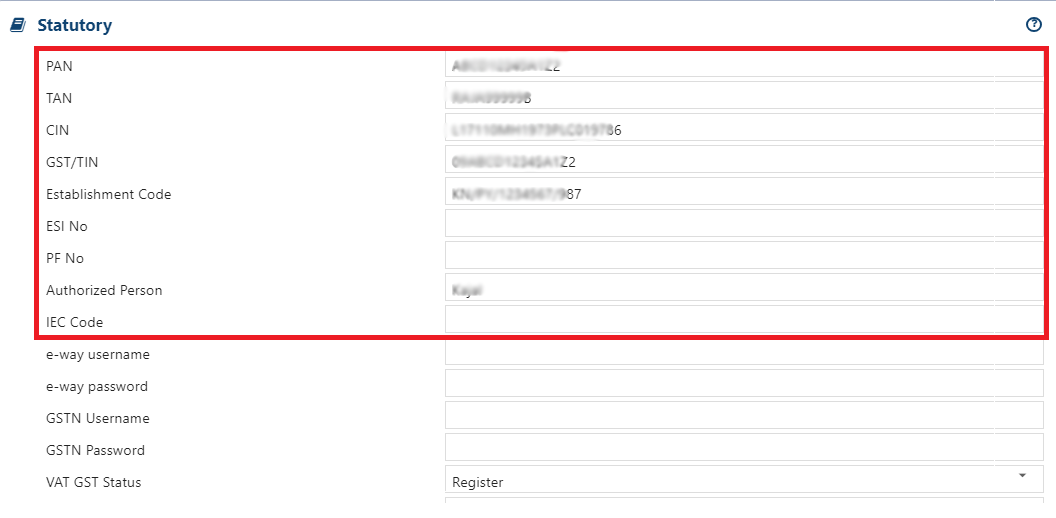
Now, the user will mention the Statutory details of the Company.
-
PAN: Permanent Account Number is a 10-character alphanumeric code issued by the Income Tax Department of India. It is used to identify individuals and businesses for tax purposes. It's important for a business: for filing income tax returns, used in TDS (Tax Deducted at Source) transactions.
-
TAN: Tax Dedication and Collection Account Number. TAN is also a 10-digit alphanumeric number issued by the Income Tax Department. It is mandatory for businesses that deduct or collect tax at source (TDS/TCS). If your company deducts TDS from payments like salary, rent, or professional fees, you need a TAN.
-
CIN: Corporate Identity Number. CIN is a 21-digit alphanumeric code issued by the Ministry of Corporate Affairs (MCA) to companies registered in India. It acts as a unique identification number for companies (like a business registration number). It is used for company identification in all government records. And it must be printed on official documents like invoices, letterheads, etc.
-
GST/TIN: Mention the GST/TIN number of the company. This will display on the Document print and reports. If you file GSTR data, it's mandatory to mention the GST Number.
If your company have Multiple Locations/Branches, then you have to mention the GST Number in that specific Location/Branch. To know the process Click Here.
|
-
Establishment Code: You can mention the Establishment Code of your company.
-
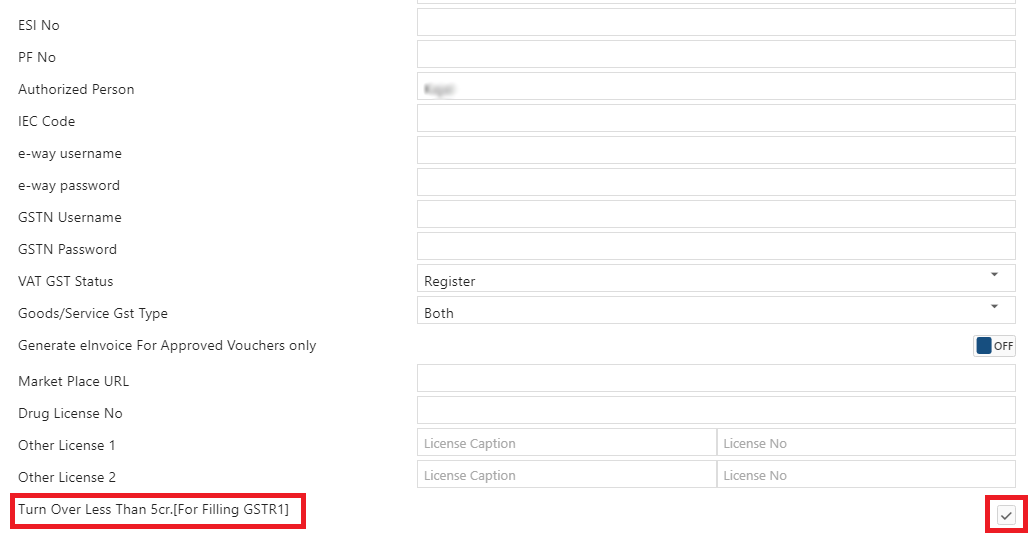
ESI No: Mention the Employee’s State Insurance (ESI) Number of your company, if the entity is registered with Employee State Insurance (ESI) authority.
-
PF No: Enter your Provident Fund Registration Number if the Company is registered with Provident Fund (PF) authority.
-
Authorized Person: Enter the name of person whose name is need to be printed on statutory forms and Returns like form 16A, TDS/GST Returns etc.
-
IEC Code: Enter your Import / Export License Number if the Company is dealing in Export & Import of Goods or services.
• If your company is registered under the GST Act and you want to create E-Way Bills directly through AlignBooks, enter your API User Name and Password for the E-Way Bill Portal. This allows seamless integration and faster E-Way Bill generation.
-
For generating the E-Invoice as well when you register through GSP and generate API User name and Password, you need to mention the credentials in the same option. As the API User name and Password generated on e-way portal are common for both e-Way and e-Invoice.
If your company have Multiple Locations/Branches, then you have to mention the e-way Username & Password in that specific Location/Branch. To know the process Click Here.
|

-
If your company is registered under the GST Act and you want to upload data or file GST returns directly through AlignBooks, enter your GST Portal username and Password. This allows AlignBooks to connect with the GST Portal and simplify the filing process for you.
If your company have Multiple Locations/Branches, then you have to mention the GSTN Username & Password in that specific Location/Branch. To know the process Click Here.
|

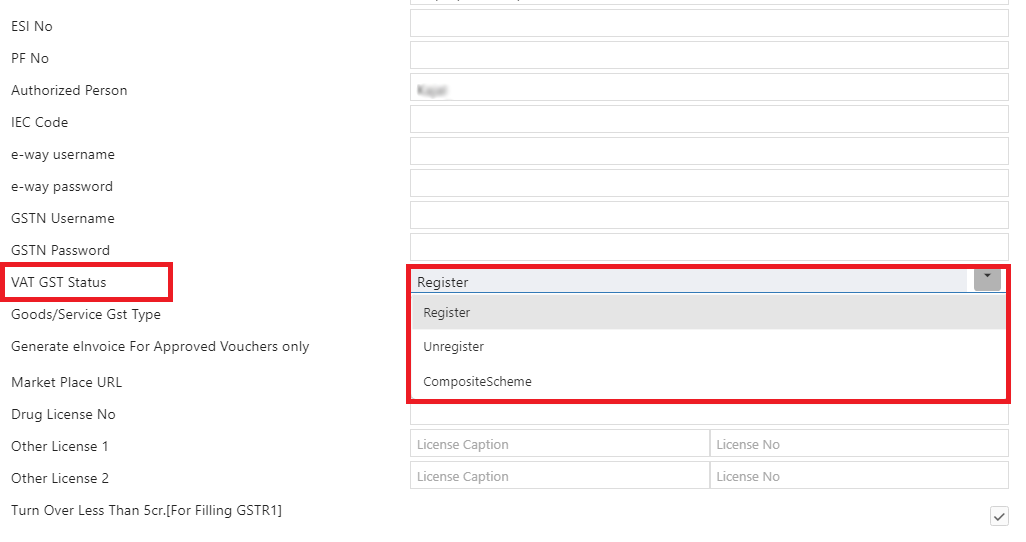
• VAT GST Status: Select whether the company is 'Register/Unregister/CompositionScheme'. This helps determine how GST rules apply to your business and ensures accurate tax calculations and filings.
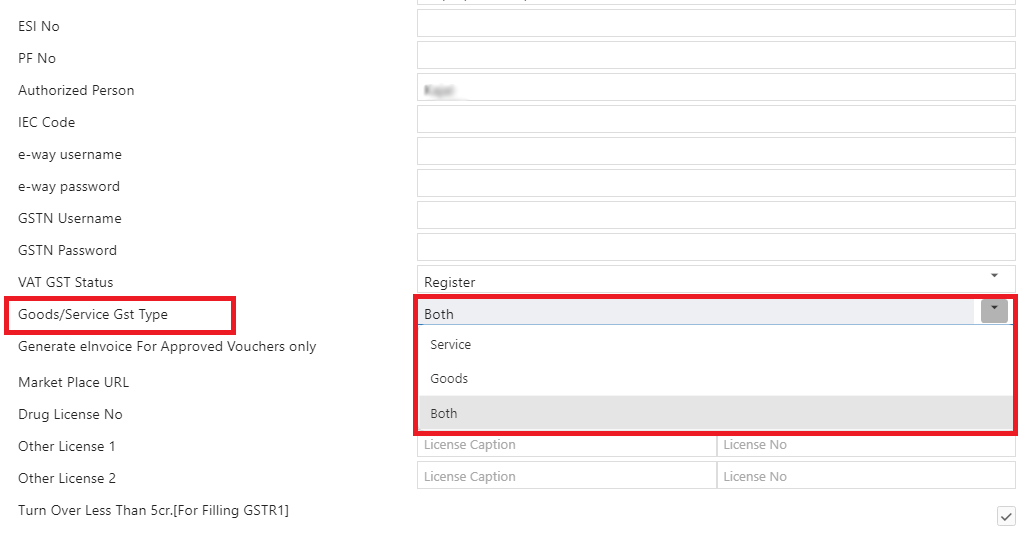
• Goods/Service GST Type: Select the type of business your company deals with 'Goods,' 'Services,' or 'Both.' This selection ensures that GST is applied correctly based on the nature of your business activities.
-
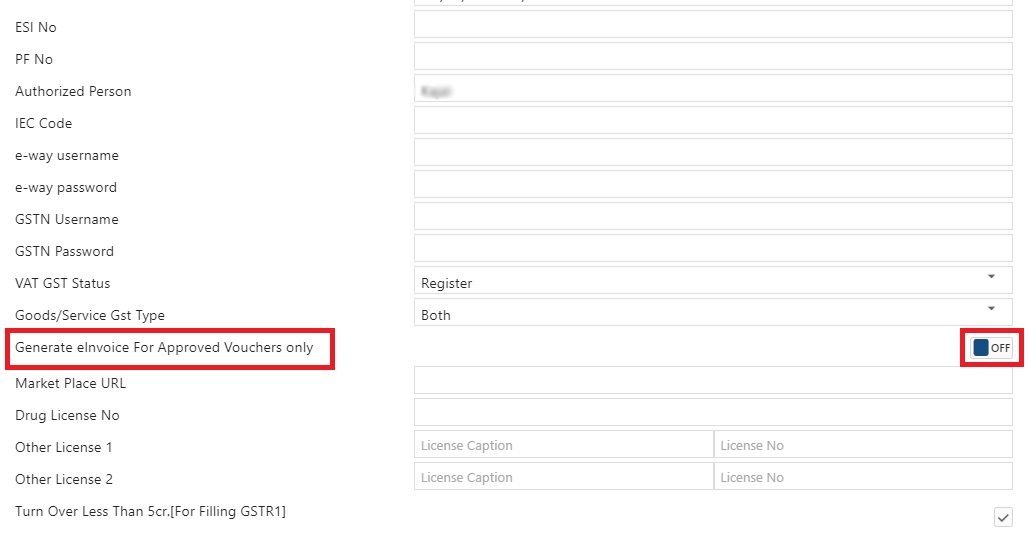
Generate eInvoice For Approved Vouchers Only: Turn 'ON' this option is the user needs to generate eInvoice for approved Vouchers.
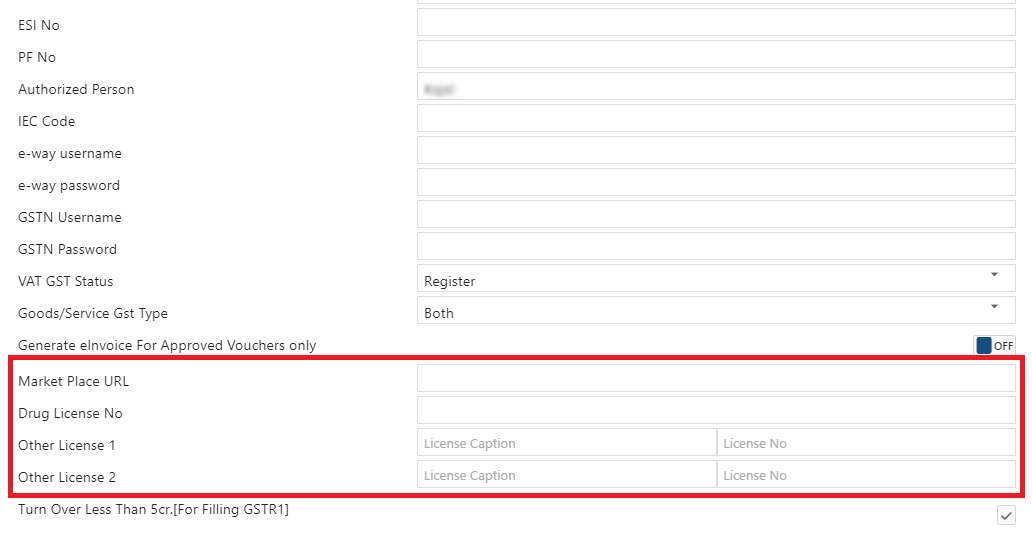
Here, the user can mention the License details.
-
Market Place URL: A marketplace URL is the website address of an online marketplace, which is a platform that connects buyers and sellers to exchange goods and services. You can mention your Market URL here.
-
Drug License No: If your Company is dealing in Pharmaceutical products, then you can mention the Drug License Number here.
-
Other License 1: AlignBooks has introduced additional options to specify the company's License Number if it doesn't fall under the standard license fields mentioned above. You can input the License Name along with its corresponding Number.
-
Other License 2: This is the another extra field for license details you can mention.
If your company have Multiple Locations/ Branches, then you have to mention the other License 1/2 Details in Location/ Branch. To know the process Click Here.
|
-
Turn Over Less Than 5cr.[For Filling GSTR1]: Tick the checkbox if turnover is less than 5cr. So that if any items have HSN Code of 4 Digit then it will not display any error while filling GSTR-1.
a. For businesses with a turnover above ₹5 crore, it's mandatory to update the 6-digit HSN code for all B2B transactions.
b. For businesses with turnover above ₹1.5 crore but less than ₹5 crore, a 4-digit HSN code is allowed.
|
After mentioning all the Company details, click on 'Save' button. In this way you can Update your Company's Basic Setup.

In this way, you can do the Basic Setup in AlignBooks.