
Brandwise Purchase Charges
In AlignBooks, you can set different discount rates or charges for each brand of items. When you create an invoice, the system will automatically apply the correct discount/ charges based on the brand on which you have specified. This makes your invoicing faster, reduces mistakes, and ensures the same discount/ charges is always applied for each brand.
In Brand wise Discount/ charges, you can set separate discount/ charges on the basis of Retailer, Wholesaler and Dealer.
First, you need to enable the discount/ charges field for fixing them Brands wise.
-
To configure the discount/ charges field click on 'Configuration' icon and select 'Company Setup' option.
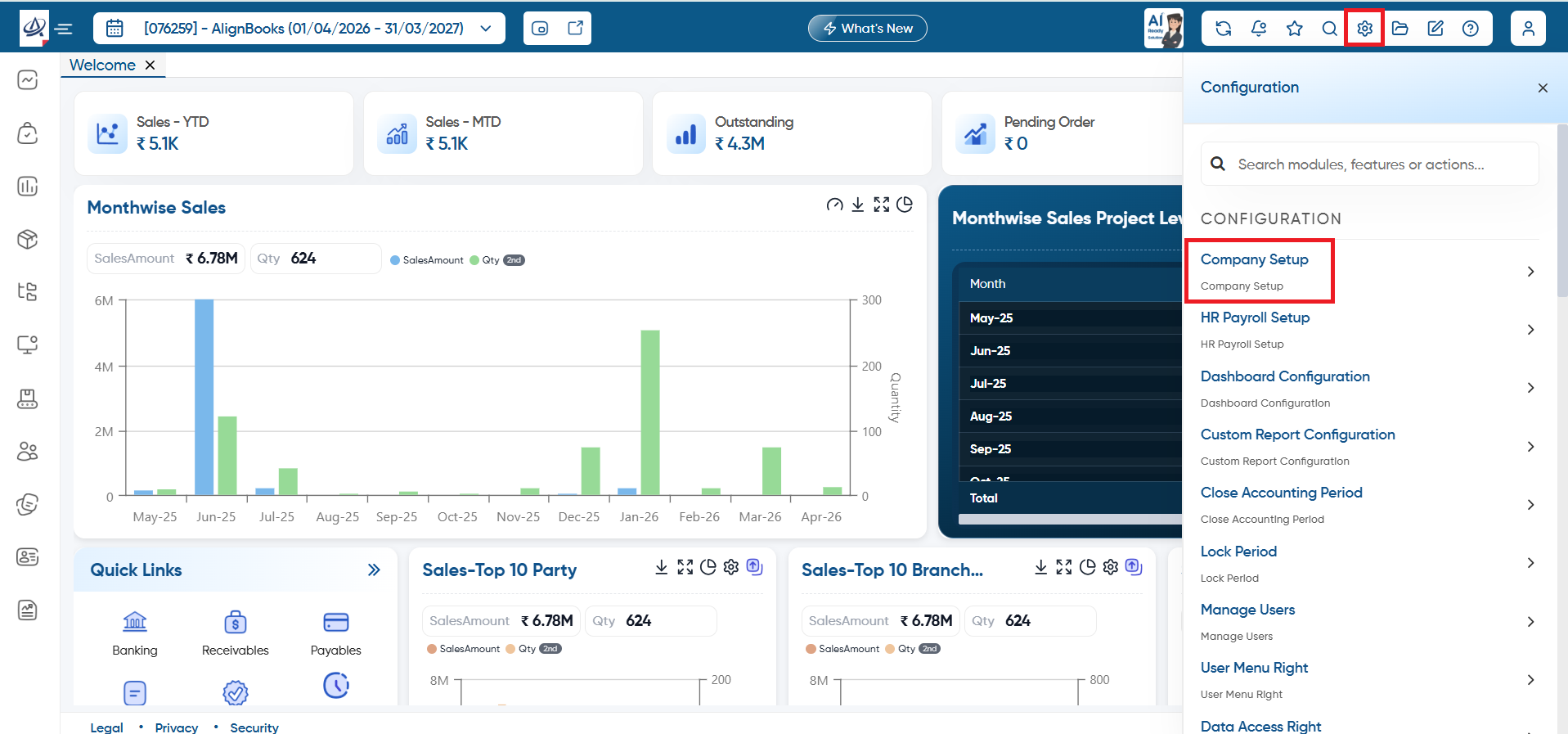
Open the 'Purchase Setup' tab.
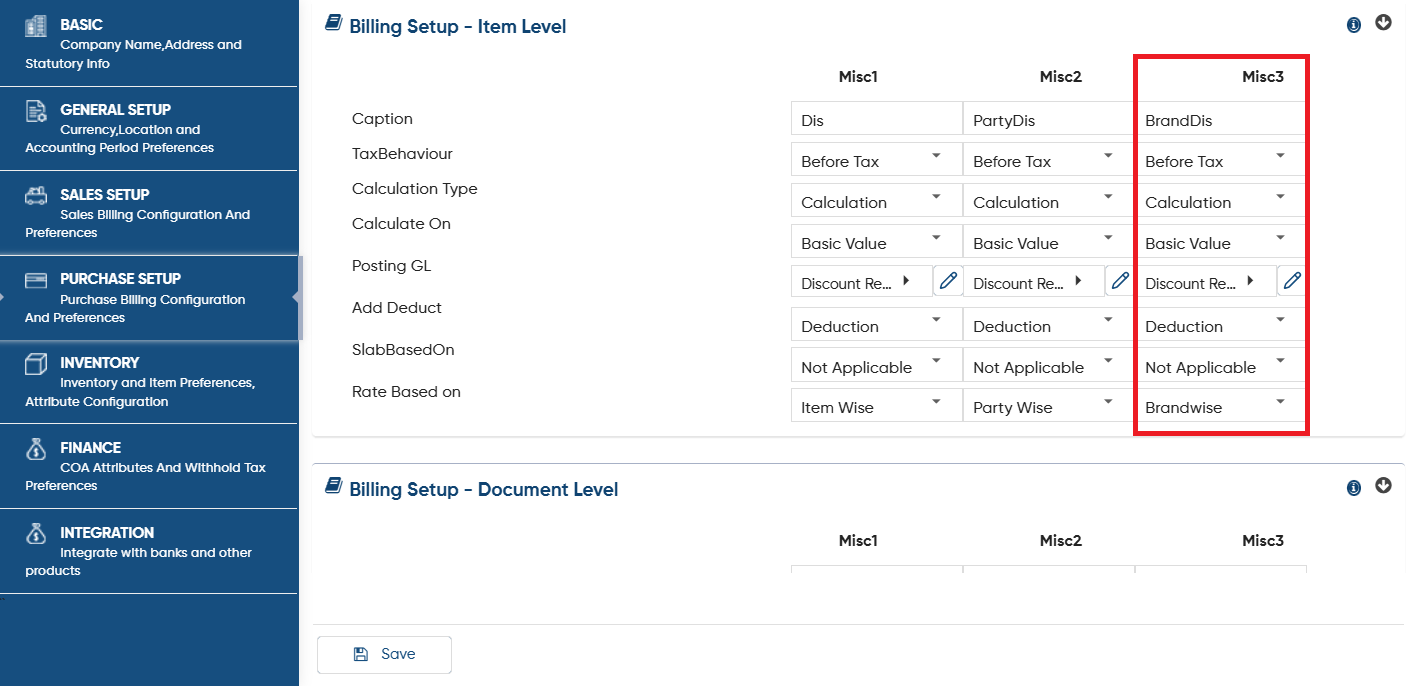
In 'Billing Setup - Item Level', you need to Add the Discount/ Charges field in any of the 'Misc' Column as per the requirement. Suppose you want to enable Discount field in 'Misc3' Column.
-
Caption: Specify the field name for the Discount that you want to display in the Brand wise Discount setup. Suppose mention 'BrandDis'.
-
TaxBehaviour: Choose whether the Discount should be calculated Before Tax or After Tax.
-
Calculation Type: Select the calculation method, either as a fixed value or as a percentage.
-
Calculate On: Determine the base for the discount calculation, such as Basic Value, Quantity, Taxable Value, etc.
-
Posting GL: Choose the Account Group where the discount value will be recorded in your books of account.
-
Add Deduct: Select the option, whether you want to Add discount, Less discount Value etc.
-
Addition: Select this option, to Add discount Value in Invoice.
-
Deduction: Select this option, to Deduct Discount value in Invoice.
-
Floating: Use this option to specify a '+' or '-' sign for adding or deducting the discount while creating the Brand Discount List as needed.
-
SlabBasedOn: Choose whether the discount rate should be applied based on Quantity or Amount.
-
Rate Based On: Select 'BrandWise' to enable the Brand Wise Discount/ charges field.
You can only use Misc 1,2,3 columns, more columns cannot be added. Make sure to enable column which are prior for you.
|
After mentioning all the details, click on 'Save' button.
Now you need to fix the Brand wise Discount/ Charges as per the requirement.
-
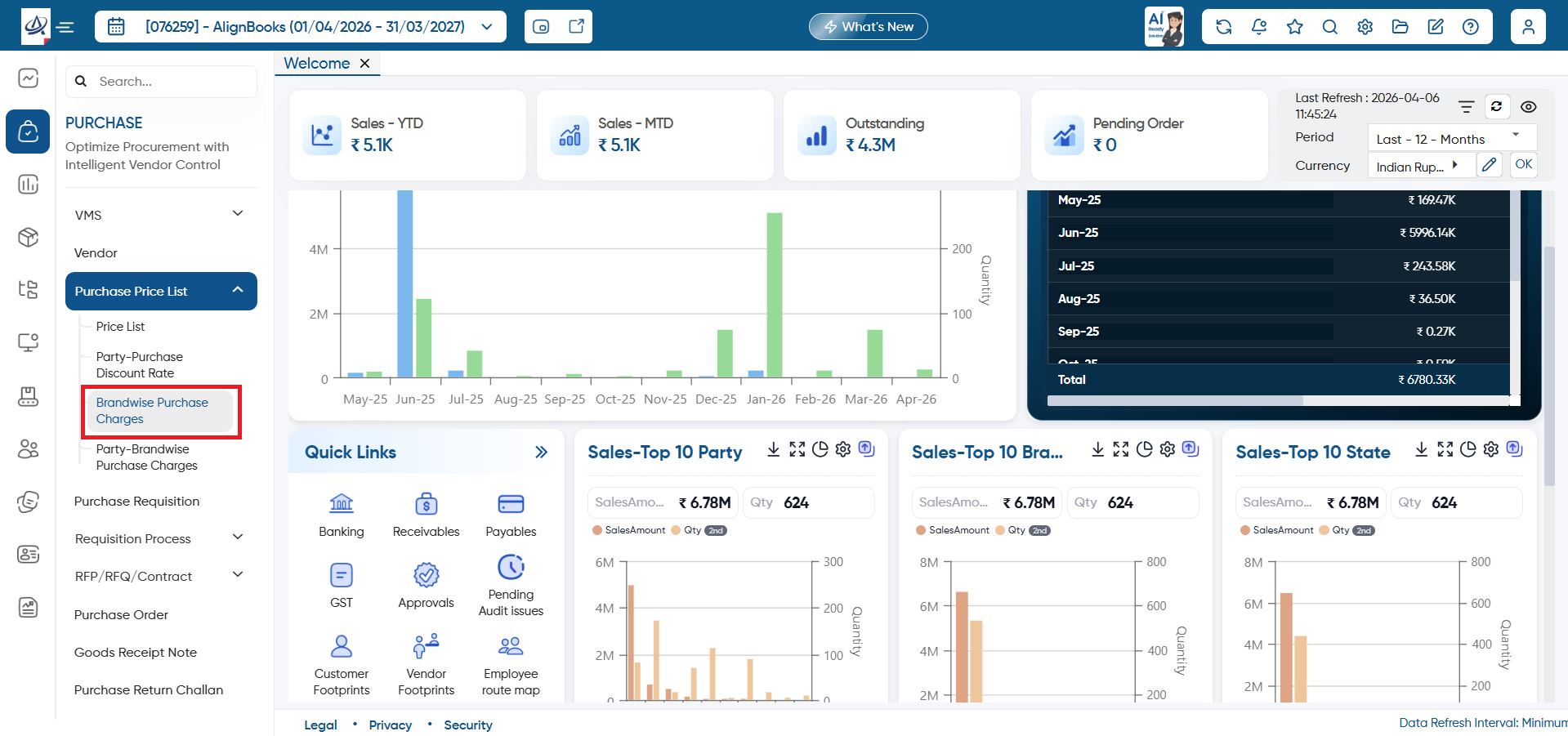
To fix them go to Purchase > Purchase Price List > Brandwise Purchase Charges.
-
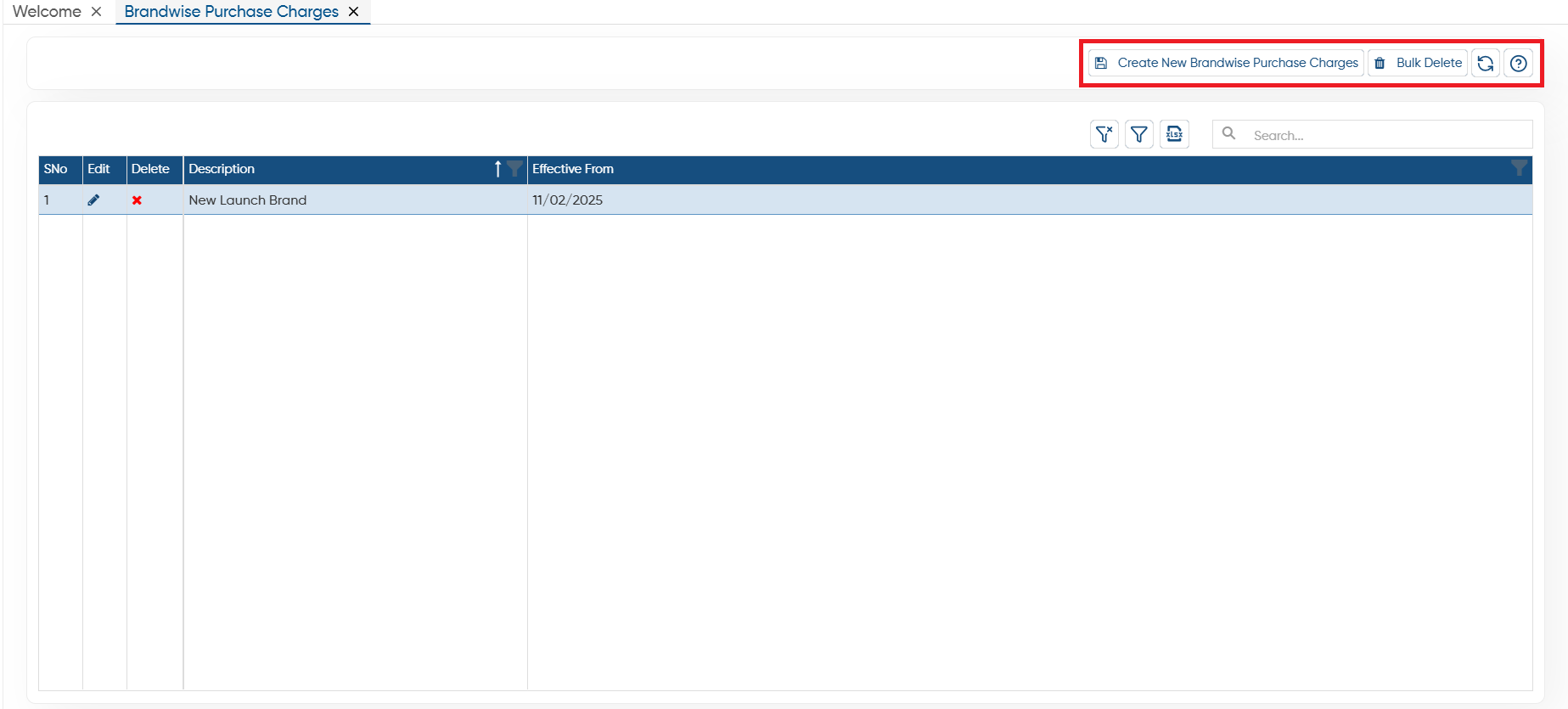
Create New Brandwise Purchase Charges: Click on 'Create New Brandwise Purchase Charges'.
-
Bulk Delete: To delete the multiple data at once select them (checkbox provided next to the name) then click on this button. (Make sure the discount rate list don't have any transaction or data, only then the software will allow you for bulk deletion).
-
Refresh: After making changes screen doesn't update you can refresh the screen. This will display the latest changes on the screen.
-
Help: Click on the help icon to access the step by step guide of the Process.
The 'Brandwise Purchase Discount/Charges Rate' window will open.
-
Description: Mention the field name for discount/ charges for your identification.
-
Effective From: Select the date from which you want to apply the discount/ charges on a Brand.
Now you can mention the discount/ charges Rate for each brand as per your needs and click on 'Save' button.
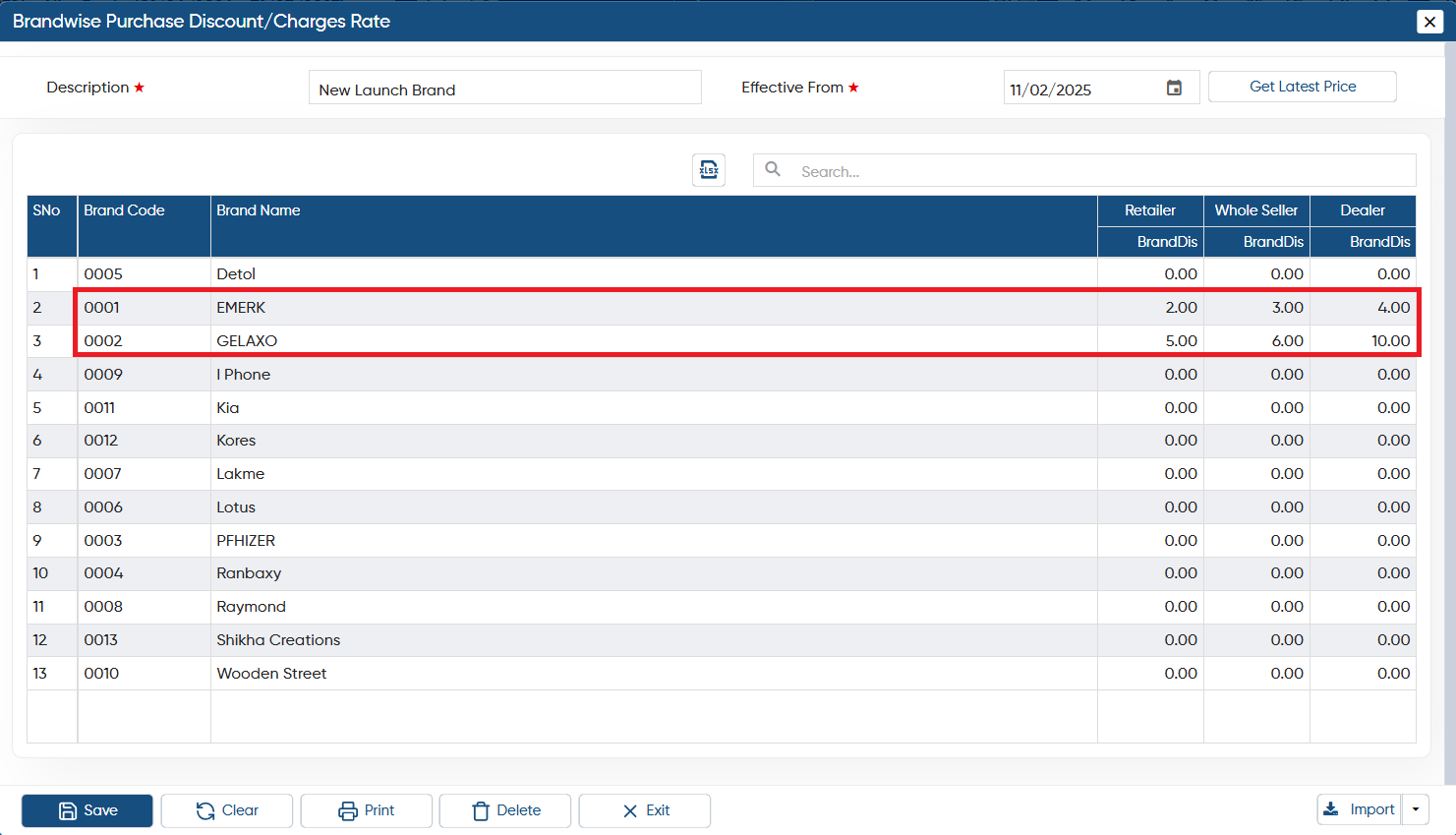
-
Now when you will generate the purchase invoice for the selected brand, you can view Brand Discount will get auto loaded in the invoice based on the Vendor whether they are Retailer, Whole Seller or Dealer.
-
Besides the Brand Dis percentage, you can view the Discount in amount.
 Click on edit icon to make any changes or updation to the Brand wise list.
 Click on cross icon on the specific brand discount to delete or remove it.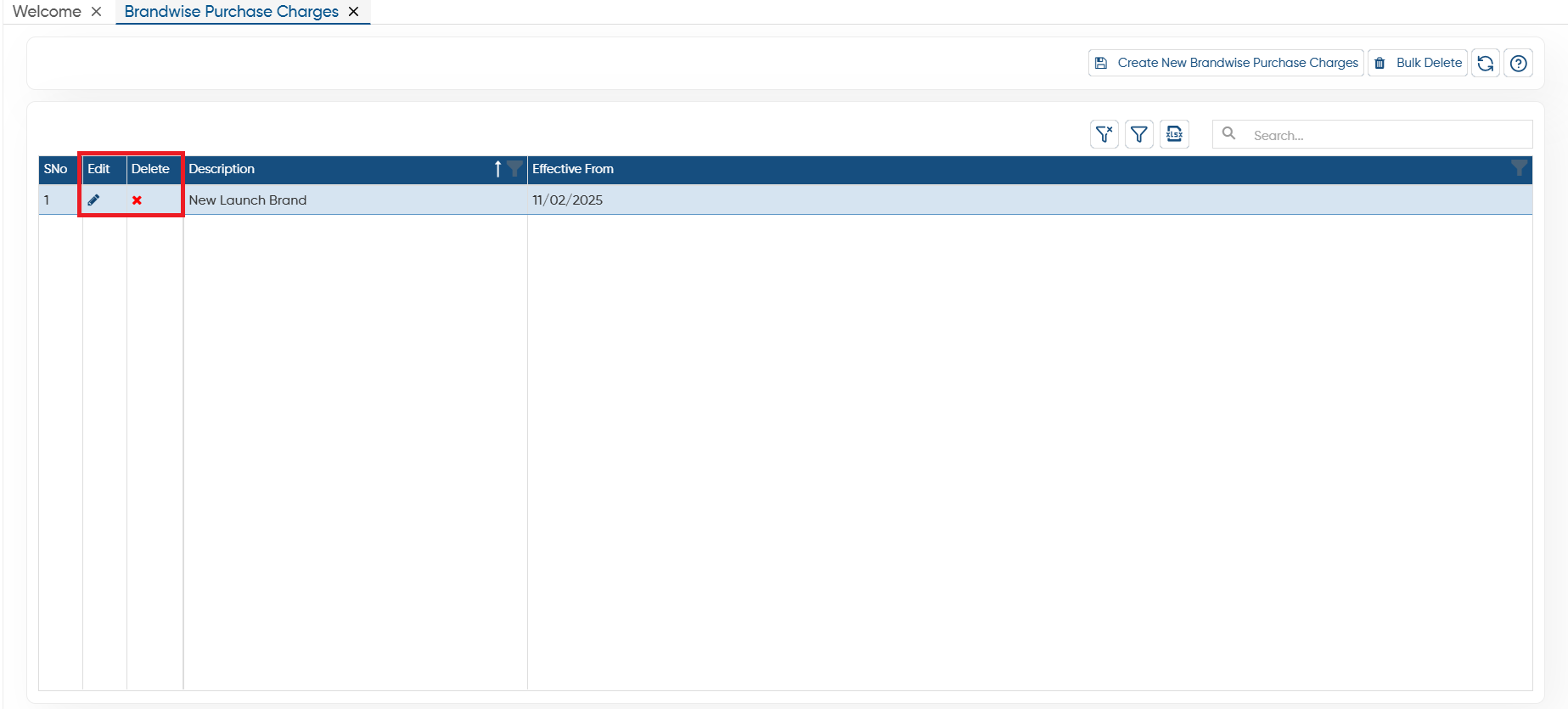
-
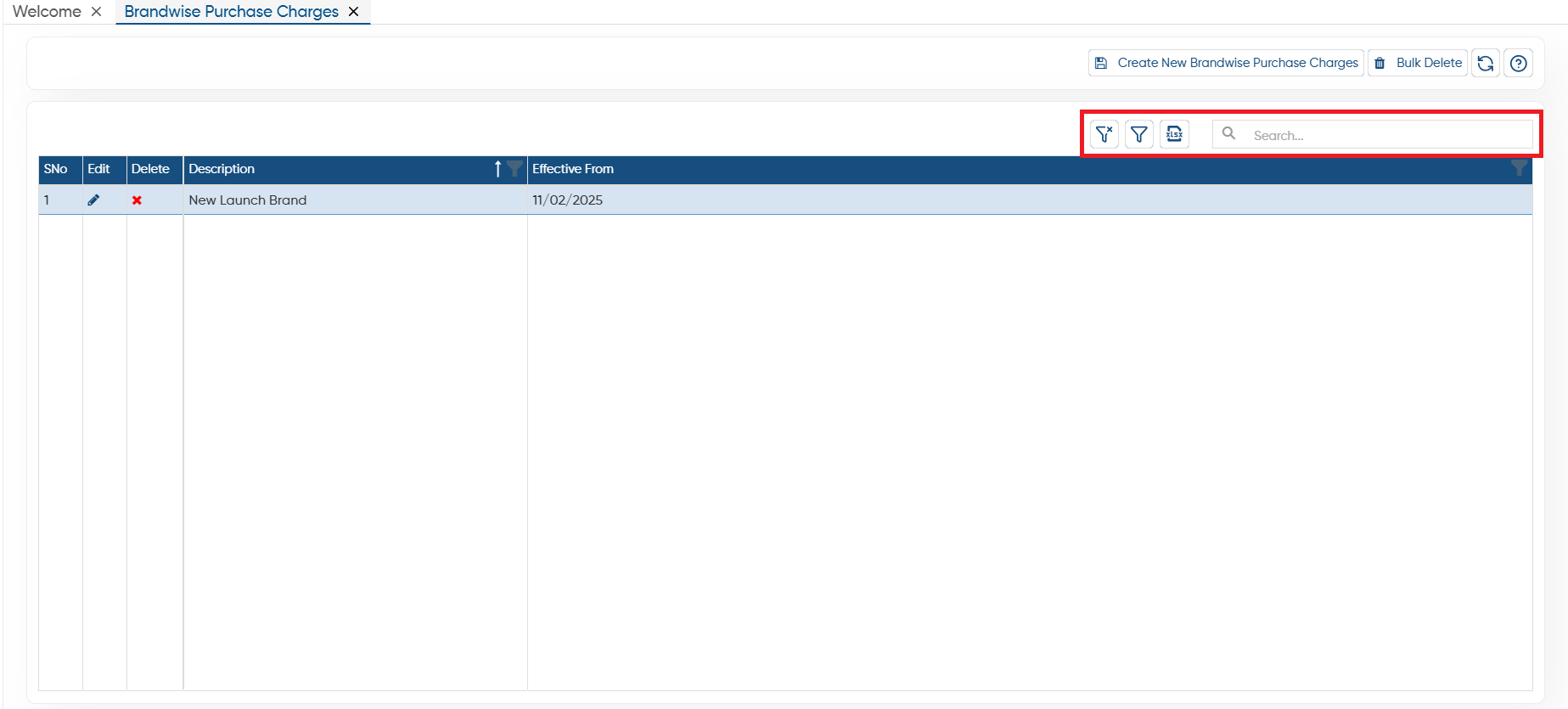
Clear Filter: Click on the Clear Filter icon, to remove all the filters you have applied on the list.
-
Show Filter: Through the ‘Show Filter’ icon, you can enable column-wise filtering. Once activated, a search icon will appear at the top of each column, allowing you to filter the list easily.
-
Excel: You can export the all data in excel file also, to export the data click on excel icon.
-
Search: To search any record in the list, only type the related information in search box, software will display the result on the screen.
In this way, you can easily fix the Party-Purchase Discount/Charges Brand wise in AlignBooks.