
Bulk GRN From Order
The 'Bulk GRN from Order' feature in AlignBooks lets you create Goods Receipt Notes (GRNs) for multiple Purchase Orders (POs) at once. Instead of making GRNs one by one, you can select many POs and generate GRNs for all of them together.
Key Benefits of Converting Purchase Order into GRN (Goods Receipt Note):
-
Saves Time: Create GRNs for many orders quickly instead of doing it one by one.
-
Fewer Mistakes: Automatically pulls details from POs, reducing errors.
-
Better Stock Tracking: Updates your inventory instantly when goods are received.
-
Easy Supplier Management: Keeps records organized for smoother dealings with suppliers.
-
Less Work: Frees up your team to focus on other important tasks.
-
Helps with Accounting: Keeps your financial records updated automatically.
-
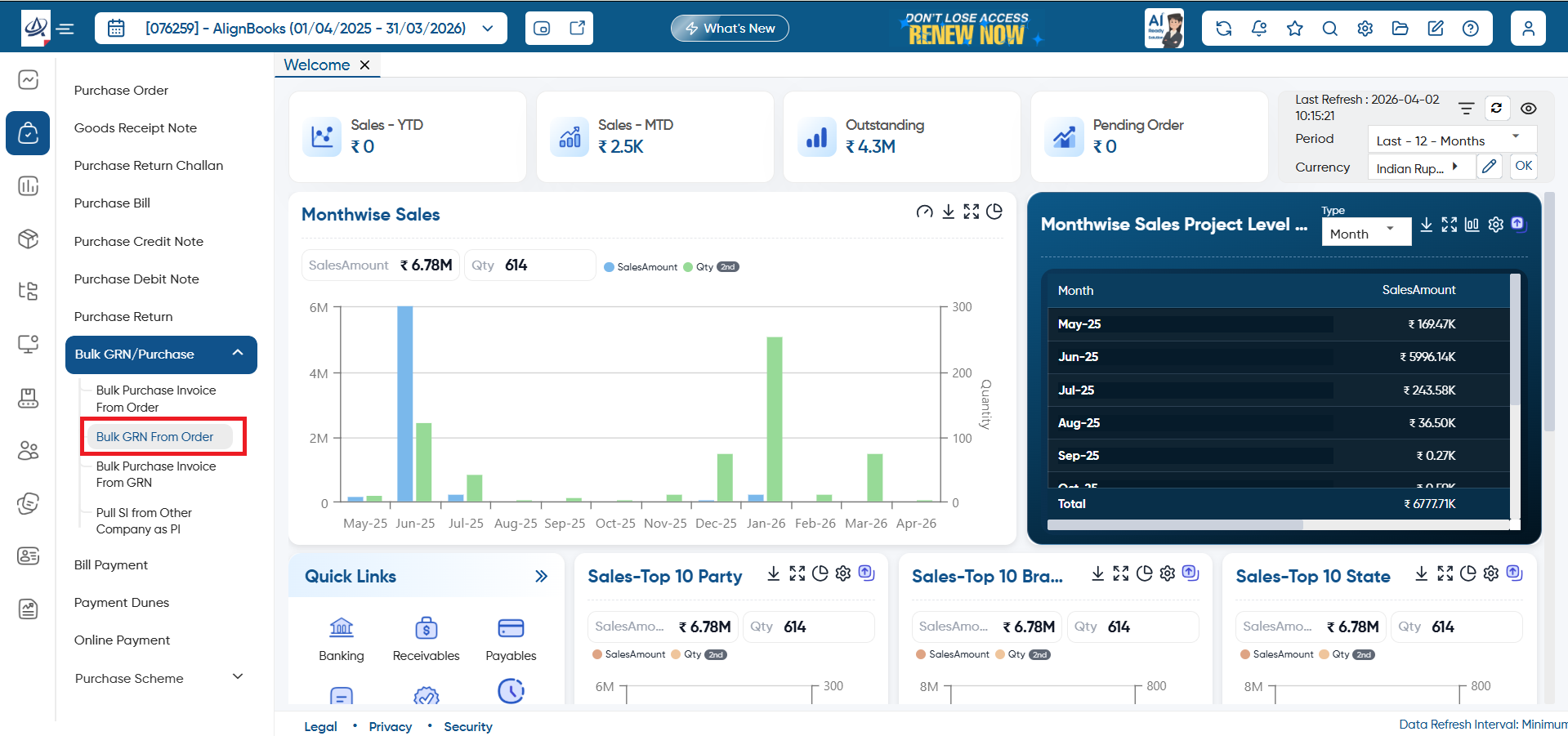
Go to Purchase > Bulk GRN/ Purchase > Bulk GRN From Order.
-
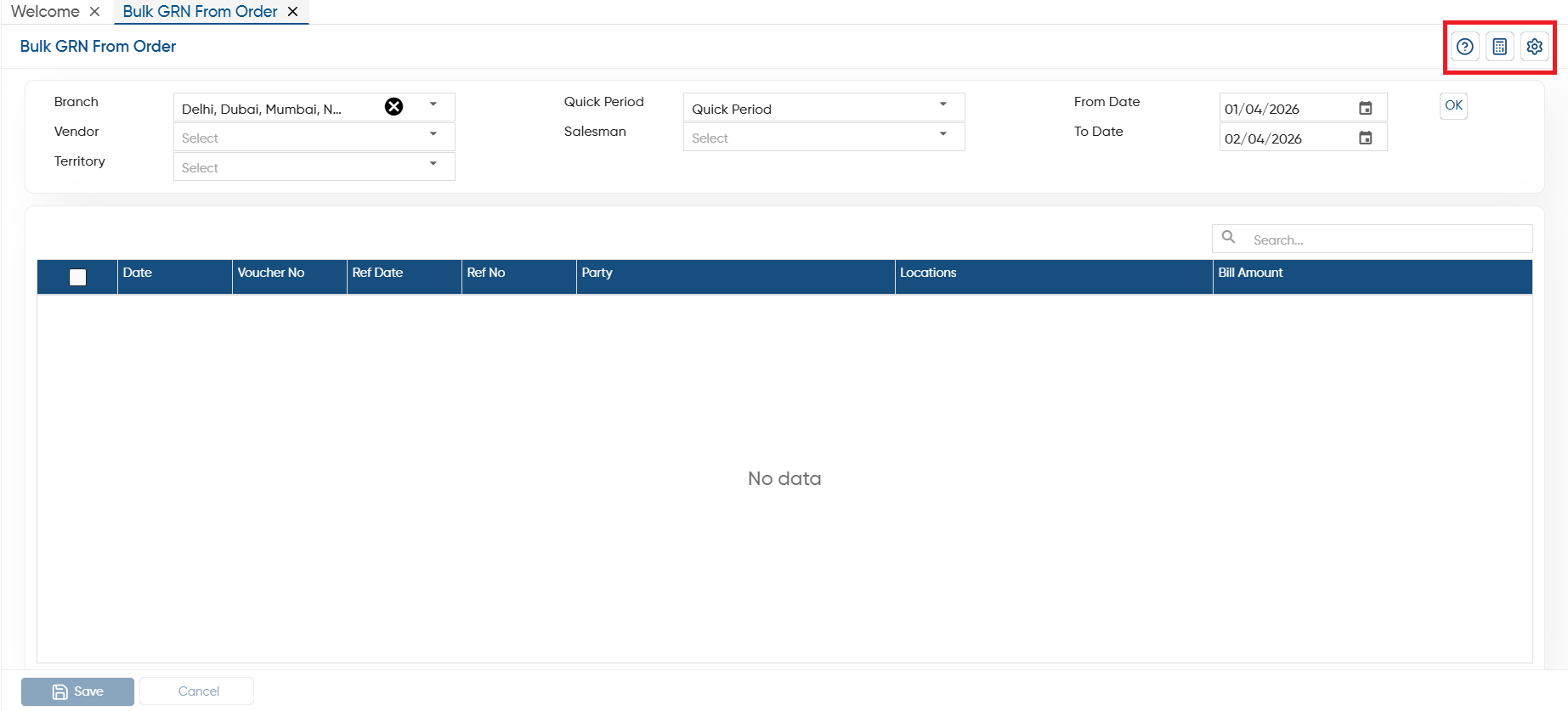
Help: To access the help manual related to the feature, click on the given icon.
-
Calculator: Use the calculator icon for calculations on the same screen. This in-built calculator will help users to do calculations without switching from the software.
-
Configuration: Through the configurations, you can set the approvals, notification and other setting as required.
-
Branch: If your company operates across multiple branches or locations, you can easily select a specific branch or location where you want to bulk transfer the purchase orders into GRN.
-
Vendor: Select a specific vendor whose Purchase Order you want to convert in GRN.
-
Quick Period: Here, you need to select the period such as Yesterday, Monthly, Quarterly, Yearly etc for which you want to convert Multiple Orders in GRN.
-
From Date: After period selection you can further specify the date from which you want to convert the documents.
-
To Date: Mention the date till which you want to convert the Purchase Order into GRN.
Click on 'OK' button.

-
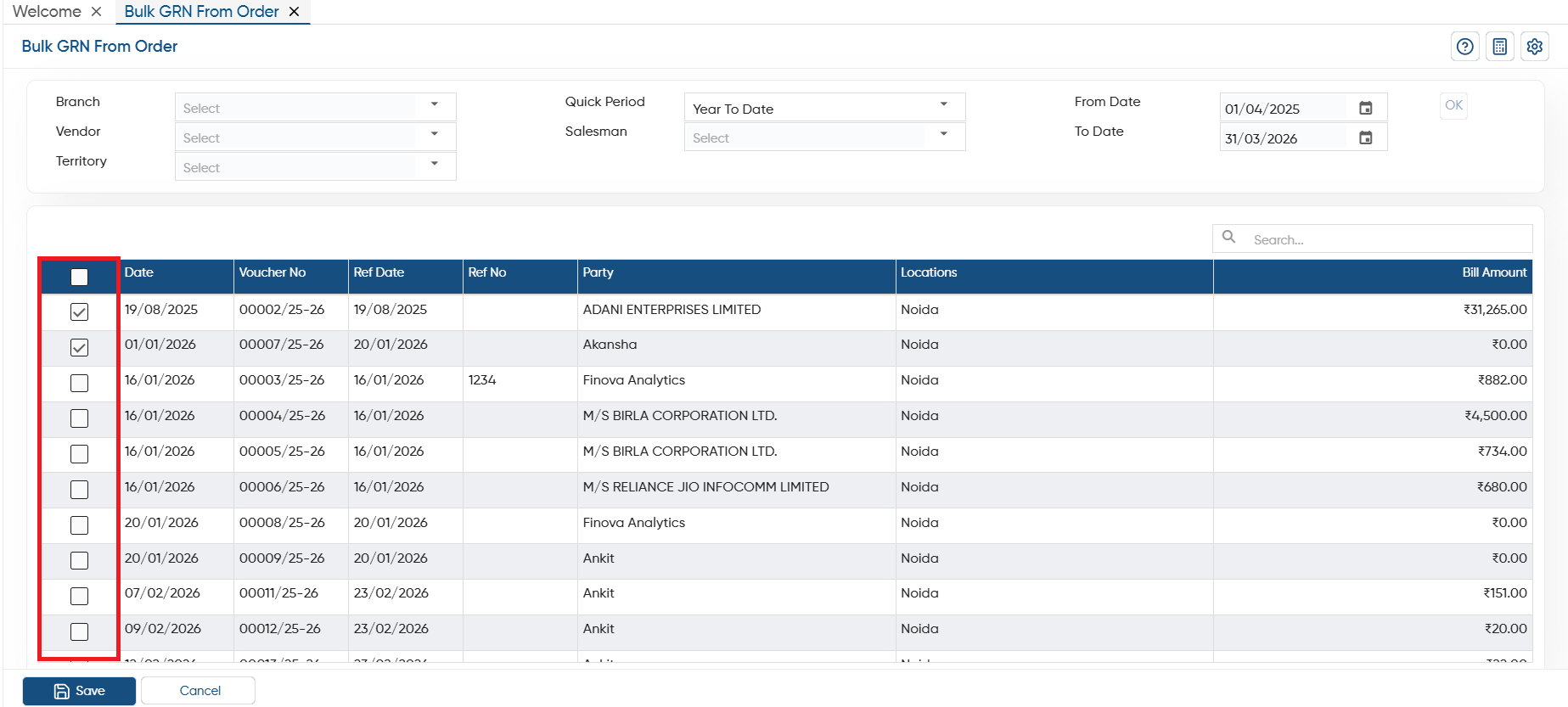
Tick the check box against the Purchase Orders that needs to be converted into the GRN. Here, you can view the Order Date, Voucher No, Ref No, Party Name, Bill Amount etc.
-
Click on 'Save' button to convert the Orders into GRN.
-
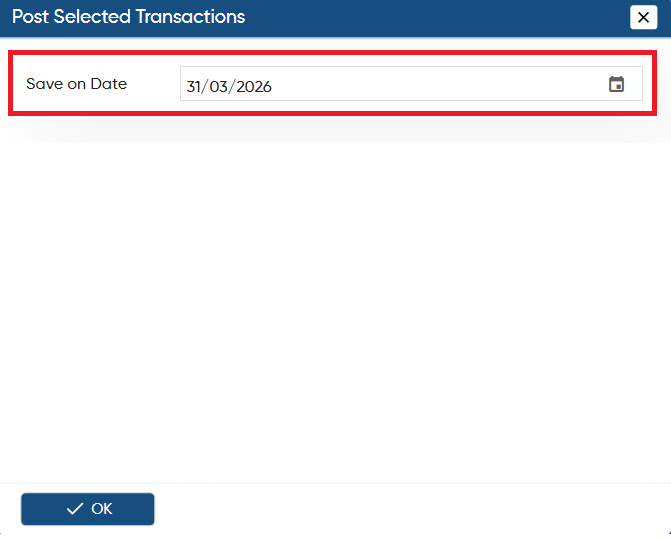
Another window will appear to select the date on which you want to save the all Purchase Bill and click on 'OK' button.
-
Thereafter, you can view the GRN will be post on the selected date.
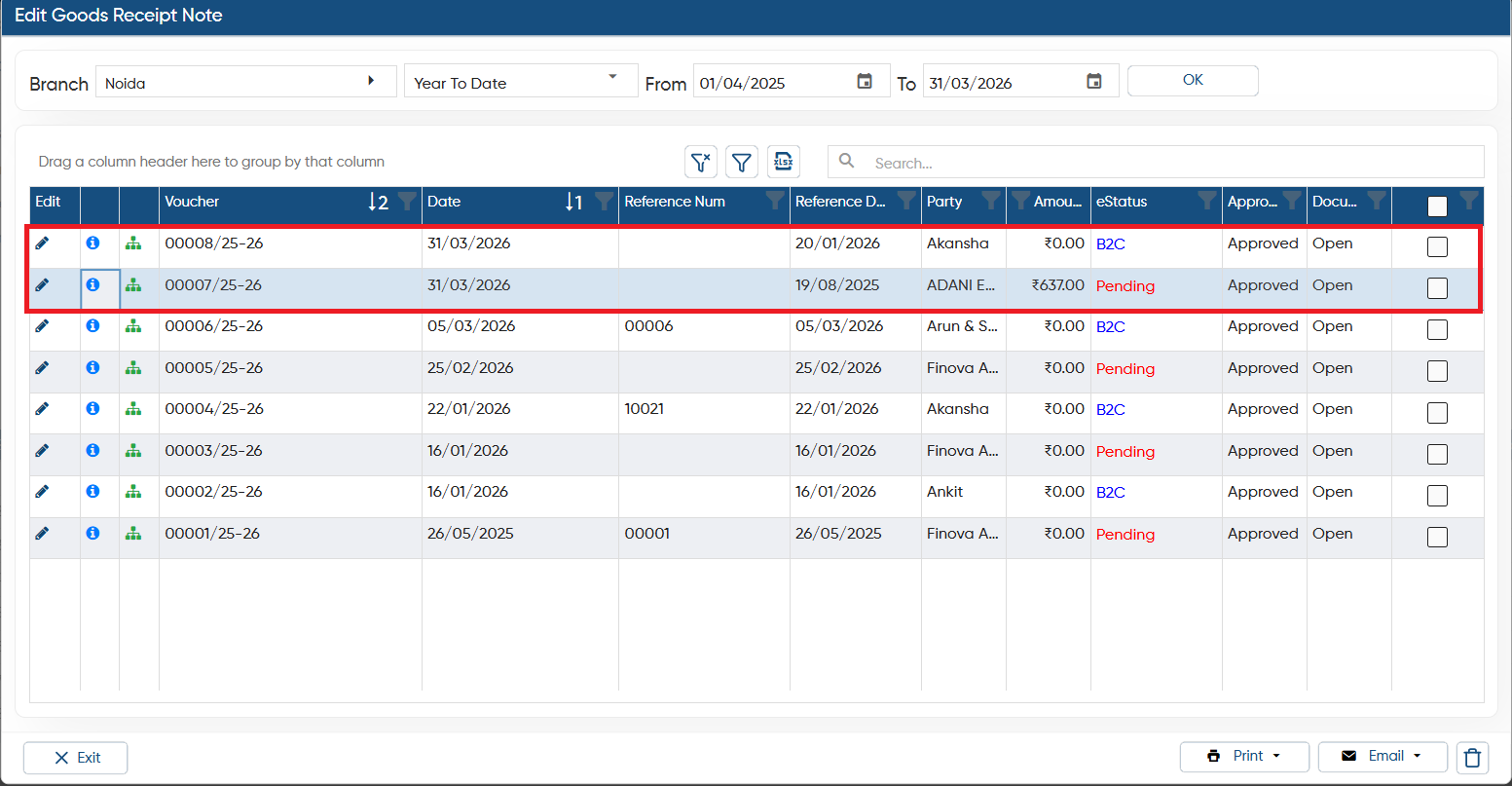
In this way, you can Convert Purchase Order into GRN in Bulk in AlignBooks.