
Price List
Tracking vendor prices is important to make smart buying decisions and keep things accurate. In AlignBooks, you can set up a Purchase Price List to keep track of product prices from different vendors. This helps the system automatically apply the right prices to Purchase Orders and Bills, saving time and reducing errors. Using this feature helps businesses manage costs better and avoid mistakes in billing.
With AlignBooks, you can create custom price lists for each vendor, special deals, or specific business needs. These set prices or discounts make sure the purchase costs stay the same and make invoicing easier. You can apply these price lists directly to purchase invoices or set them up in the Vendor Master to be used automatically. This automation makes the process faster, reduces pricing mistakes, and improves overall purchasing accuracy.
In addition to prices, you can also set discounts or charges for each item individually. This way, the system will automatically apply the discounts or charges along with the prices in your purchase invoices.
Benefits:
-
Smart Buying Decisions: Tracking vendor prices helps businesses make informed purchasing decisions and maintain accuracy in their pricing.
-
Time-saving and Reduced Errors: The Purchase Price List feature automates the process of applying correct prices to Purchase Orders and Bills, saving time and minimizing human errors.
-
Better Cost Management: Businesses can manage costs more effectively and avoid billing mistakes by using the right prices for each vendor.
-
Custom Price Lists: AlignBooks allows you to create custom price lists for each vendor, special deals, or specific business needs, ensuring consistent pricing.
-
Simplified Invoicing: With set prices or discounts, invoicing becomes easier and more accurate, ensuring that the business’s purchase costs stay consistent.
-
Automation of Price Application: Price lists can be applied automatically to purchase invoices or set in the Vendor Master, speeding up the process and reducing errors.
-
Improved Purchasing Accuracy: Automation reduces the chances of pricing mistakes and improves the overall accuracy of purchasing.
-
Easy Discount and Charge Management: Discounts or charges can be set for individual items, and the system automatically applies them to purchase invoices, ensuring accurate pricing.
-
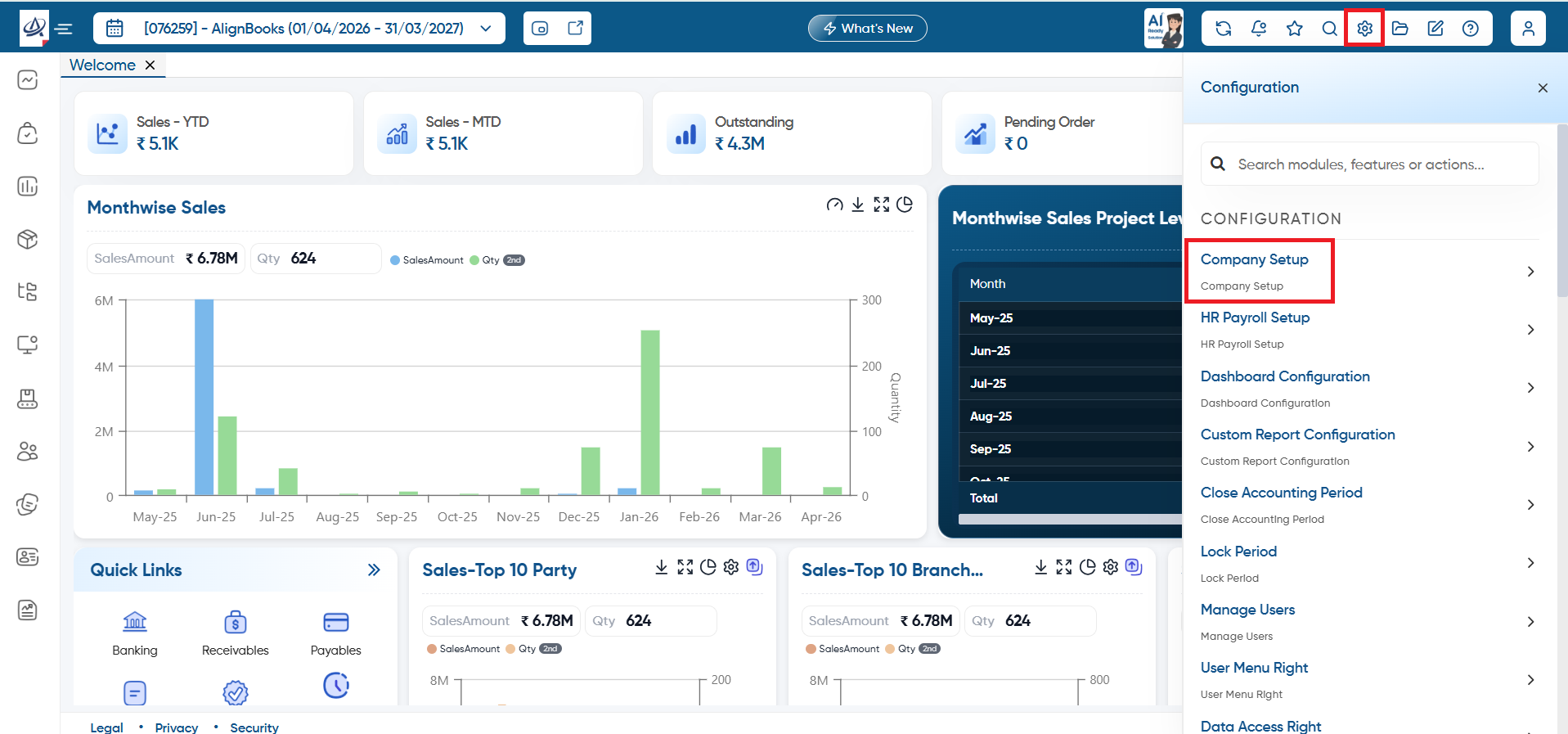
First you need to enable the field to ask 'Price List' while billing. To enable the field click on the 'Configuration' icon and select 'Company Setup' option.
-
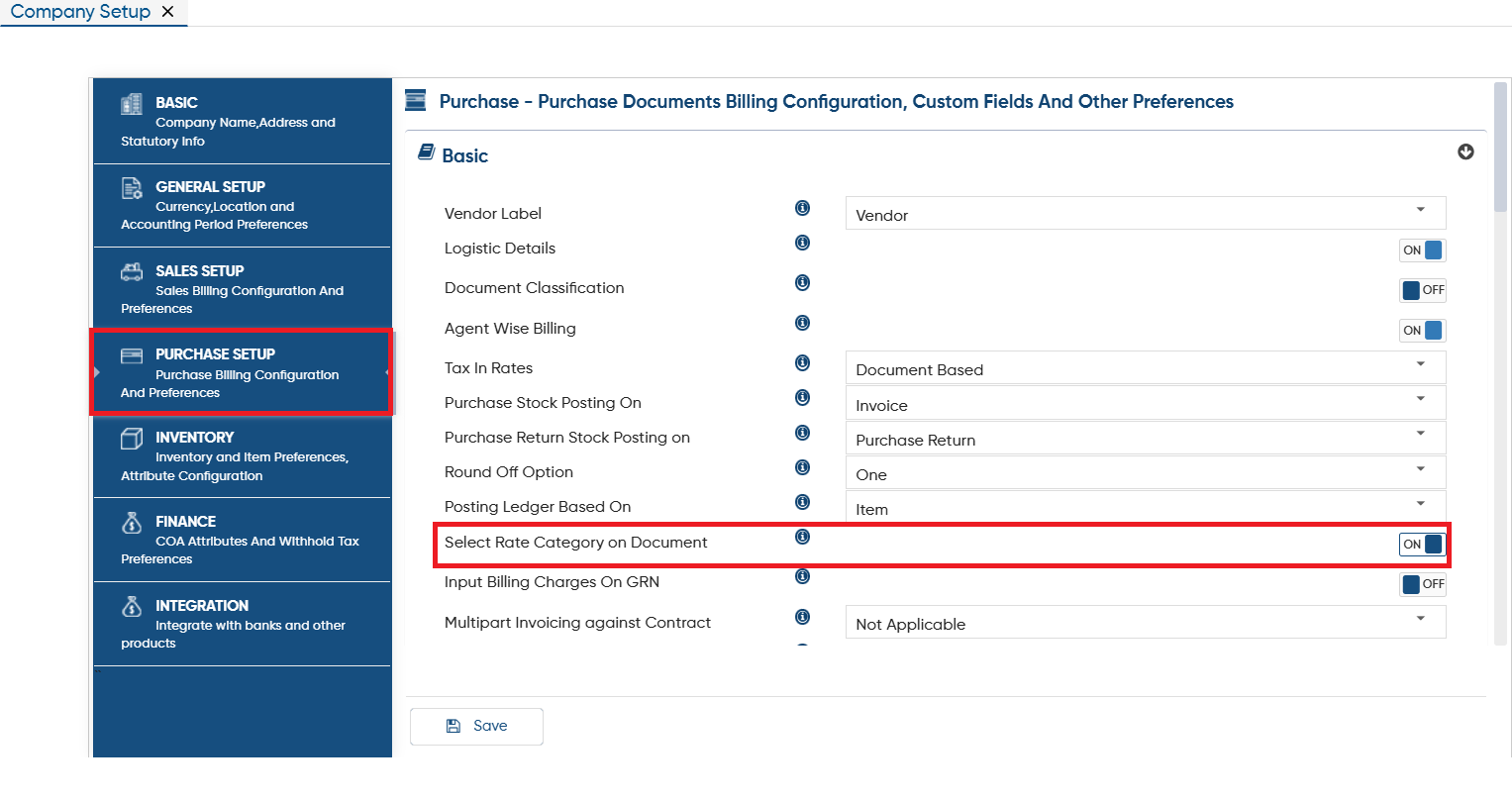
Click on 'Purchase Setup' and in 'Select Rate Category on Document' option, Turn it 'ON'.
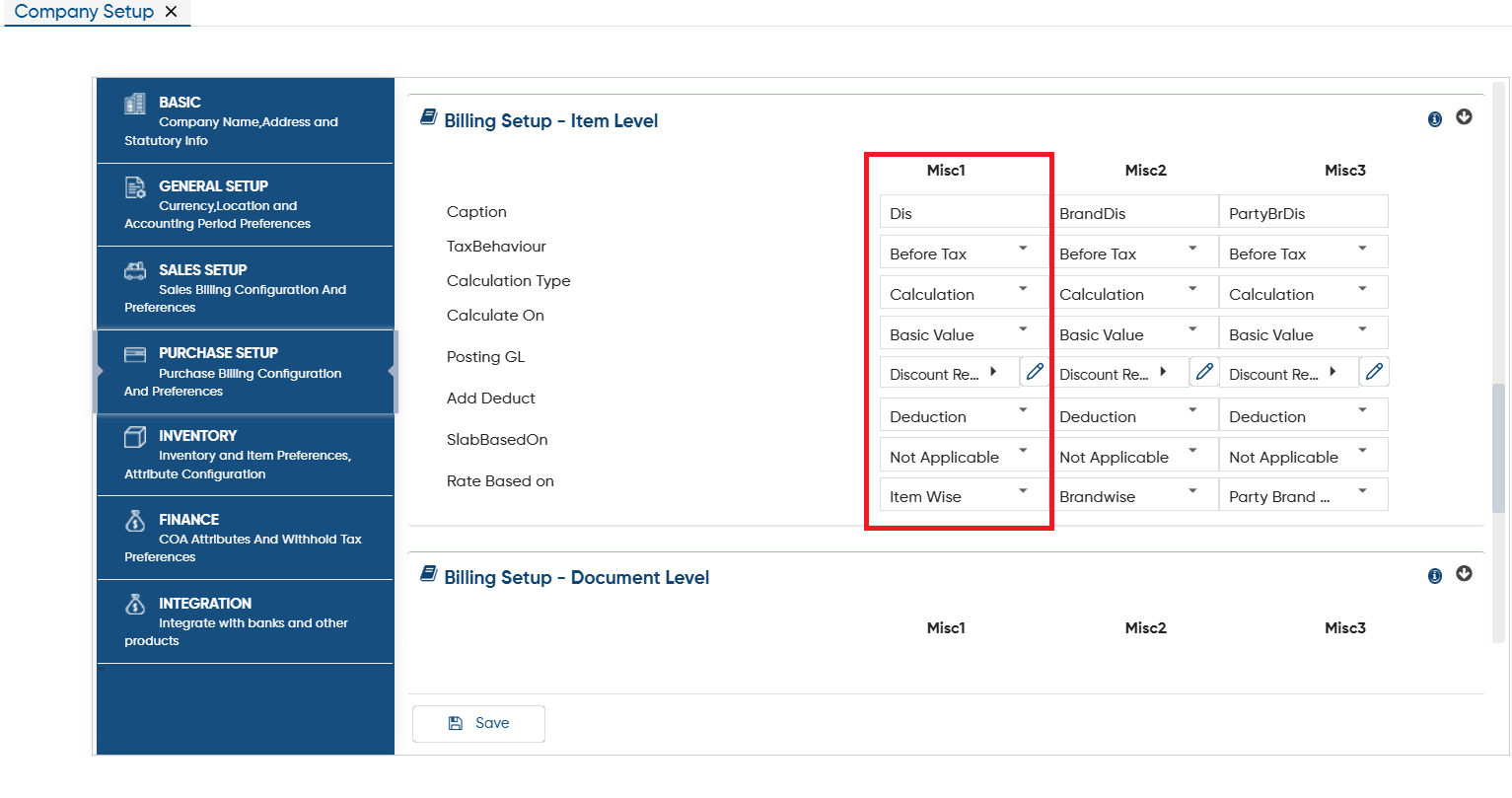
If you want to fix Discount/ Charges along with the Item's prices then you need to enable the field for Discount/ Charges in Billing Setup - Item Level. Here, you can set things like how the discounts will calculate, which ledger to use for posting, and discounts based on items or parties.
For example, if you want to set discounts along with the prices, scroll down the page in 'Purchase Setup' and enable the Discount field in any of 'Misc' column.
Suppose enable in 'Misc 1' column, mention the Discount details, caption, calculation etc as per the requirement.
-
Caption: Mention the field name for Discount which you want to display in the Price List setup.
-
TaxBehaviour: Select the option whether the Discount should be calculate Before Tax or After Tax.
-
Calculation Type: Select whether the calculation should be fixed or in percentage.
-
Calculate On: Select the option based on which discount should be calculate like whether you want to calculate on Basic Value, Quantity, Taxable Value etc.
-
Posting GL: Select the Account group in which you want to post the discount value in your books of account.
-
Add Deduct: Select the option whether you want to Add discount, Less discount Value etc.
-
Addition: Select this option, to Add discount Value in Invoice.
-
Deduction: Select this option, to Deduct Discount value in Invoice.
-
Floating: Select this option, if needs to mention '+' or '-' sign for adding or deduct the discount while creating Price list as per the requirement.
-
SlabBasedOn: Select whether the discount rate should be on Quantity or Amount.
-
Rate Based On: In this option you need to select 'Item Wise' to enable field in Price List.
Click on 'Save' button.
The 'Misc' fields are limited to just three fields, and additional fields cannot be added. Be sure to enable them appropriately.
|
-
Now you will create the price list or fix Discount or Charges as per your requirement.
-
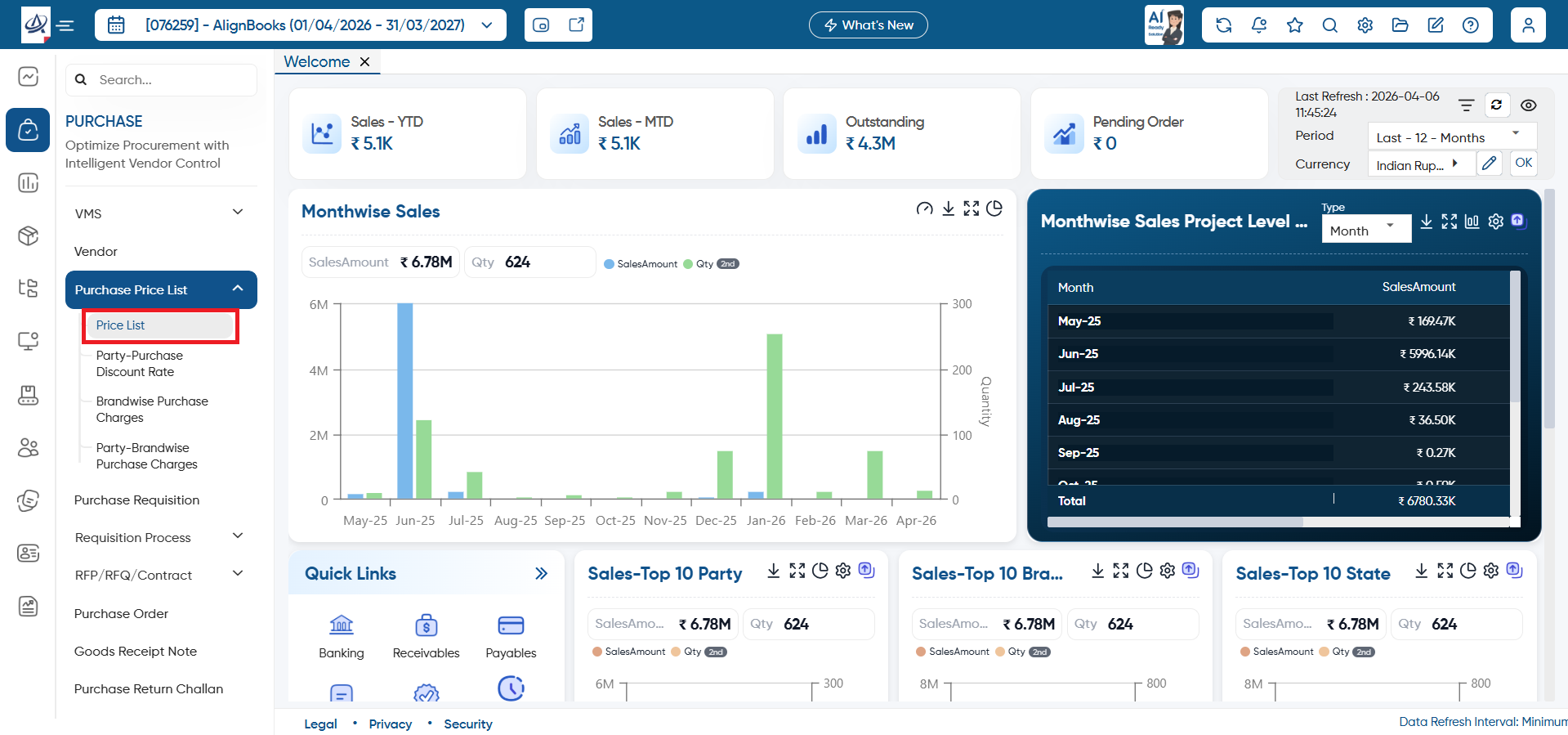
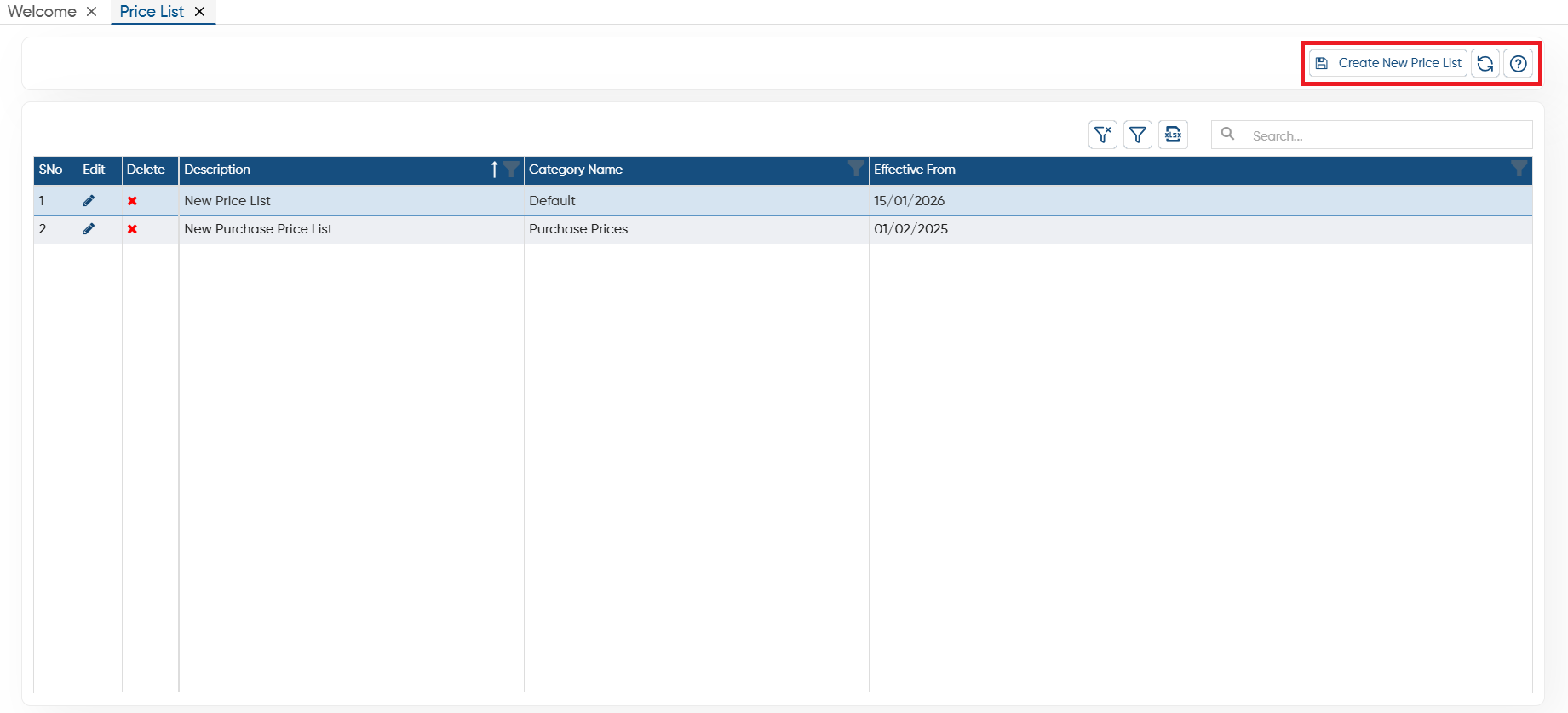
Go to Purchase > Purchase Price List > Price List.
-
Create New Price List: Click on this button to create or add new price list.
-
Refresh: After making changes if screen doesn't update you can refresh the screen. This will display the latest changes on the screen.
-
Help: Click on the help icon to access the step by step guide of the Process.
-
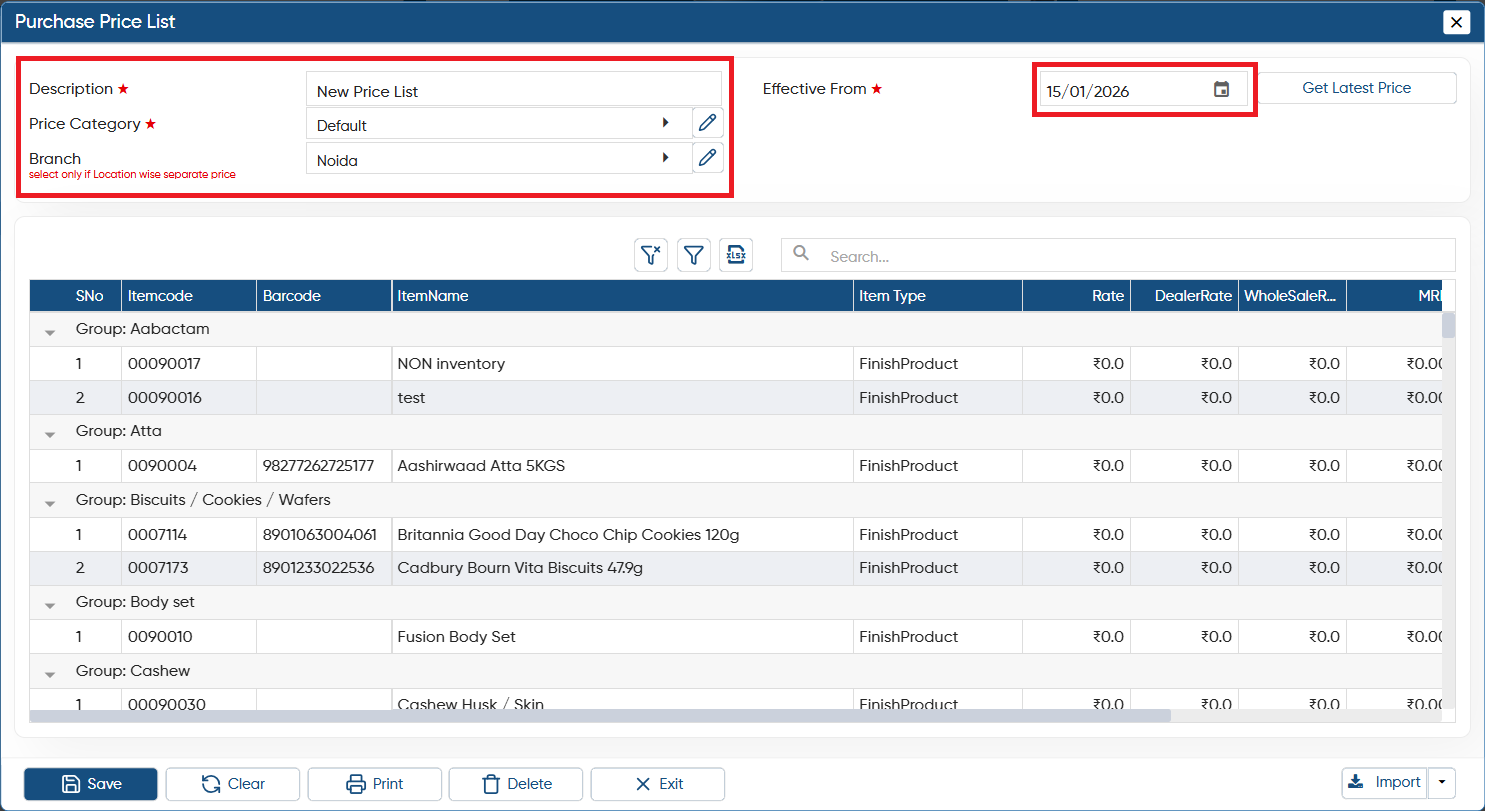
Description: Mention the name of the Price List, for your identification.
-
Price Category: Select the category as you can categories them as per your business needs. You can Add Price Category on same window by clicking on '+' icon.
-
Branch: Select the branch if you want to set the Price/ Discount/ Charges for specific Branch. If you company have multiple branches you can create different price list based on the branch.
-
Brand: Click on the dropdown to set the prices for specific brand's items.
-
Effective from: Select the date from when the Price/ Discount/ Charges needs to be applied for the vendor.
-
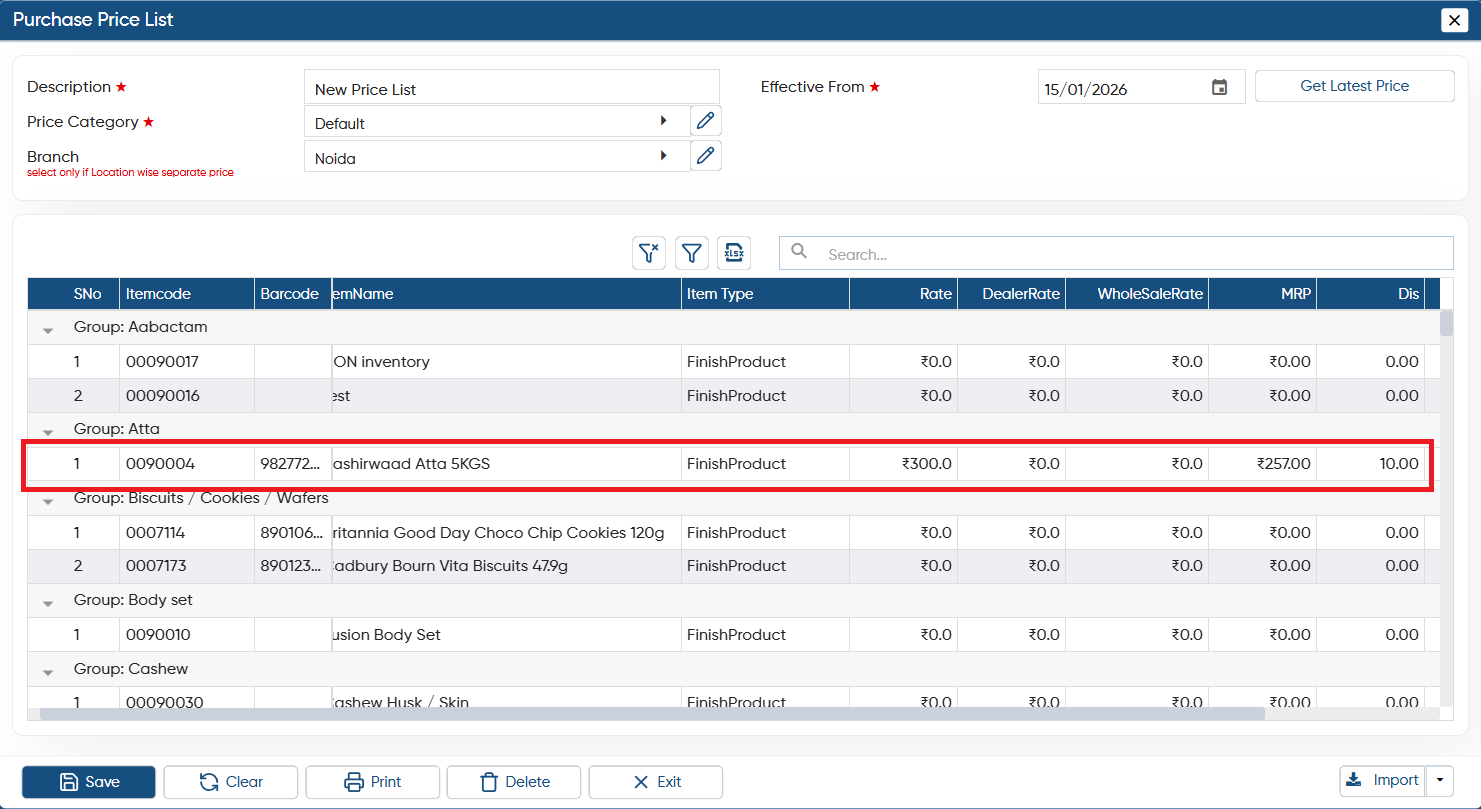
You can now set the Item-wise Rate, Wholesale Rate, MRP as per your requirements.
-
The Discount or Charges field you enable will also be displayed alongside the Rates column, allowing you to specify them for each item.
-
Click on 'Save' button.
Now let's view how the price/ discount will be auto picked by the software in the Purchase Invoice. There are 2 ways to load Price/ Discount/ Charges in Invoices.
1. Select Price Category Manually While Billing
2. Fix Price Category in Vendor Master
Case 1. Select Price Category Manually While Billing
You can manually select the prices category while billing, prices will be load based on the price category selection.
-
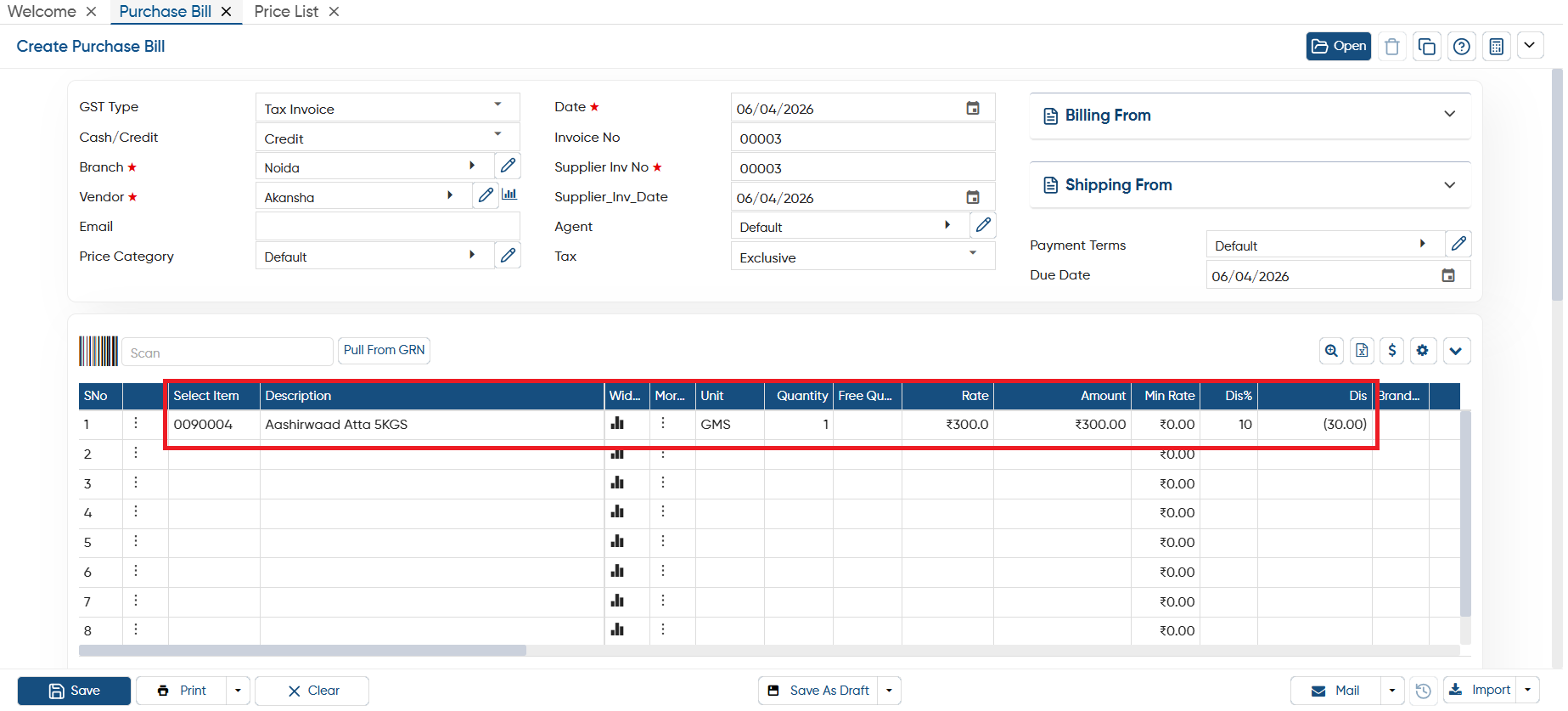
While generating the purchase invoice, In 'Price Category' option, click on the dropdown to select the price category according to which you want to load the Prices/ Discount/ Charges for the vendor.
-
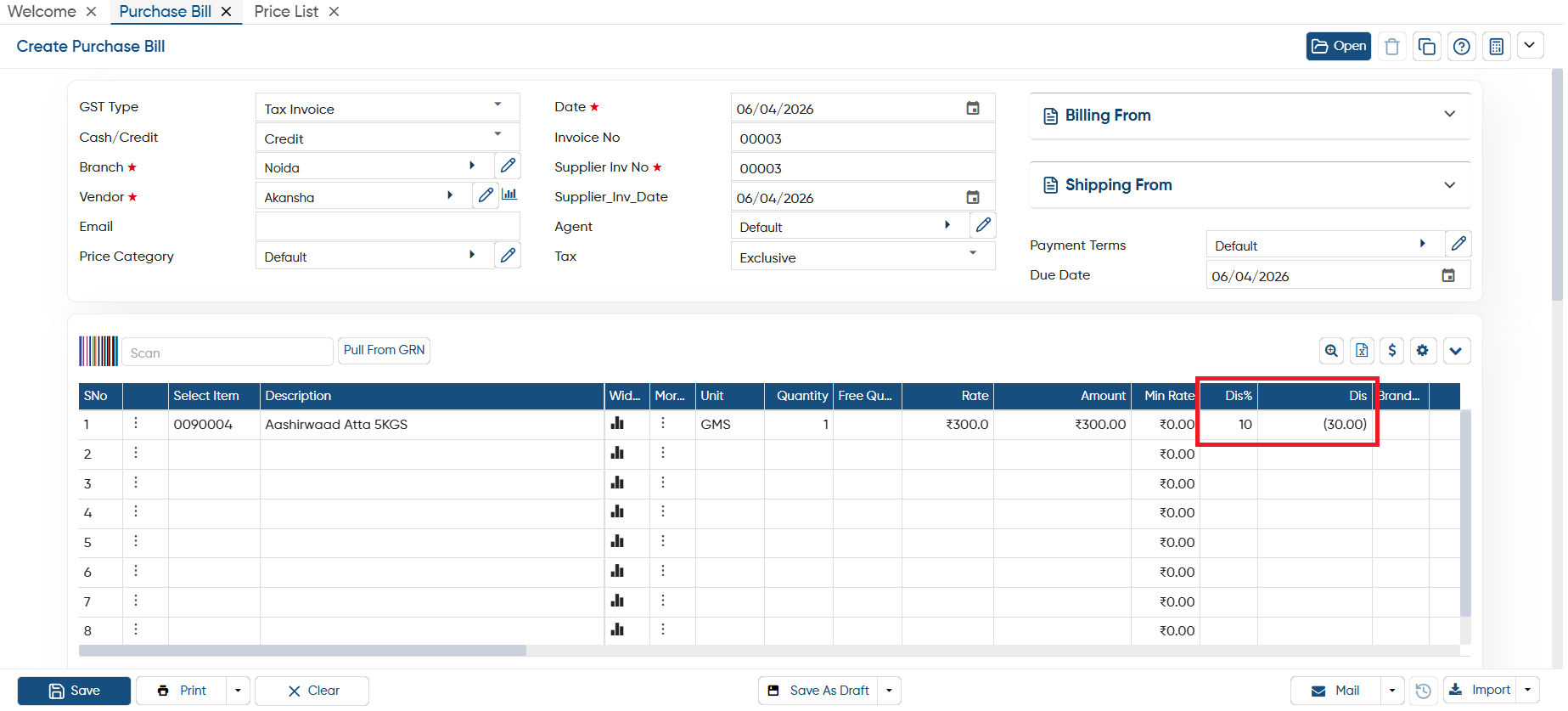
Now suppose load the item 'Acnederm Lot' in the Invoice and mention Qty as '1', you can view Rate '130' and Discount '4' (in percentage) will get auto picked in the invoice.
-
(Qty * Rate ) * 10% discount = Discount Value
-
(1 * 300) * 10% = 30 (Discount amount will also calculate and display besides the discount Value).
Case 2. Fix Price Category in Vendor Master
-
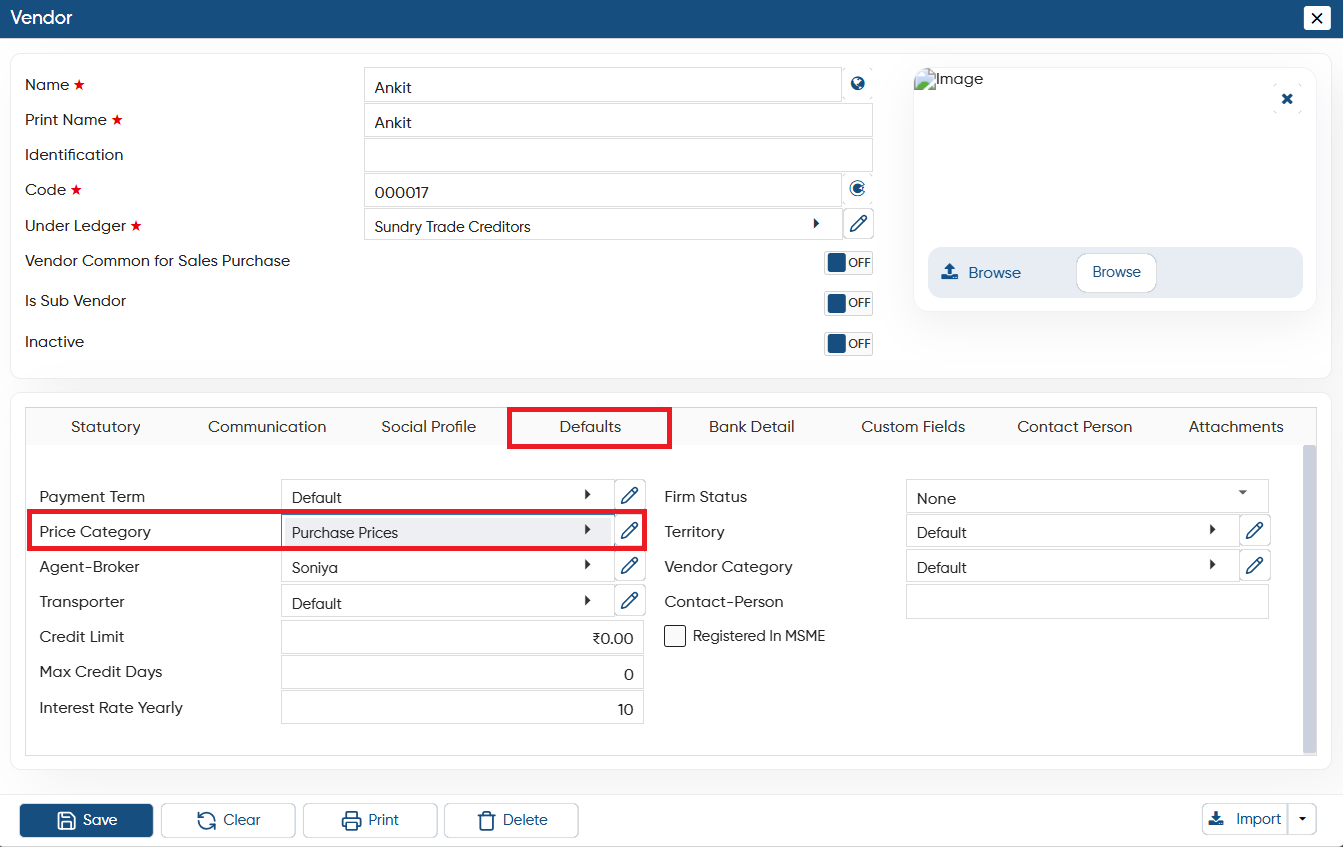
Open the 'Vendor' master, select the 'Defaults' section, in 'Price Category' option, select the price category that you want to fix for this specific vendor.
-
Click on 'Save' button.
-
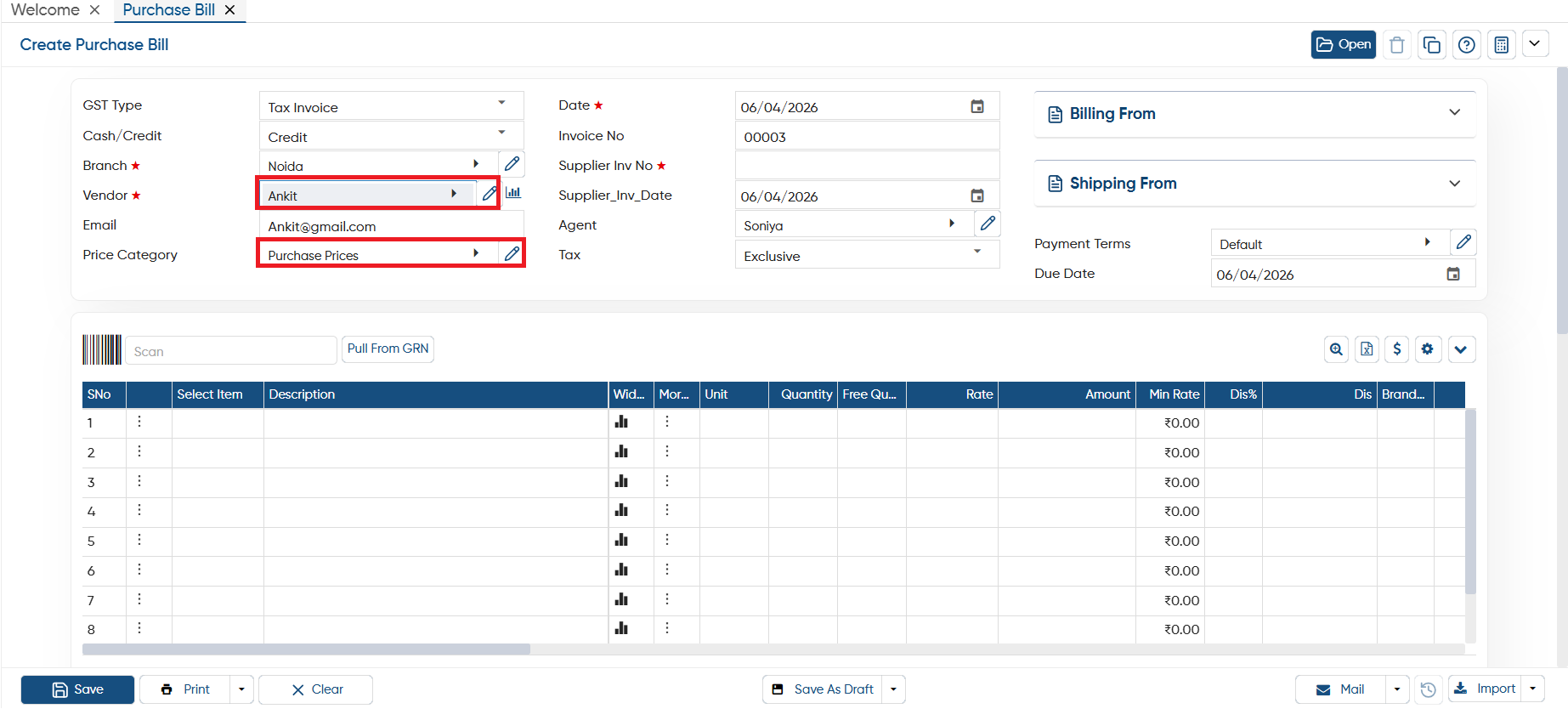
Now when you create a Purchase Bill and select the specific vendor, price category will be auto picked by the software.
-
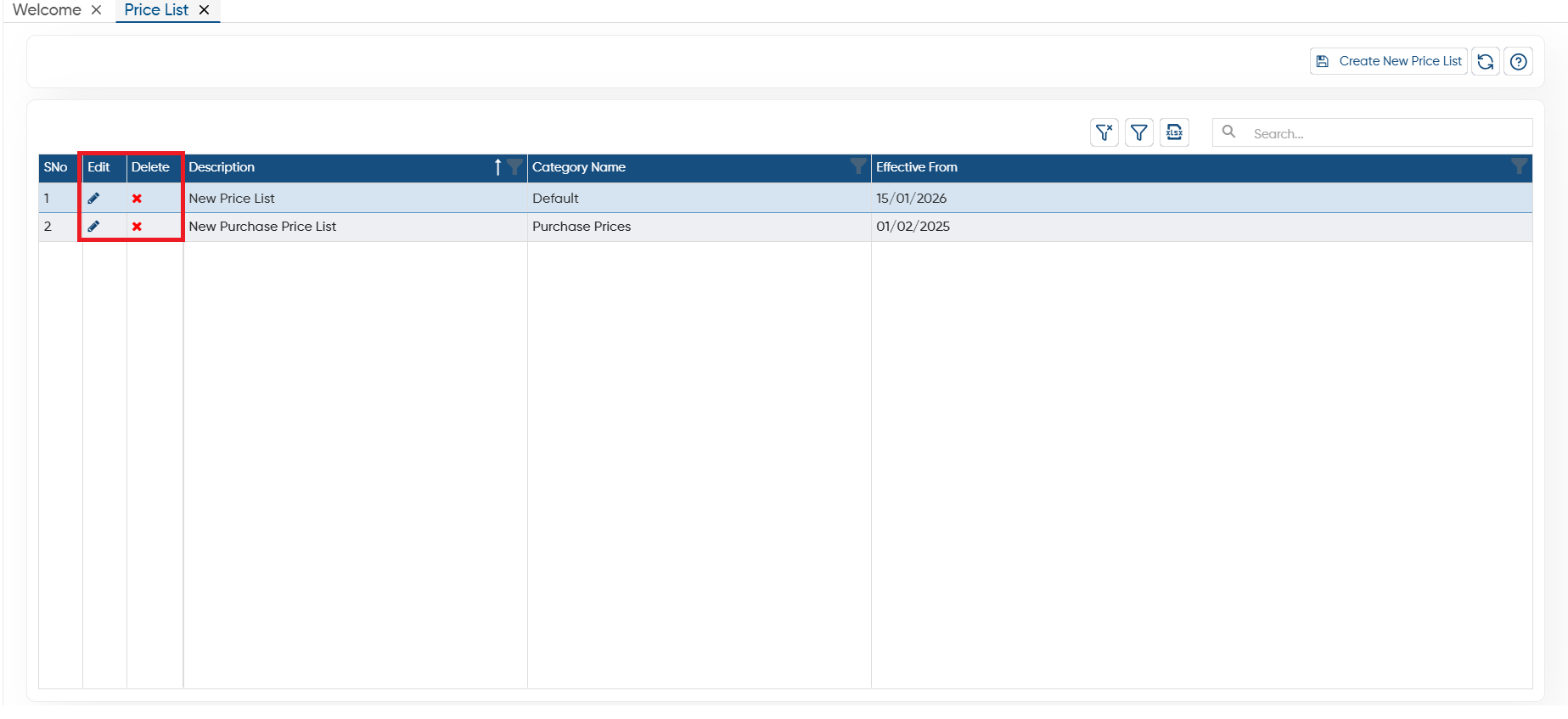
 Click on Edit icon to make any changes or updation to the price category.
 -
 Click on cross icon on the specific price list to remove or delete it.
-
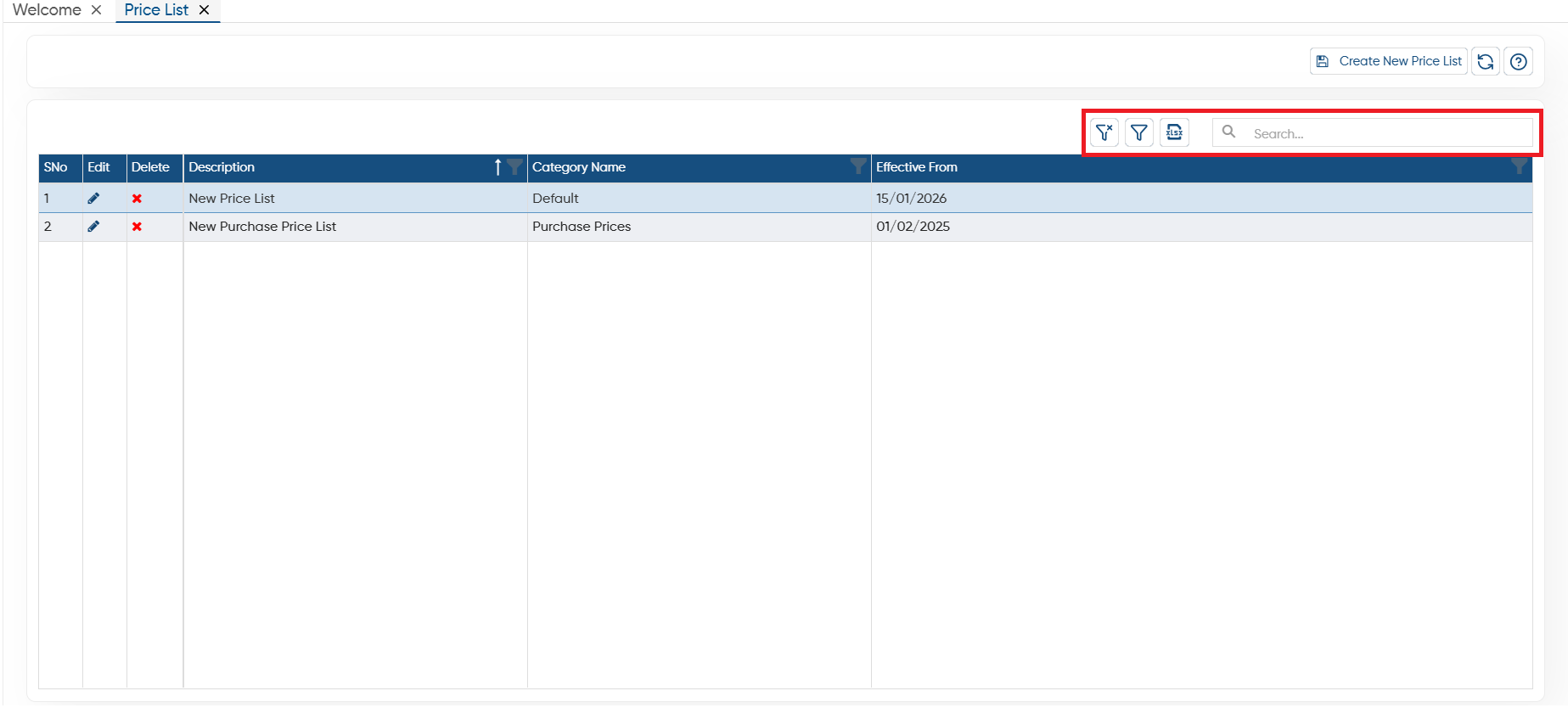
Clear Filter: Click on the Clear Filter icon, to remove all the filters you have applied on the list.
-
Show Filter: Through the ‘Show Filter’ icon, you can enable column-wise filtering. Once activated, a search icon will appear at the top of each column, allowing you to filter the list easily.
-
Excel: You can export the all data in excel file also, to export the data click on excel icon.
-
Search: To search any record in the list, only type the related information in search box, software will display the result on the screen.
In this way, you can Create Price List and fix Discount/ Charges Item wise in AlignBooks.