
Pull SI From Other Company as PI
AlignBooks offers a powerful feature that allows you to seamlessly import a sales invoice as a purchase invoice when both parties are using AlignBooks. This functionality eliminates the need for manual data entry, ensuring a smoother transaction process between businesses.
When a seller generates a sales invoice in AlignBooks, the buyer (who is also using AlignBooks) can directly import that invoice into their system as a purchase invoice. This process ensures that all invoice details, such as item descriptions, quantities, rates, taxes, and total amounts, are accurately transferred without manual input.
Key Benefits of Pulling SI from Other Company as PI:
-
Saves Time & Reduces Manual Work: It eliminates the need for the buyer to manually enter purchase invoices.
-
Speeds up the invoicing process, especially for businesses with frequent transactions.
-
Minimizes Errors: Reduces the risk of human errors in data entry, such as incorrect amounts, mismatched tax details, or missing items.
-
Ensures Data Consistency: Both parties have the same invoice details, avoiding discrepancies in records and ensures accurate reporting and reconciliation between buyers and sellers.Who Can Benefit?
-
Wholesale & Retail Businesses handling large volumes of invoices.
-
Distributors & Dealers who frequently transact with suppliers.
-
Service Providers working with regular corporate clients.
-
E-commerce & B2B Businesses needing smooth invoice management.
Watch a Video
-
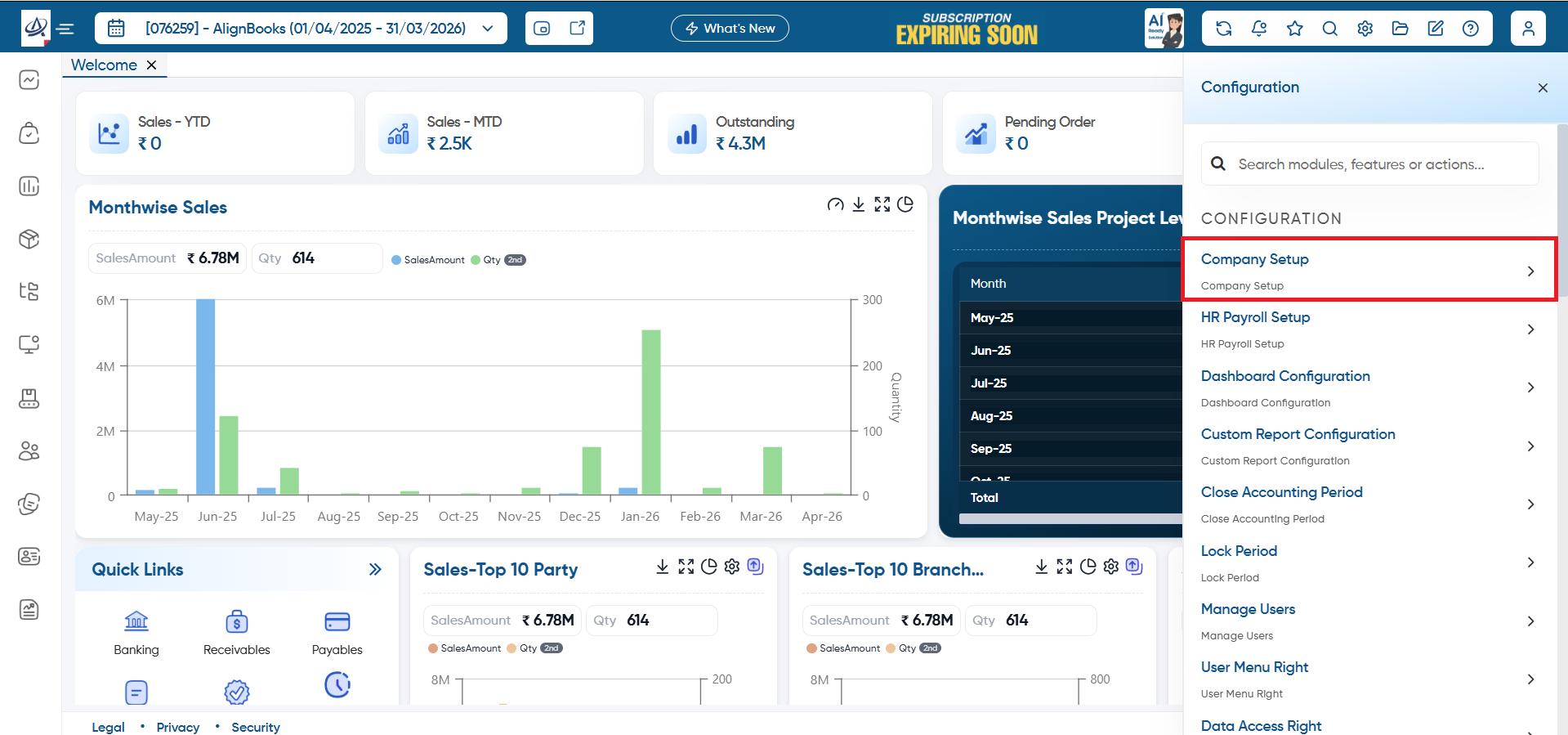
First, the Seller will do the integration and map the customer's Company Code and ledger in the setup, click on 'Configuration' icon.
-
Now select the 'Company Setup' option.
-
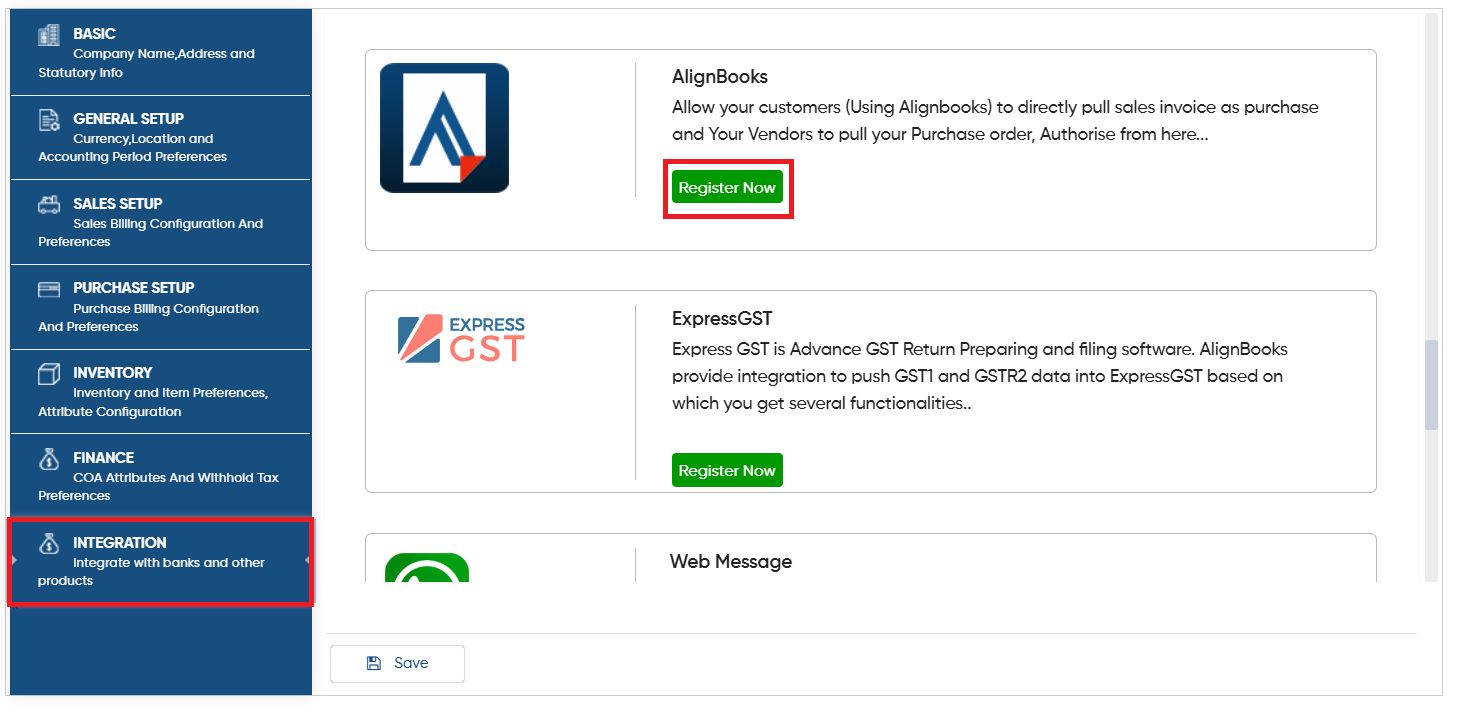
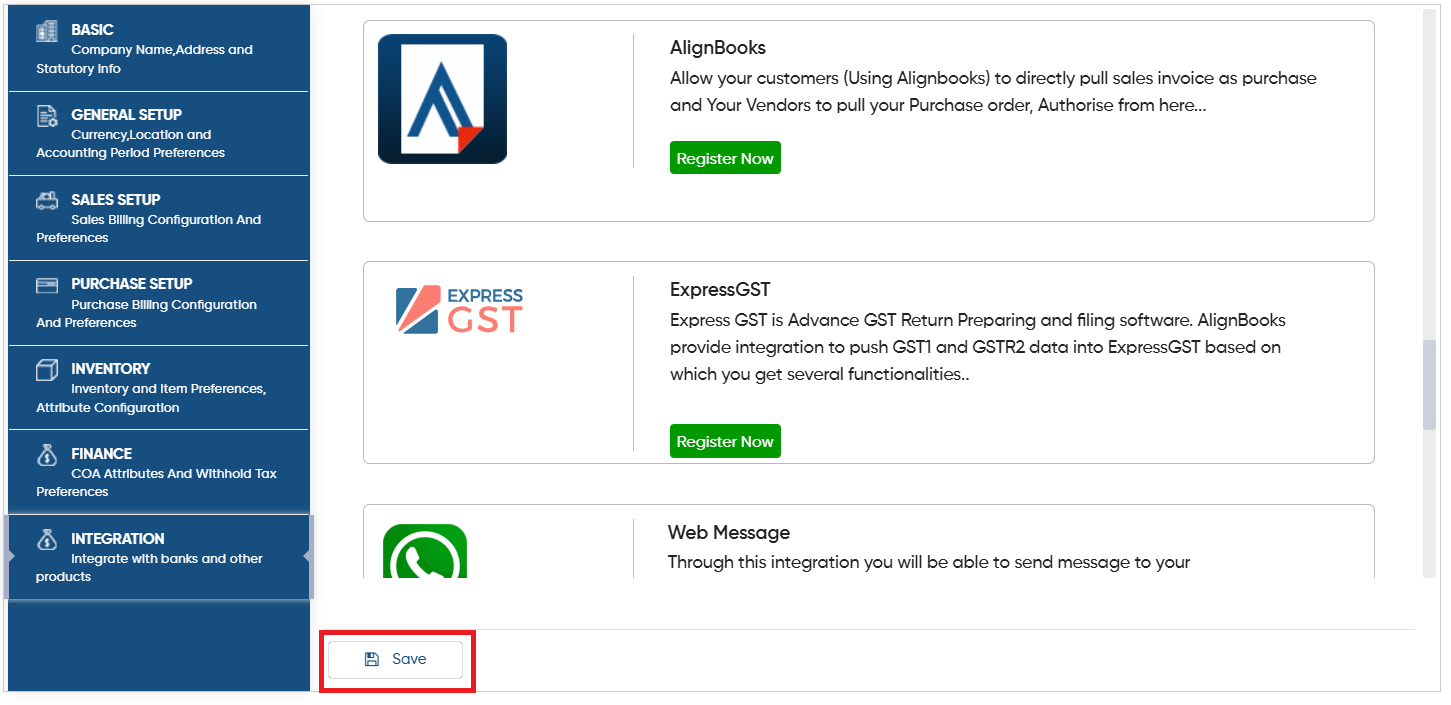
Click on 'Integration' tab. Scroll down the page and in 'AlignBooks' section, click on 'Register Now' button.
-
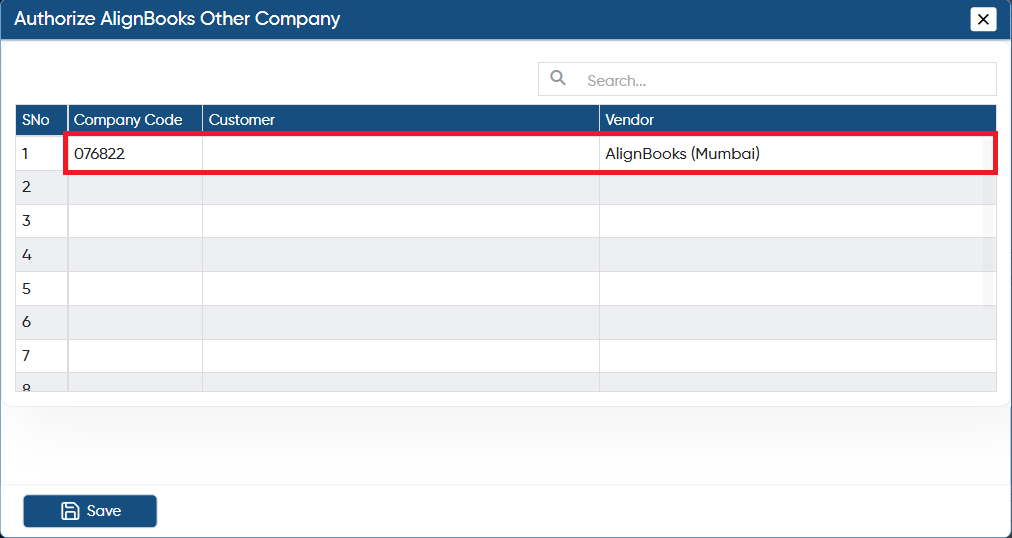
In 'Company Code' column, mention the company code of the customer to whom the goods need to be sold out.
-
In 'Customer' column, select the ledger of the customer.
-
Click on 'Save' button.
Make sure to first create a Ledger for the Customer with the actual company name; only then will the Ledger be displayed here.
|
-
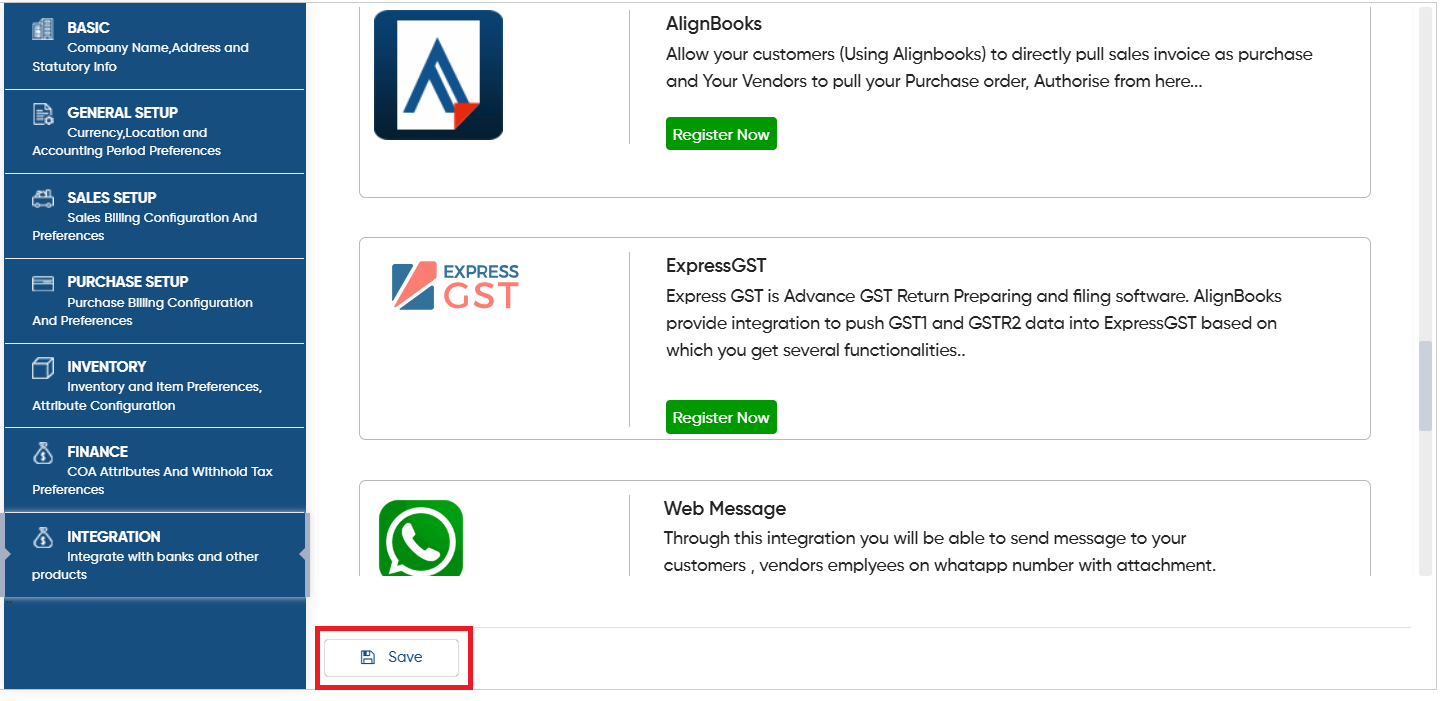
Again click on 'Save' button to save the settings.
After this, it's Mandatory to Re-Loin the software.
|
-
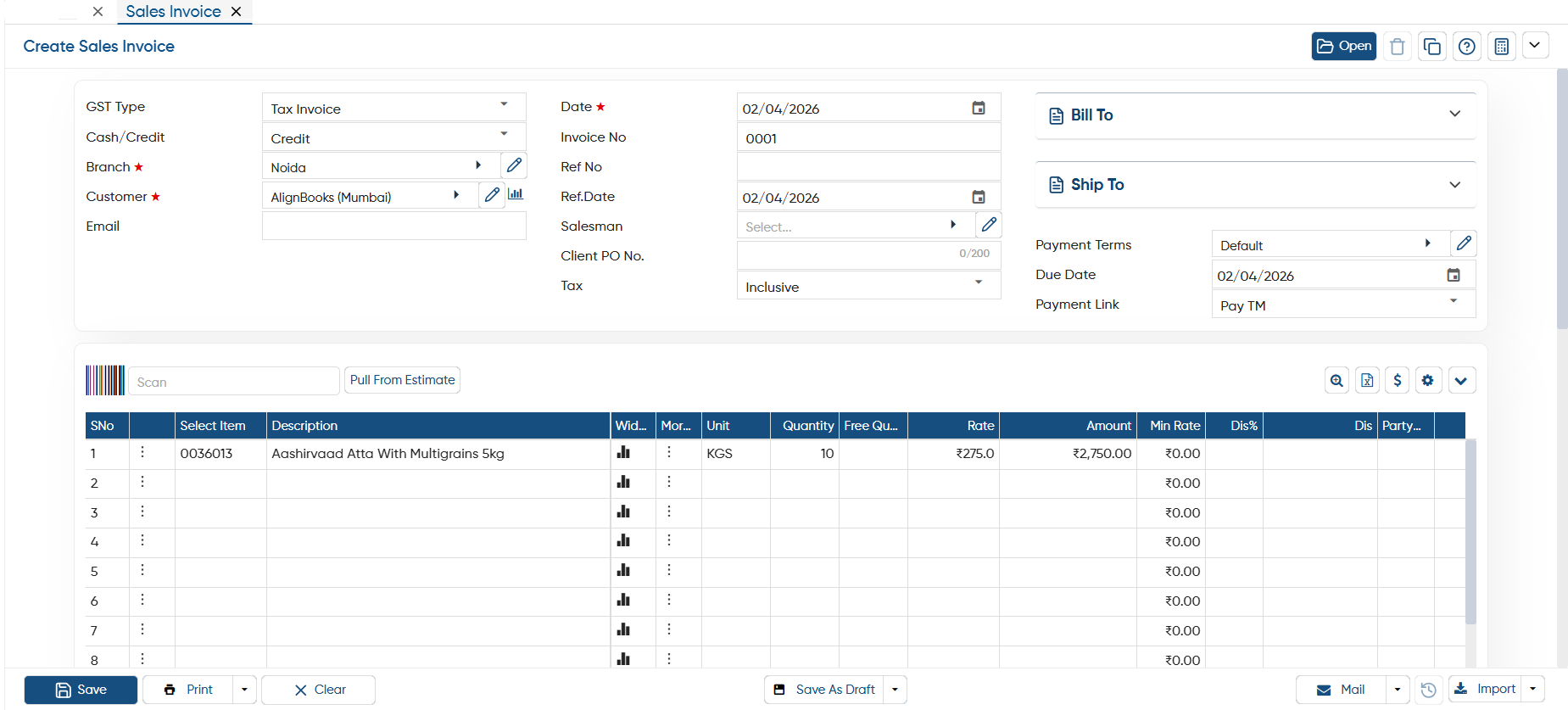
Now, you will generate a Sale Invoice in the software for your customer.
-
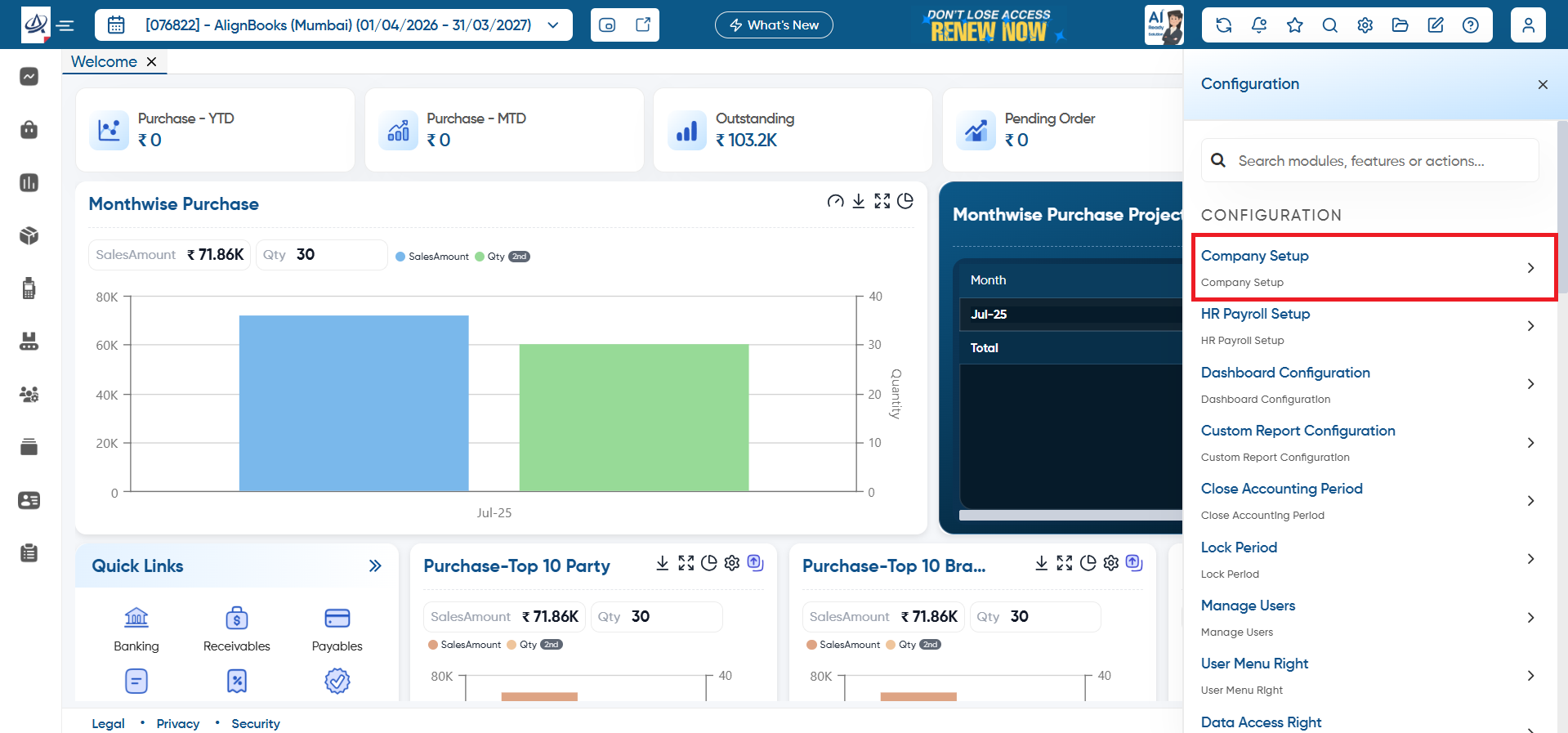
Now map the Supplier/ Vendor's Company Code and ledger in the setup, click on 'Configuration' icon.
-
Now select 'Company Setup' option.
-
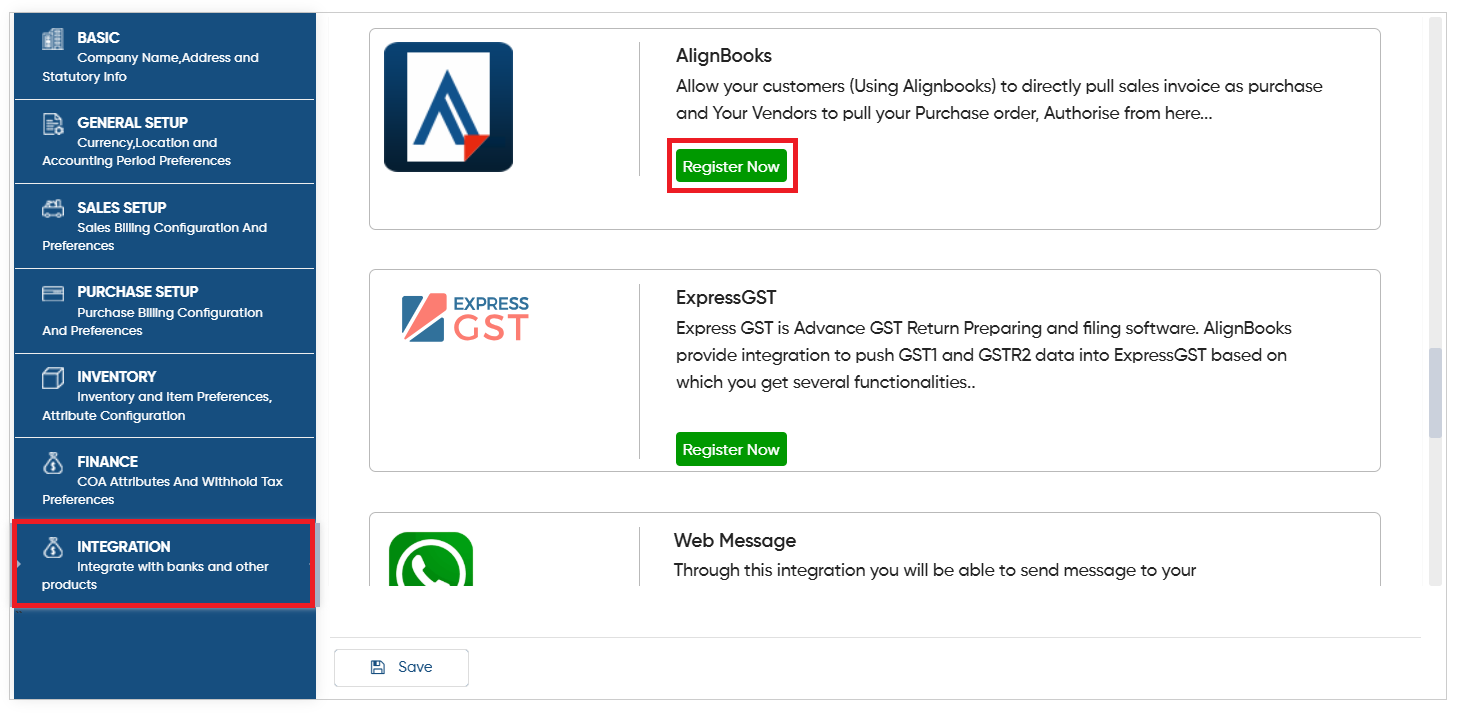
Click on 'Integration' tab.
-
Scroll down the page and in 'AlignBooks' section, click on 'Register Now' button.
-
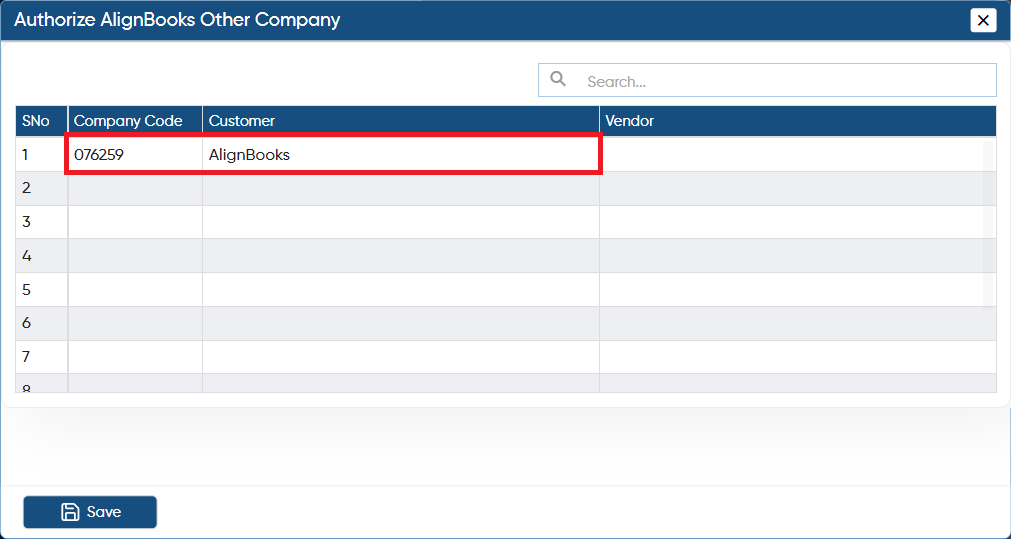
In 'Company Code' column, mention the company code of the Supplier/ Vendor from whom the goods need to be purchased.
-
In 'Vendor' column, select the ledger of the supplier/ vendor.
Make sure to first create a Ledger for the Supplier/ Vendor using the same company name; only then will the Ledger be displayed here.
|
-
Click on 'Save' button.
-
Again click on 'Save' button to save the settings.
After this, it's Mandatory to Re-Loin the software.
|
-
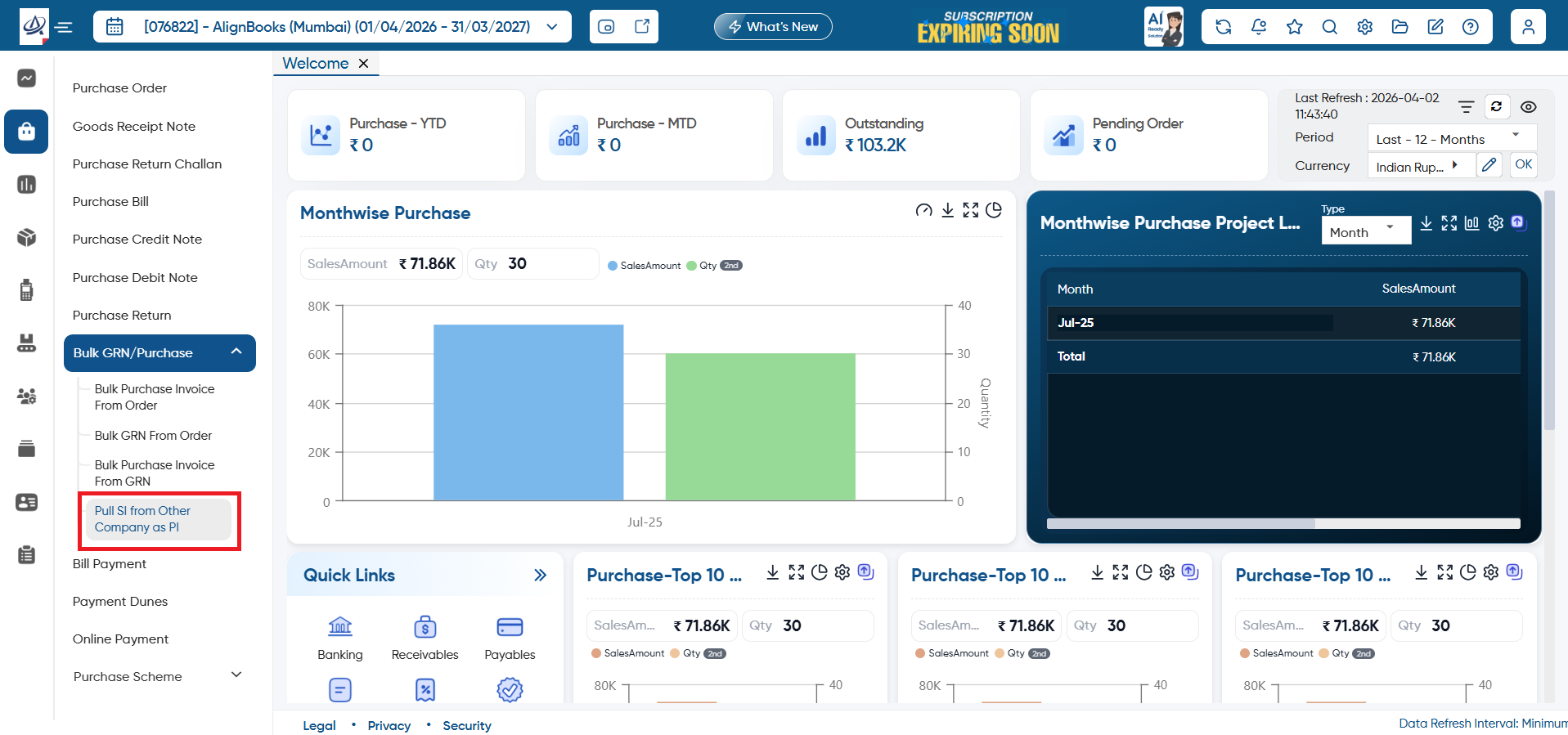
After the integration, you need to Pull the SI as PI, therefore go to Purchase > Bulk GRN Purchase > Pull SI from Other Company as PI.
-
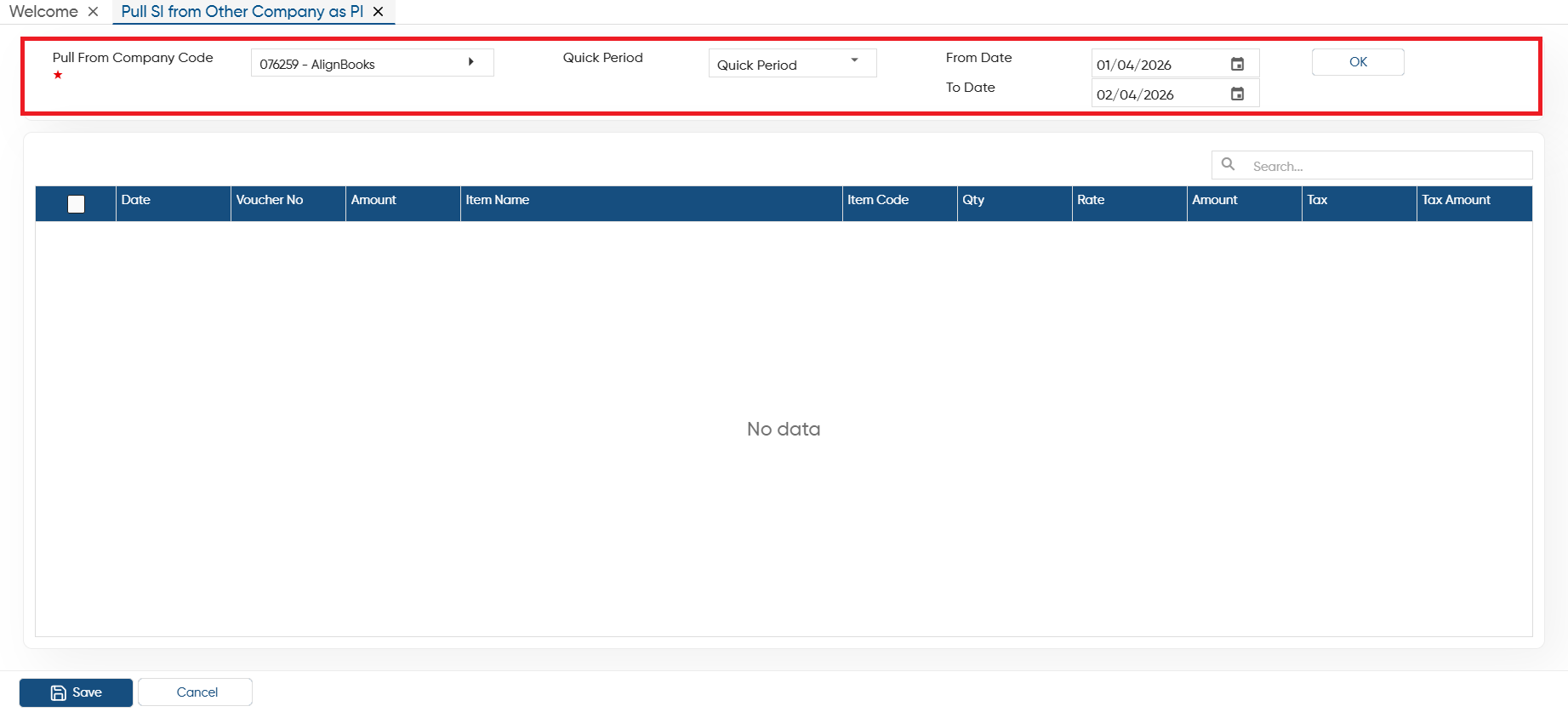
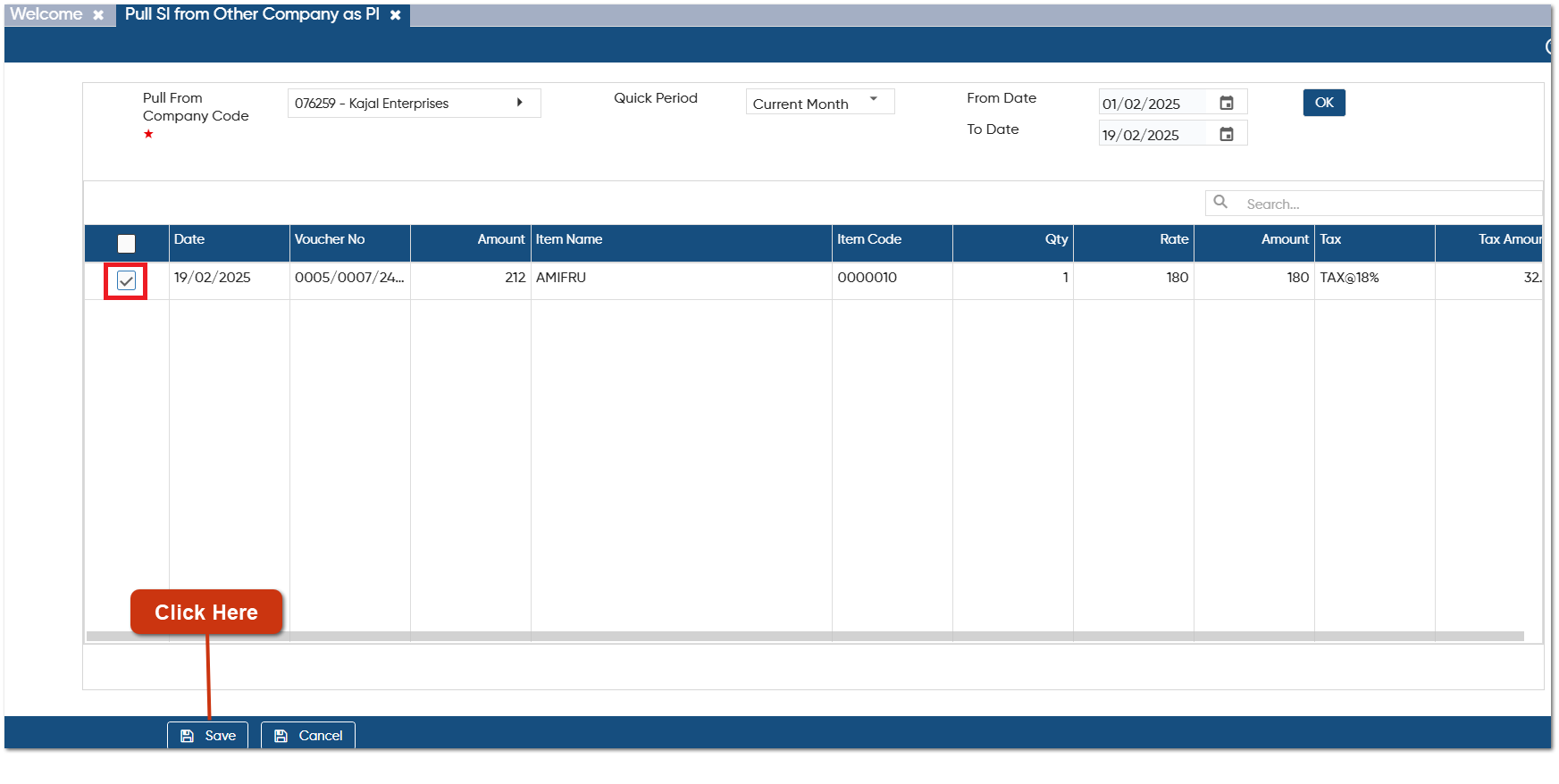
In 'Pull From Company Code' option, select the company name whose Sale Invoice you want to pull.
-
In 'Quick Period' option, select the period for which you want to pull the sale invoices.
-
Click on 'Ok' button.
-
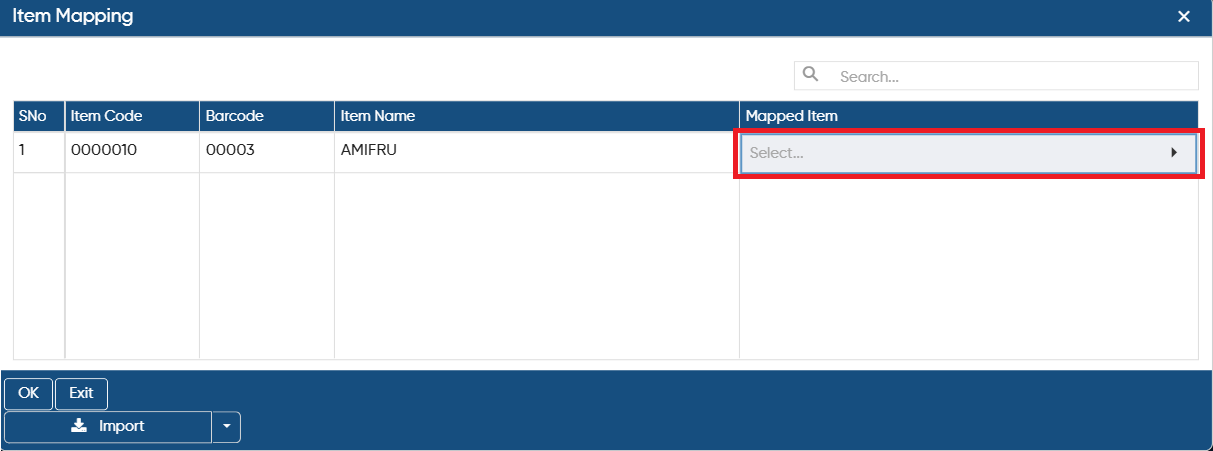
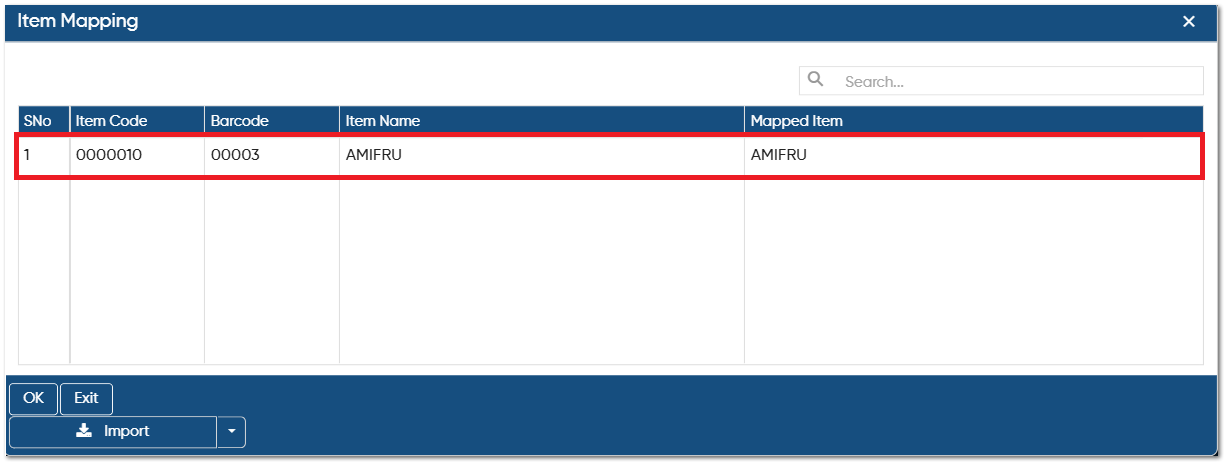
An item mapping window will appear, here you need to map the item name with the items available in your software.
You only need to map it the first time; after that, the software will not prompt you to map it again.
|
-
After mapping the items, click on 'Ok' button.
-
Again click on 'OK' button.

-
Tick the check box against the order that you required to pull or import.
-
Click on 'Save' button.
-
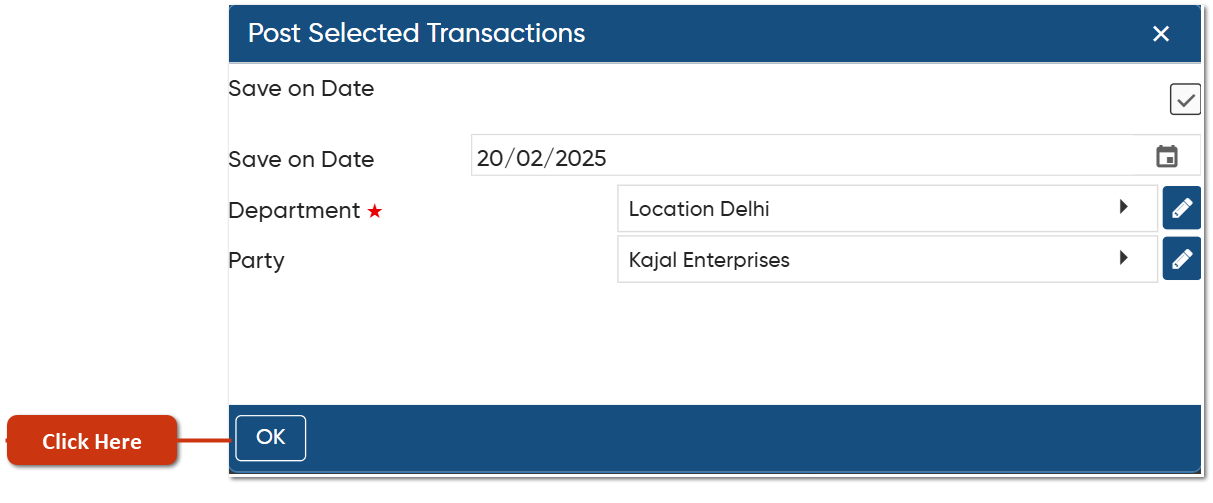
Save on Date: Tick the check box.
-
Save on Date: Mention or select the date from the calendar icon on which you want to save the Sales Order.
-
Branch: Select the branch for which you required to save the sales order.
-
Party: Here, you need to select the party's ledger.
Click on 'Ok' button.
-
Thereafter, you can view Sale Invoice will be pulled as Purchase Invoice.

In this way you can Pull the Sale Invoice from Other Company as Purchase Invoice in AlignBooks.