
Request For Proposal
The Request for Proposal process in AlignBooks allows you to create and manage proposal requests in a simple and organized way. Instead of preparing documents manually and sending them separately, you can create a detailed proposal directly inside the system. Once the proposal is issued, it becomes visible on the vendor portal.
Vendors can log in, review the requirements, understand the scope of work, and submit their responses online. This keeps the entire process centralized, transparent, and easy to track. It also helps you manage vendor communication and evaluation in a structured and controlled manner without confusion or manual follow-ups.
-
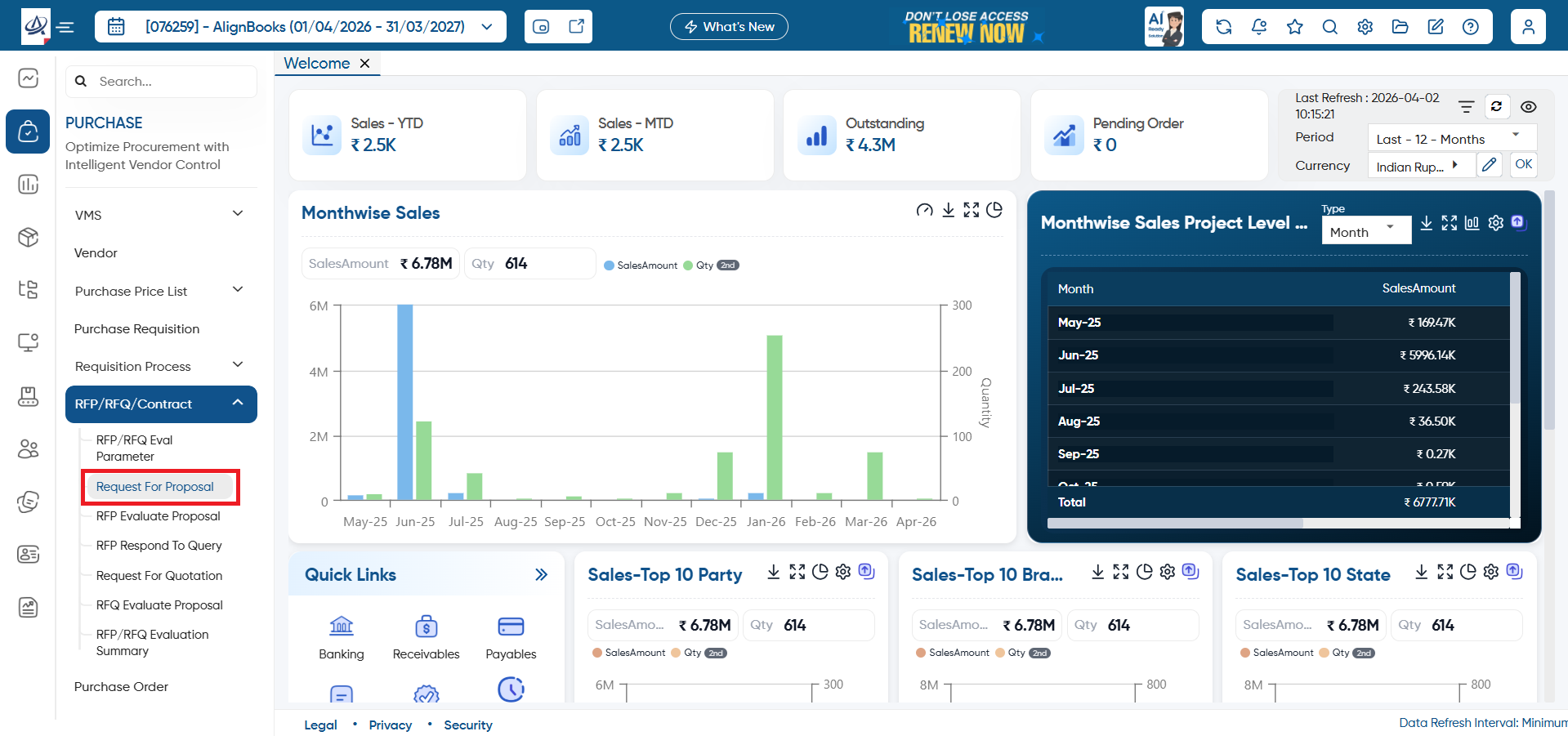
Open the ‘Purchase’ > ‘RFP/RFQ/Contract’ > ‘Request For Proposal’ option.
-
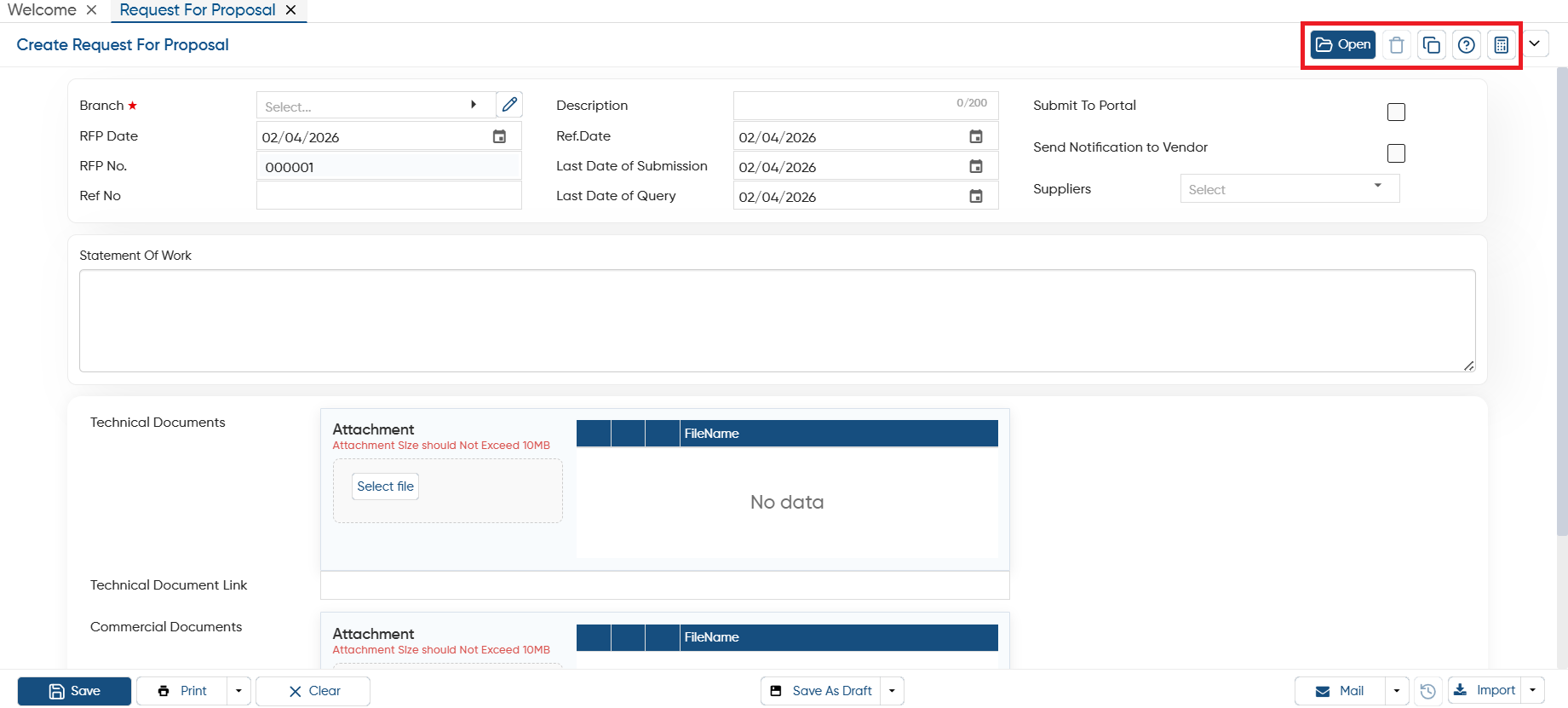
Open: This option allows you to view selected document you have created in the software. If you required to make any changes in the saved invoice you can click on 'Open' icon, select the date range and can make changes in it.
-
Delete: With this option, you can remove or delete the document permanently.
-
Copy: This feature lets you copy the invoice and create a new one based on the same details, which you can then modify as needed.
-
Help: Click on the help icon to access the step by step guide of the Process.
-
Calculator: AlignBooks includes an inbuilt calculator that you can use while working within the software, making calculations easier.
-
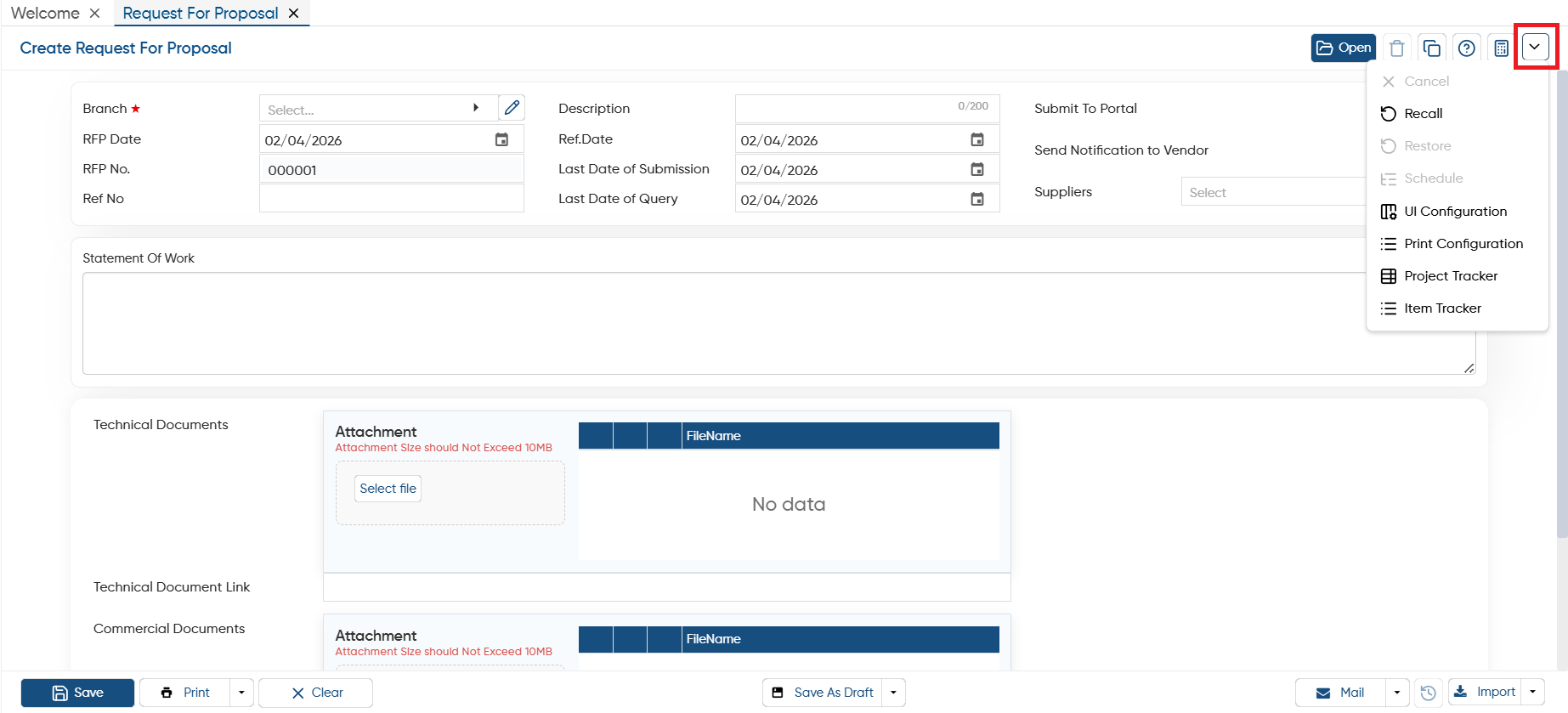
Cancel: If you no longer need an open document but don't want to permanently delete it, click on the ‘Cancel’ button. This will cancel the document but keep it in the list, allowing you to restore it whenever needed.
-
Recall: This option is used when a customer bill (POS Invoice) is put on hold. You can click on this option to retrieve the held invoice and continue billing from where you left off.
-
Restore: If you click on a cancelled document, the ‘Restore’ option will appear, allowing you to restore the document to its previous state.
-
Schedule: If you need to create the same document with the same details regularly on a fixed schedule, you can set up a Schedule for it. The document will then appear in the ‘Post Recurring Module’ of AlignBooks. From there, you can post the document with just one click, without having to prepare it repeatedly. This also serves as a reminder for you.
You can only schedule the document after you have saved it. The schedule option is not available while you're in the process of creating the cheque return entry.
|
-
UI Configuration: For additional settings related to this voucher, navigate to the configuration option. There, you can adjust settings such as invoice numbering, email, WhatsApp, SMS, approvals, and more.
-
Print Configuration: This option lets you customize the voucher print settings, including header/ footer remarks, terms & conditions, and setting the default invoice format etc.
-
Project Tracker: This option helps you track any project using details like work orders, site summary, budget vs actual, and progress, etc. You can also see how many records have been created for each process, making it easier to monitor project performance and stay on track.
-
Item Tracker: This option helps you track a specific item and see in which projects or transactions it has been used. You can also check how many requests and issues have been created for that item, helping you manage stock better and avoid shortages or overuse.
-
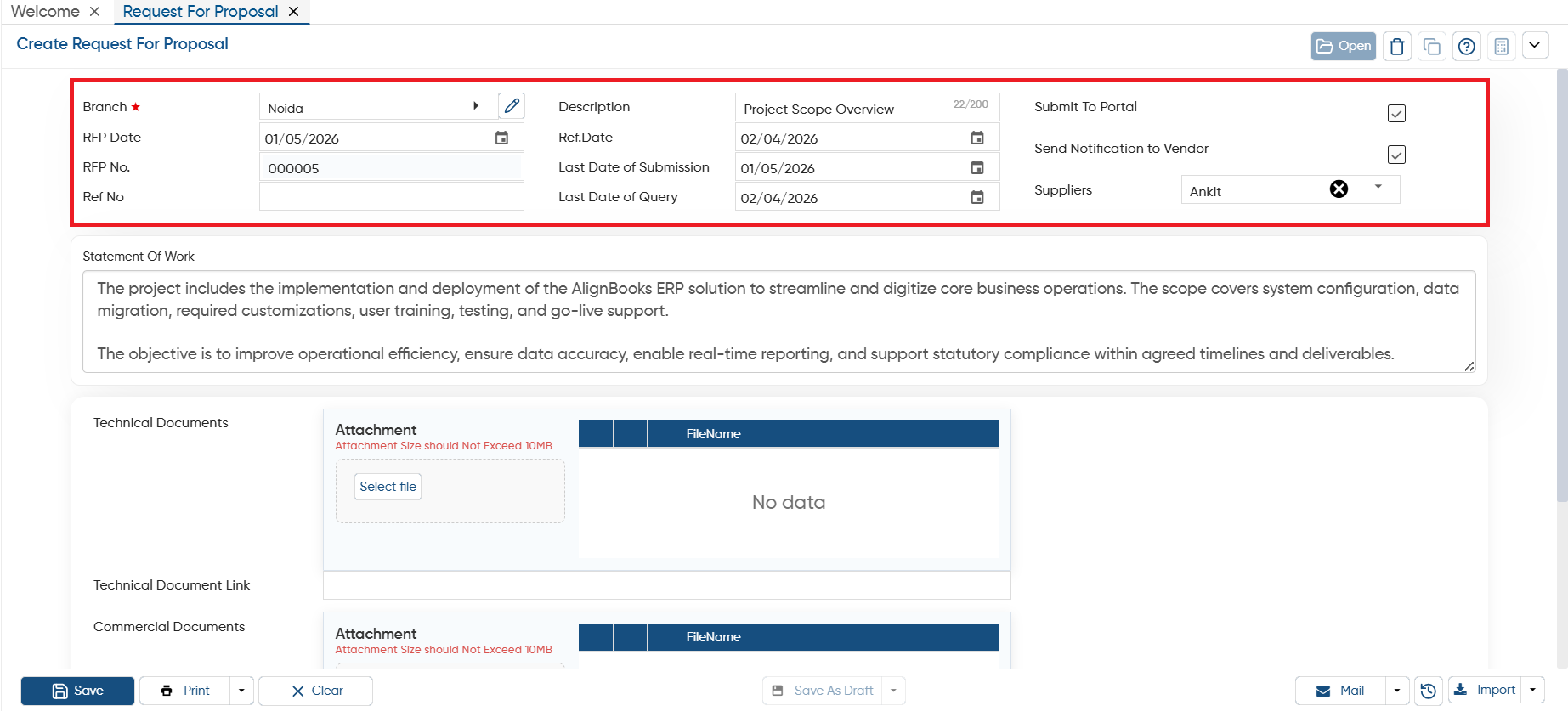
Branch: Select the branch that is raising the RFP. This helps in identifying which branch is responsible for the requirement.
-
RFP Date: Enter the date on which the Request for Proposal is created or issued. This helps in tracking when the proposal process started.
-
RFP No.: This is the unique identification number of the RFP. It helps in tracking, referencing, and managing the proposal in records and reports.
-
Ref No: You can mention any internal reference number or related document number for cross-reference purposes.
-
Description: Provide a short summary or title of the proposal, such as Project Scope Overview. This gives vendors a quick understanding of what the RFP is about.
-
Ref. Date: Mention the reference date related to the project or supporting document. This is used for documentation and tracking purposes.
-
Last Date of Submission: Enter the final date by which vendors must submit their proposals. After this date, submissions may not be accepted.
-
Last Date of Query: Specify the last date until which vendors can raise questions or clarifications regarding the RFP.
-
Submit To Portal: When this option is selected, the RFP is published on the vendor portal, allowing vendors to view and respond to it.
-
Send Notification to Vendor: If enabled, the system sends a notification to the selected vendors informing them that a new RFP has been issued.
-
Suppliers: Select the vendors who are eligible to receive and participate in this RFP. Only the selected suppliers will be able to view and submit proposals through the portal.
-
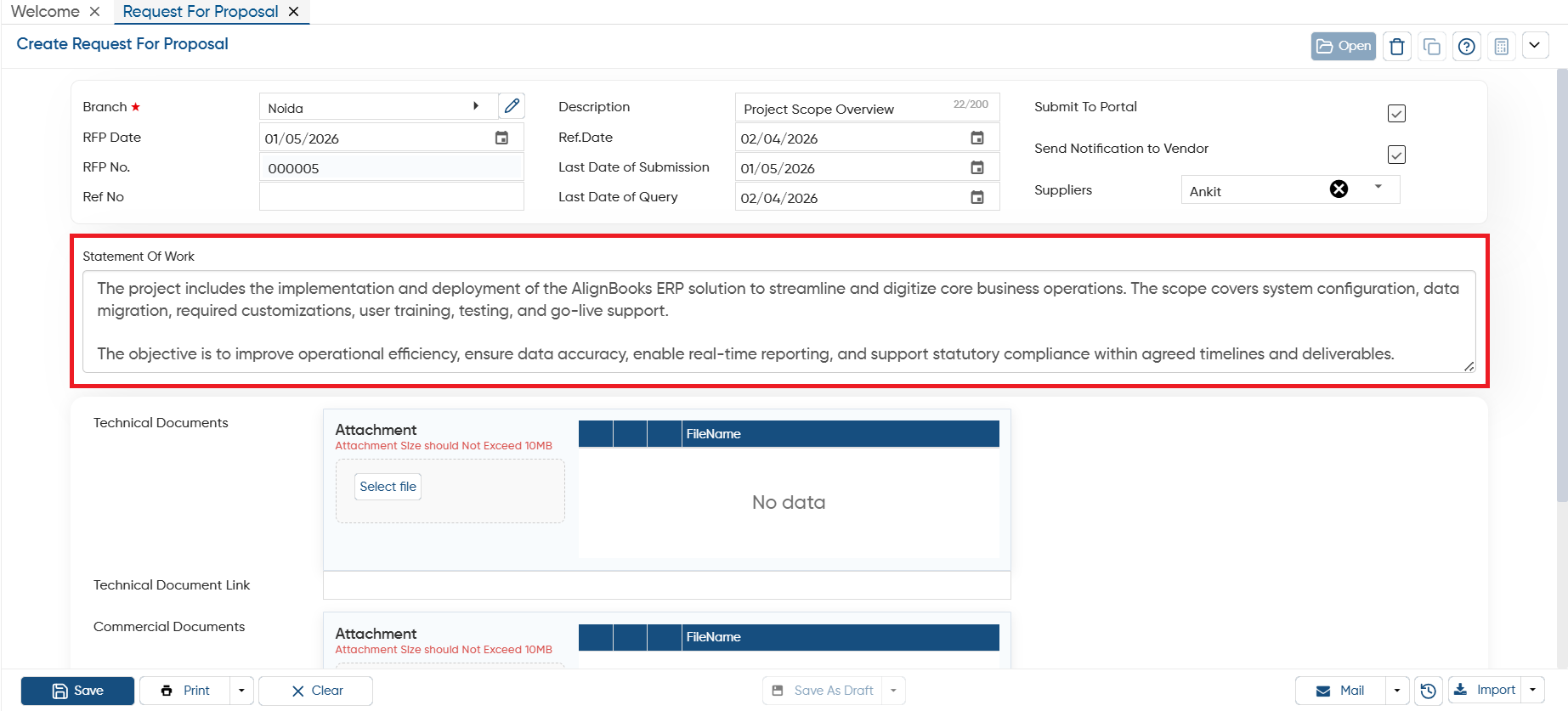
Thereafter, mention the statement of work as per your requirement.
-
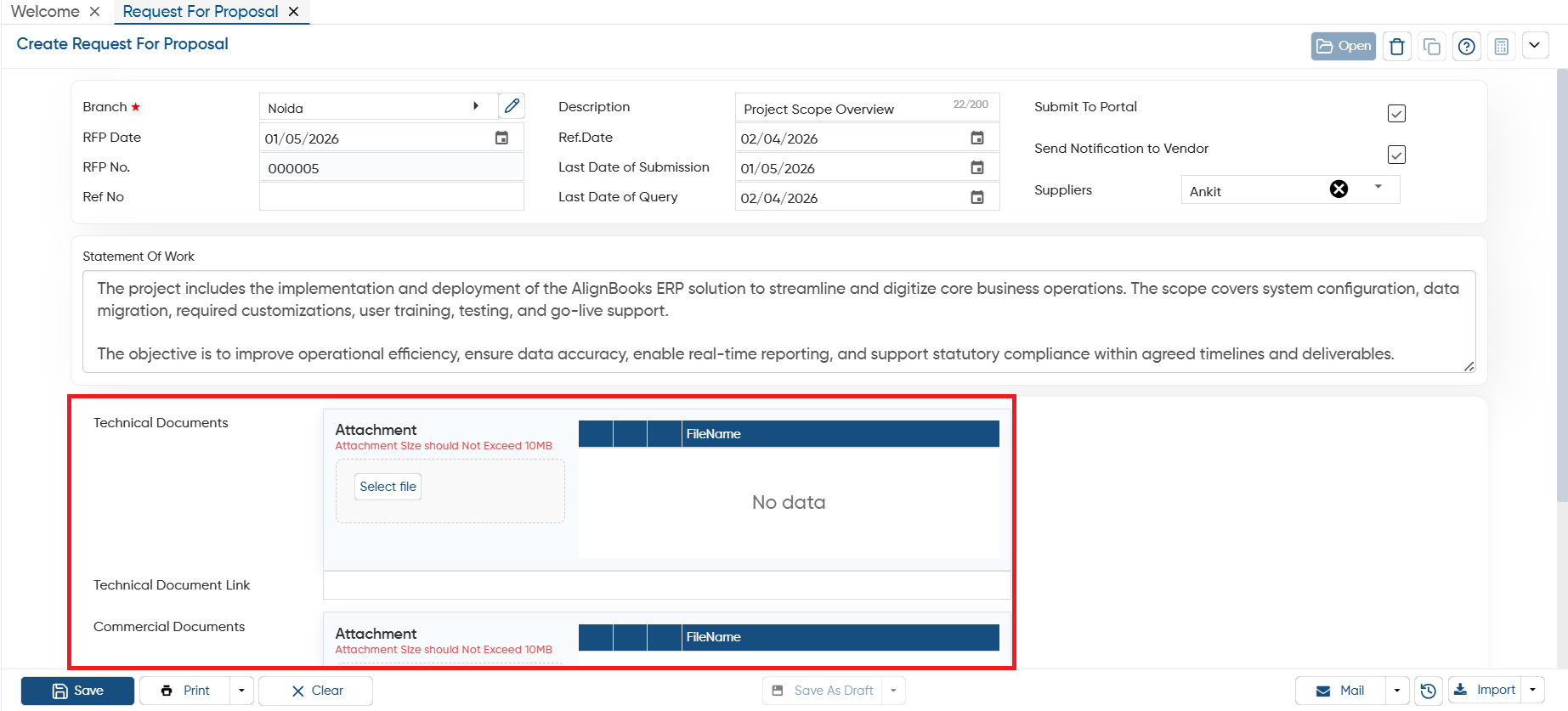
Here, you can upload the technical or commercial documents related to the proposal and their corresponding document link.
-
Click on the ‘Save’ button.
In this way you can easily create and Manage Request For Proposal in AlignBooks.