
Sub Item
In addition to recording basic item or product details, Sub Items help define additional properties related to a main item. This feature is useful when an item comes in multiple variations, such as different colors, sizes, or models, without needing to create separate items for each variation.
Example:
Imagine you are managing stock for a mobile phone business. Instead of creating separate items like "iPhone Black" and "iPhone Silver", you can create a single item, "iPhone", and assign Black, Silver, Gold, etc., as Sub Items. This way, you can easily track the stock movement of each color variation while keeping your item list organized.
Key Benefits of Using Sub Items:
-
Better Stock Organization: Instead of cluttering your item list with multiple variations of the same product, you maintain a structured and clear inventory.
-
Detailed Stock Reports: You can view stock reports at both the main item level (iPhone) and the sub-item level (iPhone Black, iPhone Silver, etc.), giving you better insights into stock availability.
-
Efficient Stock Management: Since stock is tracked separately for each sub-item, you can maintain accurate records and avoid confusion while managing inventory.
-
Sub Item Wise Stock Checking: The system can be configured to check stock at the sub-item level when creating vouchers (e.g., sales or purchase invoices). This prevents overselling of specific variations and ensures better control over inventory.
This feature is especially useful for businesses dealing with products that come in multiple variants, such as apparel, electronics, automobiles, and more, ensuring better stock tracking and inventory control.
-
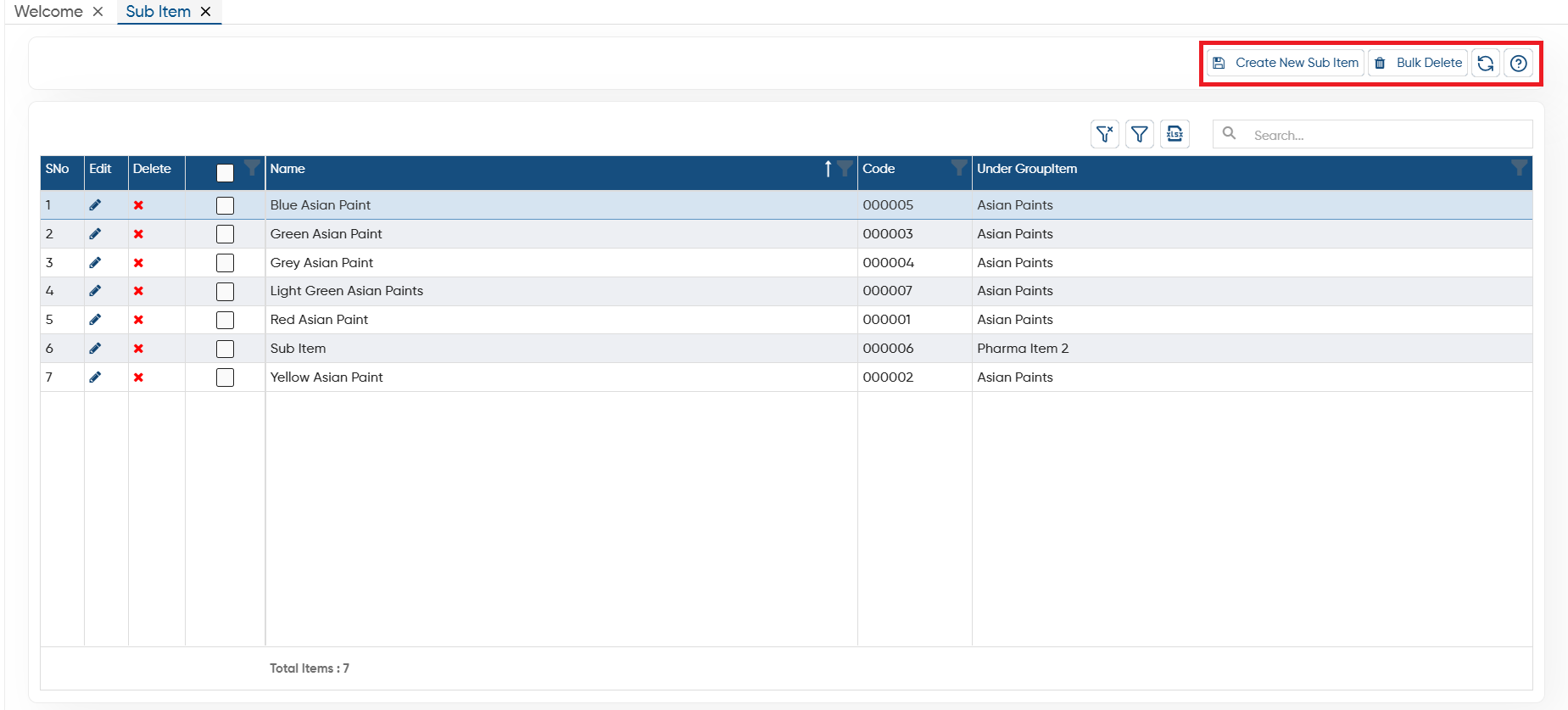
Go to Inventory > Sub Item.

-
Create New Sub Item: To add a new sub item click on this button.
-
Bulk Delete: Click on this button to remove the sub items permanently. You just need to tick the checkbox on the sub item which you want to delete and click on the button to remove multiple sub items at once.
-
Refresh: If after making changes to any sub item or newly added sub item does not display on the screen, click on the 'Refresh' icon, this will refresh the data and display with latest changes to the sub item.
-
Help: To access the help manual related to the feature, click on the given icon.
-
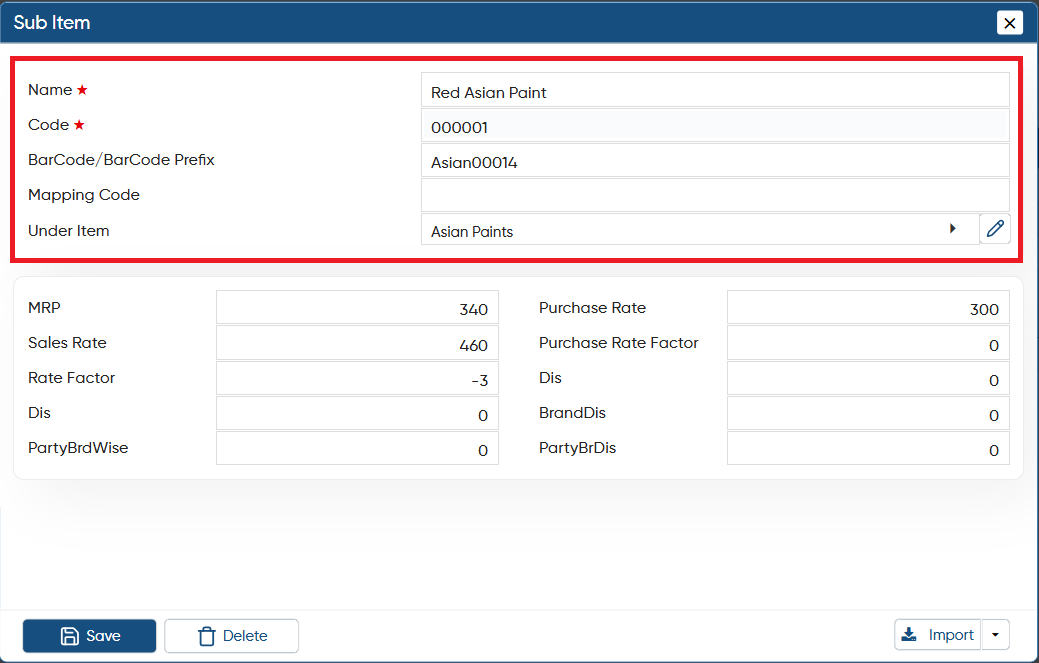
Name: Mention the sub item name for the identification.
-
Code: The software will auto pick a unique code of the sub item. Also, you can mention the code manually as required.
-
Barcode/Barcode Prefix: Mention the barcode of the sub item or prefix of the barcode if you have configured to generate the barcode auto by the software.
-
Mapping Code: Mapping code helps you to map the software item with the e-commerce site if you have done the integration of e-commerce platform to import the order in the software.
-
Under Item: Select the main item or under which this sub item comes.
-
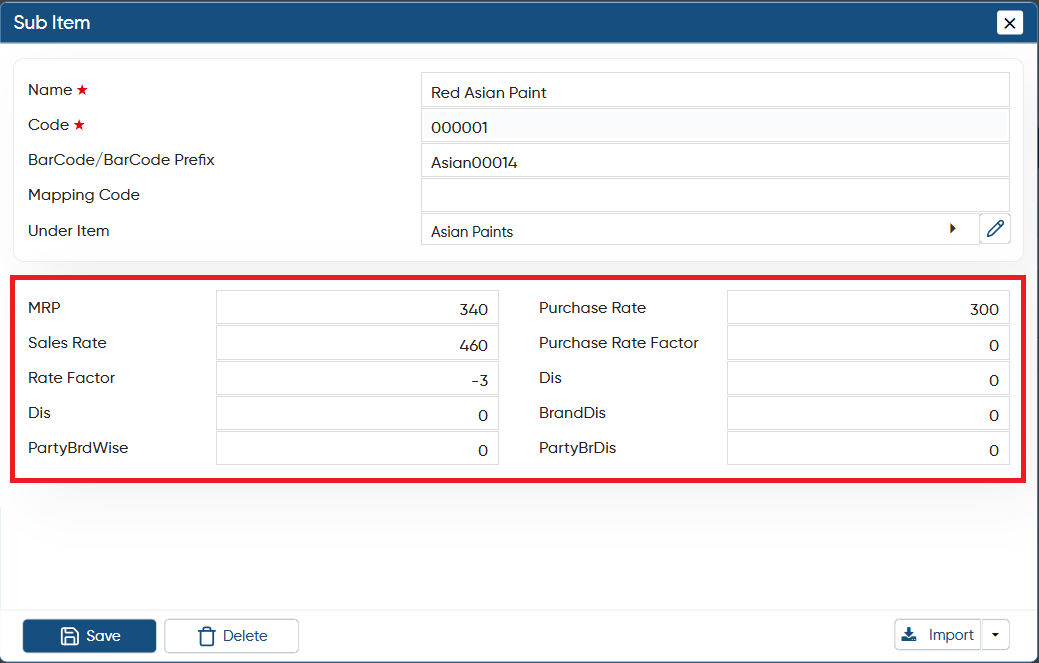
In Sales and Purchase section, you can mention the rate and discount of the sub item so that while billing the rates will be auto picked by the software.
-
Click on 'Save' button.
-
Download Format: Click on this button to download the template file (Excel). In this file you can mention the data and directly import the sub items detail in bulk.
-
Create Format: If you already have an Excel File you can create format and map your excel columns with the software fields to import the data.

 Click on the edit icon to make any changes or update the Sub Item details.
 Click on the cross icon to remove the Sub Item permanently.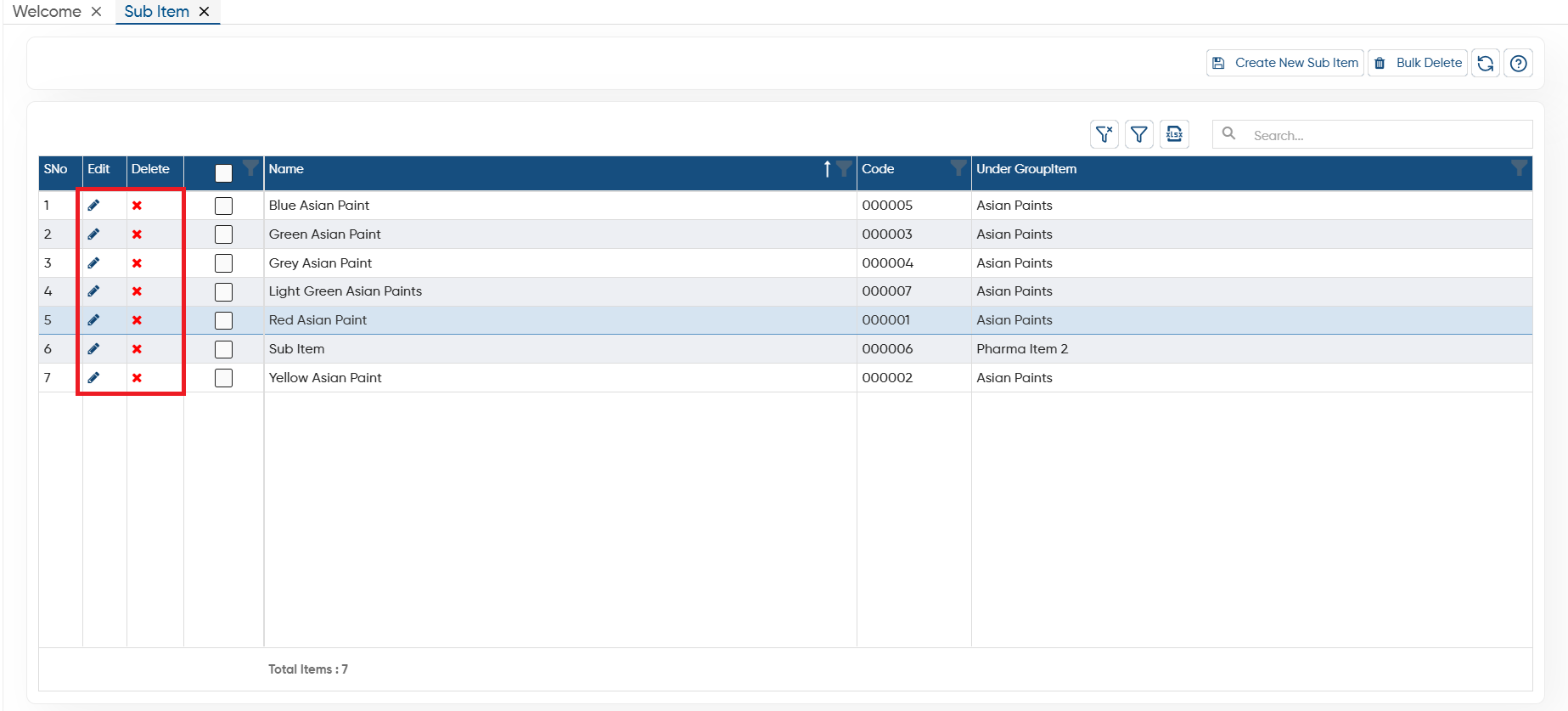
-
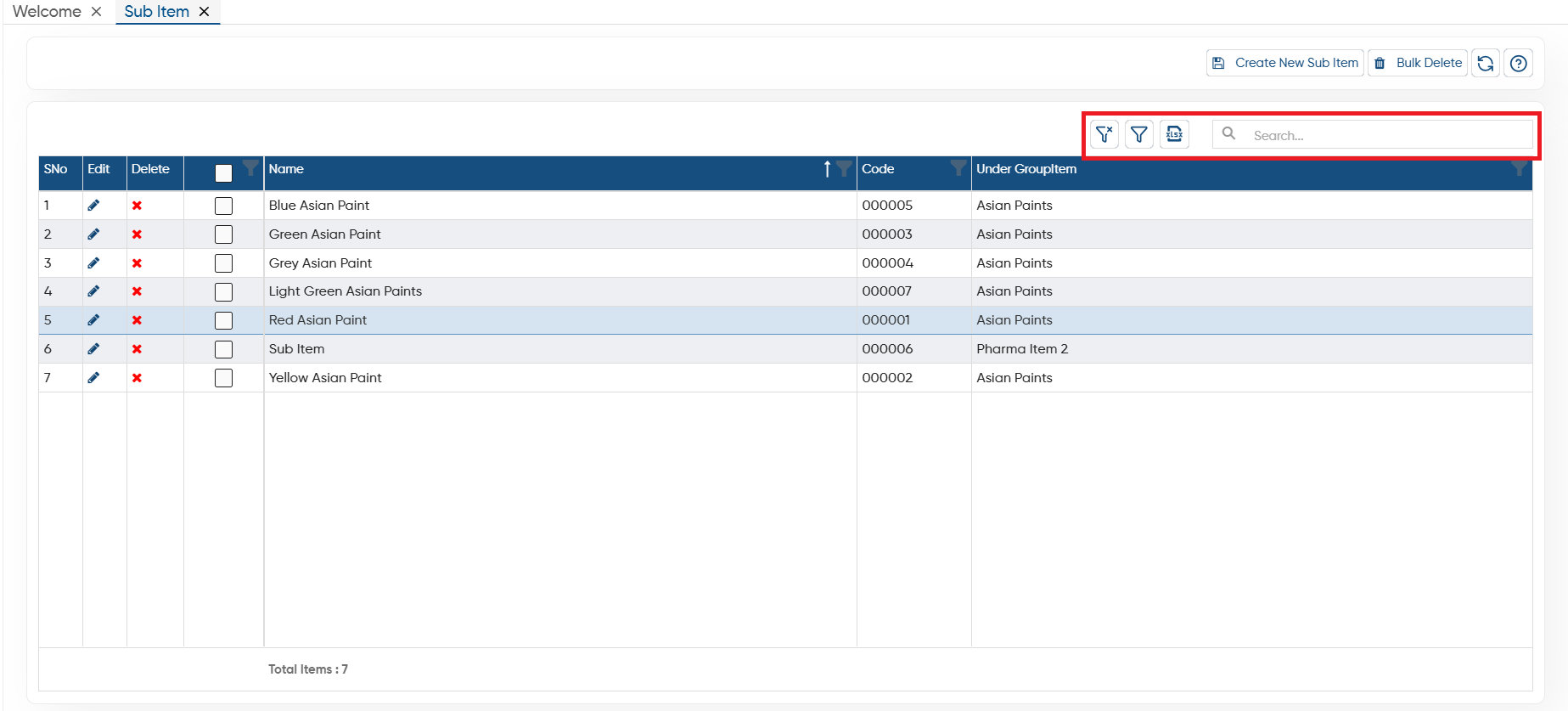
Clear Filter: After enabling the Filter if you want to remove all filter click on this button.
-
Show Filter: To enable the Filter click on the button, it will display the filter option for each column.
-
Excel: If you want to generate the pick & pack in excel file, click on the icon and all the items details will be generate in Excel File.
-
Search: To find any of the pick & pack from the list, type the item Name, Code or specific Branch, Group, Type etc the software will display the result on the screen.
In this way you can Create and Manage the Sub Item in AlignBooks.