
Invoice Against Jobcard
Once the job card is closed, the next step is generating an Invoice Against Job Card. This invoice serves as a bill for the services provided and any materials used during the job.
The Invoice Against Job Card includes details such as:
-
Job Card Reference: Links the invoice to the specific job card.
-
Services Provided: Lists the work done as part of the job.
-
Materials Used: Includes the cost of any spare parts or materials consumed.
-
Labor Charges: If applicable, covers the charges for the workers' efforts.
-
Total Cost: The final amount the customer needs to pay.
-
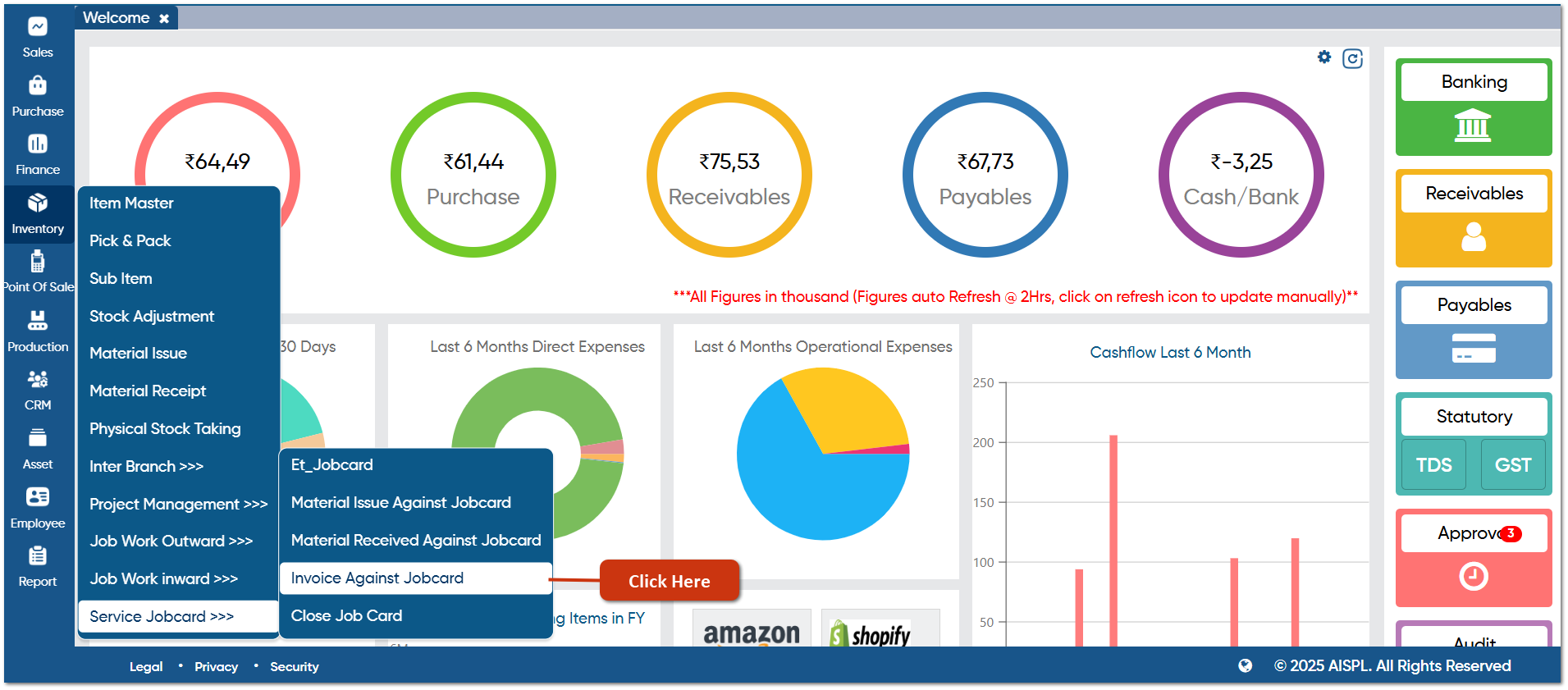
Go to Inventory > Service Jobcard > Invoice Against Jobcard.
-
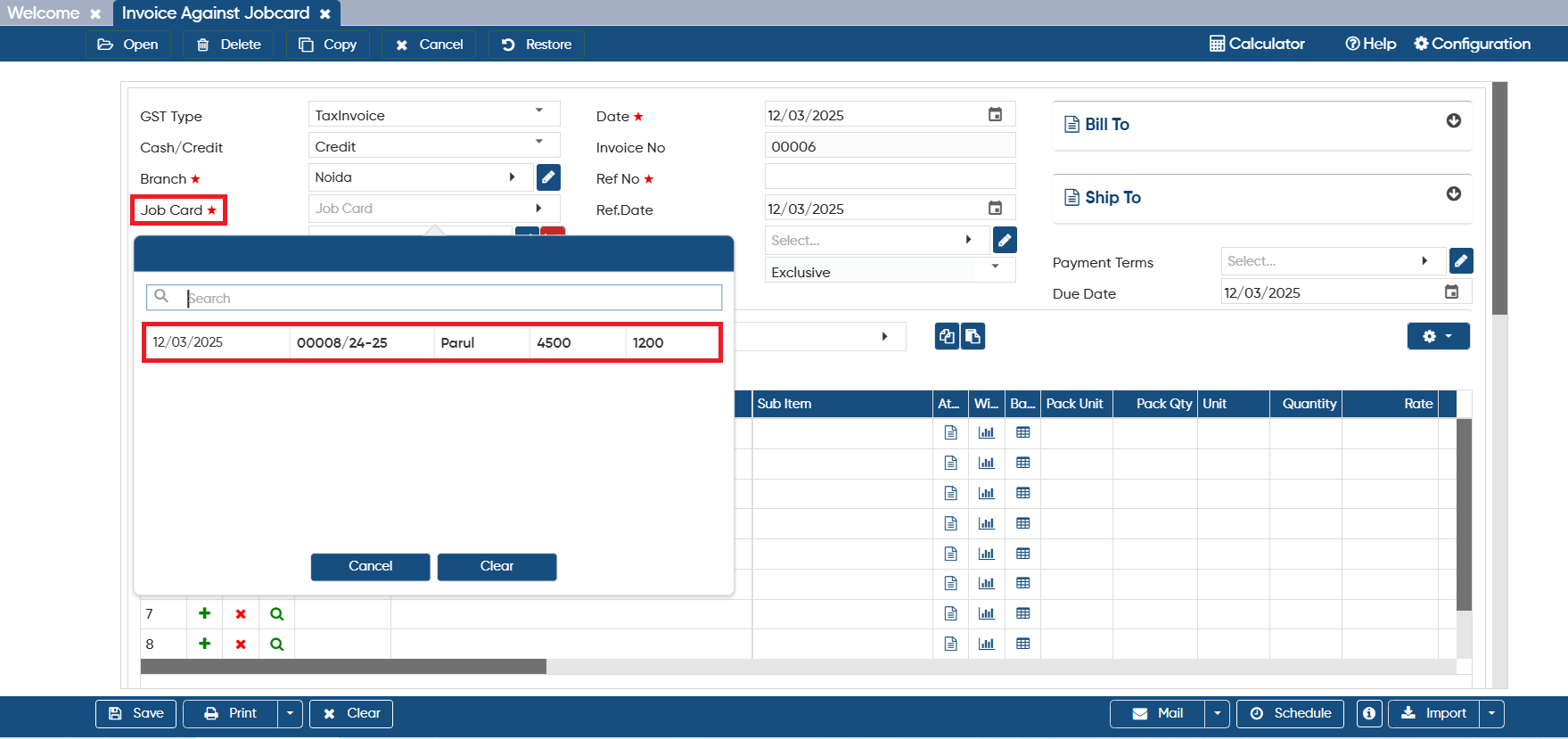
Select the GST Type, Cash/ Credit, and Branch as per your requirement.
-
In 'Job Card' option, select the Job that you have closed and want to generate the invoice for it.
-
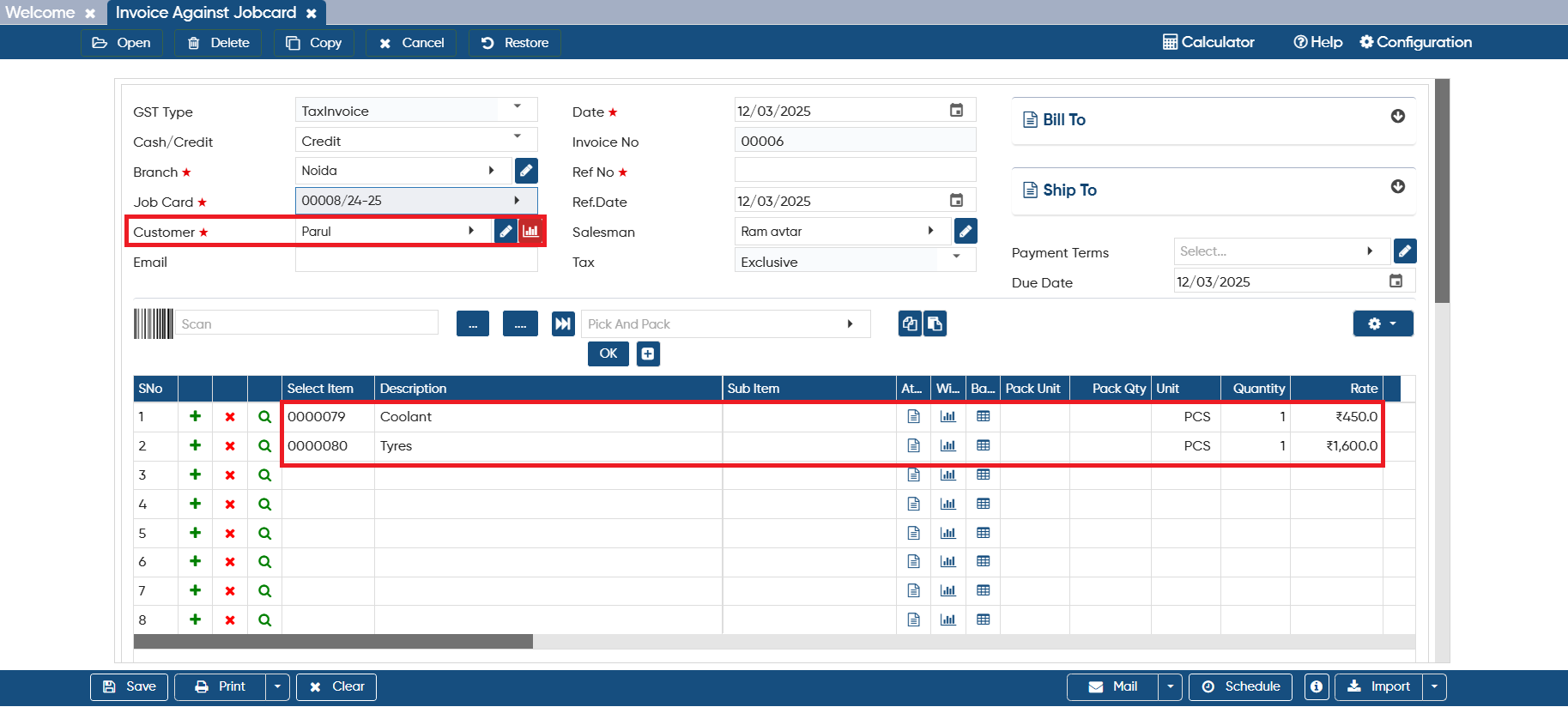
On the basis of selected Job Card, customer, salesman, item details will auto fetched by the software.
-
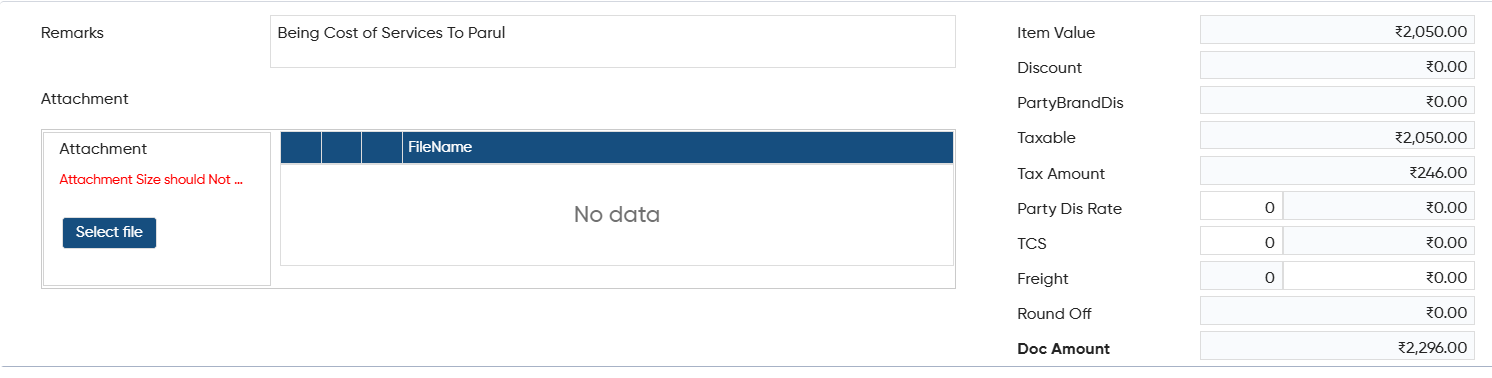
In 'Remark' option, click on the box and software will auto pick the narration.
-
Through attachment option, you can attach an image or document related to the Job Card if you have any.
-
On the Right hand side Invoice details such Item value, Taxable Value, Charges etc will display.
-
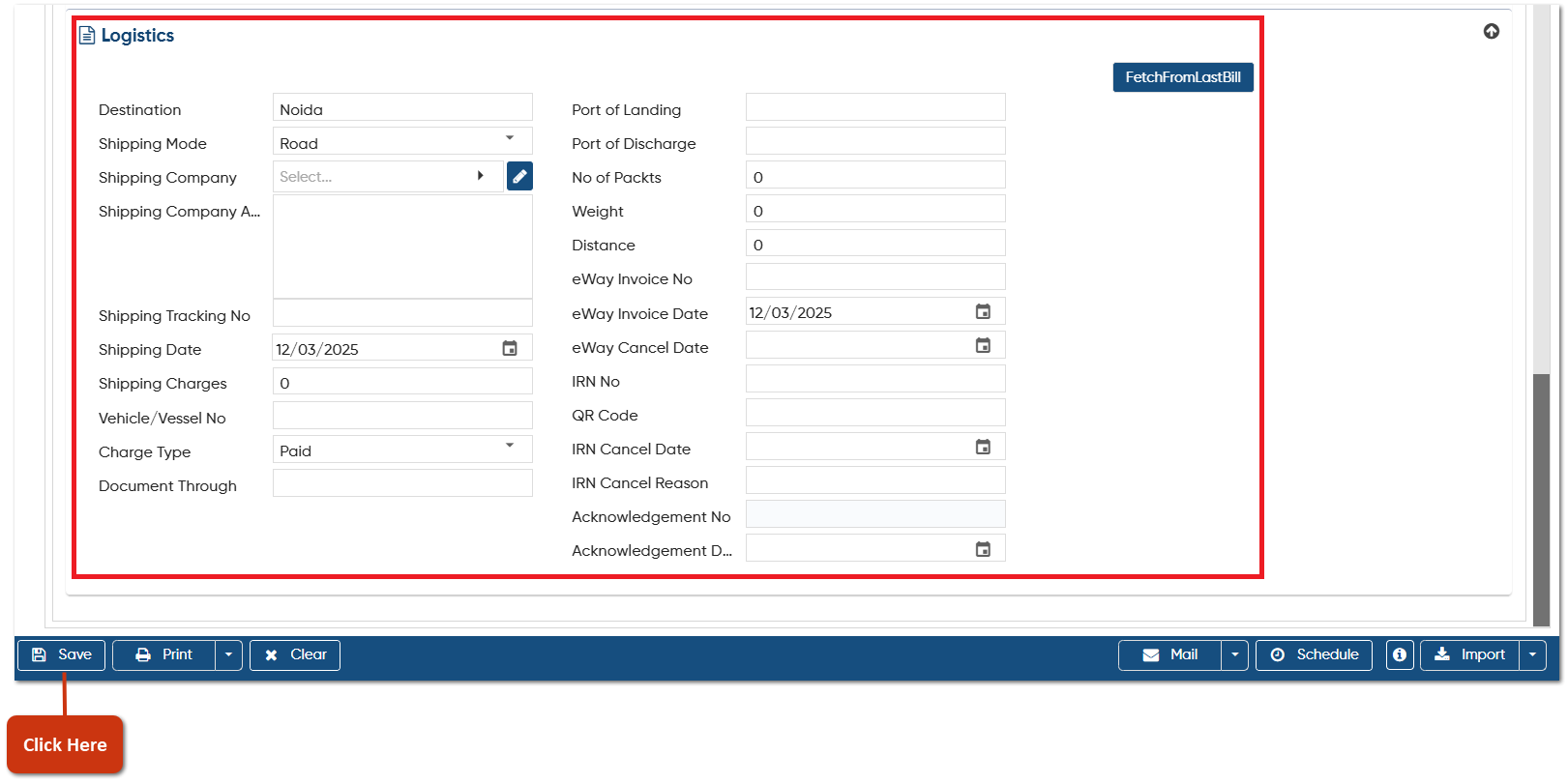
If Logistic Details are enabled in the Company Setup, this section will appear. Here, you can enter the Shipping Details manually or click on the 'Fetch From Last Bill' button to automatically load the details from the previous invoice/ challan.
-
To generate an e-Way Bill, you need to fill in the required fields here.
Click on the 'Save' button.
-
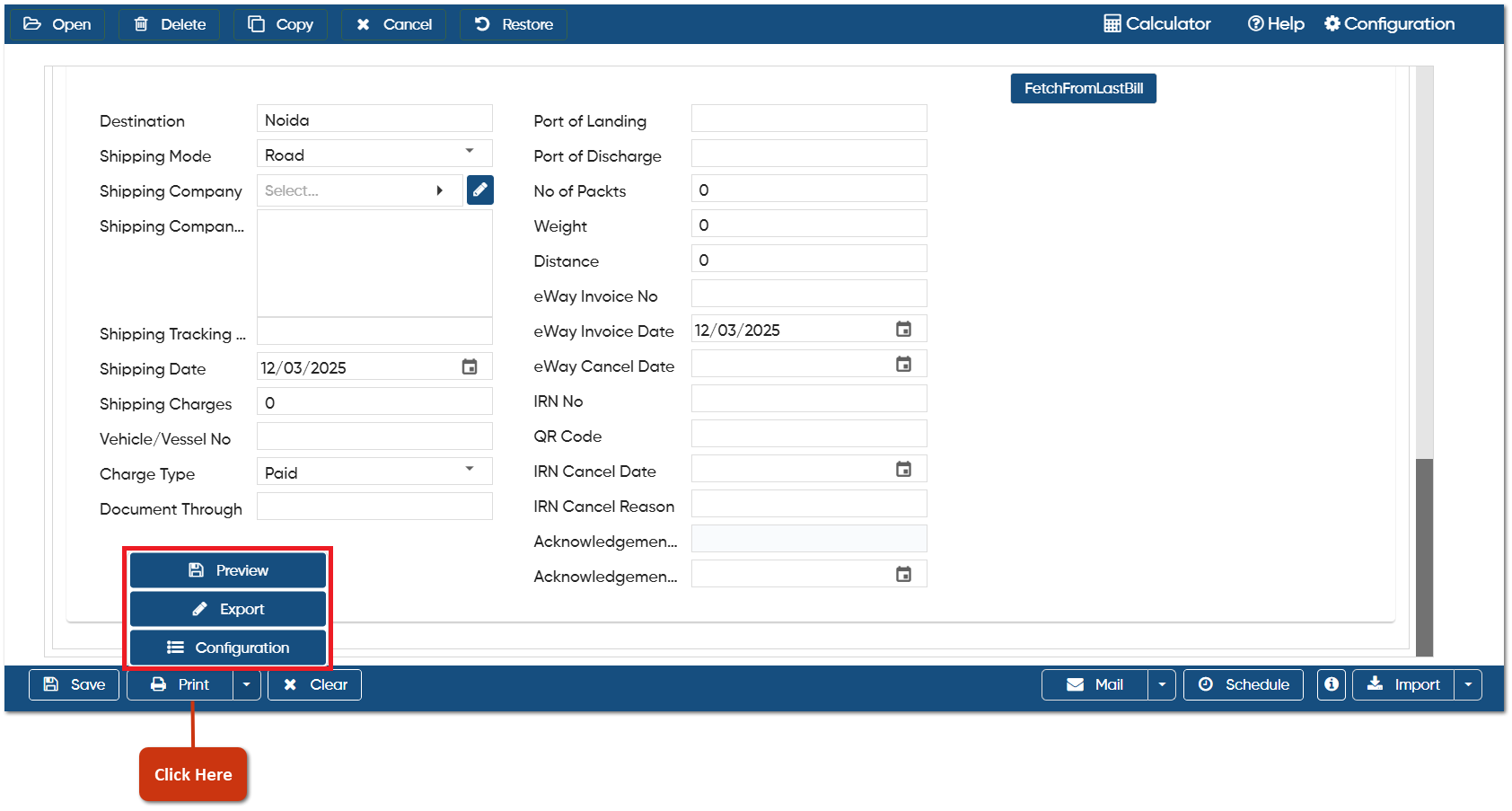
Preview: This option allows you to view a print preview of the Invoice against Jobcard document before finalizing it.
-
Export: If you want to download the document as a PDF, click on the 'Export' button, select your preferred format, and the PDF of dispatch document will be downloaded.
-
Configuration: This option lets you customize the invoice print settings, including header/ footer remarks, terms & conditions, and setting the default invoice format etc.
-
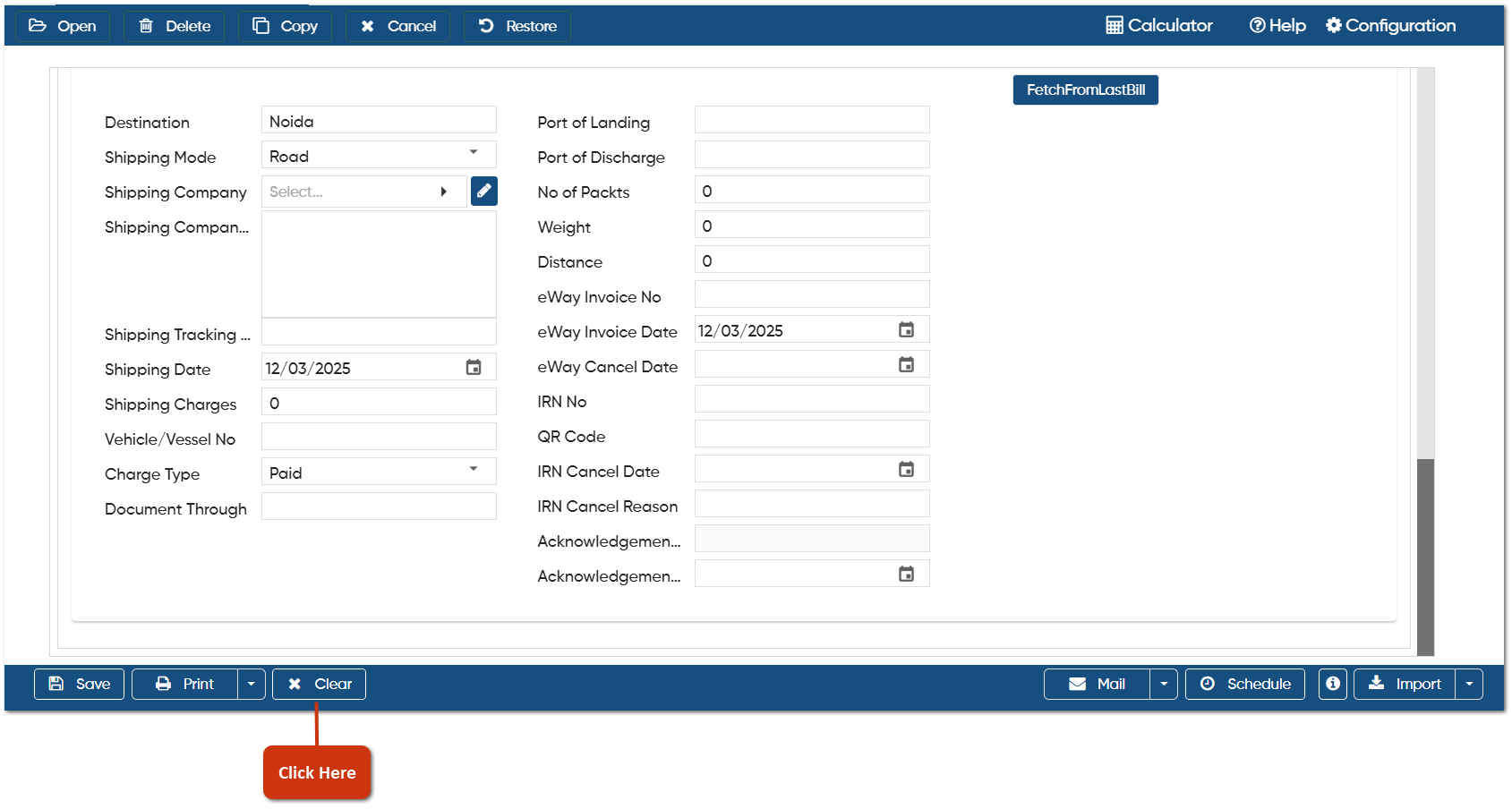
If the data on the current screen is no longer needed or you want to start fresh with a new document, click the 'Clear' button. This will remove all the data from the current document, giving you a clean slate to enter new details.
-
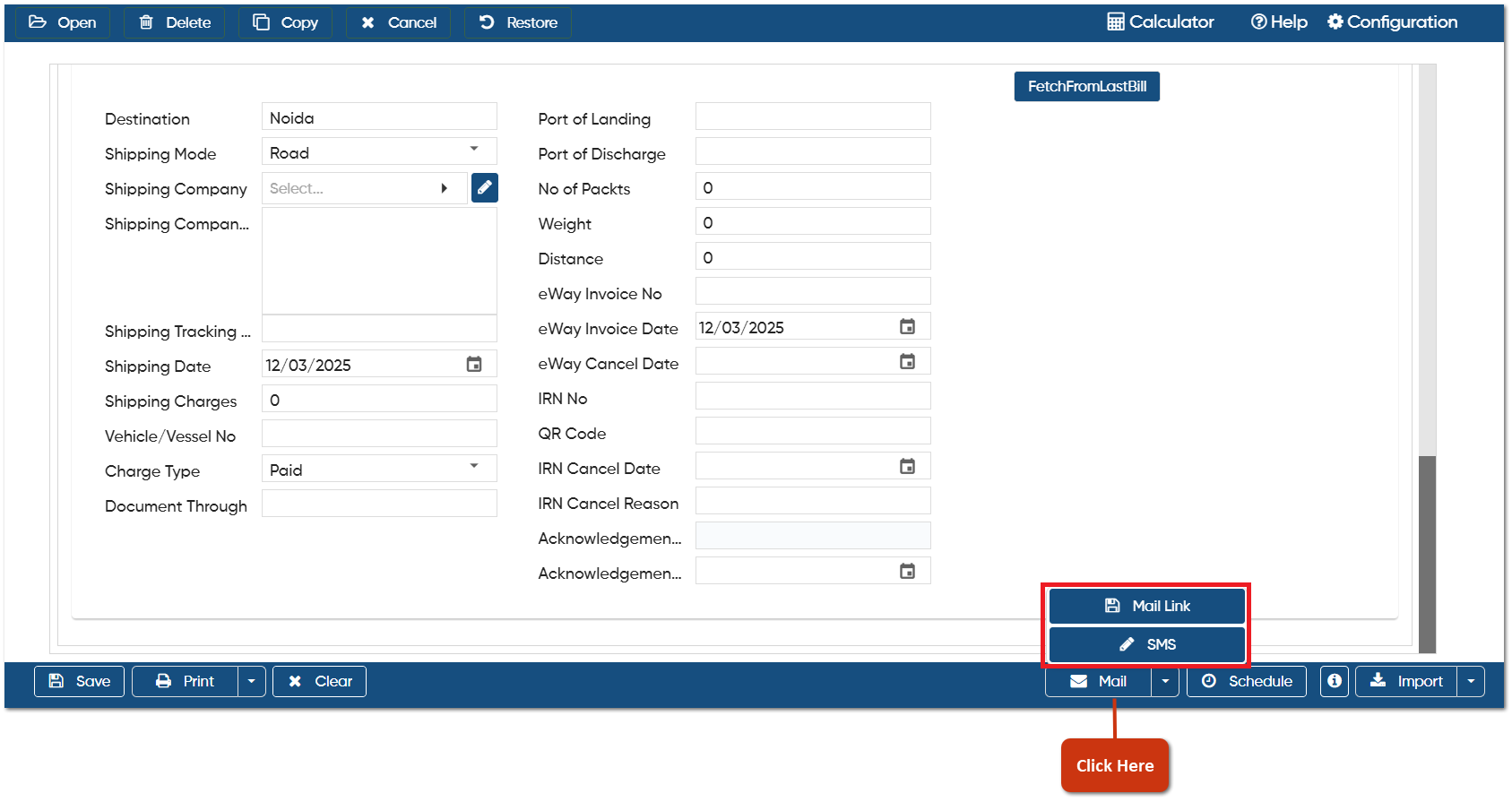
Mail Link: AlignBooks allows you to easily share the invoice link along with an attachment directly to the customer’s email address.
-
SMS: You can also send the invoice link and attachment via SMS to the customer, based on your preference.
For sharing invoice link and Attachment via Email and SMS you need to Integrate Email and SMS setup in AlignBooks.
|
-
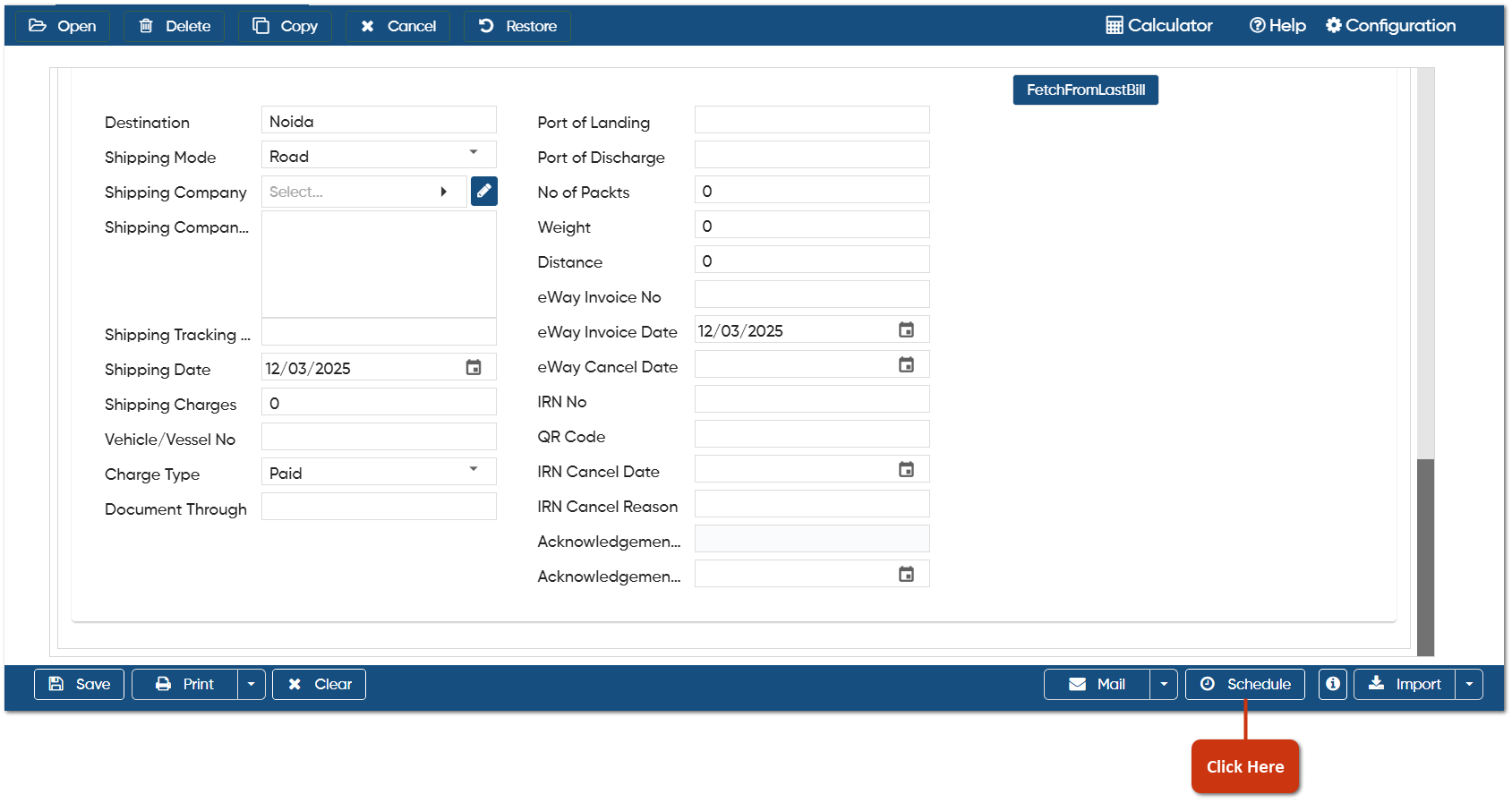
Schedule: If you need to create the same document with the same details regularly on a fixed schedule, you can set up a Schedule for it. The document will then appear in the ‘Post Recurring Module’ of AlignBooks. From there, you can post the document with just one click, without having to prepare it repeatedly. This also serves as a reminder for you.
You can only schedule the document after you have saved it. The schedule option is not available while you're in the process of creating the invoice.
|
-
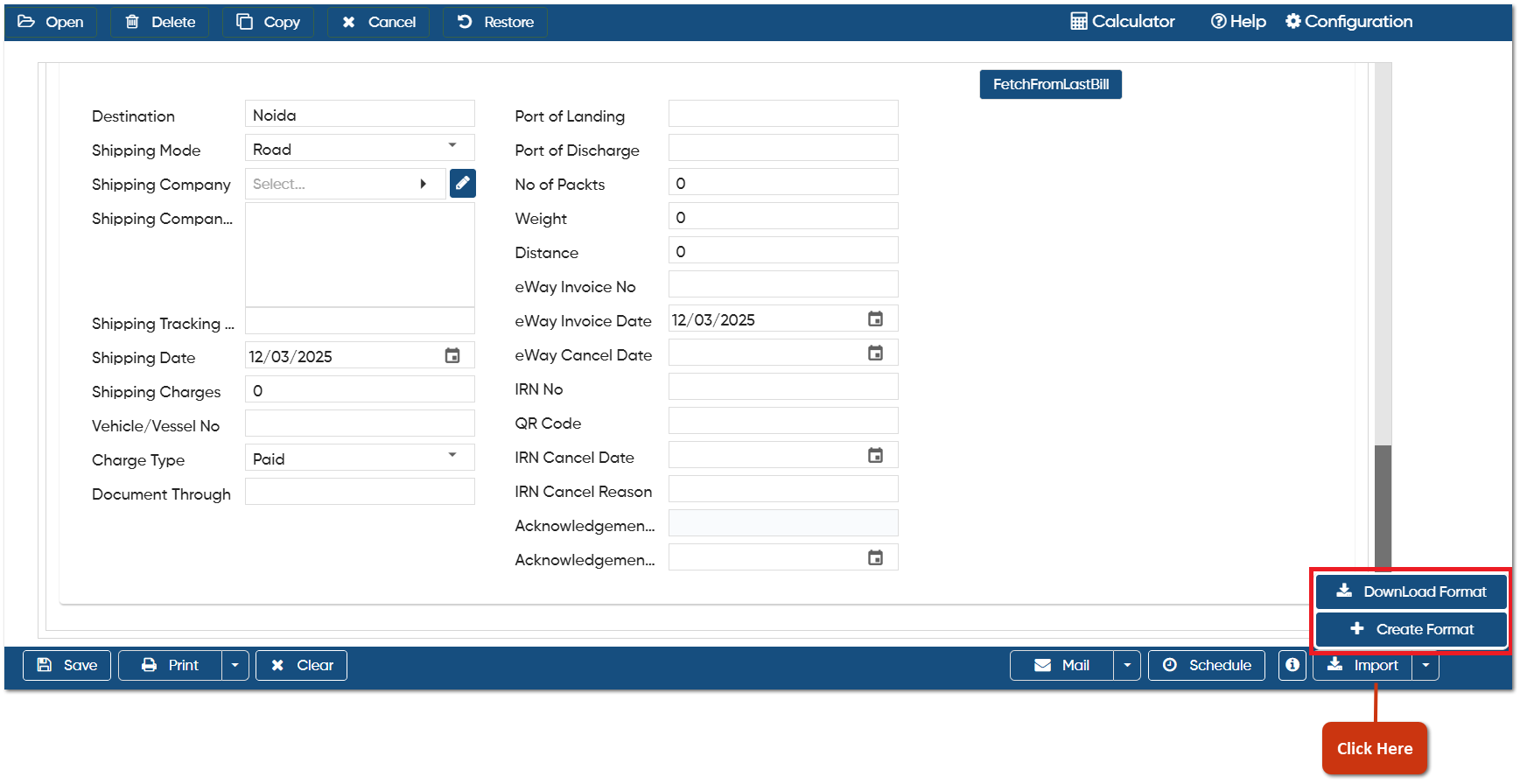
Download Format: If you want to import data from an Excel file, you can download the template through this option. After entering the data, you can directly import the file into AlignBooks.
-
Create Format: You can also create a custom format and map the columns with your Excel file. Make sure the field headings in the Excel file match those in the software when mapping the columns.
-
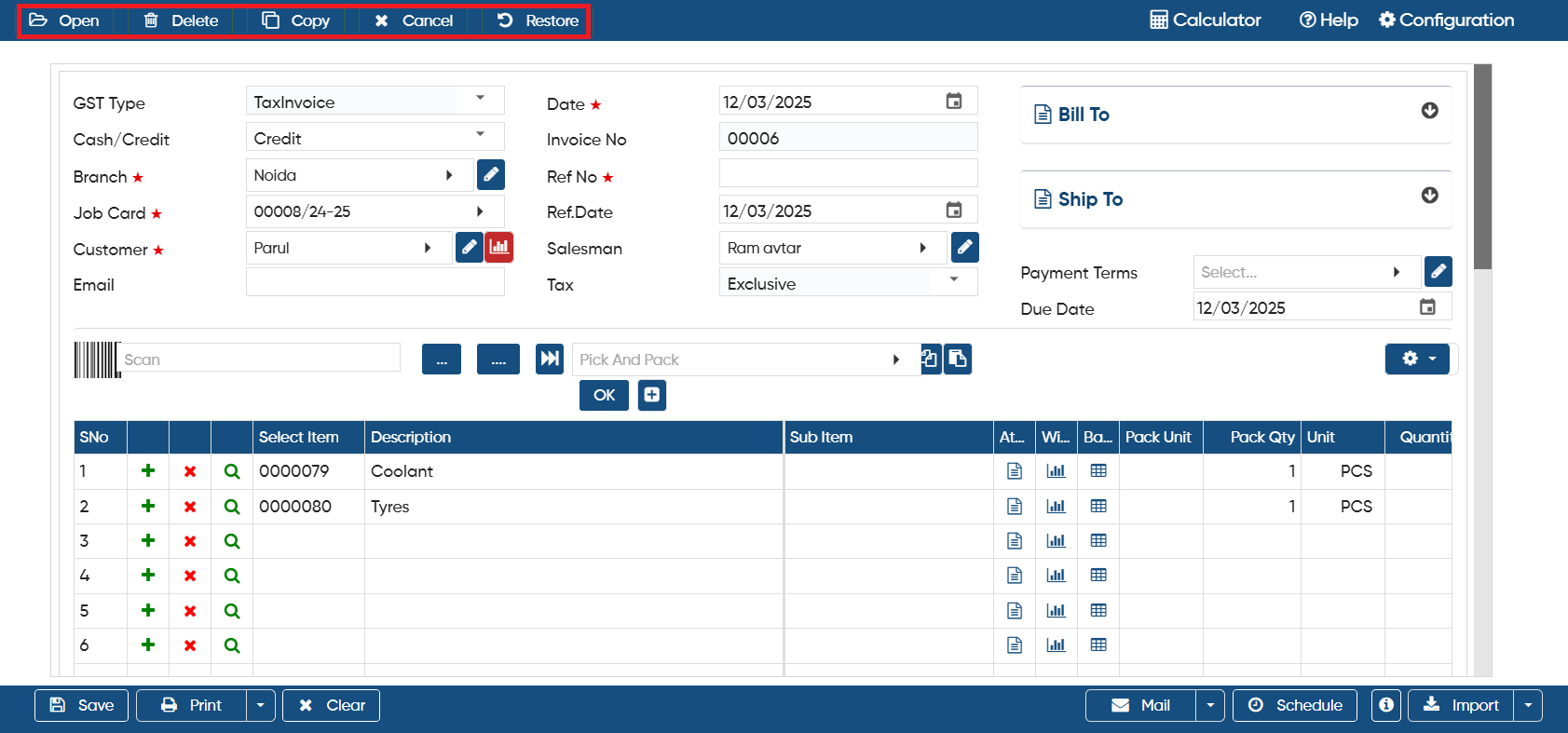
Open: This option allows you to view all the documents you have created in the software. If you required to make any changes in the saved invoice you can click on 'Open' icon, select the date range and specific invoice and can make changes in it.
-
Delete: With this option, you can remove or delete a document permanently.
-
Copy: This feature lets you copy the invoice and create a new one based on the same details, which you can then modify as needed.
-
Cancel: If you no longer need a document but don't want to permanently delete it, click on the ‘Cancel’ button. This will cancel the document but keep it in the list, allowing you to restore it whenever needed.
-
Restore: If you click on a cancelled document, the ‘Restore’ option will appear, allowing you to restore the document to its previous state.
-
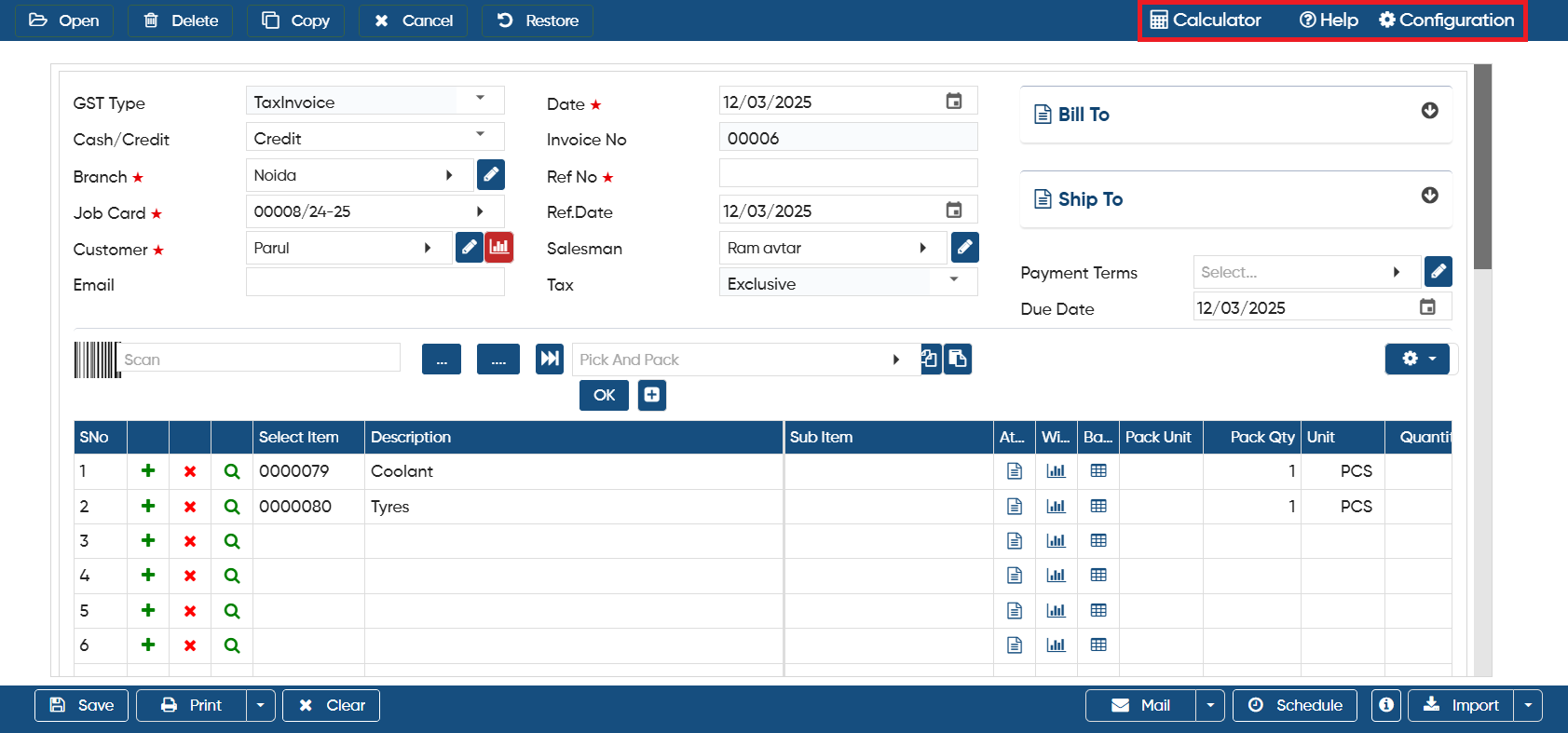
Calculator: AlignBooks includes an inbuilt calculator that you can use while working within the software, making calculations easier.
-
Configuration: For additional settings related to this document, navigate to the configuration option. There, you can adjust settings such as invoice numbering, email, WhatsApp, SMS, approvals, and more.
In this way you can Generate a Invoice Against the Jobcard in AlignBooks.