
Bill Payment
A payment voucher is a document used to record and authorize a payment made by a business or individual. It typically includes details such as the payee’s name, payment amount, date, purpose of the payment, and mode of payment (cash, cheque, bank transfer, etc.)
In accounting, a payment voucher serves as proof of payment and is used for maintaining accurate financial records. It is often linked to an invoice, bill, or other supporting documents to justify the expense.
In AlignBooks, you can make payments to your vendors using the "Bill Payment" option. This feature allows you to settle outstanding invoices or bills by making payments through different modes such as cash, cheque, bank transfer, or other online payment methods.
-
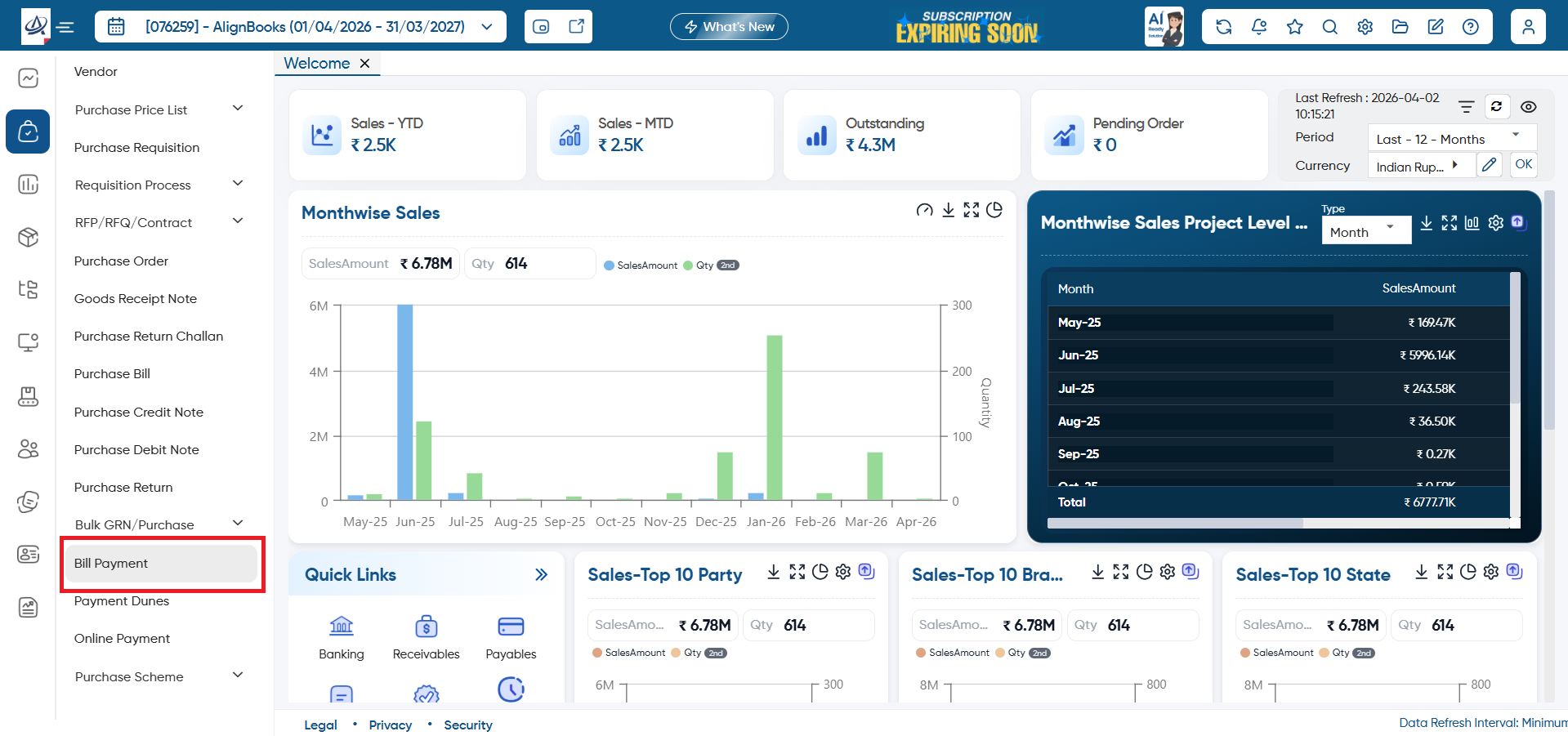
Go to Purchase > Bill Payment.
-
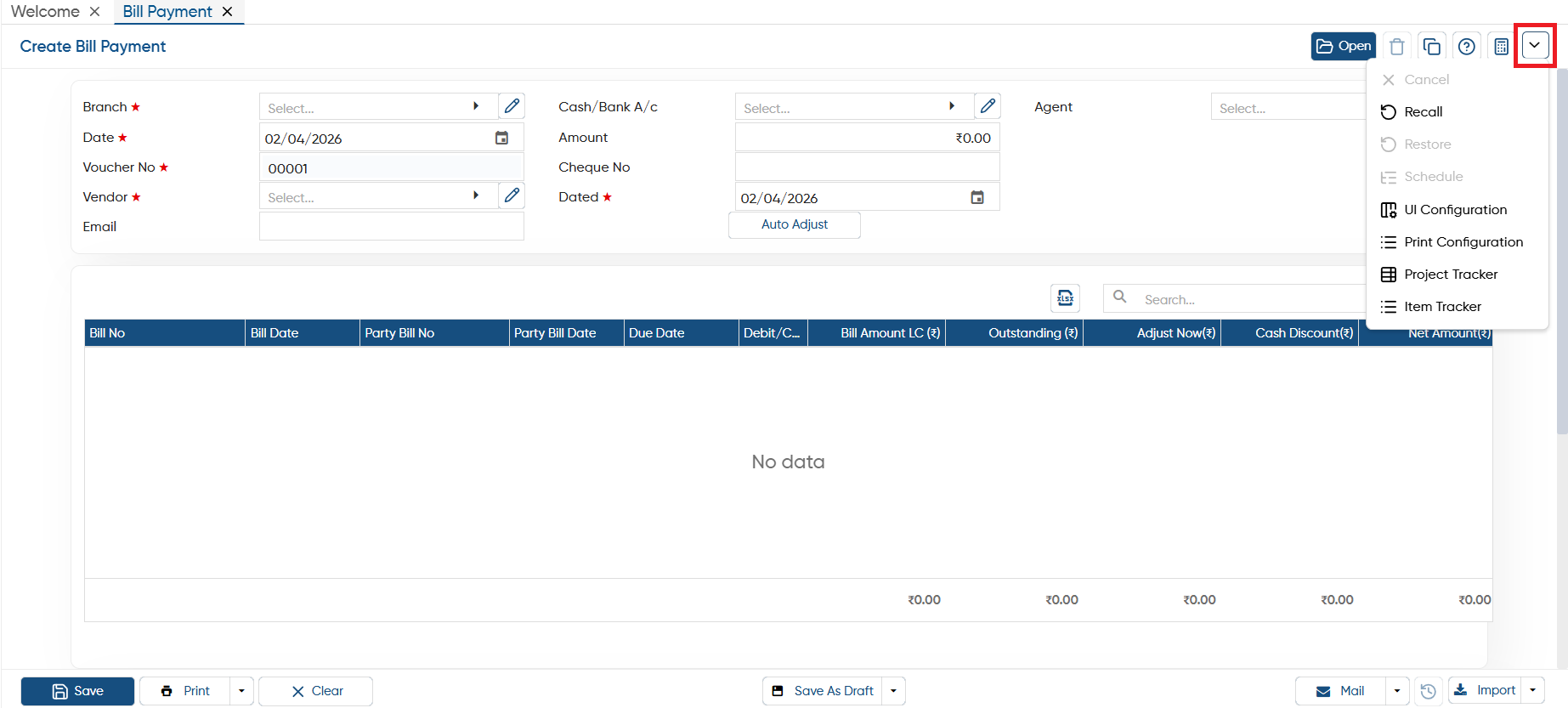
Open: This option allows you to view selected document you have created in the software. If you required to make any changes in the saved invoice you can click on 'Open' icon, select the date range and can make changes in it.
-
Delete: With this option, you can remove or delete the document permanently.
-
Copy: This feature lets you copy the invoice and create a new one based on the same details, which you can then modify as needed.
-
Help: Click on the help icon to access the step by step guide of the Process.
-
Calculator: AlignBooks includes an inbuilt calculator that you can use while working within the software, making calculations easier.

-
Cancel: If you no longer need an open document but don't want to permanently delete it, click on the ‘Cancel’ button. This will cancel the document but keep it in the list, allowing you to restore it whenever needed.
-
Recall: This option is used when a customer bill (POS Invoice) is put on hold. You can click on this option to retrieve the held invoice and continue billing from where you left off.
-
Restore: If you click on a cancelled document, the ‘Restore’ option will appear, allowing you to restore the document to its previous state.
-
Schedule: If you need to create the same document with the same details regularly on a fixed schedule, you can set up a Schedule for it. The document will then appear in the ‘Post Recurring Module’ of AlignBooks. From there, you can post the document with just one click, without having to prepare it repeatedly. This also serves as a reminder for you.
You can only schedule the document after you have saved it. The schedule option is not available while you're in the process of creating the cheque return entry.
|
-
UI Configuration: For additional settings related to this voucher, navigate to the configuration option. There, you can adjust settings such as invoice numbering, email, WhatsApp, SMS, approvals, and more.
-
Print Configuration: This option lets you customize the voucher print settings, including header/ footer remarks, terms & conditions, and setting the default invoice format etc.
-
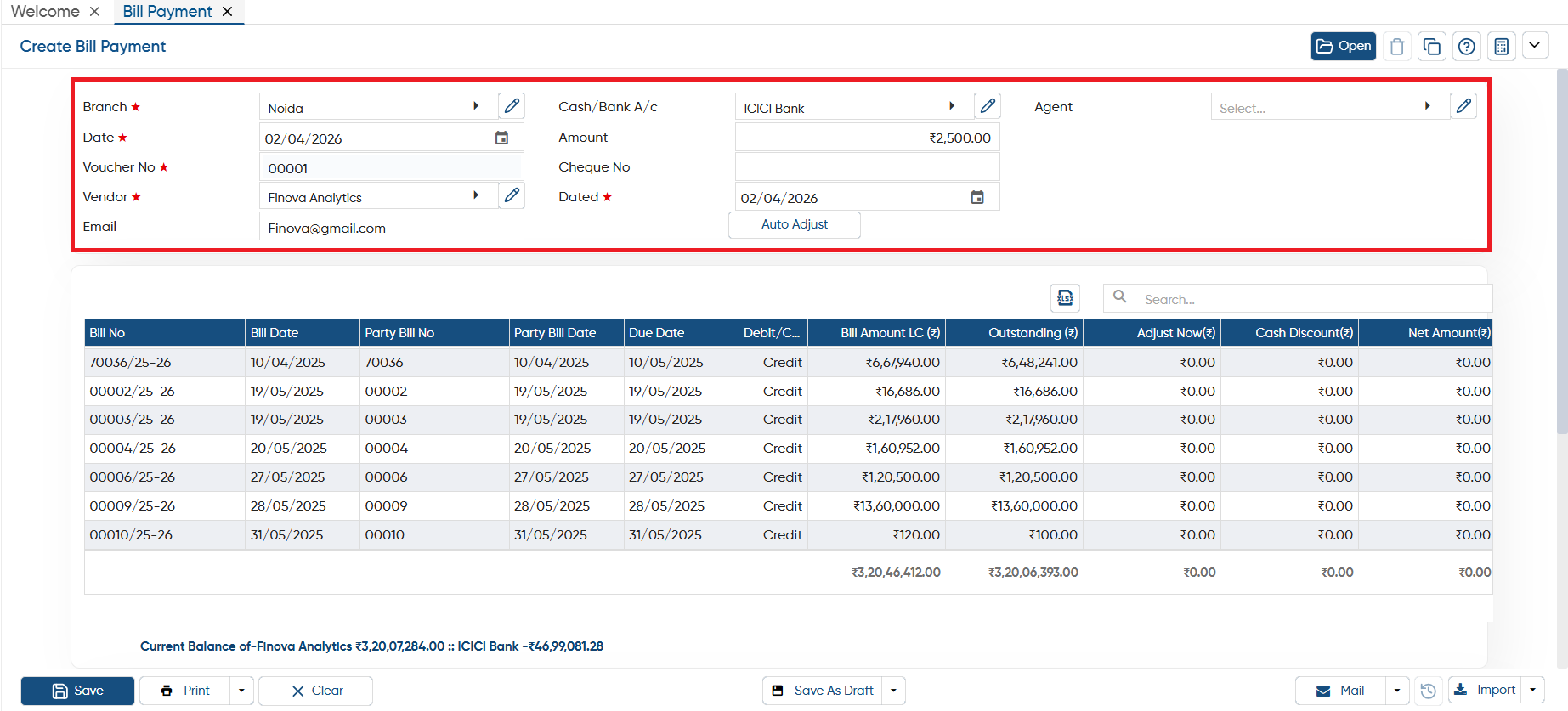
Branch: Here, you have to select a specific branch of your company if you are maintaining it, by which you are making payment.
-
Date: The software will auto pick the current date, you can change it as per your need.
-
Voucher No: If you configure the option to auto select the voucher number then software will automatically picks it otherwise you also have the option to manually maintain the voucher number.
-
Vendor: Select the vendor ledger to whom you are making payments.
-
Email: The software will auto pick the mail ID of the vendor if you mention the vendor master otherwise you can manually mention it.
-
Cash/ Bank A/c: Select the Cash or Bank ledger through which you are making payments.
-
Cheque No: If you are making payments through bank account then you can mention the Cheque Number here otherwise you can skip it.
-
Dated: Here, you need to mention the Cheque date if applicable.
Case 1. Auto adjust the Paid Amount in Bills.
-
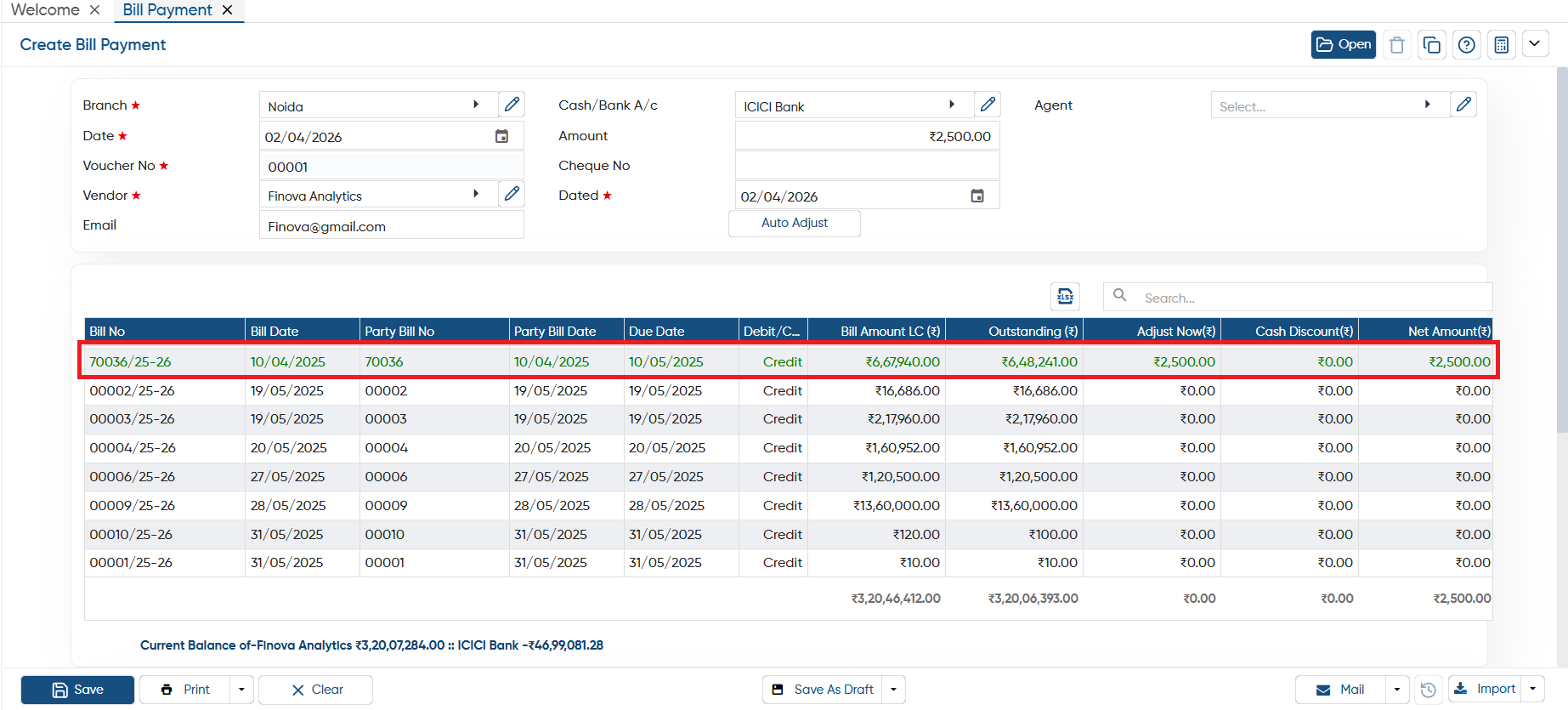
Auto Adjust: If you select this option, the software will automatically adjust the oldest bill recorded in your data first. It will then continue adjusting the next oldest bills in order, ensuring that payments or balances are settled systematically from the earliest to the latest.
-
For instance in 'Amount' field mentioned Rs. '2,500'.
The bill amount will be automatically adjusted with the oldest outstanding bill. If any balance remains after adjustment, the software will automatically apply it to the next oldest bill until the full amount is settled.
Case 2. Manually Adjust the Paid Amount in Bills.
-
If you don't want to auto adjust the amount, you can manually click on the field corresponding to the bill number and mention the amount, software first auto takes the amount as per the bill value you can change it as per your need.
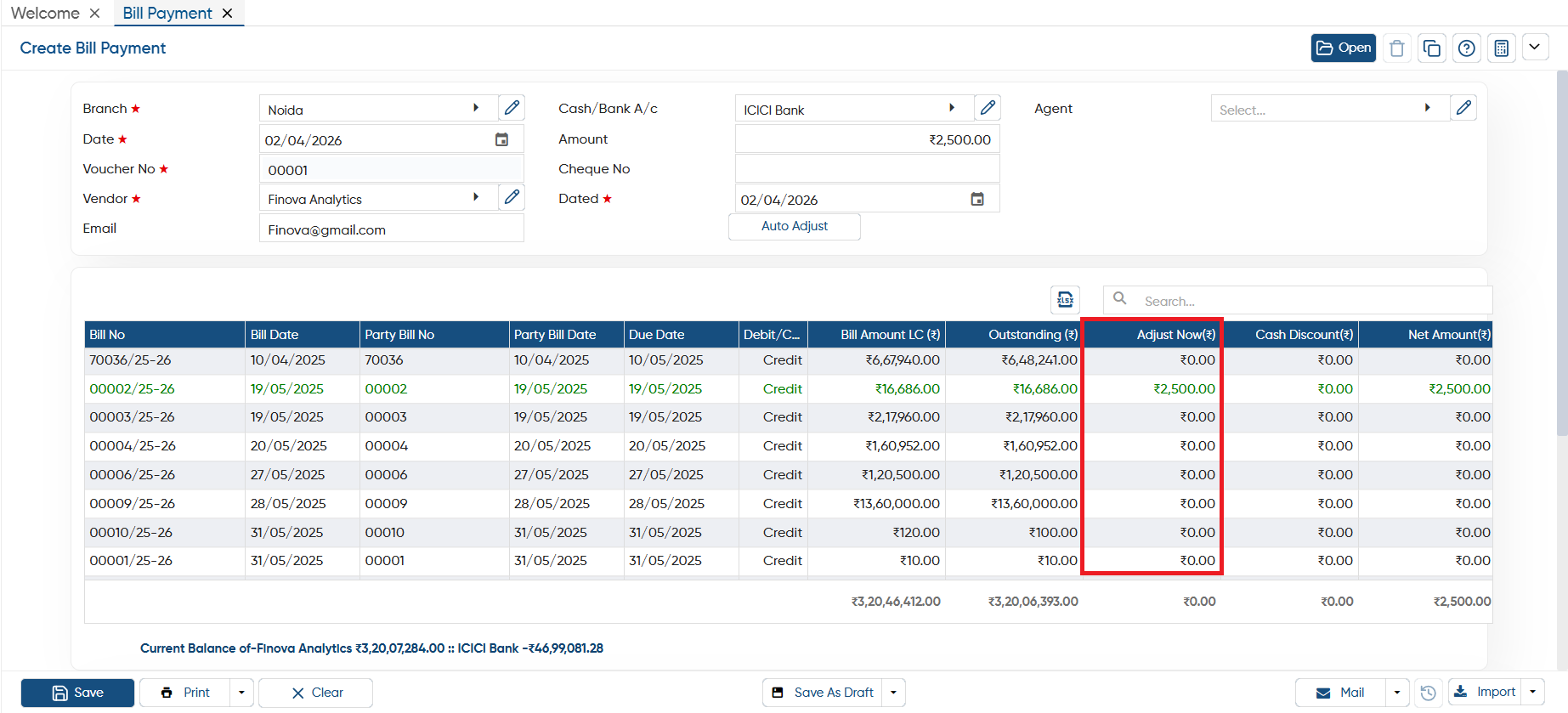
-
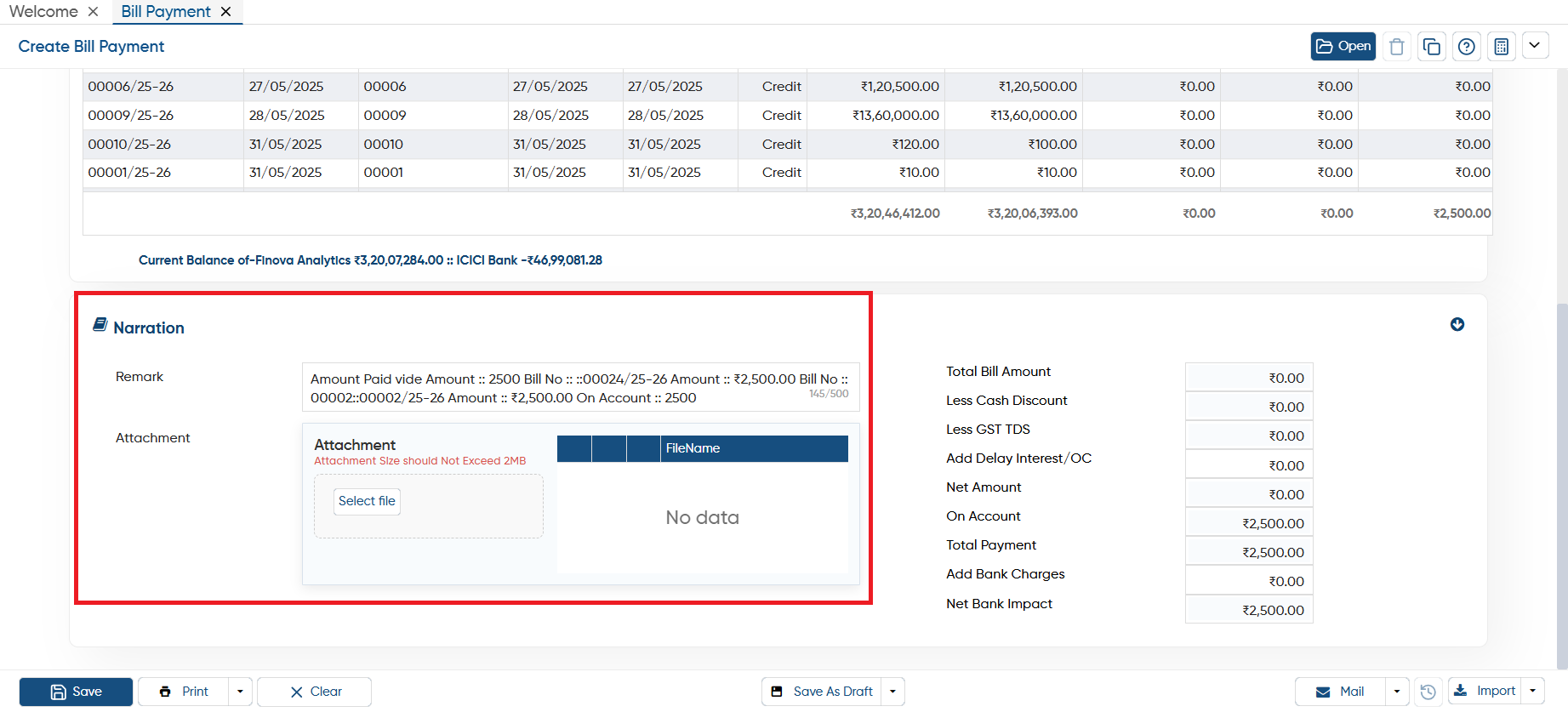
Remark: Click in the 'Remark' section, software will auto pick the remarks based on the payment voucher. Also, you can enter a remark as per your requirement.
-
While creating a Bill Payment entry, if you need to attach any document or image related to it, click on the 'Select File' button. Then, choose the appropriate directory and upload the file.
-
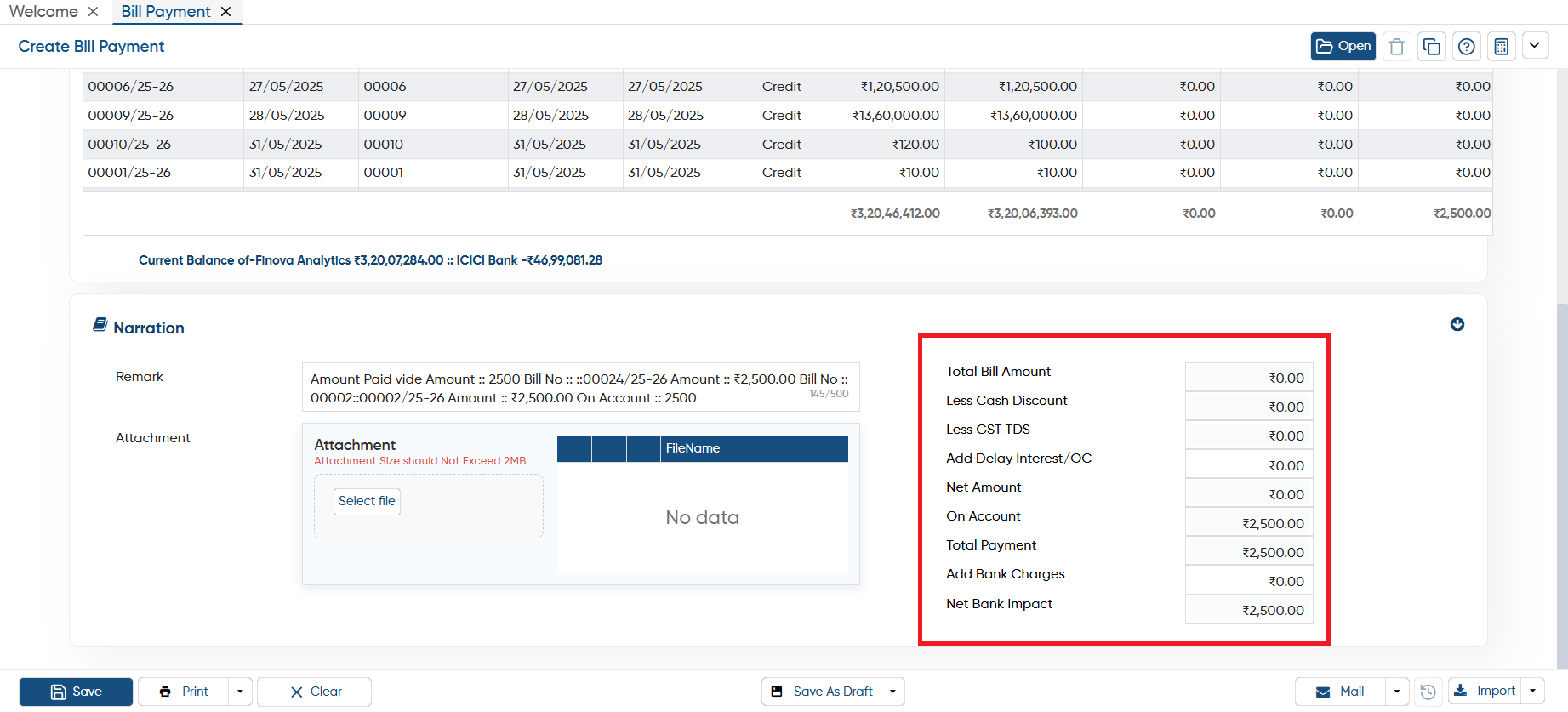
On the right side, you can view important financial details such as Total Bill Amount, Discount, Total Payment, Cash Discount and more. This helps you quickly review the invoice summary.
-
If you required to deduct any GST/ TDS you can mention on the specified field.
-
To save the invoice you need to click on the 'Save' button.
-
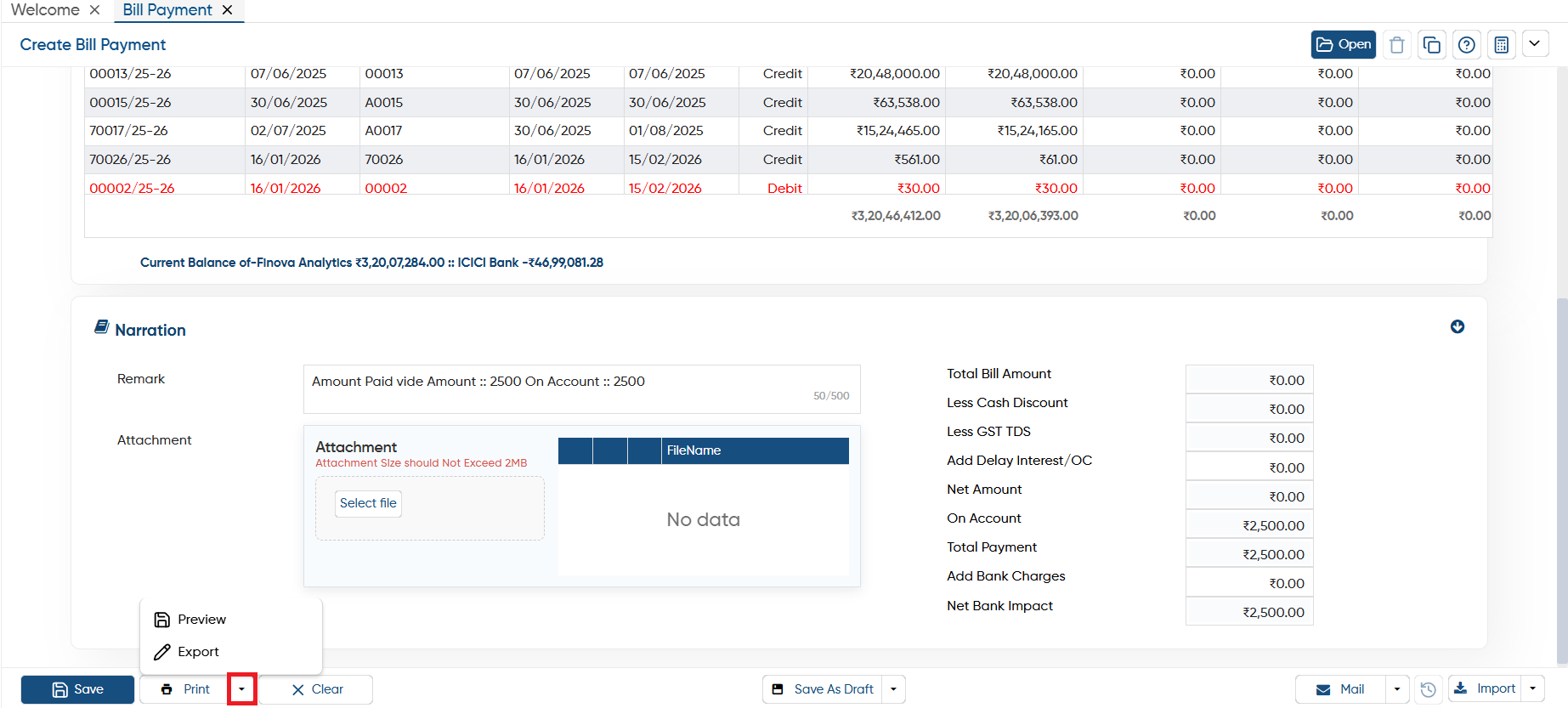
Preview: This option allows you to view a print preview of the Bill Payment before finalizing it.
-
Export: If you want to download the Payment Voucher as a PDF, click on the 'Export' button, select your preferred format, and the PDF of payment voucher will be downloaded.
-
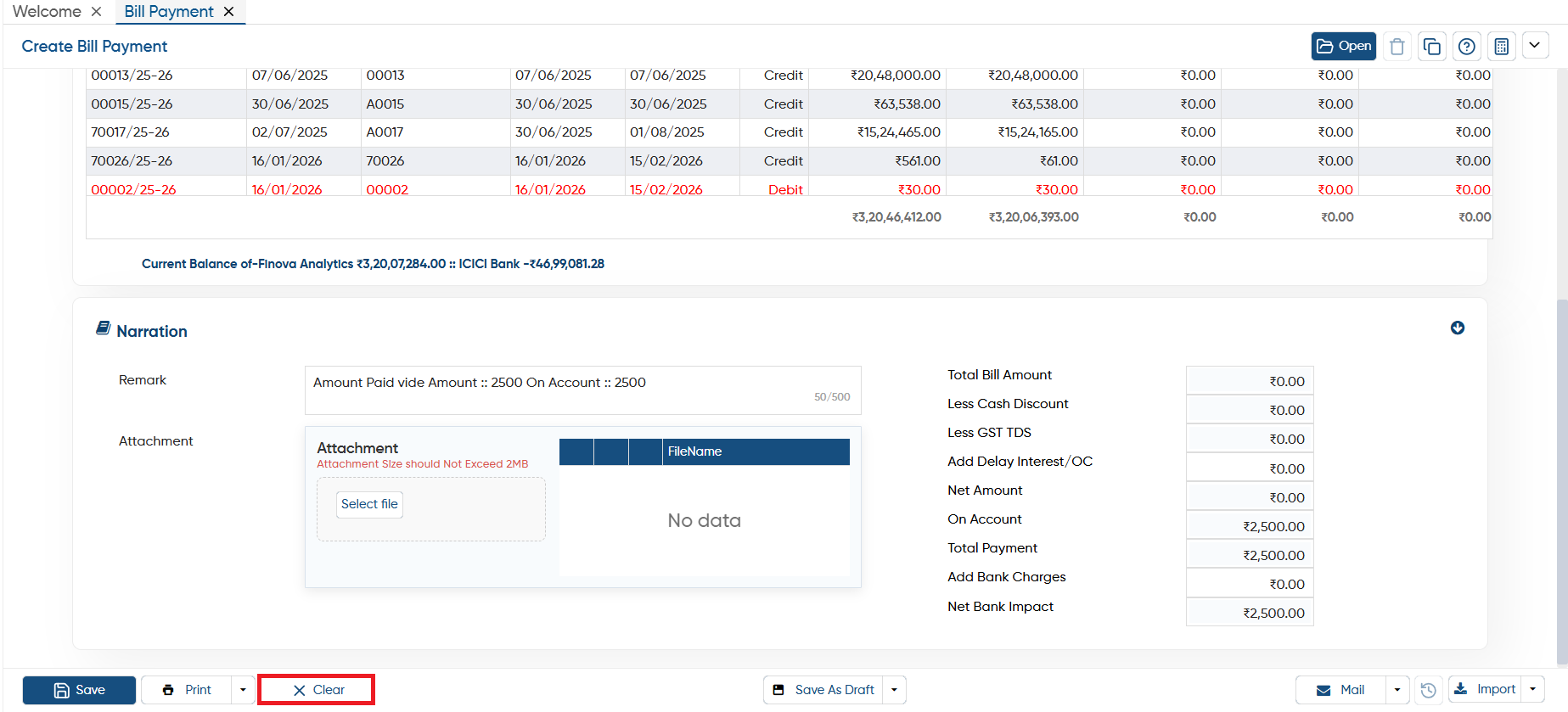
If the data on the current screen is no longer needed or you want to start fresh with a new payment receipt, click the 'Clear' button. This will remove all the data from the current voucher, giving you a clean slate to enter new details.
-
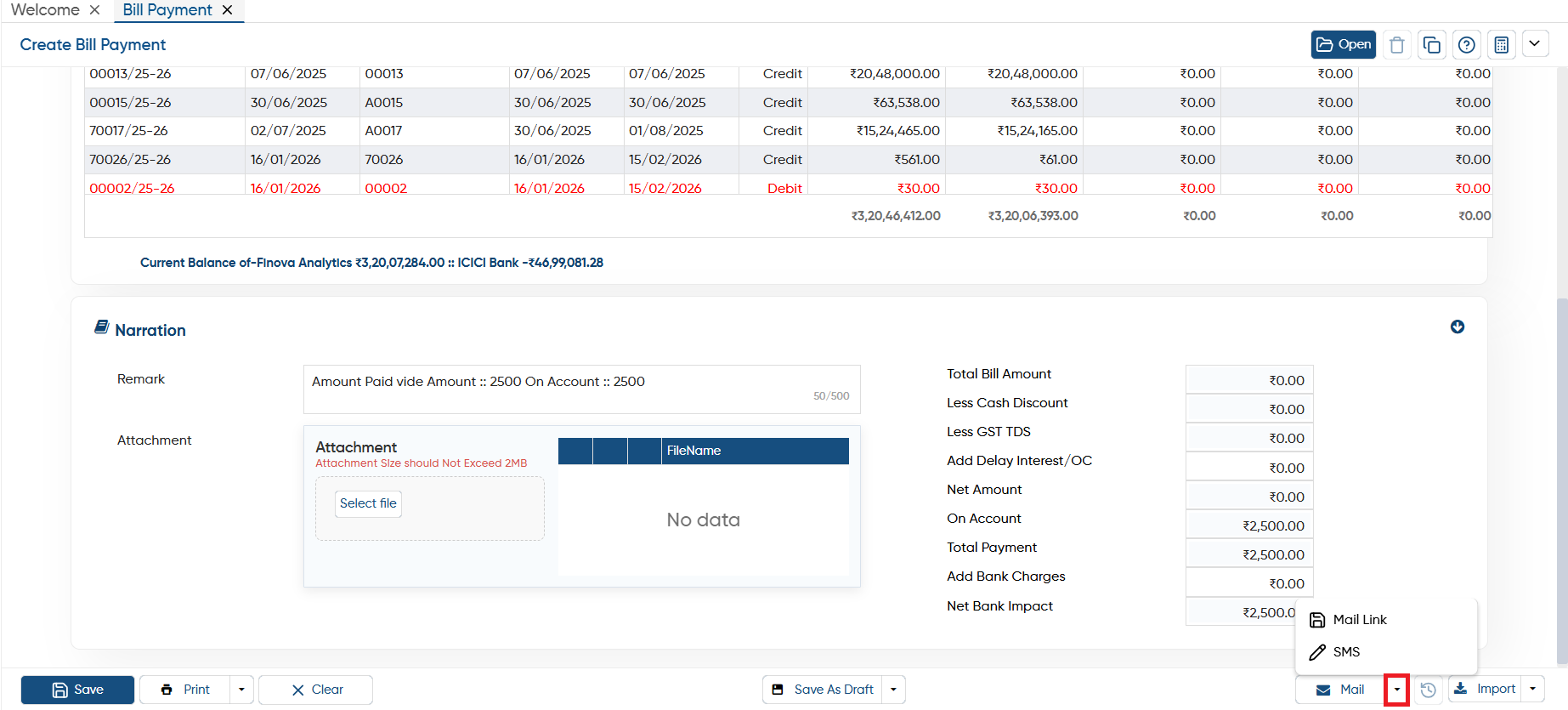
Mail Link: AlignBooks allows you to easily share the document link along with an attachment directly to the vendor’s email address.
-
SMS: You can also send the document link and attachment via SMS to the vendor, based on your preference.
For sharing invoice/ voucher link and Attachment via Email and SMS you need to integrate Email and SMS setup in AlignBooks.
|
In this way you can Create and Manage a Bill Payment in AlignBooks.