
GENERAL SETUP
In General Setup, you need to configure key details such as the currency, locations, indirect taxation status, and the accounting period. These settings are essential for ensuring accurate financial management and compliance with relevant regulations.
It's divided in 3 parts:
-
Basic
-
Email Configuration
-
AlignBook CVESS Mobile App
-
To mention all these details click on 'Configuration' Icon and s elect 'Company Setup' option.

-
lick on 'General Setup'.

Basic:
-
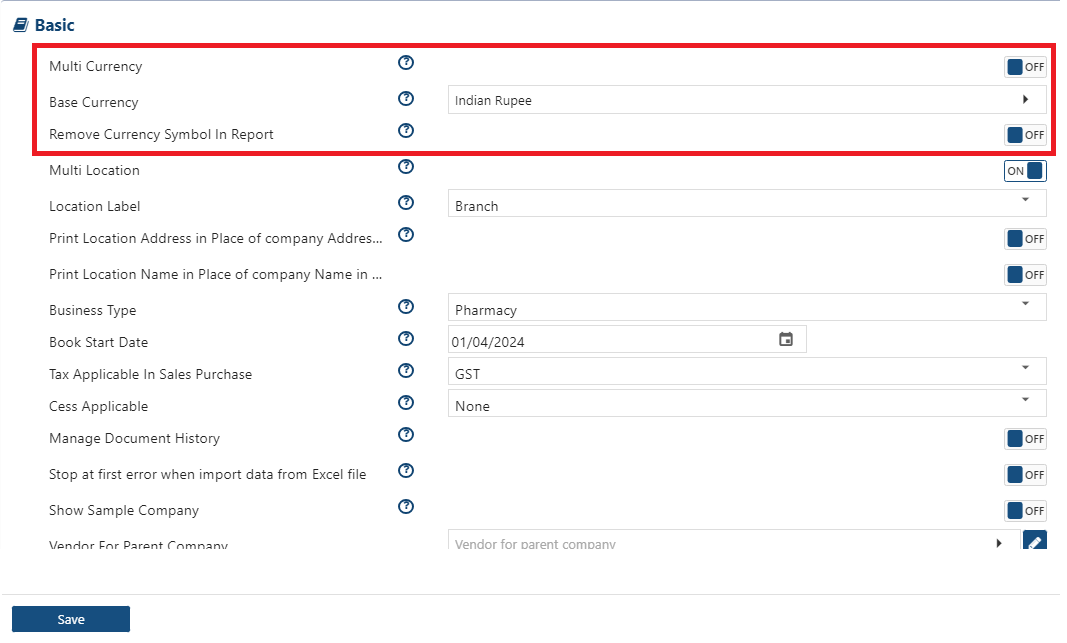
Multi Currency: Turn 'ON' this option, if you are an Importer or Exporter. It gives you the flexibility to record transactions in multiple currencies, and automatically calculates any currency fluctuation gains or losses.
-
Base Currency: Select the currency from the dropdown, either your country's local currency or the currency in which you prefer to maintain your financial records. This selection will determine the base currency for your accounting transactions and reporting. Make sure to pick the currency that aligns with your accounting practices and business needs.
-
Remove Currency Symbol in Report: Turn 'ON' this option, if you do not want to display the currency symbol in Currency type fields like Rate, Amount etc.
-
Sometimes, the company needs to move products from one branch to another. Since the GST number is different in each state, it's important for the user to keep track of these stock transfers and to comply with GST Rules and Regulations to avoid penalties and streamline the tax process.

-
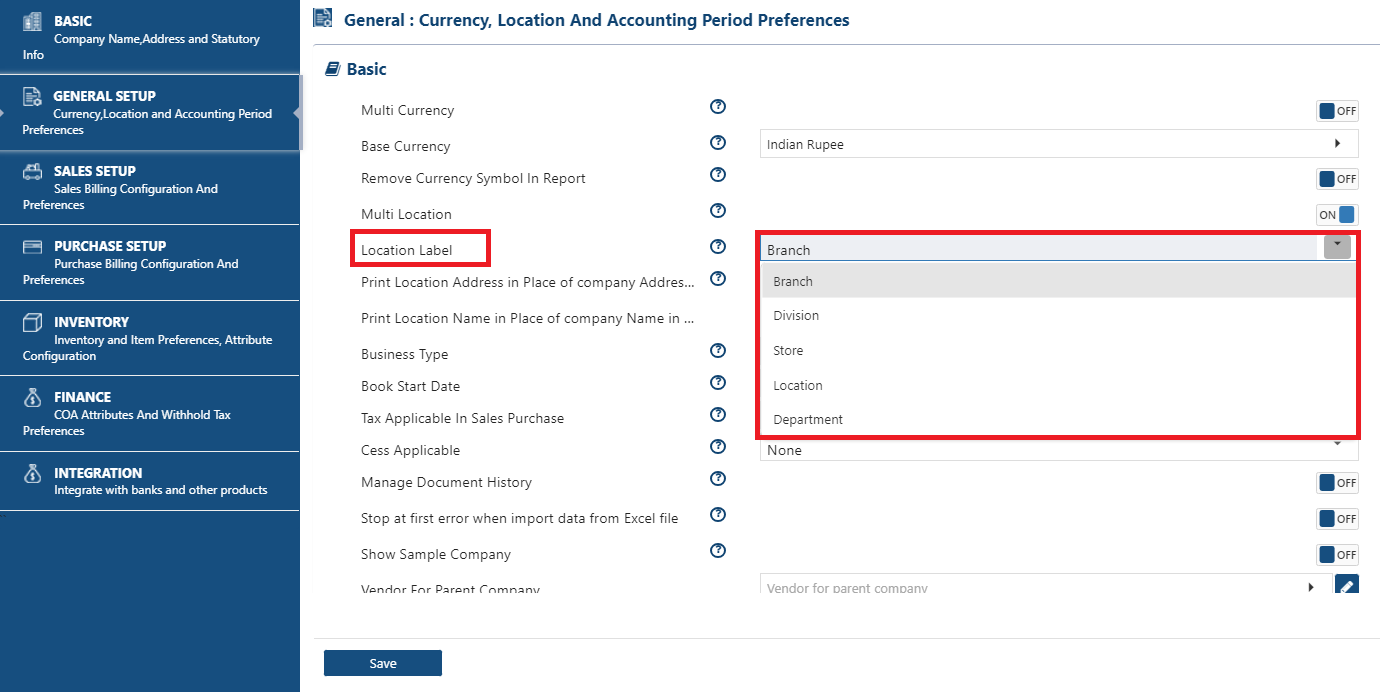
Location Label: Select the suitable label for Location/Branch as per the business requirements.
-
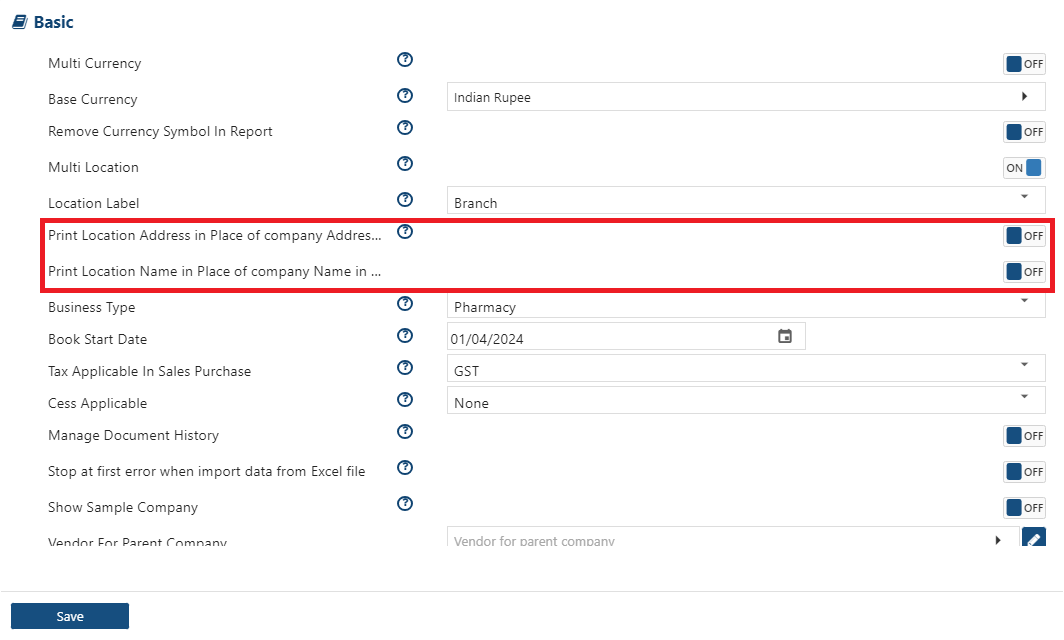
Print Location Address in Place of company Address in Reports: Turn 'ON' this option, if needs to display Location address instead of company address in reports.
-
Print Location Name in Place of company Name in Reports: Turn 'ON' this option, if needs to display Location name instead of company address in reports.
-
Business Type: Choose the type of business you are involved in. A Business Type refers to the classification of businesses or economic activities based on their primary operations or the goods and services they produce. AlignBooks offers 20 predefined business types. In case if your business model does not match with the given options you can select the 'None' option.

-
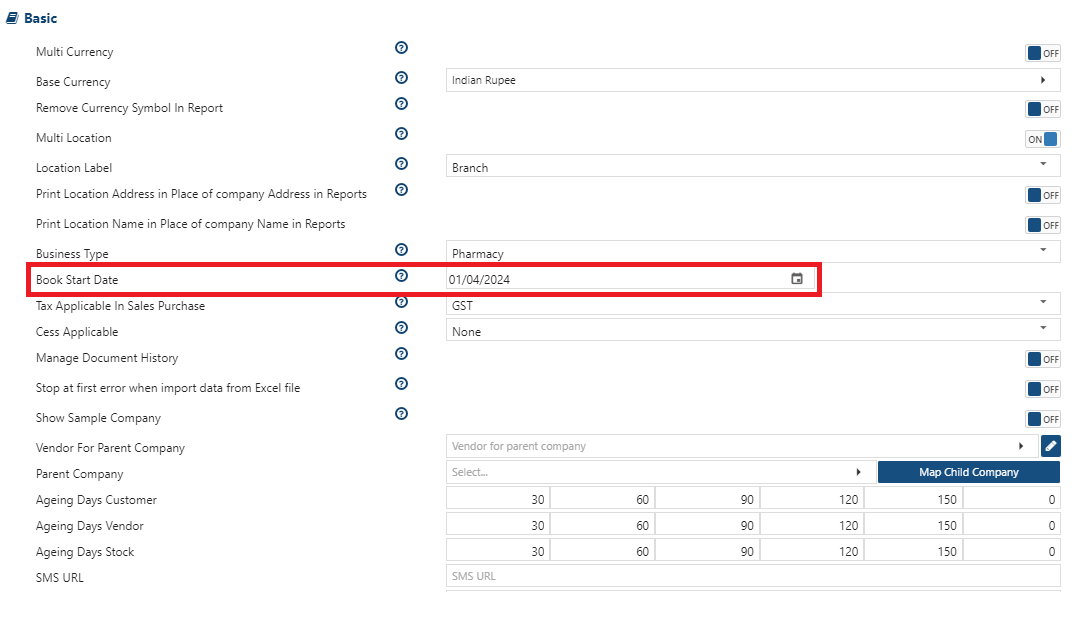
Book Start Date: Enter the date from which the company's books of accounting needs to be start. You can also pick the Date from Calendar icon.
-
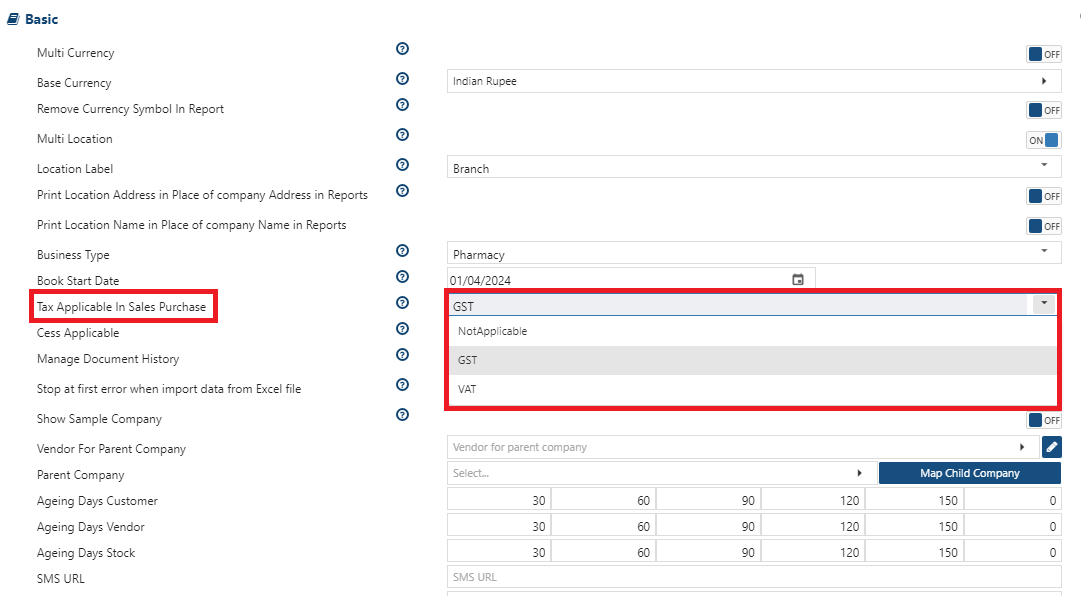
Tax Applicable in Sales Purchase: If you are registered in Indirect tax like GST/VAT then select the option as per the requirement.
-
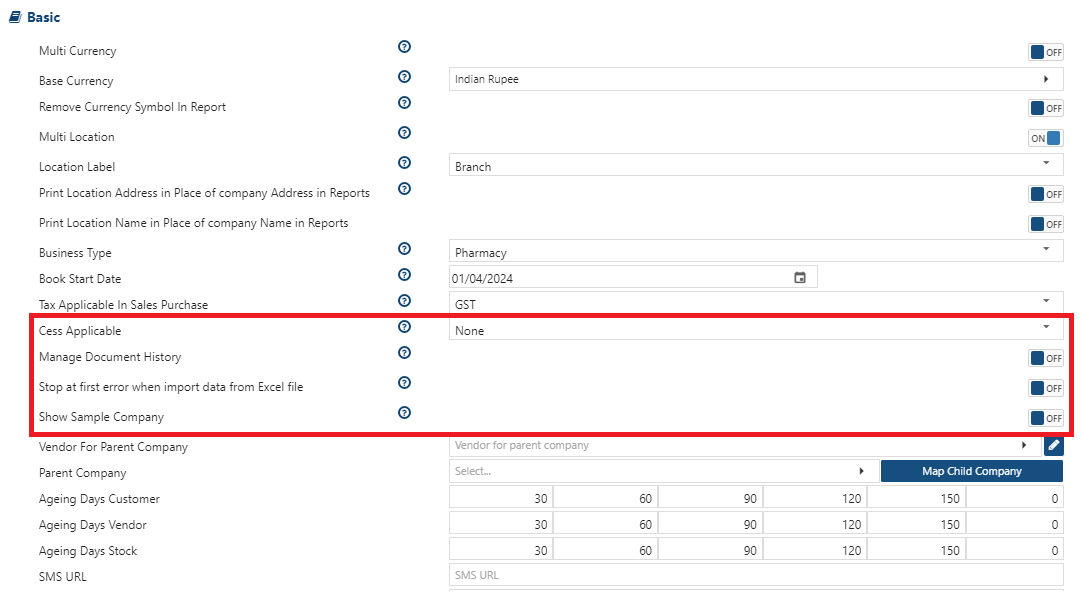
Cess: A cess is a form of tax levied by the government on tax with specific purposes till the time the government gets enough money for that purpose. Turn 'ON' this option, if needs to apply CESS.
-
Manage Document History: After creating a document, there may be occasions when you need to Edit or Update it. If you want to maintain the history of these changes in the data turn 'ON' this option.
-
Stop at first error when import data from Excel file: Turn 'ON' this option, to set software for giving an alert while importing Excel at the first moment when error found, before the error correction data will not import.
-
Show Sample Company: If you are new to Alignbooks then this option will help checking the Demo Company which is pre-loaded with Configuration and Sample entries relating to your business activities. Turn 'ON' this option, to explore the options until you got familiar with all features of Alignbooks.
-
-
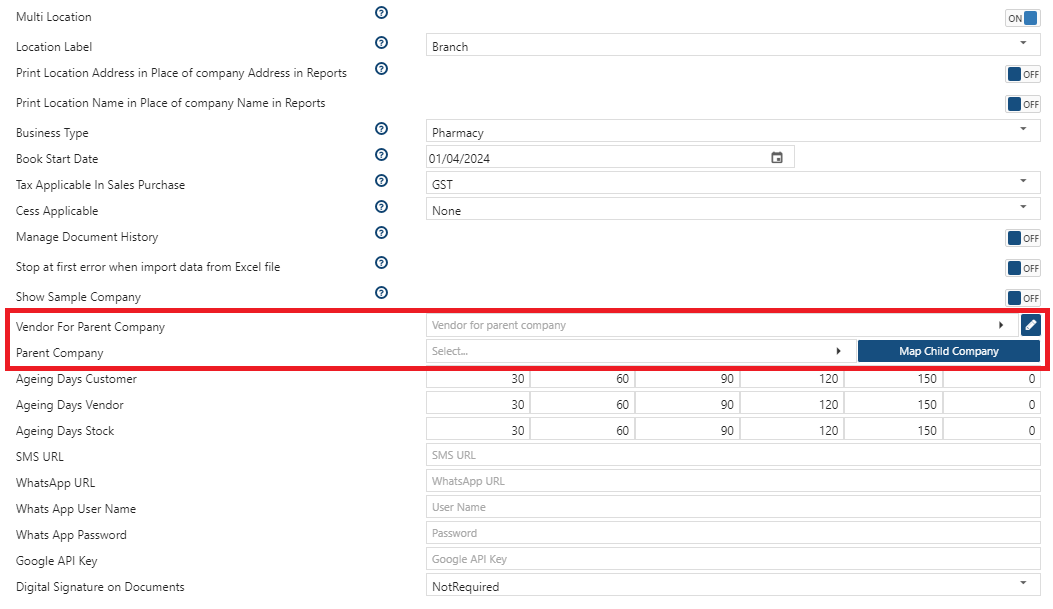
Vendor For Parent Company: Select the ledger, of the another company created in the software.
-
Parent Company: Select ledger again and Map the Child company ('Map Child Company' button, will only display in parent company).
-
If any user have Parent Company and have multiple Child/ Sister company, then the bill created by parent company can be directly book/ create in the Child/ Sister company without manual creation of the bill.
-
Both the Parent and Child/ Sister company needs to do configuration and Map Name here.
-
-
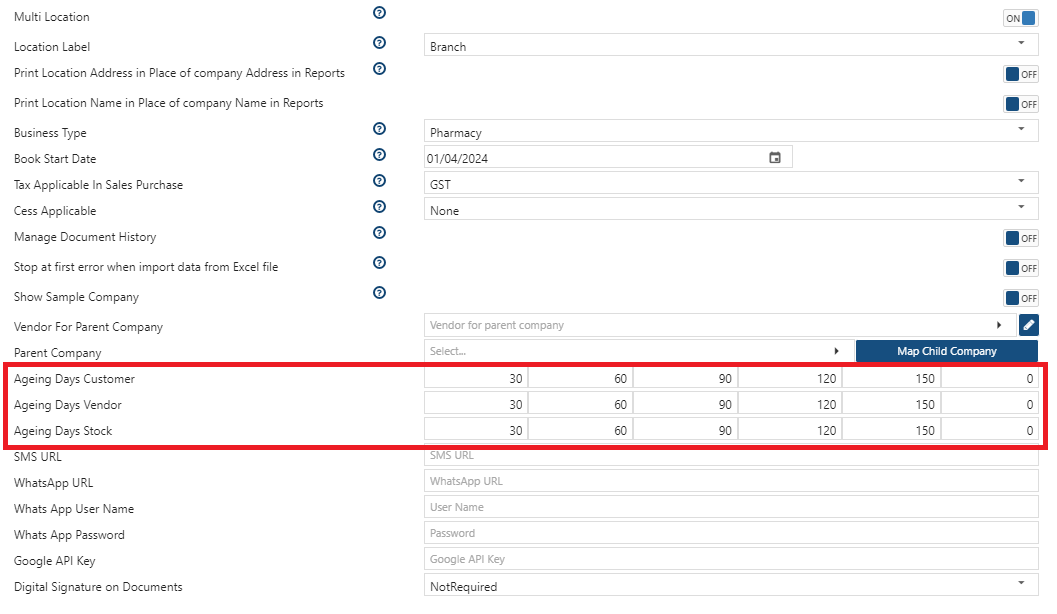
Ageing Days Customer: Define the number of days, based on which the ageing report for the Customer needs to be view.
-
Ageing Days Vendor: Define the number of days, based on which the ageing report for the Vendor needs to be view.
-
Ageing Days Stock: Define the number of days, based on which the ageing report for the Stock needs to be view.
Ageing days will be Ageing 1 (0-30), Ageing 2 (31-60), Ageing 3 (61-90), Ageing 4 (91-120), and Ageing 5 (121 and above).
|
-
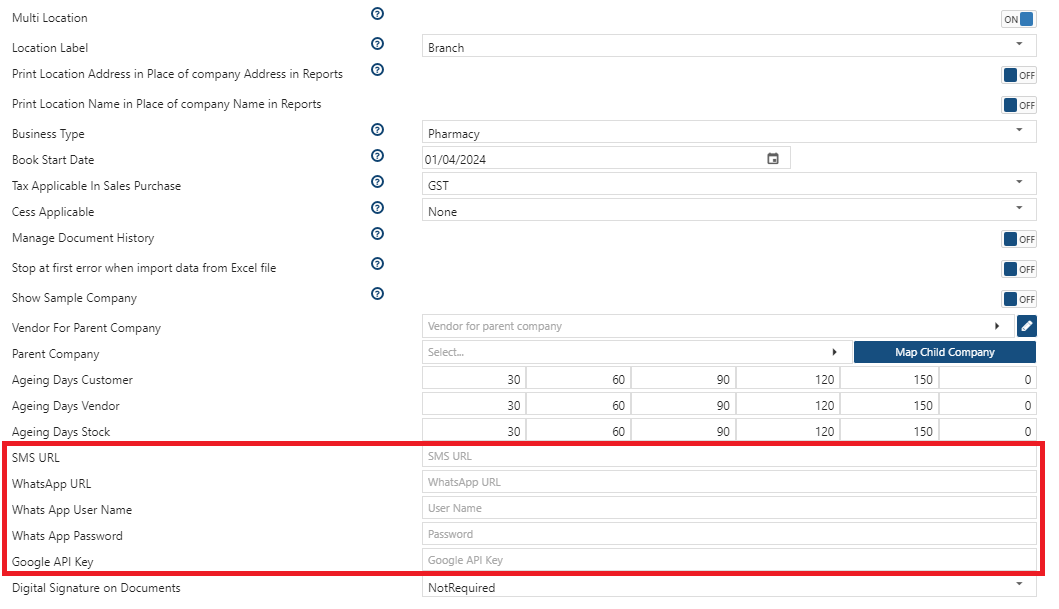
SMS URL: You can share documents, Voucher etc on SMS to your customer with your own number or through AlignBooks server.
-
Own Package: If you want to send SMS to your customer with your number then you have to specify the URL here, provided by your vendor.
-
AlignBooks Server: URL given by the AlignBooks is mentioned here.
-
WhatsApp URL: You can share documents, Voucher, Account statement etc directly on WhatsApp to your customers.
-
Self Purchase WhatsApp pack: Specify the URL of your own self purchased WhatsApp pack. With the help of this process all the WhatsApp will be sent through your number instead of using Alignbooks' WhatsApp.
-
Through AlignBooks Server: The WhatsApp will be sent via AlignBooks server. When you register for WhatsApp in AlignBooks, this URL will get auto pick by the software.
-
Whats App User Name: After the WhatsApp registration through AlignBooks, user name will get auto picked in this field.
-
Whats App Password: Similarly, the password will also get auto picked by the software.
-
Google API Key: To Track Salesman Location, mention the Google API.
-
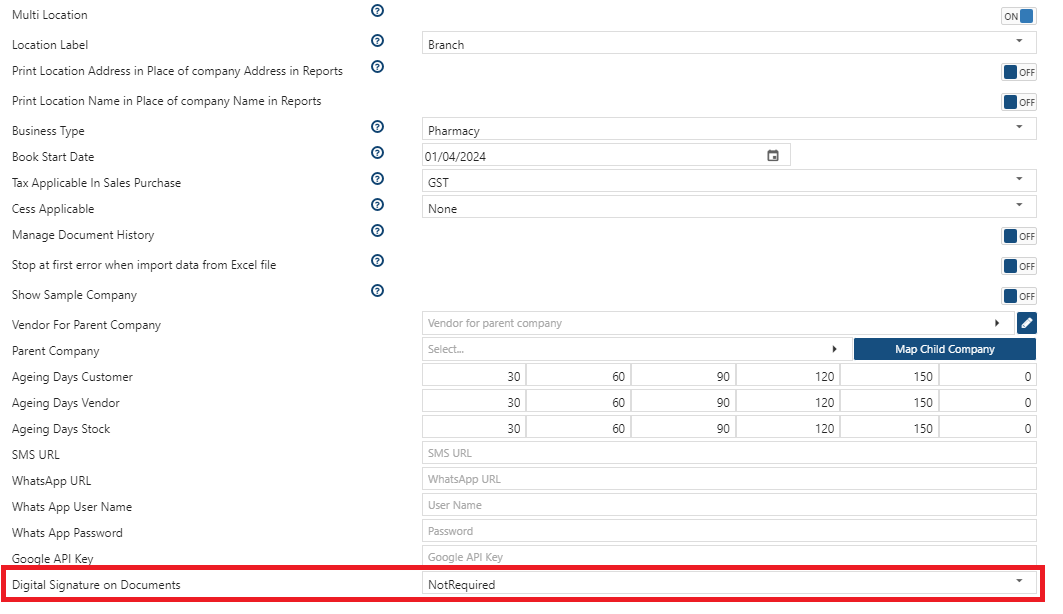
Digital Signature on Document: With the help of this option, you can enable the digital signature for the documents. AlignBooks provide you 2 ways to print the Digital Signature:
-
PFX Server based: Through PFX Server you don't need to connect dongle, you can print Digital Signature through a PFX file given by the Vendor.
-
Dongle Client Based: Through this you need to connect dongle to print the Digital Signature.
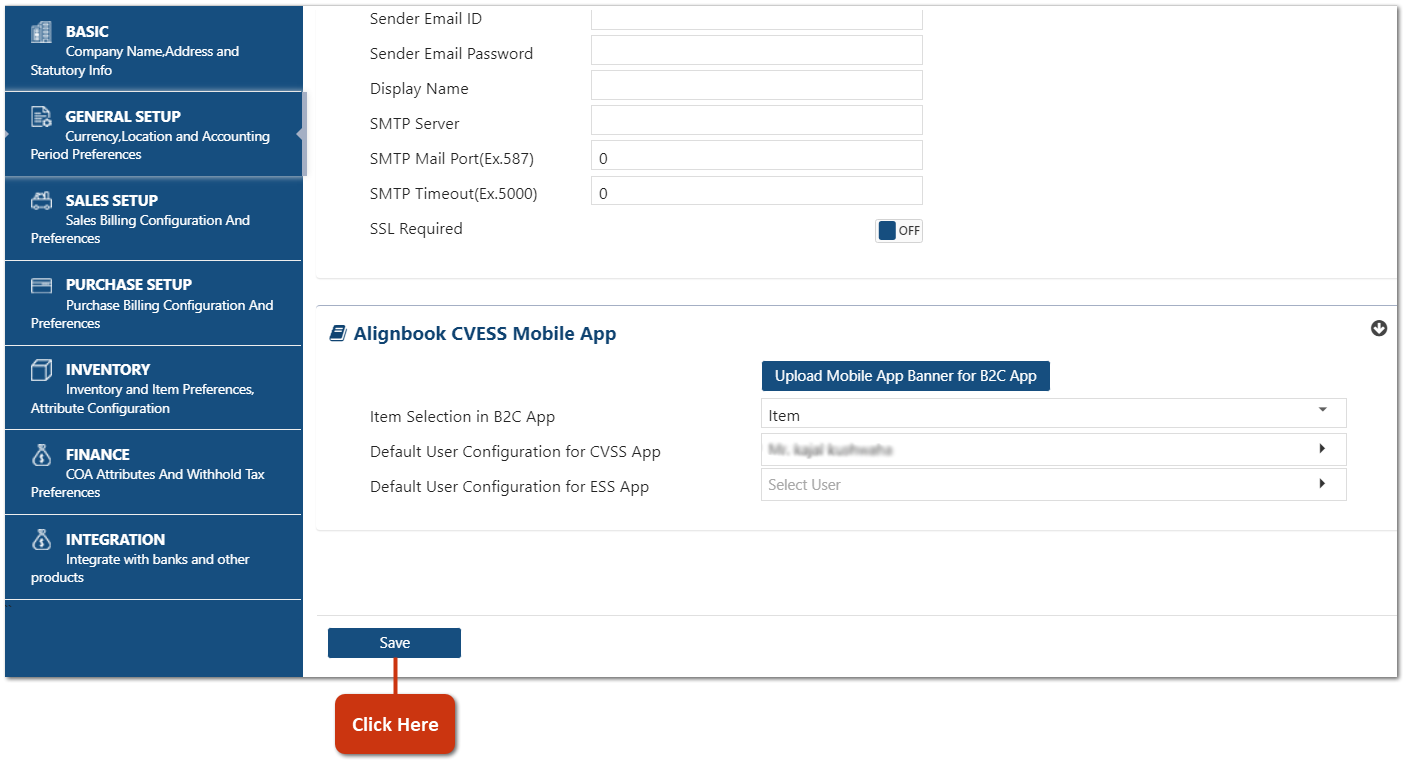
Email Configuration:
-
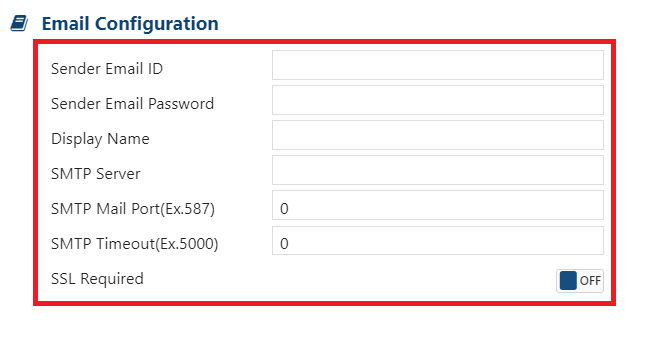
Sender Email ID: Mention the Email ID through which you want to send the email to your customers.
-
Sender Email Password: You need to generate the App password from your G-Mail account and mention here.
-
Display Name: Mention the name of the company that you want to display on the customer’s side when they receive the Mail.
-
SMTP Server: When you configure the gmail account, you need to mention the 'SMTP.GMAIL.COM'.
-
SMTP Mail Port(Ex.587): Mention the outgoing port of the email. For G-Mail, there are 3 ports '587/25/487' you can mention any of them.
-
SMTP Timeout(Ex.5000): Here, the time [In Seconds] needs to be mention to retry for sending an email if client email didn't respond. Usually '10000' is mentioned.
-
SSL Required: Turn it 'ON' to configure your Gmail Account.
AlignBooks CVESS Mobile App:
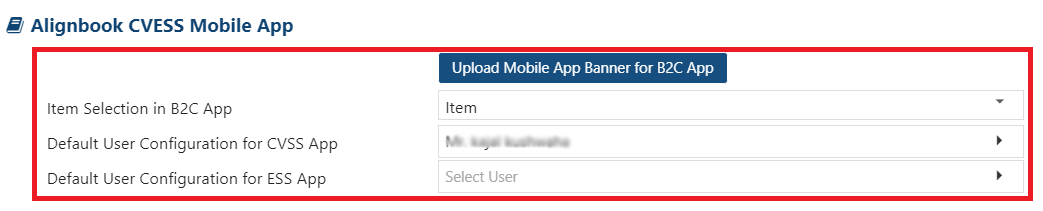
Upload Mobile App Banner for B2C App - Click on this button to upload Mobile App Banner for B2C.
-
Item Selection in B2C App: Select the option 'Item, Group-Item' etc, basis on which items needs to be select in B2C App.
-
Default User Configuration for CVSS App: Select the user to set as default for CVSS (Customer Vendor Self Service).
-
Default User Configuration for ESS App: Select the user to set as default for ESS (Employee Self Service).
The CVSS (Customer & Vendor Self Service) portal makes it easy for vendors and customers to manage their business with you online. Customers can place orders, check delivery status, view invoices, and track their account balance. Vendors can submit invoices, track payments, and respond to quotation or proposal requests, all in one convenient, self-service platform.
|
The AlignBooks ESS App simplifies everyday HR tasks by letting employees mark attendance, apply for leave, access payslips, and submit expense claims, all from their phones. It reduces manual work, ensures real-time tracking, and improves transparency. A smarter, faster way to manage your workforce!
|
-
Click on 'Save' button.
This process completes the General Setup of the Company in AlignBooks.